Repository navigation
Your Inventory
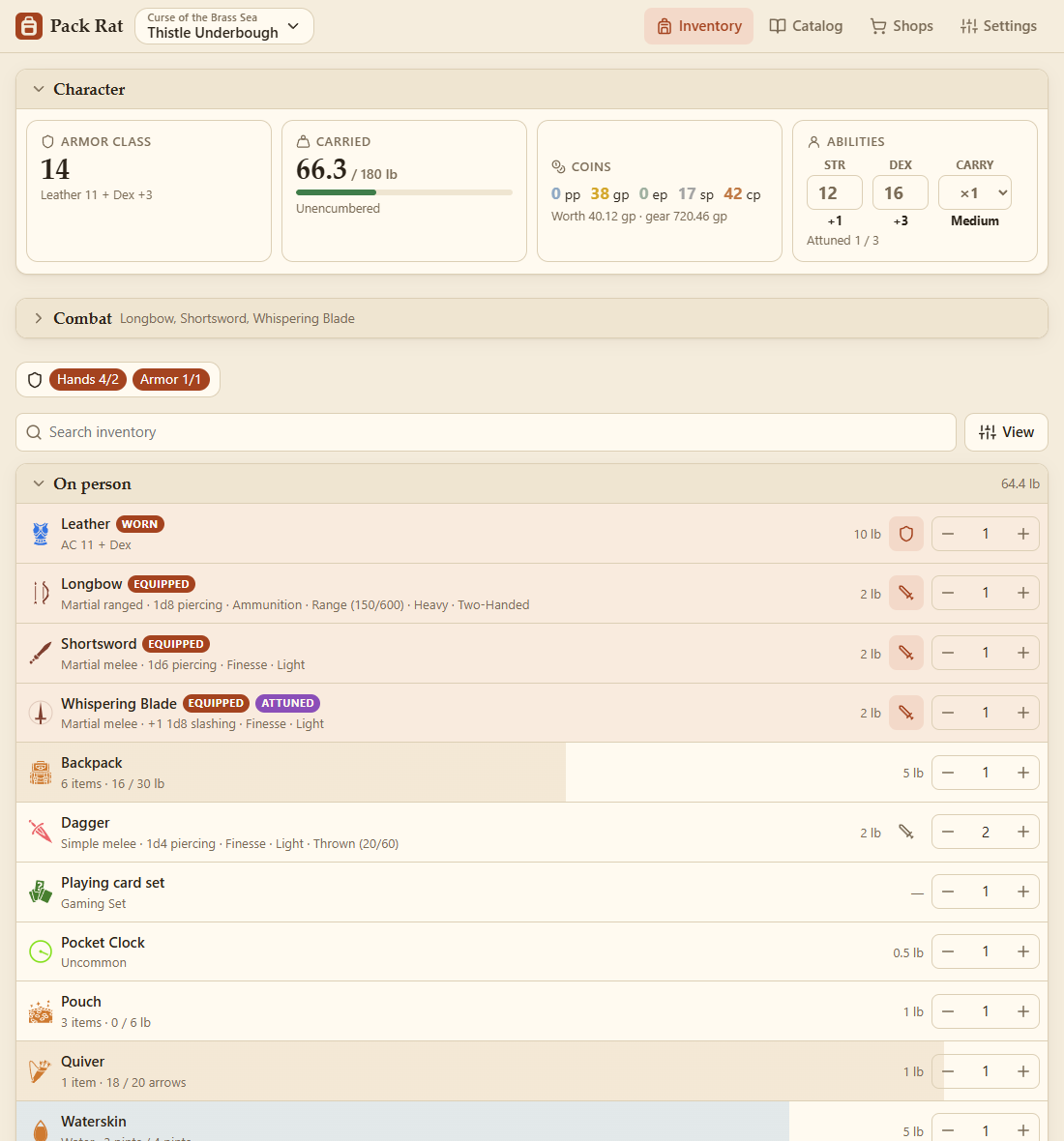
The Inventory tab is your character: the panels of the campaign's game system (D&D 5e: the character panel and the Combat panel), and everything carried.
- From the catalog: open the Catalog tab, tap an item, choose how many and where it goes (Put in), then Add, or Buy to pay for it from your purse. The + at the end of a row adds one straight away.
- From a shop or a trade in a party: see Shops and Trading.
- Your own items: see Catalog and Custom Items.
The panels above the inventory come with the campaign's game system (see Files). D&D 5e's character panel shows Armor Class (with how it's worked out), weight carried against your capacity, your coins, STR and DEX, and how many items you're attuned to out of your limit.
With no game system, a small Coins & load bar shows your coin purse and the weight you carry instead.
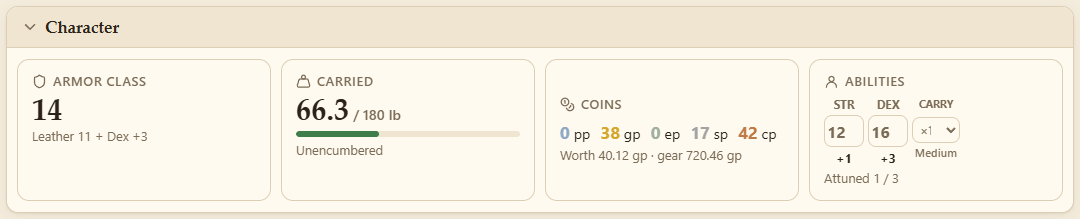
Tap the arrow to collapse it. Closed, it still shows your coins (tap them to open the coin purse) and the weight you carry.

Capacity is STR × 15 lb, times Carry (beside STR and DEX): ×½ for Tiny creatures, ×1 for Small or Medium, ×2 for Large creatures or Powerful Build, ×4 Huge, ×8 Gargantuan. It's per character, and hidden when the campaign's encumbrance is off. The bar changes colour as you get encumbered, and a warning shows under it.
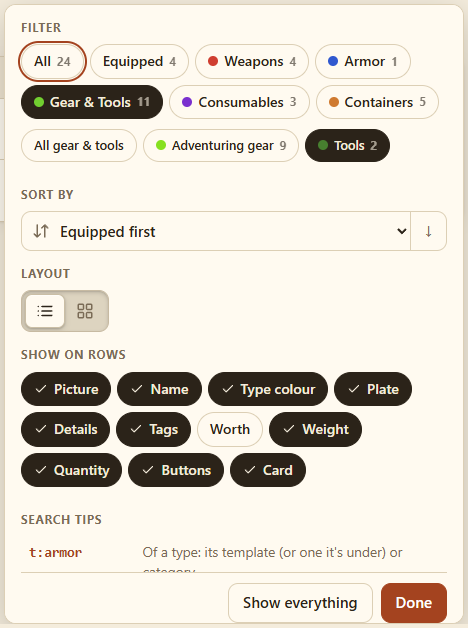
Every list has a search box and a View button. View opens a panel over the list: Filter, Sort by, Layout (list or tiles), Show on rows or Show on tiles, and Search tips. The button has a dot while a filter is on, and the filter in use shows as a chip under the search (its ✕ takes it off).
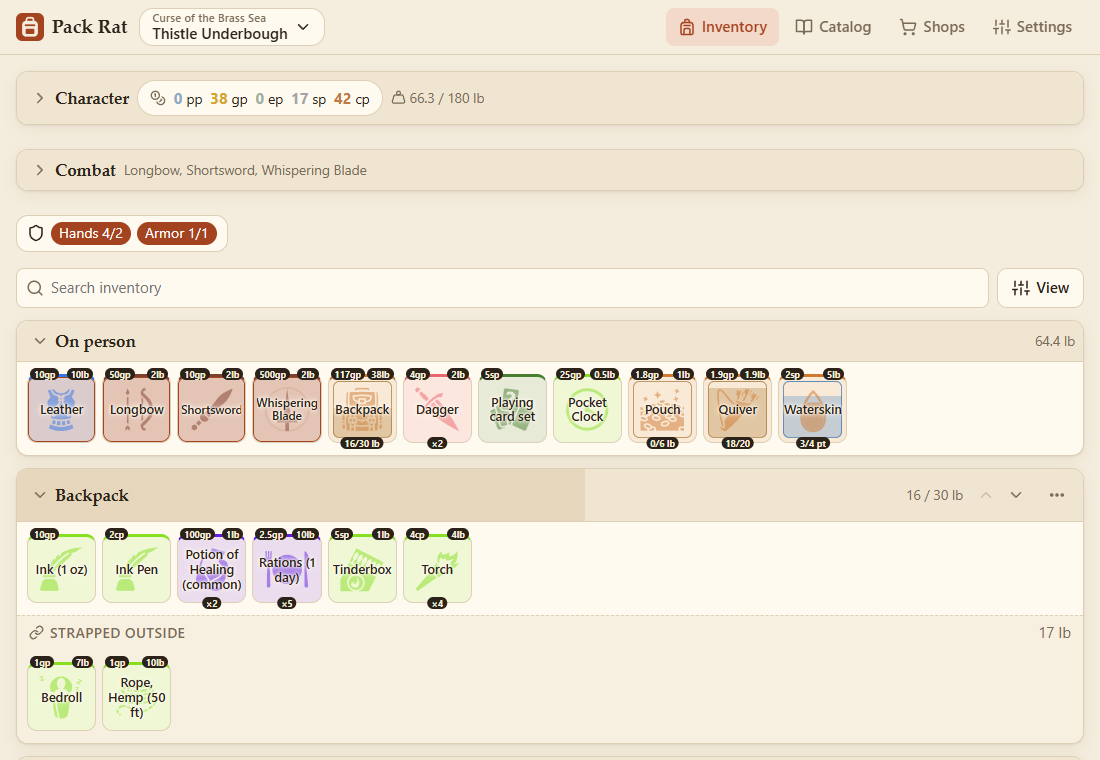

On tiles, the small labels show an item's worth (top left) and weight (top right), and along the bottom how many are in a stack or how full a container is.
Show on rows / Show on tiles turns each part on or off: Picture, Name, Type colour (icons and tiles in their type's colour, else grey), Plate or Outline (behind drawings in their own colours: see Settings and Backups), Details ("Simple melee · 1d6 piercing", a container's load, notes), Tags (equipped, attuned and other states, charges, where it is), Worth, Weight, Quantity (the − / + on rows; the count or fullness on tiles), Buttons (equip, write in…: rows only; on tiles they're in the item menu) and Card (the border, background and fill: off, a tile is just its picture and words). Rows and tiles keep their own choices, and each list remembers its own; Back to how they were resets them.
- Search by name, category, notes, or your own name for an item.
- Sort by equipped first, name, type, heaviest, most valuable, quantity or recently added; the arrow reverses it.
- Filter with the chips: Equipped, or a template like Weapons or Gear & Tools. Picking one shows a row to narrow it down (e.g. just Tools), and picking that its categories (e.g. Artisan's Tools).
The search understands a few keys, each a letter and a colon:
| Key | Finds | Examples |
|---|---|---|
t: |
a type: its template (or one it's under) or category |
t:armor, t:"gear & tools"
|
c: |
things inside a container | c:backpack |
s: |
a state |
s:equipped, s:attuned, s:custom, s:container (holds things) |
The whole words work too (type:, container:, state:). Put a phrase in quotes, and start with - to leave something out (-t:weapons). Search tips in the View menu list them; tap one to add it.
Suggestions drop down as you type: the keys (in an empty search), a key's values once it's typed (t: lists the types in that list, with how many), or keys and values a word is part of (arm → t:armor). Use the arrows and Enter (or Tab), or tap one; Escape closes them.

While searching or filtering, everything matching is shown in one list, each tagged with where it is ("in Backpack").
Every list of items works this way, with the same search, sort, list or tiles and filters: the inventory, the catalog, My items, a shop's Add items, trades, the GM's hoards and their view of each player. Each list remembers its own search, filters and sort.
Press and hold an item's tile or row (a moment is enough) and a ring of what you can do with it opens around it. Slide to an option and let go to choose it; the middle names the one under your finger.
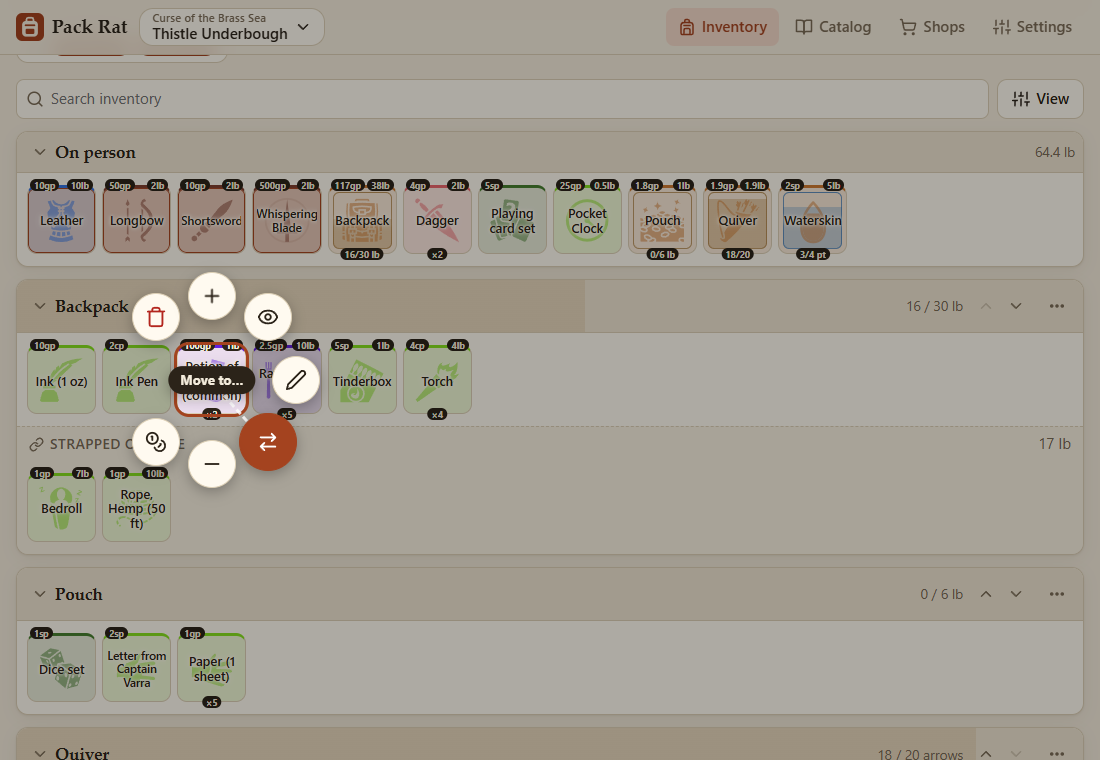
- Let go in the middle, or outside, to cancel. (A tap still opens the details.)
- + is always straight above and − straight below, for things that stack (or when you have more than one).
- Around the sides: Details, Use (for an interactive drawing), Write or Read, Equip or Unequip, your states (Attuned: turn on / off), a container's own actions ("Shake one out"), Edit (in Edit mode), Move to…, Sell, Trade and Show… (in a party) and Remove (in a party, Discard: see Trading). Only what applies shows. At the edge of the screen they move to the side away from it, always a button's width apart; near the top or bottom, the ring moves to keep + and − on screen.
- Move to… lists where it can go: on person, or into a container or one of its compartments (Backpack: Strapped outside).
- Remove asks first (Undo still works after). A container's contents stay where it was.
- With a mouse, right-click opens it to click (the middle closes it); the keyboard's menu key works too (arrows go round it, Escape closes it).
Other lists have the menu too, with their own options: Add to inventory in the catalog, for instance.
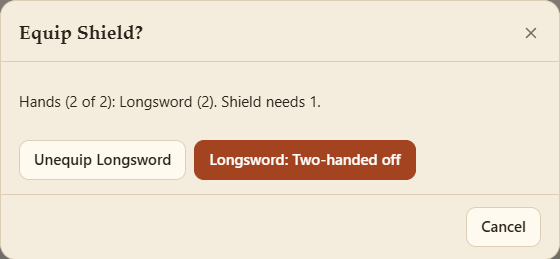
A game system can have slots: where equipped things go. D&D 5e has two Hands and Armor: a weapon takes a hand, a two-handed one both (and a versatile one, while it's Two-handed), a shield a hand, armor the armor slot. A line above your inventory shows them (Hands 2/2 · Armor 1/1); tap it for what's in each, to unequip.
Equipping into a full slot asks what to take out: Unequip what's there, or switch off what makes it take more room (Longsword: Two-handed off, to take a shield). An item's details say where it Equips in.
Tap an item to open its details. Its icon (or picture) shows large and faint behind them, like a watermark. On a wide screen they open in a panel on the right instead, beside the list: tap another item to see its details there, ⤢ to open them as a window, ✕ (or Escape) to close the panel (see Wide screens in Settings and Backups).

The switch beside the close button hides the details and shows the icon at full strength. It's handy for live icons, which keep updating while the details are open: a waterskin's level, a clock, a GM's curse.

If its drawing is interactive, the picture can be used there: tap, drag or flip it (an abacus to count on, an hourglass, a lantern to light). Use in its item menu opens it straight there. See Making it interactive.
- Display name: your own name for this copy (e.g. Dawnbringer for a longsword). It's shown everywhere instead of the item's name, including to other players.
- Location: move it into or out of a container (see Containers).
- Quantity. Setting it to 0 removes the item.
- Equipped / worn, for items that can be.
- The item's states you can switch, such as Attuned in D&D 5e, with your count against your limit (3 to begin with; the GM can change it). Going over warns you. A state can be locked while another is on (a curse that won't let go); then only the GM can change it. See Item States and Rules.
- Charges, for items with them.
- Notes: engravings, who gave it to you…
- History: where it came from ("From Bramble, in a trade", "From Ogre's chest (treasure)", "Discarded by Pip").
- Change icon: pick a different icon or a drawing (saved as a custom item in the catalog, like Edit).
- A container's details list what's in it (see Containers).
Along the bottom: Remove (it asks first), Sell (at a price you choose), Edit (saved in the catalog as a custom item: see Catalog and Custom Items), Save as custom (make it a reusable custom item) and, in a party, Trade.
Identical items stack: 5 rations are one row with a quantity of 5. Use + and − on the row, or type the number.
In Play mode (see Settings and Backups) only things that count in play go up and down: ammunition, potions and supplies, poisons (D&D 5e), provisions and lights (Slot Delve). Any stacking item can be made to count (Edit → Stacks → Counts up and down in Play mode).
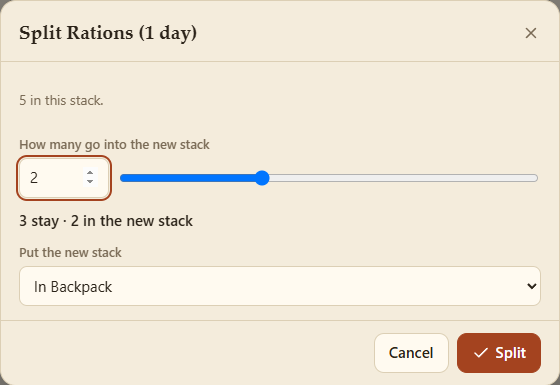
Split stack (in the details) divides a stack in two. Choose how many go into the new stack with the slider, and where it goes.
Combine joins identical stacks in the same place back together. Stacks with different display names stay separate.