Repository navigation
Getting Started
Windows: download PackRat.exe, put it anywhere (your Desktop is fine) and double-click it. It opens in its own window using the Edge that comes with Windows. Closing the window closes Pack Rat.
Windows may warn you the first time, because the app isn't code-signed. Choose More info → Run anyway.
Android: download PackRat.apk on the phone and open it. Android asks you to allow installing apps from wherever you opened it (Files or Chrome): allow it. Google Play Protect may warn that it isn't from the Play Store.
Browser: open the web app. It works offline after the first visit, and your browser may offer to install it to your home screen. Its data stays in that browser only, so export a backup now and then.
To update the Windows or Android app, download the new version the same way. Your characters are kept.
Pack Rat starts with a campaign called My campaign and a character called Adventurer. Tap the name at the top to switch characters (or campaigns), or go to Settings → Campaigns to rename it or make more (on the campaign's card).
The Adventurer starts with a few things to try, each saying what it does in its details:
- a Backpack whose picture fills up as it's loaded, holding Rations and Arrows whose pictures show how many you have: use a ration and watch;
- a Compass that points from the party to the goal on the GM's map, and a Totem that wiggles and glows when the party is near it (take the GM role in Settings → This device, then drag the party's tent on GM → Controls → Map; the goal's chest is on a layer that starts locked: expand the map and press Layers to unlock it);
- a Pocket watch keeping the real time;
- a deck of Playing cards to draw from.
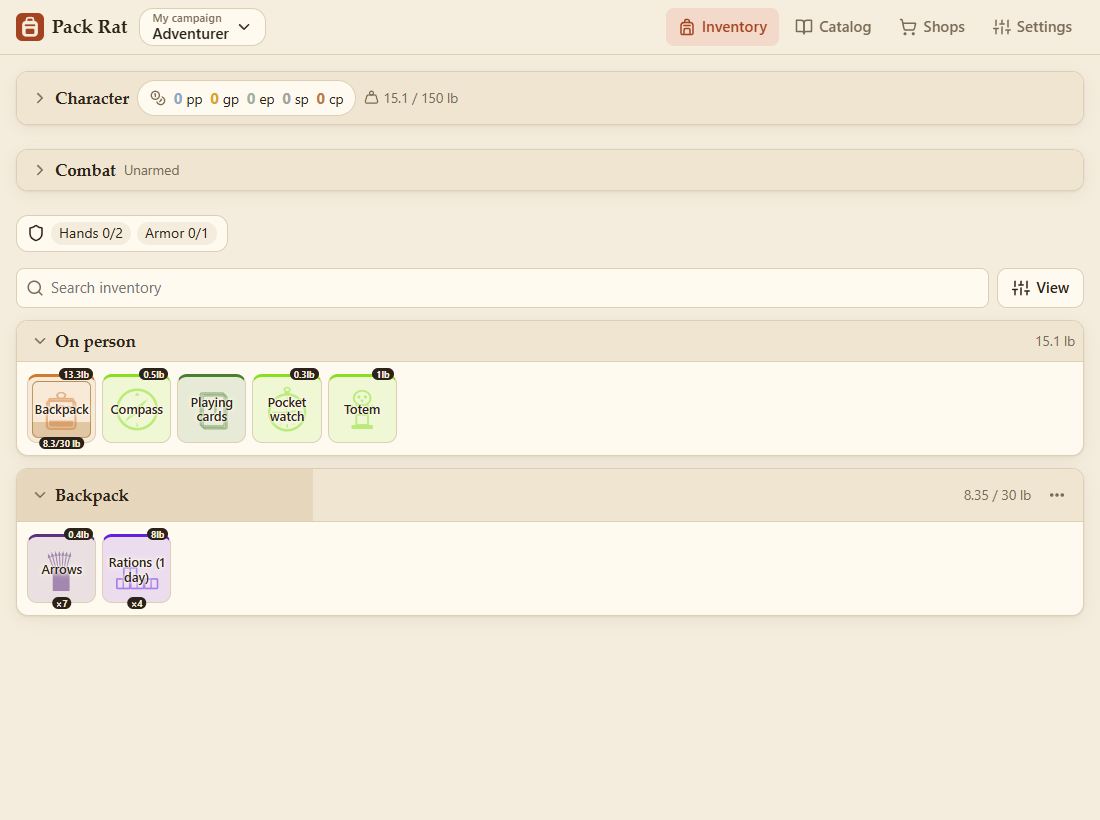
Keep them, change them, or remove them. They're the same kind of drawn icons you can make yourself. (A game system can leave them out.)
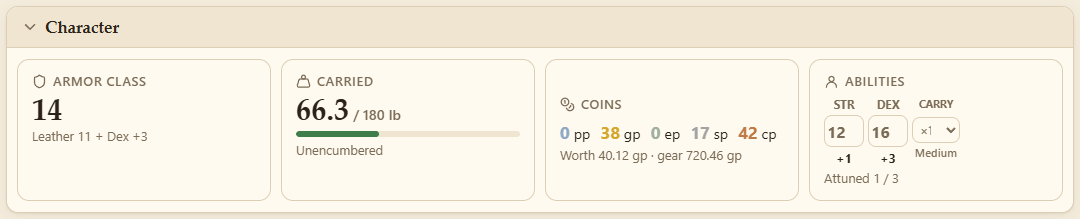
- Set STR and DEX in the character panel (D&D 5e). They drive your carrying capacity, Armor Class and attacks. Another game system's panels have their own.
- Open the Catalog tab and add your starting gear. An equipment pack (e.g. Explorer's Pack) can be unpacked straight into a backpack: see Containers.
- Add your coins by tapping them in the character panel (see Coins).
- Equip your armor and weapons with the shield or sword button on their rows. Your AC and the Combat panel update.
| Tab | What's there |
|---|---|
| Inventory | Your character: stats, attacks and everything carried. See Your Inventory. |
| Catalog | Every item you can add, from the SRD 5.1, plus your own: Items, My items, Drawings and Templates. See Catalog and Custom Items. |
| Shops | Shops to buy from and sell to. See Shops. |
| GM | Only for GMs: controls and values, the players at a glance, treasure. See Running the Game. |
| Party | Only in a party: the other players, trades, and for the host the devices. See Party Play. |
| Settings | This device (mode, role, animations, the party, this guide), Campaigns (each one's characters and rules) and Files (everything you've made, and backups). See Settings and Backups, Campaigns and Files. |
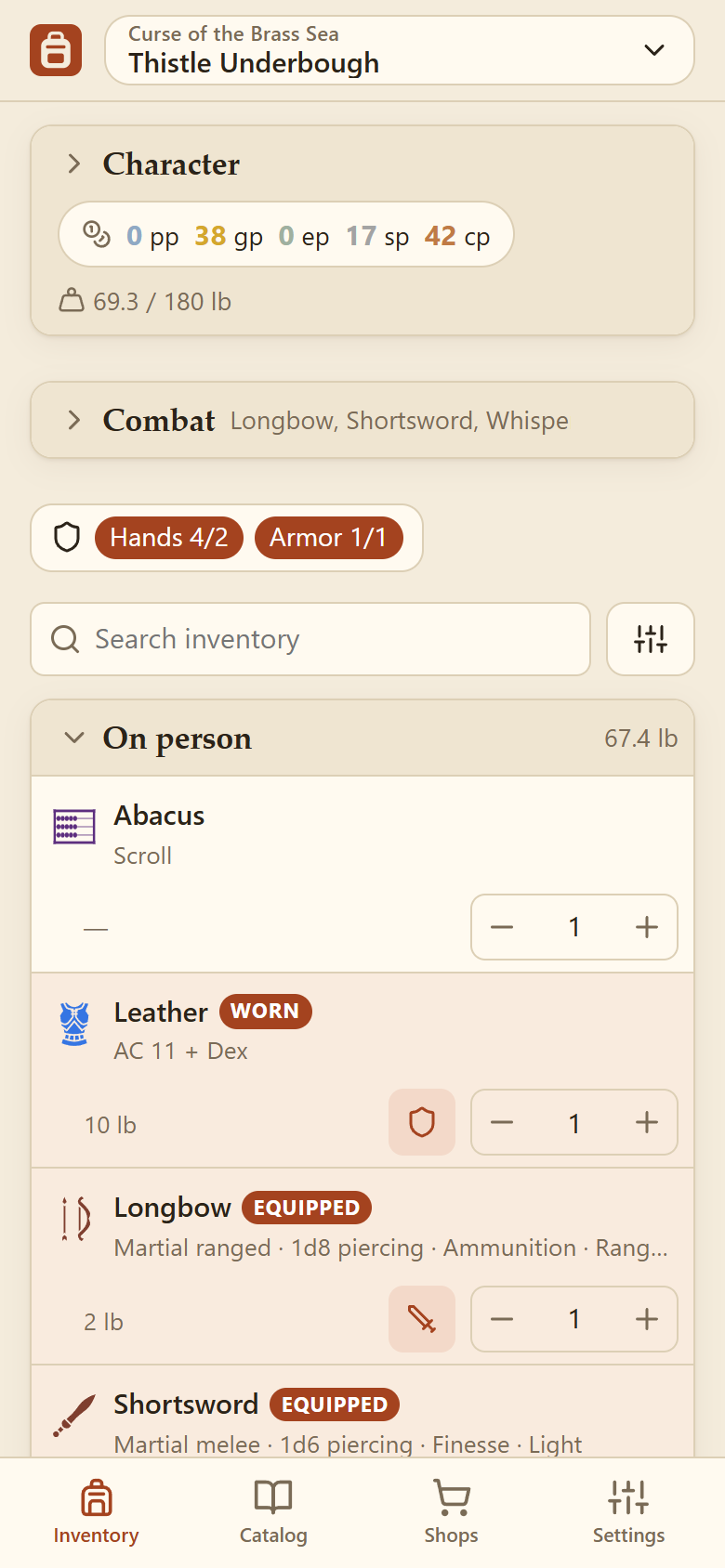
On a phone the tabs are along the bottom.
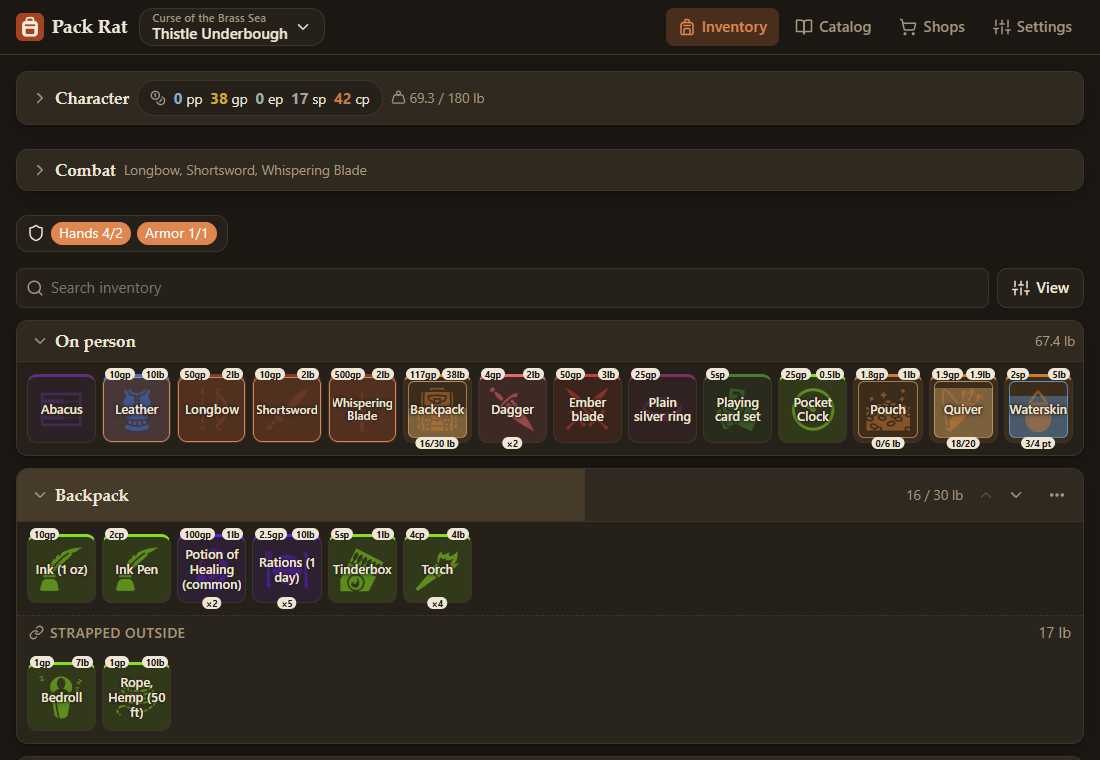
Pack Rat follows your device's light or dark mode.
Removing, moving, selling and most other changes show a message at the bottom of the screen with an Undo button for a few seconds.