Repository navigation
GM Controls
The GM tab's Controls is where a GM runs the game's moving parts. It has three tabs of its own:
- Panels: your own grids of sliders, switches, buttons, dropdowns and maps for setting values in play.
- Values: every value, and what it's set to.
- Connections: what reacts to what: items' rules and layers, the values they read, and what changes them.
For a simpler game, switch it all off for the campaign: Settings → Campaigns → the campaign's Rules → Rules, values and controls.
A value is a number the GM sets, which other things follow: players' drawn icons, shops (when they open, their prices), and the panels' readouts.
- Global values are one number for the whole campaign, the same for everyone: the weather, a doom clock, the market being open.
- Local values belong to one character, or one item. An item uses its own if it has one, else its character's. Use them for a blade's curse, a lantern's fuel, or one player's luck.
A value's name is a word: letters, digits and _, starting with a letter (storm, ship_x, doom).
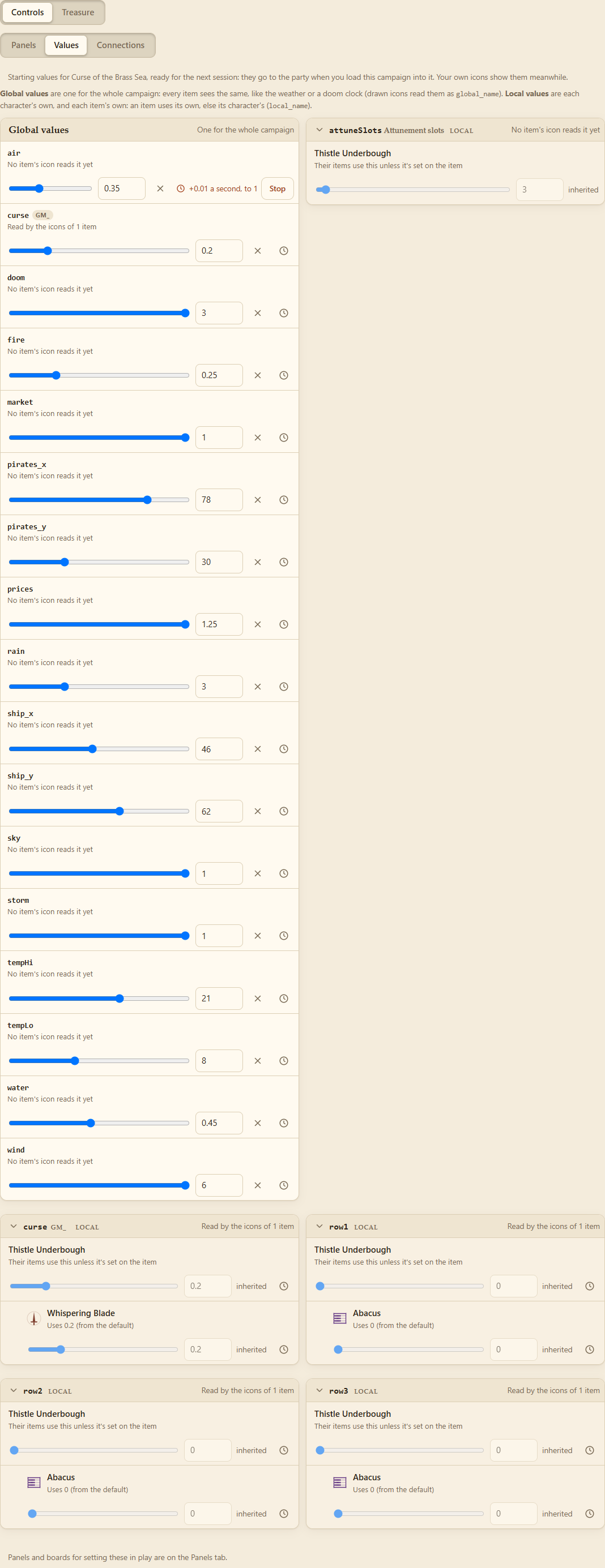
The Values tab lists every value Pack Rat knows of, from panels, drawings and shops:
- Global values, each with a slider and a number;
- Local values: for each, every character (their own value), then the items that use it (each item's own).
A level without its own value says inherited. The × clears a value, so the level above applies again. Values change for everyone straight away.
The clock button beside a value starts it changing by itself: so much a second (negative to go down), until it reaches where it stops (or never). A tide rising, a fuse burning down, a storm building.
- While it changes, its row says how (+0.5 a second, to 10), with Stop: it keeps the value it has reached.
- It's sent once. Every device works the value out from the time, so icons following it move smoothly for everyone, and it stops by itself.
- Shops that follow a value use it as it is now. (A shop opening as a value crosses its line shows for players at the next update of the party.)
- Rules can start an item's or character's Local value changing too (see Item States and Rules).
- State limits (attunement slots) don't change over time.
A panel is a grid you fill with controls, arranged as suits you. Each control sets a value. While you drag a slider's handles, a polygon's handle or a board's pin, your own icons follow it at once; players' follow a few times a second, and again when you let go.

New panel makes one: give it a name and a grid size (6 columns by 4 rows to start; the cells are always square). It opens in Arrange mode.

- + on an empty cell adds a control there.
- Drag a control to move it, or drag its corner to resize it. With a control selected, the arrow keys move it and Shift+arrows resize it.
- The pencil (over each control's corner) edits a control, or removes it.
- A control dropped onto another turns red and goes back.
- Done finishes arranging.
Every control has a label and a colour (its edge, a tint of its background, and its highlights). Its Kind is a dropdown, in three groups: Layout (Tabs), Display (Text, Picture) and Interactive (the rest). Each one that sets a value says which value, and for whom: Everyone (a Global value), a character (their Local value), one item, or whoever is chosen in a Players dropdown on the panel (see below).
| Control | What it does |
|---|---|
| Slider | Slide between two numbers, with a step. Taller than it's wide, it stands upright. Handles: One sets a value; Two sets a lower and an upper value on one track (a temperature range). |
| Switch | On or off: two numbers (1 and 0 unless you change them). |
| Button | Sets a value to an amount, or adds one (a negative takes away): "Doom +1". |
| Dropdown | A list of choices, each with a label and a number. Or, with Lists: Players, the party's players (see below). |
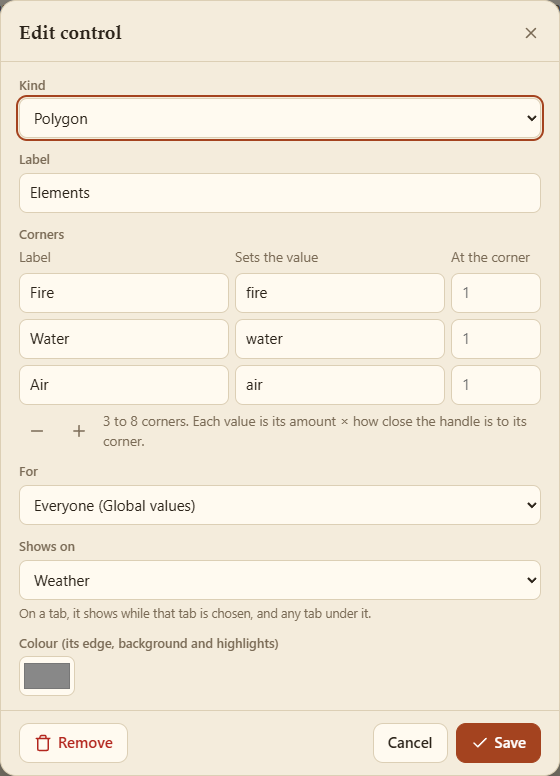
| Polygon | A shape with 3 to 8 corners, each setting its own value. Drag the handle anywhere inside: the nearer a corner, the more its value. At a corner it has it all, along an edge the two ends share it, and in the middle all share it evenly. |
| Board | A picture (a map, a dial) or a blank square with pins to drag. Each pin sets two values, from where it is across and down. Boards can have layers, pins can be pictures, and pins can be grouped (see below). |
| Picture | One of your [[drawings |
| Text | Words, and the value it shows (a doom clock's count). |
| Tabs | Splits the panel into tabs, with levels (see below). |
Buttons and tabs can show a drawing too (their picture button: your drawings come first).
Sliders and switches have More is towards (or On is towards): right or top, or left or bottom. Dropdown choices have a label and a value each; leave the value empty to use the label (if it's a number) or the choice's place.
A dropdown whose Lists is Players: choose whose lists the party's players and sets no value of its own. Other controls on the panel can follow it:
- a Picture whose Local values of is Whoever is chosen in … shows that player's Local values;
- a slider, switch, button, dropdown, polygon or text whose For is Whoever is chosen in … shows and sets them. Its label says whose: Light · Bramble.
So one panel can run every player: choose Bramble, and the same sliders and switches are Bramble's. What's chosen is your device's, like the tabs chosen.

A board fills the space you give it. The corner expand button opens it full screen, to zoom (− and +, Fit, Ctrl+wheel, or pinch) and scroll. Pins still drag while zoomed, and the list below shows their values.

In a board's Edit board…: a picture or a blank square, its layers, then its pins, a row each. Add pin (or ✎ on one) opens the pin's own sheet:
- a label and colour, and its layer;
- Look: a Dot, or a Picture (one of your drawings, a new one, or a built-in icon) at a Size. Sits on its spot: which point of the picture is on the spot (the 3×3 grid: centred, or the bottom middle for the foot of a flag or a figure), and a Nudge in pixels. Show the exact spot adds a small dot where its values put it;
- its Values: the value it sets across and down (leave one empty to slide along a line), and what the edges are worth (0 to 100, say; a range can run backwards);
- who it sets them for, or A group (below).
Layers. + Pins adds a layer of pins, + Picture a picture over the background: an image, or one of your drawings (it moves with the Global values it reads: a fog that lifts, a rising tide). They're listed top first, with the arrows to reorder. Each says how it starts: shown or hidden (the eye), locked or not (the lock). In play, expand the board and press Layers to show, hide, lock and unlock them on your device. A locked layer's pins can't be dragged (they show a small lock), so the enemies stay put while you move the party.
Groups. Add group makes a pin that stands for several: the party, to start with, a member for each player. Each member sets the group's values for their own player (or item), with its own colour and, if you like, its own picture. The group shows how many are with it, and dragging it moves them all. Tap it for its members: Split off one, and it shows as a pin of its own, moved alone, with a dotted line back to the group; Rejoin brings it back to where the group is, as does dropping it on the group. Who's split off is saved with the board.

An example: a player's compass icon has a needle whose rotation is bound to deg(atan2(global_ship_x - 50, 50 - global_ship_y)). Drag the ship on the sea chart and every compass turns towards it.
A big panel can be split up with a Tabs control, placed, moved and resized like any other. It has Levels (1 to 4): each level is a row of tabs, showing the tabs under the one chosen in the row before (Weather › Wind; Sea › Chart › North). Each tab has a name and, if you like, an icon; the editor shows them as a tree, to add a tab under one, reorder or remove.
- Style: As its shape (rows if it's wider than tall, columns if taller), Horizontal (rows) or Vertical (columns).
- Turn the labels in columns: the labels read upwards on the panel's left side, downwards on its right, the first level outermost. Choosing Vertical ticks it; untick it for upright labels.
Every control has Shows on: a tab at any level (it shows while that tab is chosen, or any tab under it), or always: a doom clock that's always there. Controls under different tabs can use the same cells, and a Tabs control can itself show on another's tab. Arranging works on the tabs showing; the tabs still work while arranging.
Removing a tab moves its controls to the tab above it; removing a Tabs control shows its controls on every tab. Panels made with the old page and section tabs become Tabs controls by themselves.
Panels belong to the campaign, on the GM's device (and in its backups), ready for the next session.

Connections lists every item that reacts to something, by character, and what joins it up:
- its rules in words ("When Attuned turns on: turn Cursed on");
- its layers (see Item States and Rules): on or off, and what each changes or locks;
- what it reads, with the values now;
- what's set on it, and what changes it: the player, your state menu, its rules, a panel's controls;
- what it shows: its live icon, what it is now.
Below that, What each Global value reaches: for each, the items that read it, the shops that follow it, and the controls that set it. Look here before moving a dial.
The cog: on a GM's device, connected items have a small cog beside their name (in inventories, item details and the Players tab). It opens Connections at that item. Players never see it.
In the icon editor's Variables tab, + Global value and + Local value add a variable named global_… or local_… (rename it, keeping the start). Its slider sets the default and the range. Bind layers to it like any other variable: the cursed blade below has a ring whose opacity follows its curse. See Drawn Icons.

Drawings made before Global and Local values used gm_ names (gm_curse). They still work: the item's own value, else its character's, else the Global. They're tagged gm_ in the Values tab.
Outside a party, with the GM role (see Running the Game), values are the campaign's starting values: they go to the party when you load the campaign into it, and your own icons show them meanwhile. A value changing over time carries on from where it is. In a party, the host keeps them, and every device sees changes as they happen. Only GMs see the Controls tab.
Who sets what: the GM sets any value. A player's device sets the Local values of its own characters and their items, through their items' rules and the game system's panels. Global values, the GM's state overrides and state limits (attunement slots) are the GM's only. Everyone in the party needs this version of Pack Rat on the host for that.