Repository navigation
Drawn Icons
Draw your own icons from shapes, and make them live: a waterskin that shows how much water is left, a clock that tells the time, a blade that glows as the GM raises its curse. Make them interactive too: an abacus you count on, an hourglass you flip, a lantern you light.
The icon editor is svg-lay-tool.
When editing an item, Draw… next to its icon opens the editor. Edit drawing… changes an item's existing drawing. You can also start one in Catalog → Drawings → New drawing.
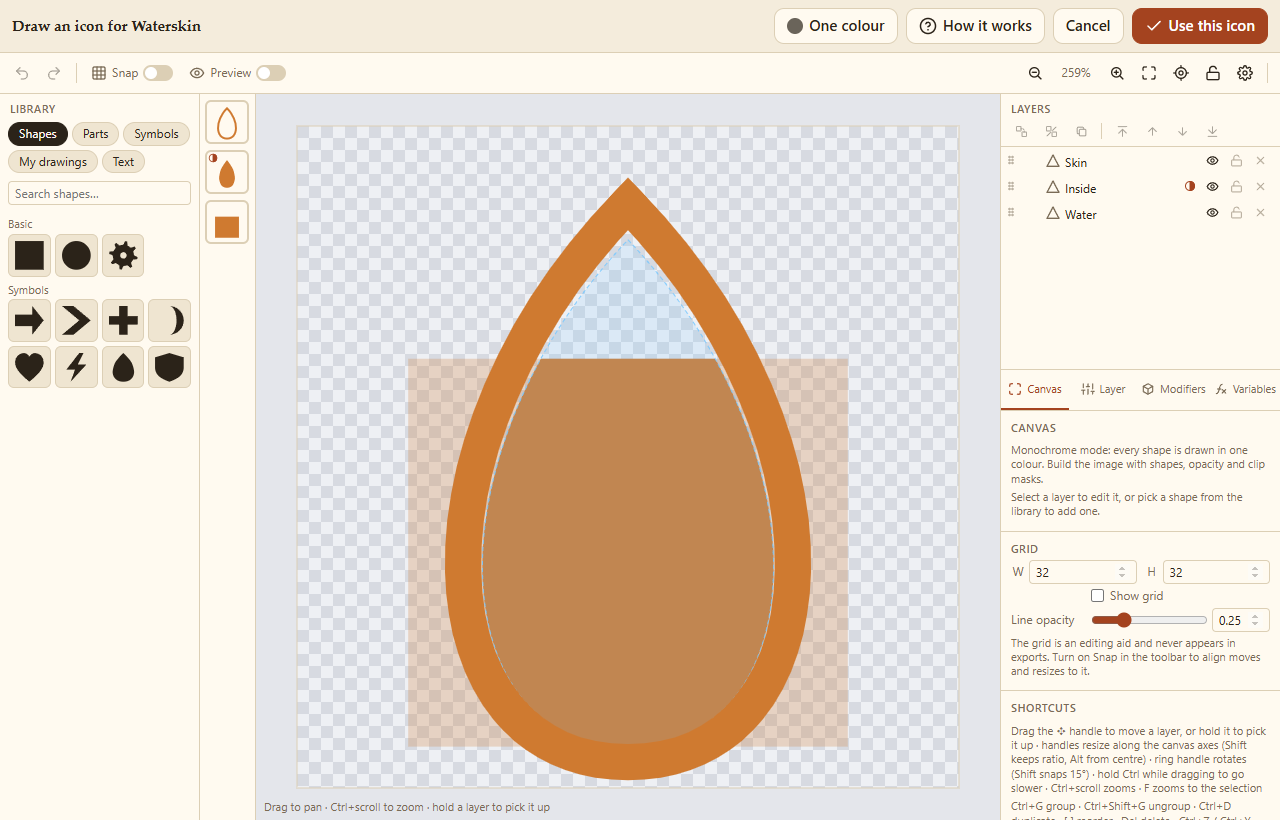
-
Library (left), with chips across its top:
- Shapes: tap one to add it. Polygons, ellipses and arcs, gears, arrows, hearts, shields and more; most have settings like the number of sides. A popup shows it first, with a short guide to the tool tabs: set its size and settings (Layer), its look (Outline only, Rounded, Glow, Shadow: Modifiers) and a first animation (Spin, Pulse, Blink: Variables), then Add to the drawing. Tick Skip this next time and shapes go straight in.
- Parts: kits (a sword, an axe, a potion, a shield, a bag, a bow, a staff), their parts in slots: blades, guards, grips, pommels. Tap a part and it goes where it belongs in the kit's group, so a blade, a guard, a grip and a pommel make a sword; tap another blade and it swaps in, keeping how you moved and coloured it. Whole sword adds one of each. The parts are ordinary layers: change them as you like.
- Symbols: dice (d4 to d20), suits, marks (skull, crossed swords, coin, crown…), elements (flame, water, frost…). Each goes in on its own.
- My drawings: one of your drawings goes in as a group, with its variables.
- Text (see below).
- Select a layer by tapping (or clicking) it on the canvas; tap the same spot again for the one under it (a note at the top names it). The strip beside the canvas lists the layers too.
- Move the selected layer by dragging its ✥ handle (in its middle, or beside it when it's small), or press and hold the shape. Drag the square handles to resize it, and the round one to turn it.
- Moving lines a layer up with the others' edges and middles, and the canvas's, with pink guide lines. Snap (top bar) also lines it up with the grid and turns it in steps.
- For exact work: hold Ctrl (⌘ on a Mac) while dragging to go at a quarter of the speed. Values (x and y, width and height) show beside the pointer while you drag.
- Zooming: the top bar's zoom buttons, Fit, and zoom to the selection (or F); the padlock locks the view so nothing you do on the canvas moves it.
- Layers (right) orders, hides, locks and groups them. Dragging a layer into a group (or out of one) keeps it where it is on the canvas.
- Modifiers add outlines, fills, effects (glow, shadow, blur…), rounded corners, warps, and masks, which cut or clip the layers below them.
- Start from… copies one of your drawings to start from.
- Turn into a path (Layer → Shape) makes a shape, with its warps and rounded corners, an outline of its own.
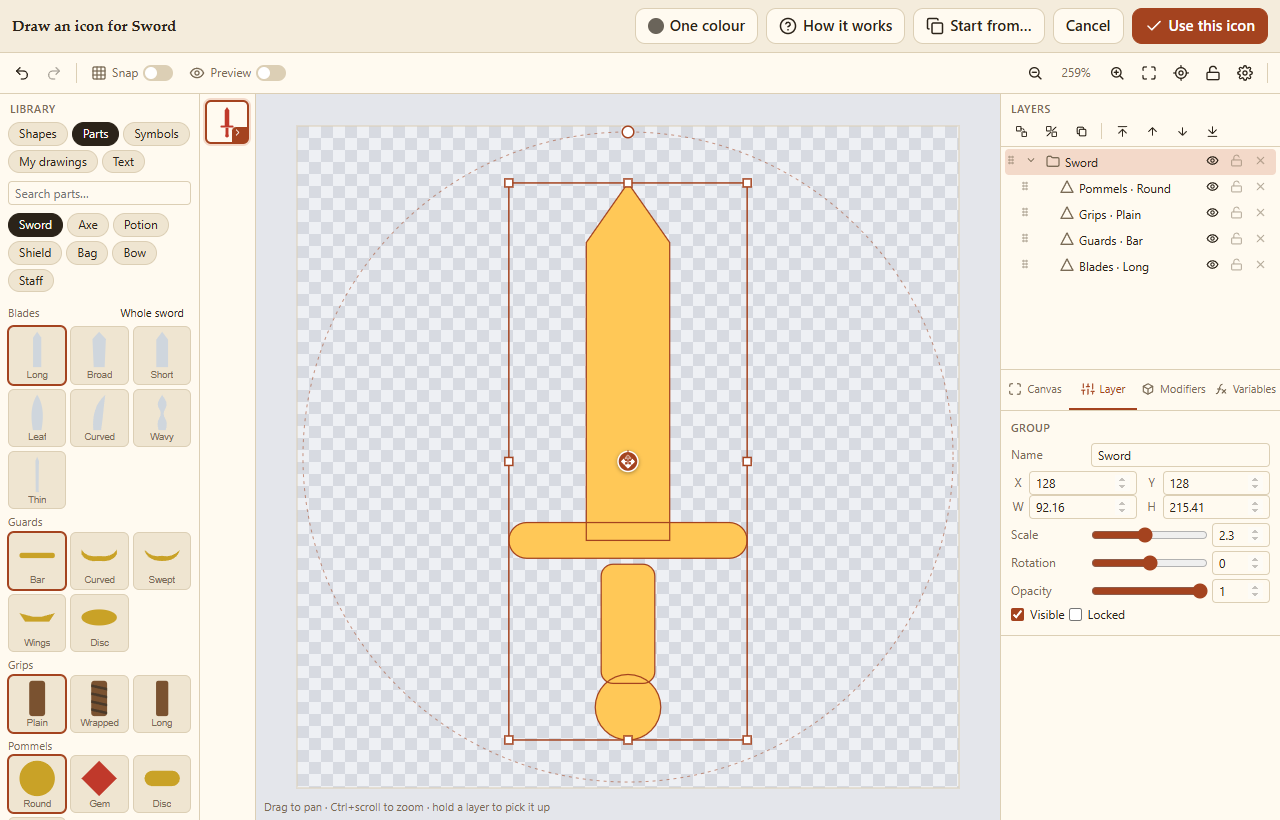
Library → Text adds words in one of three fonts, Serif, Rounded or Hand, regular or bold. Type them in Layer → Text, with the font, bold, alignment and line spacing. The layer's height is the size of the letters. Words can show values in braces, worked out like a formula: {qty} arrows, {hours}:{minutes}, {local_heat}; a drawing that does is live. The letters are drawn as shapes, so they look the same everywhere and take modifiers like any shape.
On a phone, the view bar along the bottom of the canvas moves the view: Fit, 1:1 and centre on the selection on the left, a touchpad button in the middle (press it and drag), the zoom on the right. A finger on the canvas doesn't move the view, so you can't knock it by accident (two fingers still pinch to zoom). The nudge pad (while a layer is selected) moves the layer by 1, or 10, at a tap, and its Fine slows down drags. While you drag, a magnifier shows what's under your finger. Turned sideways, the tools stand beside the canvas, with the tabs down the right.

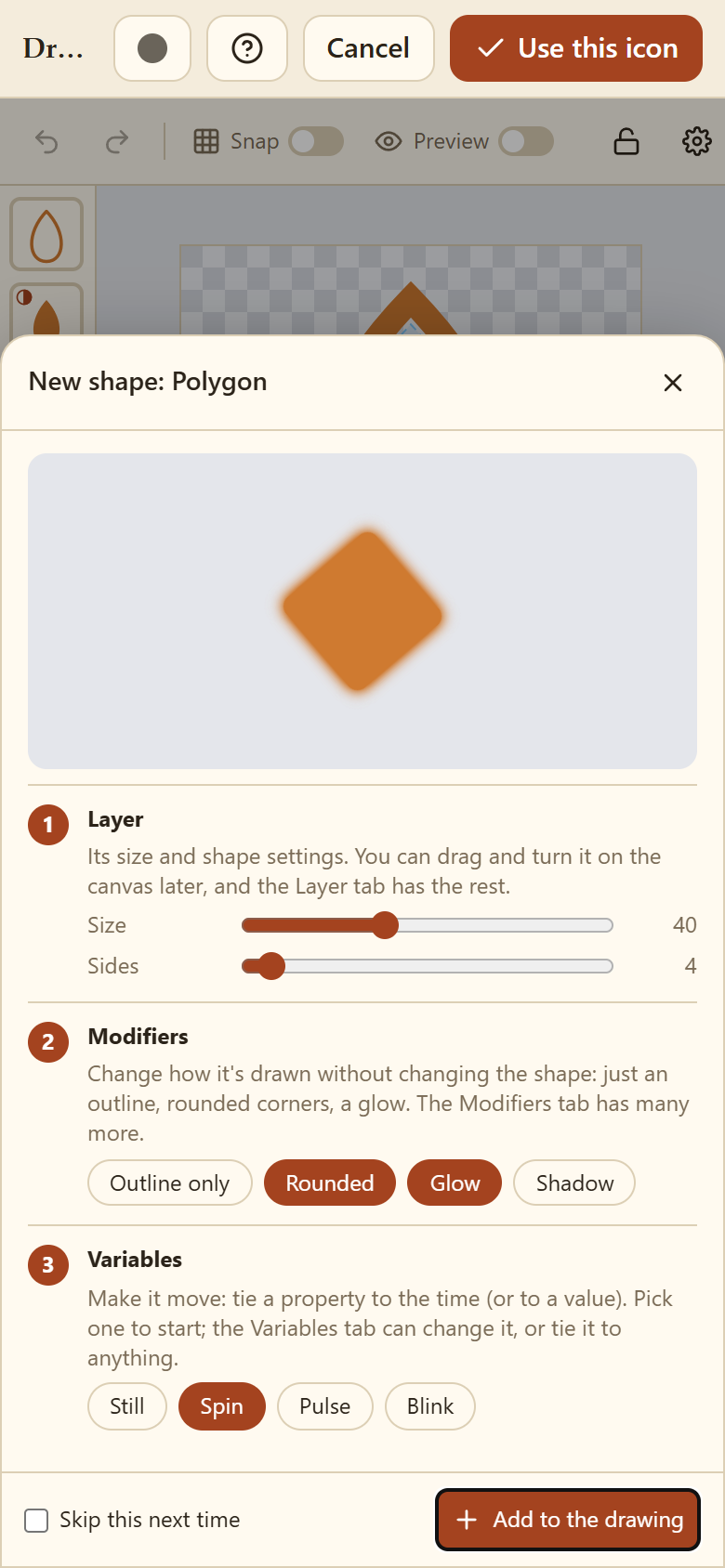
The gear in the editor's top bar sets how it works for you, kept on this device:
- Handles: their size and opacity, the origin markers' opacity, how far around a handle still catches a touch, the ✥ move handle (always, only on touch, or off), and outlining the selected shape.
- Canvas & view: whether a finger on the canvas moves the view or only the view bar does, locking the view, the shape popup, folding the tools away (phone layout), and the view bar (on touch, always, or hidden).
- Snapping: snapping to other shapes, the turning step (5°, 15°, 30° or 45°), and whether Snap starts on.
- Precision: how slow a fine drag is, and the readout, magnifier, nudge pad and tap to select.
- Shortcuts: every keyboard, mouse and touch shortcut.

How it works in the editor's top bar shows a short guide. The selected layer is outlined in its own shape as well as its box, and on a phone the tool tabs fold away while you move, resize or turn something (tap a tab to bring them back): both can be turned off in Preferences.
Icons are drawn in one colour to start with; Pack Rat colours them like its other icons. The colour button in the editor's top bar switches a drawing to its own colours: the colour pickers and gradients come back, and it shows as drawn. In lists, its item's type colour sits behind it (a soft plate or an outline: Full-colour drawings in Settings and Backups), so things still sort by colour. Use this icon saves it. Every drawing also goes into your Drawings library.
In the editor's Variables tab, a layer can be bound to a formula: its position, size, rotation, opacity, visibility, or a modifier's setting. Pack Rat fills in values for each item, listed under Pack Rat item:
| Value | What it is |
|---|---|
fill |
How full a container (or its liquid) is: 0 empty, 1 full, over 1 overfilled. |
used, capacity
|
How much is in it and how much it holds: pounds, pieces for a quiver, pints of liquid. |
qty |
How many are in the stack. |
charges, maxCharges
|
Charges left, and the most it can have. |
pieces, piecesTotal
|
A set's pieces still in it, and all of them. |
equipped, attuned
|
1 when equipped or attuned, else 0. |
worth, weight
|
In gp and lb, with anything inside. |
dt |
Seconds since the icon was last drawn (0 the first time). |
The time is always there too: hours12, minutes, seconds, time and more, so a clock keeps the real time. Icons that use the time animate while they're on screen, as smoothly as the Animations setting allows (see Settings and Backups); ones showing only whole hours, minutes or seconds redraw once a second. Icons reading a value that's changing over time move with it (see GM Controls). Formulas can use + - * /, comparisons, a ? b : c, and functions like min, max, clamp, lerp, map and sin. The tab lists them in Math, Logic and Animation, each explained; click one (or a value under Time or Pack Rat item) to put it into the formula you're writing, its first argument selected to type over.
Examples:
- A waterskin's water: a rectangle's height bound to
fill * 200, anchored at the bottom, and clipped by a mask to the inside of the skin. - A clock hand: its rotation bound to
seconds * 6, turning about its base. - Arrows in a quiver: each arrow's visible bound to
qty >= 1,qty >= 2and so on.

A variable can also be a formula of its own (press ƒ on its card), e.g. angle = seconds * 6.
On a phone, the Variables tab opens full height (on a computer, Open larger at its top), in pages: Values, Bindings, Try it and Interact. Under them a keypad writes formulas without the phone's keyboard: tap into a formula, then tap values (the drawing's, the time's, the Pack Rat item's), functions (Math, Logic, Animation), numbers and symbols; ⌫ deletes. Back to the canvas closes it.

The point it turns about. A rotation (or scale) binding's card says where it turns: pick one of the nine dots (corners, edges, middle), type it as a % of the layer, or switch Given as to pixels to put it anywhere, even outside the layer (a pendulum swinging from above). Attach to puts it on another layer's centre instead, and it follows that layer as it moves: a clock hand attached to its centre pin. Drag the marker on the canvas to move it.
Try it. Below the bindings, a slider tries a value the layer's animation reads (the drawing's own values, or the clock's seconds, minutes and hours) without changing anything, and the motion trail shows faint outlines of where the layer goes across that value's range. Picking another layer, or Reset, goes back to the real values.
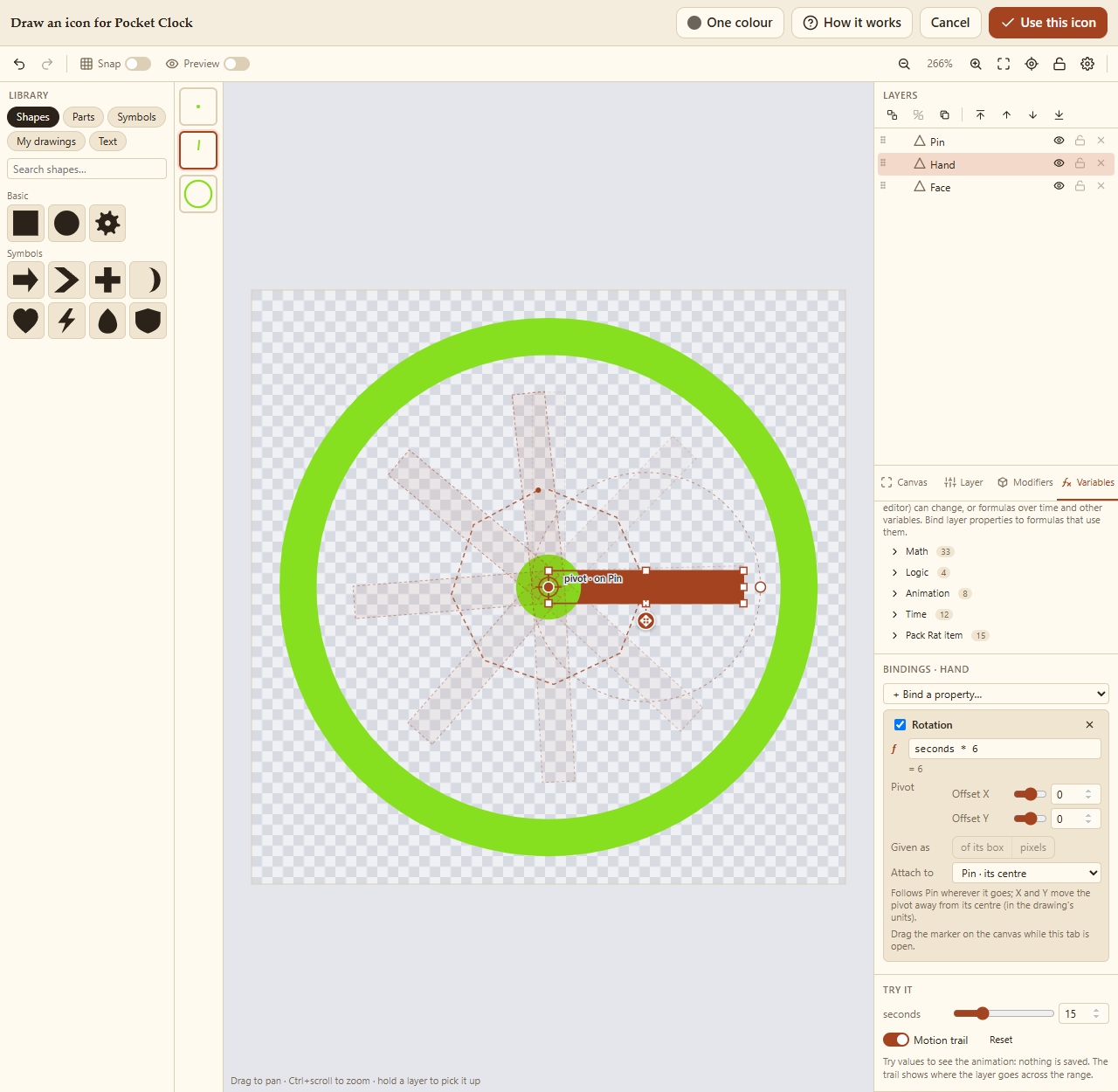
Live icons show the item's real values in your inventory, and keep updating in an item's open details (whose header switch shows the icon on its own). The catalog and the library show the drawing's own slider values.
Variables named global_… and local_… follow values the GM sets: + Global value and + Local value in the Variables tab add one (rename it, keeping the start; its slider is the default and range). A Global is the same for everyone (global_storm); a Local is the item's own, else its character's (local_curse). See GM Controls.
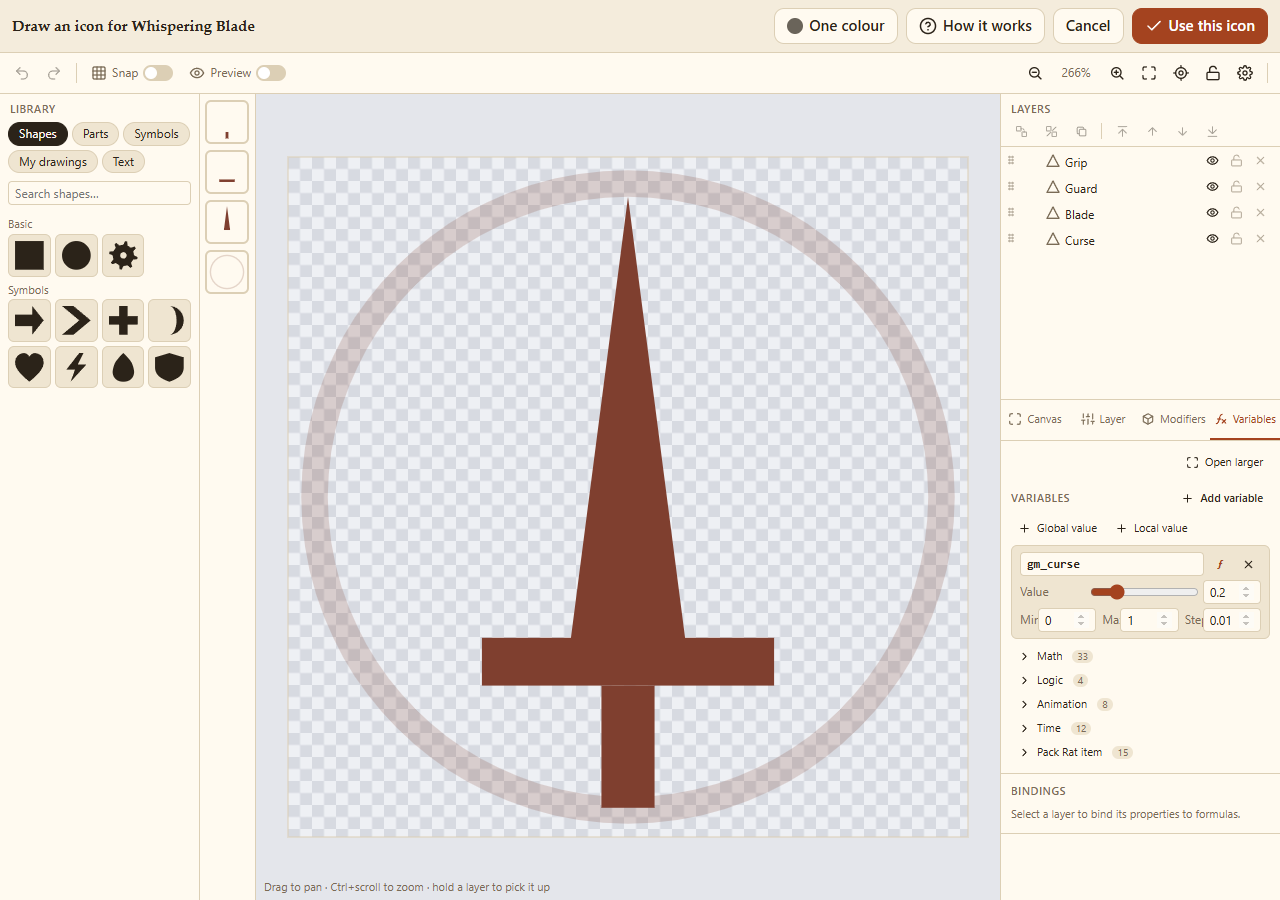
Older drawings' gm_ names still work.
Any layer can be a hotspot: touching it does something. Select the layer, open the Variables tab, and under Interact pick a gesture and what it does. Changing a variable changes the drawing through its bindings, so a tap on a lantern can set local_lit to 1 and its flame (bound to show when local_lit is 1) appears.
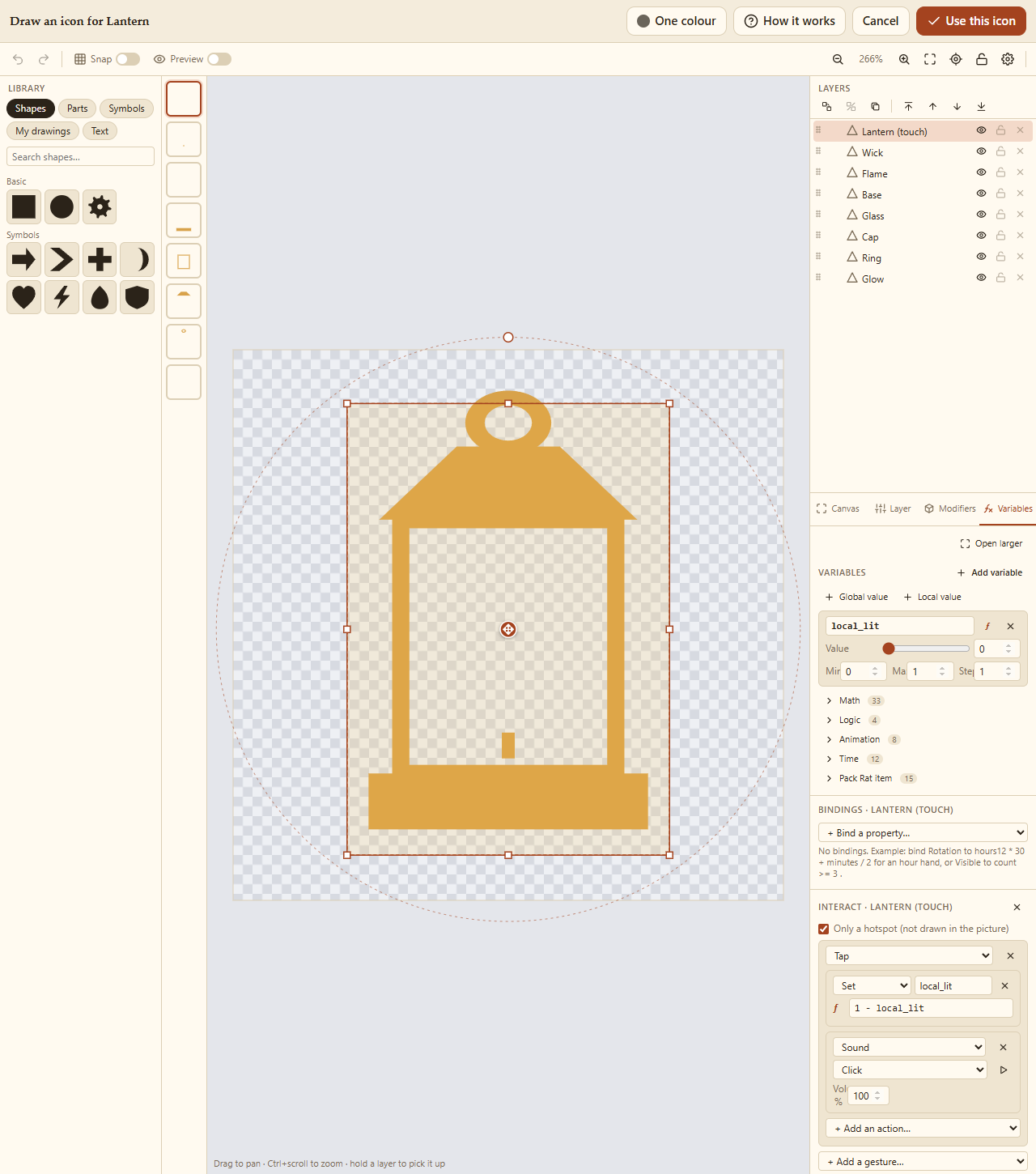
- Only a hotspot makes a layer that isn't drawn: an invisible area to touch, bigger than the thing it's for (a whole abacus rod, not just its thin line). It shows hatched while editing.
- Preview (top bar) makes hotspots work in the editor, to try them. Values changed there reset when Preview ends.
Gestures
| Gesture | |
|---|---|
| Tap, Double tap | A quick touch, or two. |
| Long press | Touch and hold still for a moment. |
| Drag | Slide along it (across, up and down, or either way): pairs with the Drag value action. |
| Swipe | A quick flick: any way, or only up, down, left or right. |
| Dial | Turn a finger round the hotspot's middle, like a knob. Turns sets how far it goes for the whole range. |
| Hold | Actions as the finger goes down, and others as it lets go (a button you hold in). |
Actions (a gesture can have several, done in order)
| Action | |
|---|---|
| Set | A variable becomes a value or a formula, e.g. 1 - local_lit to switch it. |
| Add | Adds to a variable, with a lowest and highest, and wrap to go round (a dial's 0 after its 9). |
| Mark the time | Stores now in a variable. since(t) then gives the seconds since it: for an hourglass's sand, or a drum skin that wobbles for a moment. |
| Drag value | With a Drag or Dial: the variable follows the finger from one value to another, in steps. |
| Random | A random value: 1 to 6 in steps of 1 is a die. |
| Sound | Plays a built-in sound (drum, bell, click, chime, pour, tick, whoosh, dice) or one of the drawing's own, at a volume. Sounds of its own keeps up to four short sound files in the drawing (a second or two each), so they go wherever it goes. |
| Vibrate | A short buzz, on phones that can. |
| Pack Rat's own | Switch a state (one of the item's states, on when a formula isn't 0), Use one, Add one, Use charges, Draw a piece (from a set, like Draw a card) and Show its details. Each is done as if you'd done it by hand, with the same limits and locks. |
bounce(t) and spring(t) join ease(t) for animations that settle.
Where to use it. In your inventory, open an item with an interactive drawing and switch to its picture (the switch in the header), or press and hold it and choose Use in its item menu. Then touch, drag or click the picture.

Variables named local_… are the item's own Local values: they're kept, synced in a party, seen by the GM, read by its rules, and go with the item when it's traded. Others last while the details are open (a drum's wobble). Sounds play on the device that's touched; turn them down on This device → Sounds (see Settings and Backups).
Starters. Catalog → Drawings has some ready to use or change: an Abacus, an Hourglass (a minute of sand), a Lantern, a Drum, a Die and a Card deck (tap to draw a card); and live ones: a Backpack that fills as it's loaded, Arrows and Rations that show how many, a Compass and a Totem following the GM's map (Global values party_x, party_y, goal_x, goal_y), and a Pocket watch. Add to my drawings copies one, to give to an item with Choose… next to its icon; the editor's Start from… lists them too.
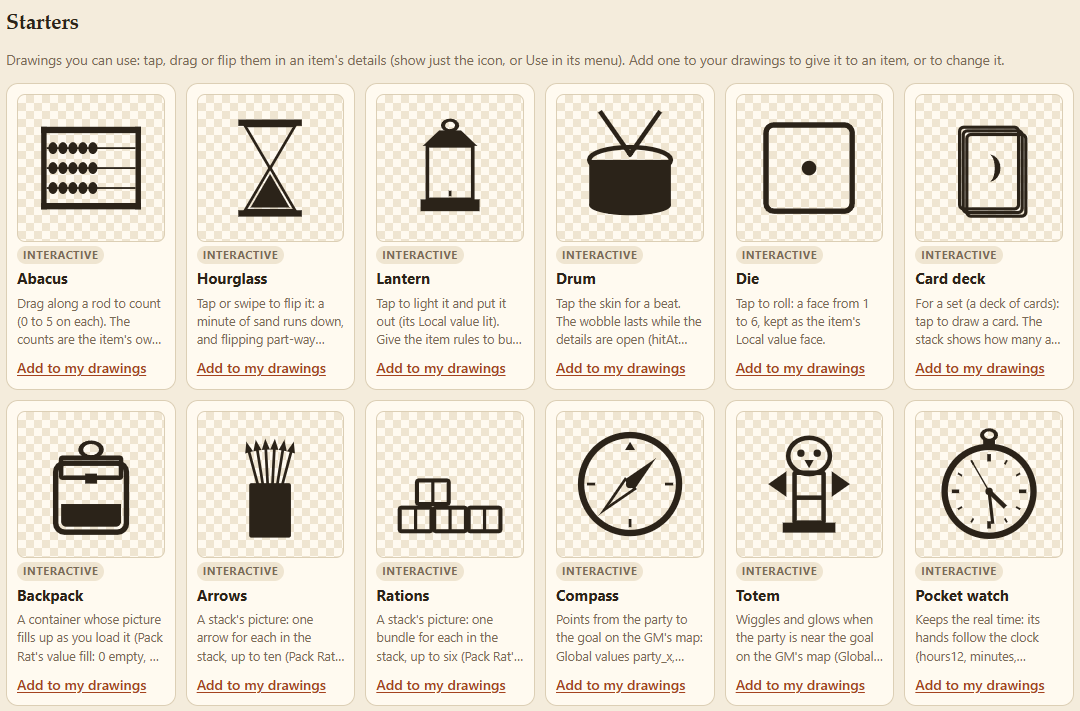
A worked example: a lantern that burns its oil. Give a lantern item the Lantern starter: a tap lights it (local_lit to 1) and puts it out. Then give the item two rules (see Item States and Rules): when lit becomes 1: change oil at −1 an hour, until 0; and when lit is 1 and oil reaches 0: set lit to 0, say "The lantern goes out." Light it, and it burns down by itself, and goes out when it's empty.
Catalog → Drawings keeps every drawing, shared by all your campaigns.
- Give one to any item with Choose… next to its icon (your drawings come first).
- Edit a drawing and the items using it update too. Editing one that other items share, from an item, asks whether to change it everywhere or just there.
- Use as template starts a new drawing from a copy.
- Starters (below your own) are interactive drawings to start from: see Making it interactive.
- Rename or Delete (items keep their icon).
Items carry their own copy of their drawing, so they keep it when traded, sold or exported.