Admin Configure Publications
Publications are products which are directed toward consumers. With standardized templates, you can shape them to your own needs, with a kind of template system. The following publication types have their own template group:
- "Advisory (email)"
- "Advisory (update)", when an advisory gets a new version
- "Advisory (forward)", forward advisory from a different source
- "Advisory (forward_update)"
- "Advisory (website)", publish advisory to the website
- "Advisory (website_update)"
- "End-of-Shift (email)", inform the next working shift about the current status
- "End-of-Day (email)", summary with classified information
- "End-of-Day (email_public)", summary with only non-classified information
- "End-of-Week (email).
Organizations (Constituent Groups) have a type, which restrict all their employees (Constituent Individuals) to a sub-set of these products. Per person, you can pick products from that restricted list. But you cannot select the "update" versions: their are used automatically when their initial publication type is assigned to the person. For instance, when someone has "Advisory (email)" as publication it will receive, it will also get publications "Advisory (update)".
For people, you can also select two very weird publication types. They are not publications at all!!! They have no associated templates. Those are
- "Advisory (XML)", add an XML attachment to each "Advisory (email)" publication.
- [3.8] "Advisory (only H/H)", only send "Advisory (email)" publications when they are High/High: very serious.
Publication templates ease the process of advisory creation. You can create templates for texts that you often use in your publications. You can change these default Taranis templates for your own use.
The strength of templates lies in the fact that you can easily create publications thereby avoiding errors and using uniform texts. To enable flexibility in your templates, you can use variables in your texts.
When describing vulnerabilities and solutions, for example, you will regularly see updates from the same vendor. The texts you use to describe these solutions are often the same. To ease this process you decide to create a template to describe an update from Ubuntu. The text you use for Ubuntu-updates is something like this:
Ubuntu released updates for Ubuntu 12.04 LTS to resolve this issue. You can install
these updates by using 'apt-get update' and 'apt-get upgrade'. More information about
the vulnerability can be found here: http://www.ubuntu.com/usn/USN-1439-1
You can create a template for the text shown above by choosing “Publication Templates” from the main configuration screen and then clicking "add new publication template". The window that will open, allows you to specify some general properties of the template you’re about to create.
Figure: New publication template

Make sure the title properly describes the contents of your template, as this is the name you will see when loading templates into your advisory or other publications. Also, specify in which product you want to normally use your template.
The ‘Template’-tab contains the actual template, formatted as XML. Taranis fills in the following XML in this tab:
<publication>
  <template>
  </template>
  <fields>
  </fields>
</publication>
The template-text must be placed in the <template> container. Variables to be used in the text must be placed in the <fields> container.
If we use the example text for Ubuntu and replace the dynamic parts with variables, the text could look something like this:
Ubuntu released updates for Ubuntu _fld_ubuntuversion_ to resolve this issue.
You can install these updates by using 'apt-get update'
and 'apt-get upgrade'. More information about the vulnerability
can be found here: http://www.ubuntu.com/usn/USN-_fld_ID_
Variables in the text must be enclosed by underscores ('_'). The first variable in the text is the Ubuntu versions that are updated which we will call variable _fld_ubuntuversion_. The second variable is the ID of the Ubuntu advisory-ID which we will call variable _fld_ID_.
Now that we defined these two variables, we will have to tell Taranis what kind of variables these are. Taranis supports various input types. For historical mistakes, they are named confusingly:
- text; (html: input)
- textarea;
- dropdown; (html: select)
- radio;
- multiple; (html: checkboxes)
- [3.6] select; (html: select multiple)
<fields> container. For the Ubuntu version we want to show a list of supported versions that can be checked by the user:
<fld_ubuntuversion desc="Ubuntu version(s)">
  multiple:10.04 LTS:11.10:12.04 LTS
</fld_ubuntuversion>
Each variable must be represented as an XML-tag. The description for the variable is stored in the desc-attribute. Between the variable tags, the user can specify the type of input field (textarea, text, dropdown, radio, or multiple). Properties for the input field are placed behind the type-indicator, divided by colons.
Example Result:
-
textarea:10:20Shows a text area with 10 columns and 20 rows. -
text:10Shows a textbox with size 10. -
dropdown:a:b:cShows a dropdown list with values ‘a’, ‘b’ and ‘c’. A scrollable version of a list of radio options. -
radio:a:b:cShows three radio buttons with values ‘a’, ‘b’ and ‘c’. -
multiple:a:b:cShows three checkboxes with values ‘a’, ‘b’ and ‘c’. - [3.6]
select:3:a:b:c:d:eshows a select box which permits more than one value to be chosen. Works like a list of checkboxs, but then scrollable. In this example, the height is 3.
<publication>
<template>
Ubuntu released updates for Ubuntu _fld_ubuntuversion_ to resolve this issue. You can install these updates by using 'apt-get update' and 'apt-get upgrade'. More information about the vulnerability can be found here:
http://www.ubuntu.com/usn/USN-_fld_id_
</template>

<fields>
<fld_ubuntuversion desc="Ubuntu version(s)">
  multiple:8.04 LTS:10.04 LTS:11.10:12.04 LTS:12.10
</fld_ubuntuversion>
<fld_id desc="Ubuntu-ID (USN-XXX-X):">text:170</fld_id>
</fields>
</publication>
After you’ve entered the template, press the button to find out if your XML is syntactically correct. If validation of the template was successful, you can save it and use it in your publications. This validation step is very limited: most errors will only be discovered during the use of the template.
[3.6] The list of fields is show in alphabetic order on the field name. You can enforce your order by using a digit in the name, for instance "fld_1ubuntu" and "fld_2id".
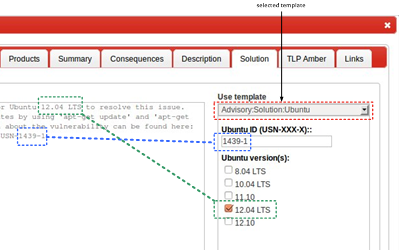
The figure below shows how the Ubuntu-template can be used in an advisory.
Figure: Using templates