Admin Configure Software Hardware
Taranis keeps a list of all soft- and hardware. This list is used to indicate vulnerable software in an advisory. By linking Constituent groups to soft- and hardware, it is possible to automatically send an advisory only to Constituent groups that use that vulnerable soft- or hardware. You can manually add new items to the list or use the CPE list maintained by MITRE.
Below an example of the soft-/hardware list. For each piece of soft-/hardware, Taranis shows an icon that indicates the use of the soft-/hardware within the constituency. This can help in deciding to write an advisory or skip it because the soft-/hardware is not in use.
Figure: The soft-/hardware list
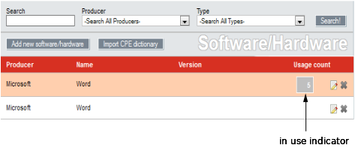
When a particular piece of soft-/hardware is in use (see the ‘in use indicator’), you can move your mouse pointer over the indicator to see which organizations use this soft-/hardware. An administrator can open the details of the soft-/hardware by clicking on the ???-icon next to it.
You can add new hard- or software to the list by clicking on the button at the top of the page. This will open up a pop-up like:
Figure: Add new hard- or software
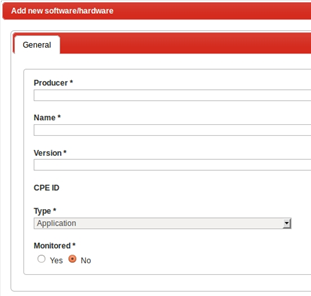
Specify the name of the producer (vendor), the name of the product, and optionally a version number of the soft- or hardware. CPE ID is only used with soft- and hardware imported from the CPE-list. The type indicates what you want to add to the list:
- Hardware;
- Operating System; or
- Software.
Keeping the list of soft- and hardware up-to-date can be a daunting task. To ease the maintenance of this list, Taranis supports the use of the Common Platform Enumeration (CPE) list maintained by MITRE. According to MITRE:
“CPE is a structured naming scheme for information technology systems, platforms, and packages. Based upon the generic syntax for Uniform Resource Identifiers (URI), CPE includes a formal name format, a language for describing complex platforms, a method for checking names against a system, and a description format for binding text and tests to a name.”
You can import the latest CPE-dictionary by clicking on the button on top of the screen. Clicking on this button will open up this screen:
Figure: Import CPE dictionary
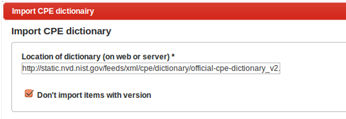
MITRE offers the CPE dictionary in the form of an XML file that is regularly updated. You can import this file directly by specifying the URL or you can enter a full path to the file on the server.
The CPE dictionary contains a lot of items. You can limit the number of items imported in Taranis by selecting the ‘Don’t import items with version’ option. Whether this is suitable for your situation mainly depends on the way your constituents specify the hard- and software they use. If they just specify the products without version numbers, you can use this filter without problems.
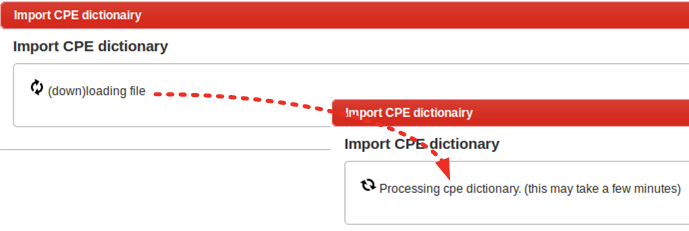
Click on ‘load file’ to start the import. This process is RAM intensive, so make sure you comply with the minimum system requirements.
Figure: Download and processing
After Taranis successfully processed the dictionary, it will show:
Figure: CPE-import
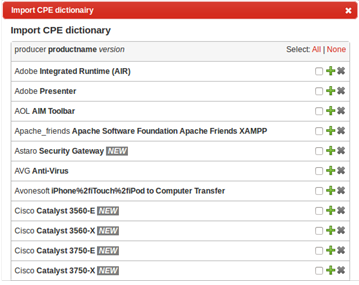
Taranis presents you a list of all new and changed items from the CPE-list. All new items are flagged with ???.
The figure below shows an example of a CPE-item where the product name name in Taranis (‘Integrated Runtime’) is different from the product name in the CPE (‘Integrated Runtime (AIR)’).
Figure: Changed CPE-item
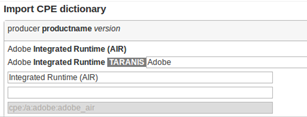
It is up to you to decide how you want to process the information from the CPE. The easiest way to make your choice is by clicking on the words on the bottom of the page:
Figure: Actions on CPE-items

By clicking on the words you can define the actions to be taken on which pieces of information:
- What you want to do: import or discard.
- Which items it concerns: all new, all changed or all selected.
After you finished the complete list, Taranis may ask you if you want to import items that are only listed with a version number. This will happen if you selected the ‘Don’t import items with version’ option at the start of the import. The reason Taranis asks you this question, is because there are apparently products listed in the CPE that are only listed with a version number and not without. If you would ignore these items, you would end up with an incomplete list of hard- and software. What Taranis can do in this situation is to create a new soft- or hardware item based on the information in the CPE but without a version-number. Because this item is not listed in the CPE, it will not receive a CPE-ID. If you want to do this, click on the ???-button. If not, choose the ???-button.
Figure: Remaining CPE-items after the import

All the records in the soft-/hardware list are linked to a soft-/hardware type. Taranis needs to know what type a specific piece of hard- or software is, in order to be able to distinguish operating systems from applications running on top of that. This is especially important for advisories as these publications have different sections for the selection of vulnerable operating systems and vulnerable applications.
Based on the CPE-list, Taranis distinguishes the following software and hardware types by default:
- Application;
- Hardware; or
- Operating System.
Figure: Creating a custom soft-/hardware type

