Accommodations
Link an accommodation to specific check-in and check-out days so it appears for every day you are staying there. Accommodations are a distinct record type backed by the day_accommodations table and are separate from regular reservations, though each accommodation automatically creates a linked Hotel reservation.
There are two ways to create an accommodation:
From the Reservations panel: Click Add and select Hotel as the booking type. When the type is set to Hotel, the date/time and location fields are replaced by accommodation-specific inputs (see below). Saving the form creates both the hotel reservation and the underlying accommodation record at the same time.
From the Day Detail panel: Click the hotel icon or the Add accommodation button in the Day Detail overlay. A picker appears that lets you select a place from the trip, choose the day range, and optionally fill in check-in/check-out times and a confirmation code. This creates the accommodation record and its linked Hotel reservation together.
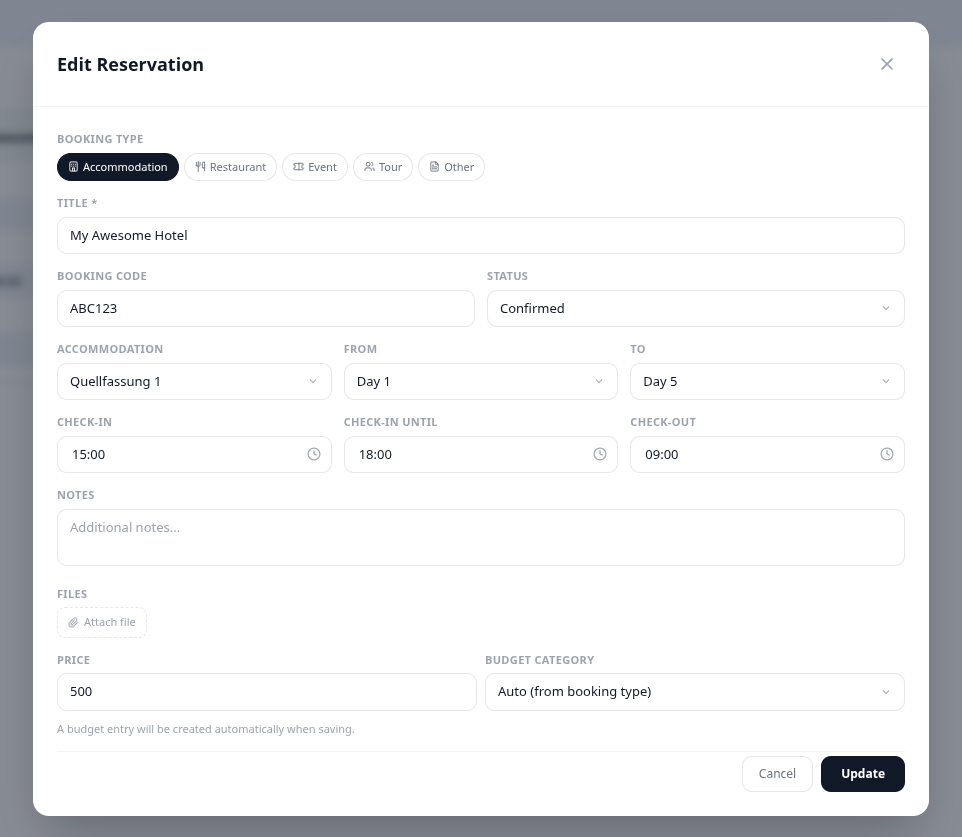
When creating or editing via the Reservations panel with type set to Hotel, the date/time and location fields are replaced by accommodation-specific inputs:
| Field | Description |
|---|---|
| Accommodation | Search for or select an existing trip place to link as the property. Selecting a place pre-fills the title if it is empty and pre-fills the location field if the place has an address |
| From | The check-in day |
| To | The check-out day |
| Check-in | The earliest time you can check in |
| Check-in until | The latest time the front desk accepts check-in |
| Check-out | The latest time you must check out |
The Confirmation code, Status (Pending / Confirmed), and Notes fields are also available, as they are for all reservation types.
For each day between the From day and To day (inclusive), the accommodation appears in the Day Detail panel overlay. It shows the linked place name and address, a check-in or check-out label for the relevant boundary days, and the check-in window, check-out time, and confirmation code if set. Middle nights show the place name without a check-in/check-out label. The linked Hotel reservation's status and confirmation number are also shown inline.
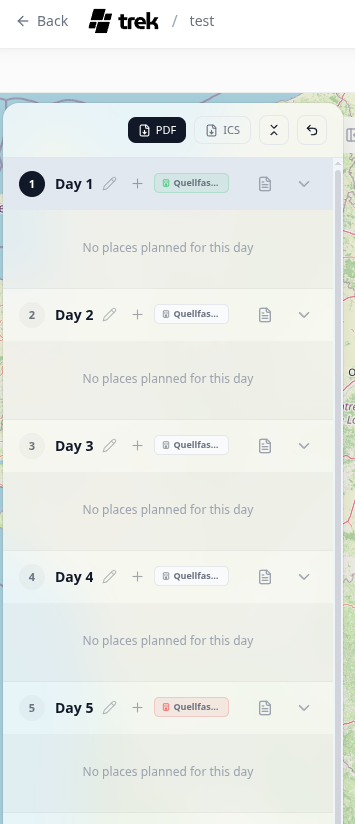
Accommodations appear as small colour-coded badges in the day header row of the day plan sidebar:
- Green badge — check-in day
- Red badge — check-out day
- Neutral badge — nights in between (ongoing stay)
Clicking a badge navigates to the linked place. Hotel-type reservations are filtered out of the inline transport card list between places; they do not appear as transport items in the timeline.
Hotel reservation cards in the Reservations panel show the linked accommodation name (place name) alongside the standard reservation fields such as the confirmation code and status. The check-in and check-out times are displayed in the metadata section of the card when they have been set.
See also: Reservations-and-Bookings · Transport-Flights-Trains-Cars · Day-Plans-and-Notes