Map Features
The trip planner map shows your places, route lines, transport overlays, and your current location in real time.
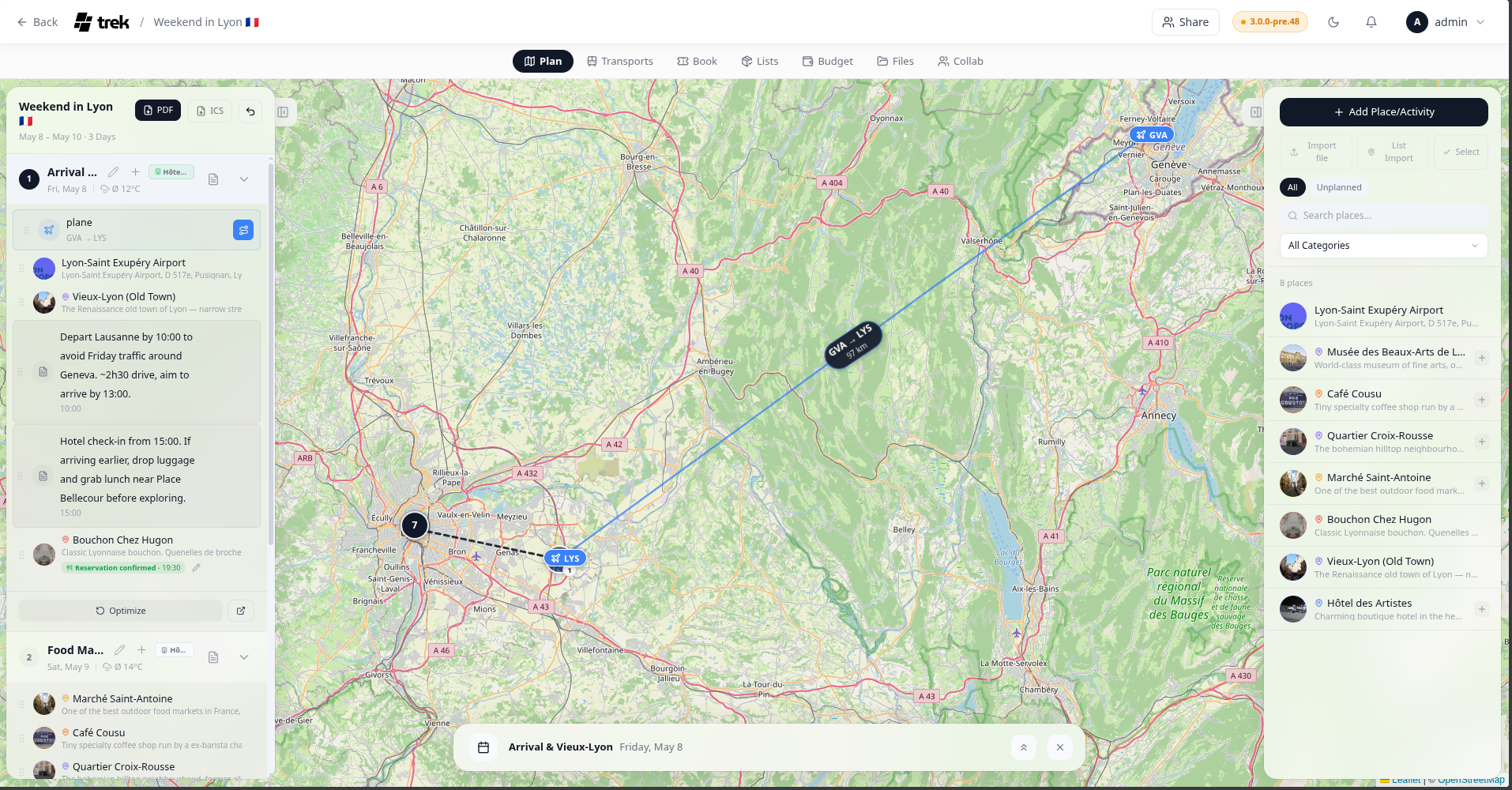
TREK uses Leaflet by default. If you configure a Mapbox access token in Settings → Map, the map upgrades to Mapbox GL with higher-quality tiles, 3D buildings, and terrain. If Mapbox GL is selected but no access token is present, TREK falls back to Leaflet automatically so the map is never blank.
The scopes required for Mapbox GL are:
- STYLES:TILES
- STYLES:READ
- FONTS:READ
- DATASETS:WRITE
- VISION:CREATE
Each place is shown as a circular marker:
- Photo marker — if the place has a photo (proxied from Google or another provider), that image appears in the circle.
- Icon marker — if no photo is available, a category-colored icon is shown instead.
- Selected place — the active place has a larger marker.
-
Order badge — a small badge at the bottom-right of each marker shows the order number(s) of that place within the day's itinerary. If the place appears on multiple days, all order positions are shown separated by
·.
When zoomed out, nearby markers are grouped into clusters. Clicking a cluster zooms the map to fit its members; at maximum zoom the cluster spiderfies to show individual markers.
When you have a day selected, a dark dashed line connects consecutive places in that day's order.
At zoom level 12 or higher, small pill-shaped labels appear between consecutive places and show the estimated walking time and driving time for each segment. Below zoom 12 they are hidden to keep the map clean.
Requires: Settings → Display → Route calculation must be ON. When this setting is OFF, TREK never queries the routing service, so no pills are calculated or drawn at any zoom level.
Flights, trains, cars, and cruises can be drawn as overlays between their endpoint places. Overlays are off by default — activate each reservation individually by clicking the small Route icon next to the booking row in the day sidebar. The selection is remembered per trip in your browser. Click the icon again to hide it.
- Flights and cruises — geodesic great-circle arcs
- Trains and cars — straight lines
- Antimeridian crossings — arcs that would cross the date line are split into sub-arcs to avoid wrapping across the map
- Endpoint markers — pill-shaped labels with the transport icon and the endpoint code (e.g. IATA airport code) or location name
- Flight stats — a floating label on the arc shows departure code → arrival code and, when times are available, the duration and great-circle distance. Stats labels are only rendered for flights and require Settings → Display → Route calculation to be ON.
- Confirmed reservations — solid line; Pending — dashed line
Admin: Whether endpoint text labels appear on the endpoint markers is controlled by the Booking route labels setting in Settings → Display (
map_booking_labels).
The location button sits in the bottom-right corner of the map on mobile devices and cycles through three states:
| State | Icon | Behavior |
|---|---|---|
| Off | Outline locate | Location not tracked |
| Show | Solid blue locate | Your position is shown as a dot |
| Follow | Solid blue arrow | Map re-centers as you move |
If geolocation is denied or unavailable, the button turns red.
Right-click anywhere on the Leaflet map to open the Place form with the clicked coordinates and a reverse-geocoded address already filled in.
On the Mapbox GL map, right-click is reserved for the built-in rotate/pitch gesture, so use middle-click instead to trigger the same Place form.
See also: Places-and-Search · Day-Plans-and-Notes · Route-Optimization · Map-Settings · Reservations-and-Bookings