Trip Members and Sharing
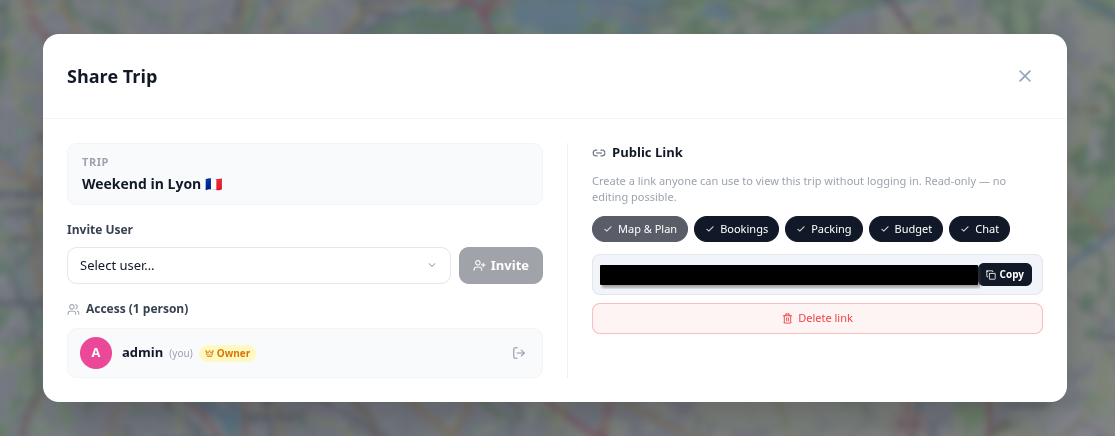
- From the dashboard: click the share/members icon on a trip card.
- From the trip planner: click the Share button in the top navigation bar.
When you have the share_manage permission the modal opens to a two-column layout on wider screens (members on the left, share link on the right). Without that permission only the members column is shown. On narrow screens the columns always stack.
The left column lists everyone who has access to the trip.
- The trip owner is marked with a crown badge.
- Your own entry is labeled (you).
- Each non-owner member shows a remove button.
If you have the member_manage permission (default: trip owner), an invite control appears above the list. Select a user from the searchable dropdown and click Invite. The user is looked up by username or email on the server, added immediately, and the list refreshes. The invited user also receives an in-app notification.
Click the remove icon next to any member's name. A confirmation prompt appears before the member is removed.
If you click the remove icon next to your own name, the action is labeled Leave trip and uses a "log out" icon. Leaving reloads the page and returns you to the dashboard.
The trip owner cannot be removed through this panel.
The right column is only visible to users with the share_manage permission (default: trip owner).
A share link creates a read-only, token-based URL:
<your-instance>/shared/<token>
Viewers do not need to log in. The link can be shared with anyone.
Click Create share link. A URL is generated and shown with a copy button.
Before or after creating the link, you can control what the link exposes. Toggle each section on or off with the pill buttons:
| Toggle | Default | What it shows |
|---|---|---|
| Map | Always on | Trip map with place markers — cannot be disabled |
| Bookings | On | Reservations and accommodations |
| Packing | Off | Packing list |
| Budget | Off | Budget tab |
| Collab | Off | Read-only view of notes, chat, and polls |
Changes to toggles take effect immediately for an existing link.
Click Delete link (red button below the URL) to revoke access. The token is invalidated and existing viewers are redirected.
Admin: To invite users who do not yet have an account, create invite links in the admin panel. See Invite-Links.