Todos and Tasks
Manage a to-do list for trip tasks and pre-departure preparation.
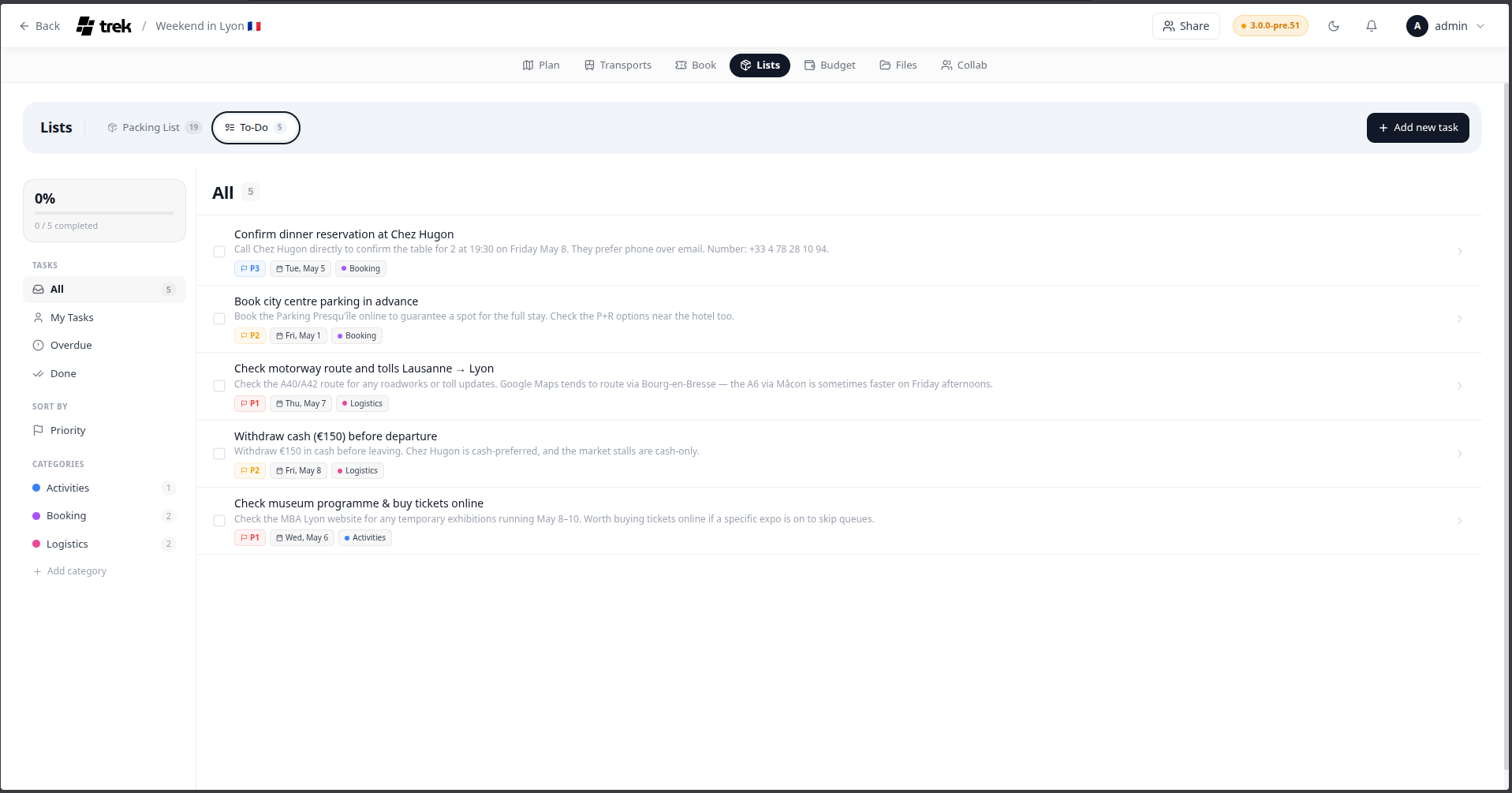
Open the Lists tab inside the trip planner and select Todo. The Todo feature shares the Lists addon with Packing Lists, so it is only visible when that addon is enabled.
Admin: Enable the Lists/Packing addon in Admin-Addons.
The panel is divided into two columns by default:
- Left sidebar — category navigation, smart filters, sort toggle, and a completion progress card.
- Task list — the tasks that match the active filter.
When you click a task, a detail pane opens as a third column on the right side of the task list (on desktop) or slides up as a bottom sheet (on mobile). The new-task form also opens as a modal overlay.
On small screens the sidebar collapses to a narrow icon rail showing only colored dots and icons with badge counts.
Each task has the following fields:
| Field | Notes |
|---|---|
| Name | Required. |
| Checked | Boolean — marks the task done. |
| Category | Optional grouping label. |
| Due date | Optional date. |
| Description | Optional free-text body. |
| Assignee | Optional trip member. |
| Priority | 0 (none), 1 (P1), 2 (P2), or 3 (P3). |
Click a task row to open the detail pane on the right (or a modal sheet on mobile) where you can edit all fields.
| Level | Label | Color |
|---|---|---|
| 1 | P1 | Red (#ef4444) |
| 2 | P2 | Amber (#f59e0b) |
| 3 | P3 | Blue (#3b82f6) |
Tasks with no priority set show no badge.
| Filter | Shows |
|---|---|
| All | All unchecked tasks. |
| My tasks | Unchecked tasks assigned to you. |
| Overdue | Unchecked tasks with a past due date. |
| Done | Checked tasks. |
| Per-category rows | All tasks in that specific category (checked and unchecked). |
Toggle the Priority button in the sidebar to sort the current task list from P1 → P2 → P3 (tasks with no priority appear last).
Click the + Add task button in the top-right corner of the Lists panel header (visible when the Todo sub-tab is active). A new-task form opens as a modal where you can set all fields before saving. On mobile it slides up from the bottom of the screen.
All write operations require the packing_edit permission (shared with Packing Lists).