Collab Notes
Share structured, richly formatted notes with your group. Notes are organized into color-coded categories and can be pinned, attached with files, and linked to external websites.
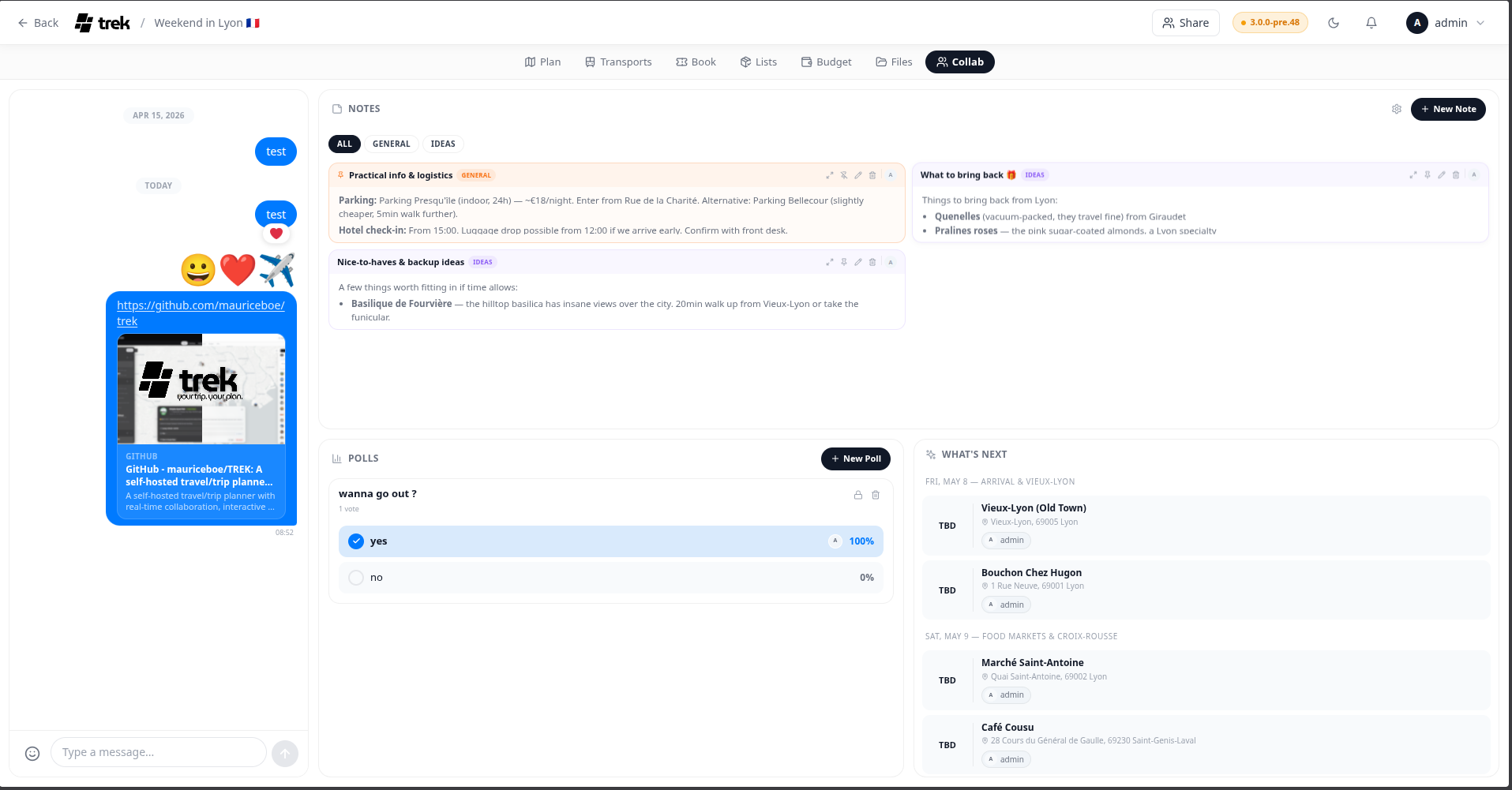
Open the trip planner → Collab tab → Notes section. The Collab addon must be enabled and the Notes sub-feature must be turned on. See Real-Time-Collaboration.
Notes are grouped into categories. Each category has a name and a color chosen from six swatches: Indigo, Red, Amber, Emerald, Blue, and Violet.
To manage categories, click the settings (gear) icon in the Notes header (only visible to users with the collab_edit permission). From the category settings modal you can:
- Add a new category (type a name and click +)
- Rename a category by clicking its name inline
- Change a category's color by clicking a swatch
- Delete a category
All changes (including color updates) are staged locally and applied only when you click Save in the modal. Saving a color change updates every note in that category.
Click + New Note in the Notes header (only visible to users with the collab_edit permission). A modal opens with the following fields:
| Field | Required | Notes |
|---|---|---|
| Title | Yes | Plain text |
| Body | No | Markdown |
| Category | No | Select from existing categories |
| Website | No | URL; shows an Open Graph thumbnail on the note card |
| Attachments | No | Files up to 50 MB; see restrictions below |
Click Create to save.
Note bodies are rendered as GitHub Flavored Markdown with soft line breaks. Supported syntax includes headings, bold/italic, links, ordered and unordered lists, task lists, tables, fenced code blocks, and blockquotes.
Click the pin icon on a note card to pin it. Pinned notes sort to the top of the list (above all unpinned notes, regardless of category). Click again (shown as the unpin icon) to unpin.
You can attach images, PDFs, and other files to a note (requires the file_upload permission). Maximum file size is 50 MB per file.
The following file types are blocked: .svg, .html, .htm, .xml, .xhtml, .js, .jsx, .ts, .exe, .bat, .sh, .cmd, .msi, .dll, .com, .vbs, .ps1, .php.
Image thumbnails are shown on the note card. Click a thumbnail to open a lightbox. PDFs open in a document viewer overlay.
You can also paste images or PDFs directly into the create/edit form (if the file_upload permission is granted).
Click the pencil icon on a note card to open the edit modal. All fields, including attachments, can be updated. To remove an existing attachment, click the × next to it in the edit form.
Click the expand icon (arrows) on a note card to open a full-content view in a portal overlay. Users with the collab_edit permission will see a pencil button in the overlay header to switch directly to the edit modal.
Use the category filter pills below the Notes header to show only notes belonging to a specific category. Click All to clear the filter.