Documents and Files
Attach and manage documents, tickets, and other files for your trip.
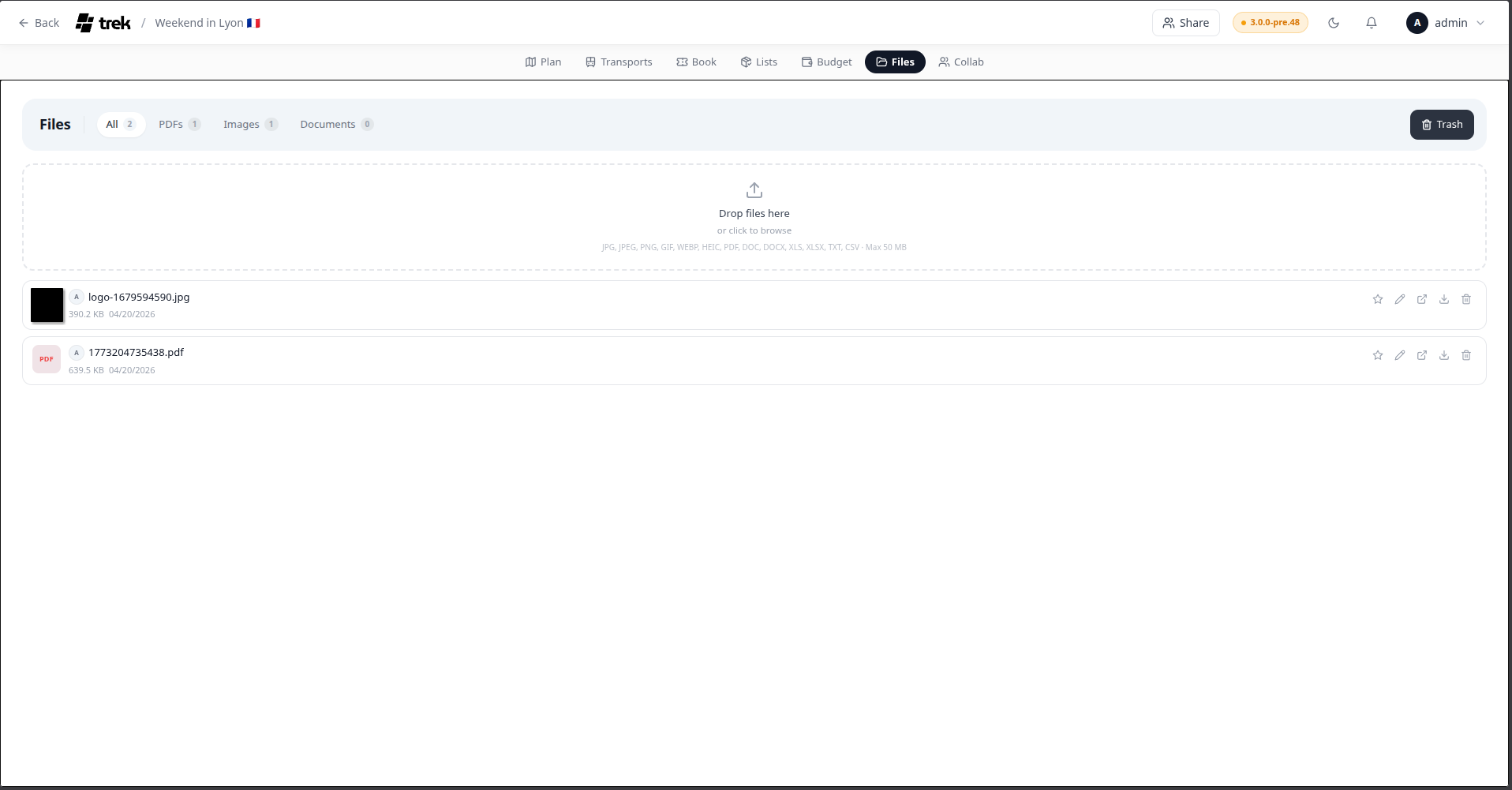
Open the Files tab inside the trip planner, or navigate directly to /trips/:id/files.
Admin: Files is an addon. Enable it in Admin-Addons.
Drag and drop files onto the upload area, click it to open the file picker, or paste an image directly into the Files panel.
- Maximum file size: 50 MB per file.
-
Blocked file types:
.svg,.html,.htm,.xml— these are always rejected. - Default allowed types: jpg, jpeg, png, gif, webp, heic, pdf, doc, docx, xls, xlsx, txt, csv, pkpass. An admin can customize the allowed list in Admin-Addons.
Requires the file_upload permission.
The toolbar provides filter tabs: All, PDF, Images, Docs, and conditionally Starred (only shown when at least one file is starred) and Collab (only shown when files exist from collaborative notes). Each tab shows a count badge.
Clicking a non-image file (e.g., PDF) opens an inline preview modal with options to open in a new tab or download. Clicking an image file opens a full-screen lightbox. You can:
- Navigate between images using the arrow buttons or the left/right arrow keys.
- Swipe left/right on touch devices.
- Jump to a specific image using the thumbnail strip at the bottom.
- Download or open the image in a new tab from the lightbox header.
Click the star icon on any file to favorite it. Starred files sort to the top of the list and can be filtered with the Starred tab.
Requires the file_edit permission.
Deleting a file moves it to the trash. Switch to the trash view using the Trash button in the toolbar. From the trash view you can:
- Restore a file to make it active again.
- Permanently delete a single file.
- Empty trash to permanently remove all trashed files at once.
Restore and delete operations require the file_delete permission.
A file can be attached to multiple places and reservations at the same time (many-to-many). From the file manager, click the link (pencil) icon on a file to open the assign modal. From there you can toggle links to any trip place or reservation. You can also add a descriptive note to the file in the same modal.
From a reservation modal, use the "link existing file" picker to attach files directly.
Click the download icon on any file row to download it. .pkpass files (Apple Wallet passes) are served with the application/vnd.apple.pkpass MIME type, so Safari on iOS and macOS offers to add the pass to Wallet instead of saving it as a generic download.
| Permission | Controls |
|---|---|
file_upload |
Uploading new files. |
file_edit |
Starring and linking files. |
file_delete |
Moving to trash, restoring, and permanently deleting. |