Two Factor Authentication
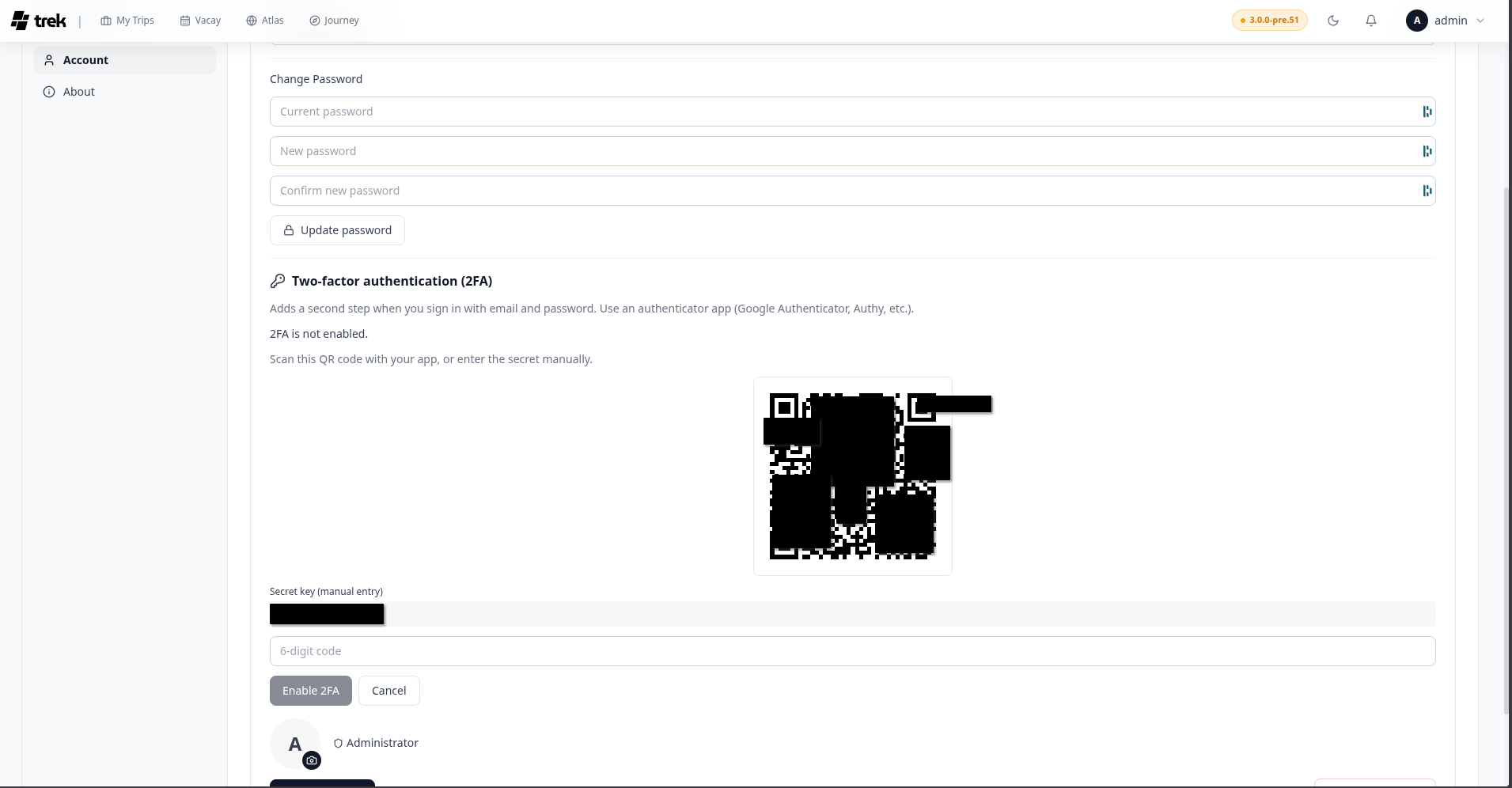
TREK supports Time-based One-Time Password (TOTP) two-factor authentication, compatible with Google Authenticator, Authy, 1Password, and any standard TOTP app. When 2FA is active, you enter a 6-digit code (or a backup code) after your password on each login.
Go to Settings → Account and click "Set up two-factor authentication".
- A QR code and a text secret are displayed. Scan the QR code with your authenticator app.
Note: The setup session expires after 15 minutes. If you do not complete setup within that window, start again.
- Enter the 6-digit code shown in your authenticator app and click Confirm.
- Save your 10 backup codes. These are single-use codes shown only once — store them somewhere safe (a password manager, printed paper). Each code has the format
XXXX-XXXX. - 2FA is now active on your account.
After entering your email and password, TREK shows a second prompt for your TOTP code. You have 5 minutes to complete this second step before the intermediate session token expires. Enter either:
- The current 6-digit code from your authenticator app, or
- One of your backup codes (format
XXXX-XXXX). Each backup code can only be used once.
Go to Settings → Account and click "Disable two-factor authentication". You must provide both:
- Your current account password
- A valid TOTP code from your authenticator app
Note: You cannot disable 2FA while the admin has required it for all users (see below).
An admin can require 2FA for all users. Before enabling this setting the admin must have 2FA active on their own account — the server rejects the change otherwise.
If the setting is active and your account does not have 2FA set up, any API request after login returns a 403 error and the client redirects you to Settings → Account with a prompt to complete 2FA setup. You cannot use the app until setup is complete. See Admin-Permissions.
Admin: You can reset 2FA for a locked-out user from the admin panel. See Admin-Users-and-Invites.
TREK enforces IP-based rate limits to protect against brute-force attacks:
| Endpoint | Limit |
|---|---|
Login (/api/auth/login) |
10 attempts per 15 minutes |
MFA code verification (/api/auth/mfa/verify-login) |
5 attempts per 15 minutes |
Exceeding a limit returns HTTP 429. Wait for the window to reset before retrying.
The demo user account cannot enable or disable MFA.
See also: Login-and-Registration · Admin-Permissions · Admin-Users-and-Invites · User-Settings