My Trips Dashboard
The dashboard at /dashboard is your home base — it lists all your trips, lets you create new ones, and surfaces quick-access widgets.
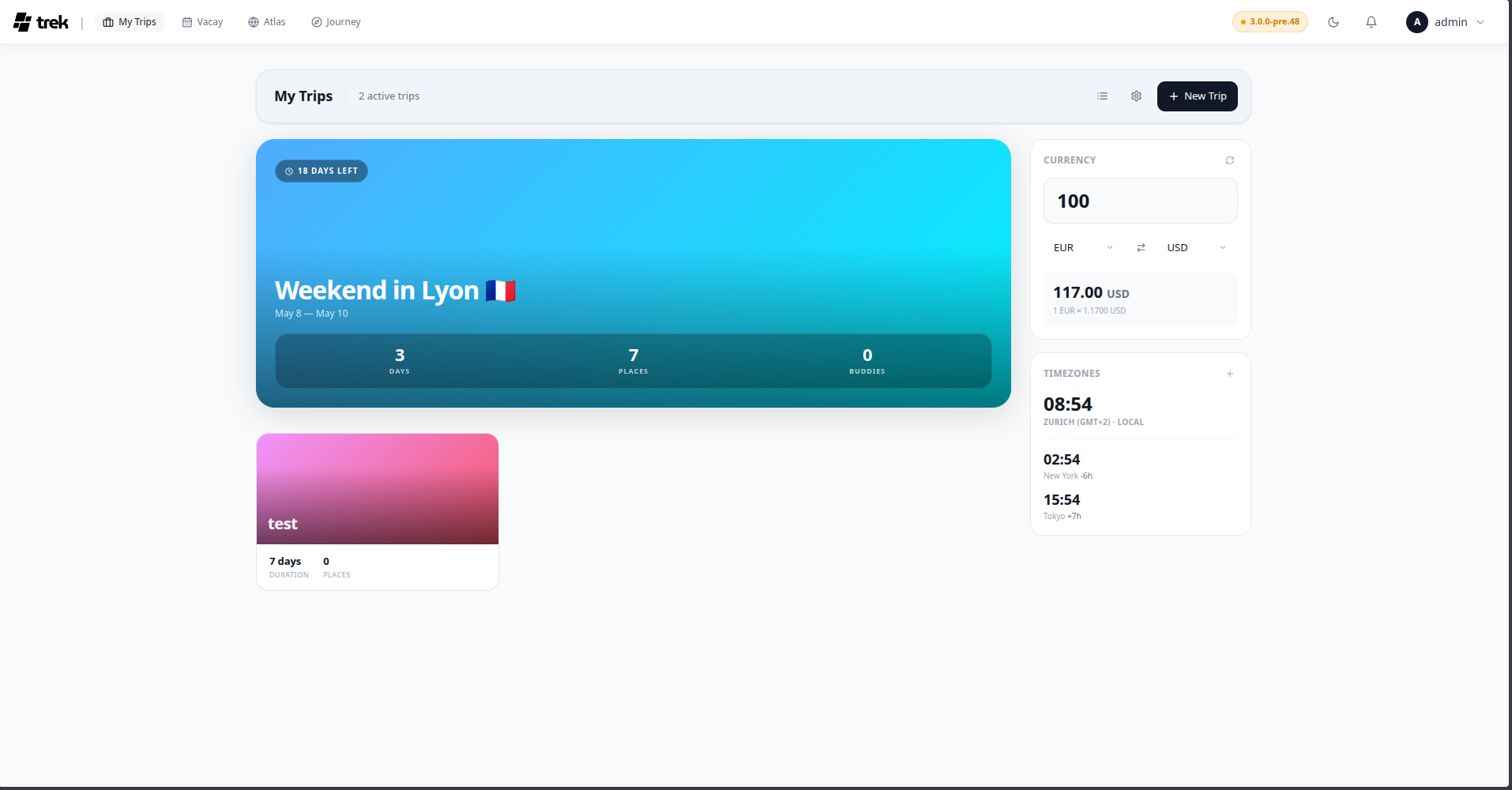
Use the toggle button in the top toolbar to switch between grid (card thumbnails) and list (compact rows). Your preference is saved in localStorage under the key trek_dashboard_view and persists across sessions.
In grid mode the dashboard shows a large Spotlight card for your most relevant trip, with remaining trips in a responsive grid below. In list mode the Spotlight card is not shown separately — all trips (including the one that would be the spotlight) appear as uniform rows in the same sort order.
Trips are always sorted in this order:
- Ongoing — trips where today falls between the start and end date.
- Upcoming — future trips, sorted by start date ascending (soonest first).
- Past — completed trips, sorted by start date descending (most recent first).
Trips without dates are treated as past.
The first ongoing trip — or the next upcoming trip if none is ongoing — is promoted to a full-width Spotlight card at the top of the grid on desktop. On mobile this card appears as a hero at the top of the page. The spotlight card shows a progress bar for ongoing trips and a stats strip (days, places, travel companions).
If you have no trips yet, the spotlight card is not shown.
Archived trips are hidden from the main list and collapsed into a separate Archived section at the bottom of the page. Click the section header to expand it. You can Copy, Restore, or permanently Delete an archived trip from the row actions.
On mobile, the header shows a time-of-day greeting — "Good morning", "Good afternoon", or "Good evening" — along with your username and avatar. The greeting changes at 12:00 (noon) and 18:00. The mobile header also includes a Notifications button (bell icon) that navigates to /notifications.
On wide screens a sticky right column shows the Currency Converter and Timezone Clock widgets. Each can be toggled on or off via the Settings icon in the toolbar. On mobile, the widgets are available as a bottom sheet from the quick-action buttons at the top of the page.
See Dashboard-Widgets for full usage details.
On desktop, hover over a card (or open the row actions in list view) to reveal the action buttons — they appear on mouse-over only. On mobile, action buttons are always visible directly on the card cover. The available actions are:
| Action | Permission required |
|---|---|
| Edit |
trip_edit or trip_cover_upload on that trip |
| Copy | trip_create |
| Archive / Unarchive |
trip_archive on that trip |
| Delete |
trip_delete on that trip |
Actions not permitted for your role are hidden. Admins always see all actions.
When you have no trips, the dashboard shows an illustration and a Plan your first trip button that opens the Creating-a-Trip dialog.