Admin Addons
The Addons tab lets you enable or disable optional features for the entire TREK instance. Toggling an addon affects all users immediately — disabling one hides its UI elements and blocks its API routes instance-wide.
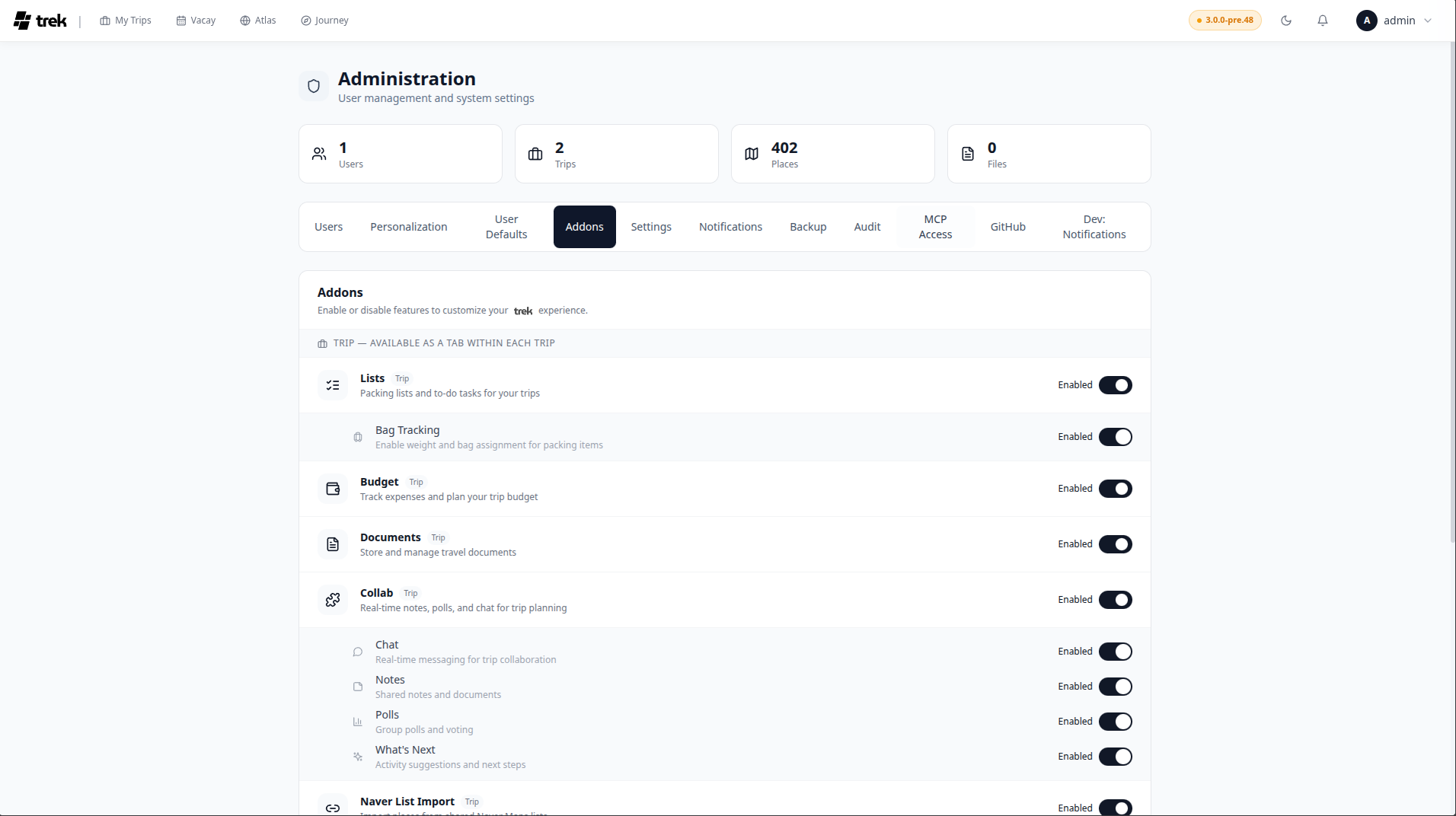
Each addon toggle controls a feature set. When you disable an addon, users lose access to that feature everywhere in the app. No data is deleted; re-enabling the addon restores access to existing data.
Addons are grouped into three categories, shown as labeled sections.
Trip addons add per-trip feature panels. They appear in every trip where the addon is enabled.
The default trip addons are: Lists, Budget, Documents, Collab, and Naver List Import (all enabled by default). The exact list is determined by what is registered in your TREK database.
Sub-toggles on trip addons:
- Lists — when enabled, a nested Bag Tracking toggle appears. Bag Tracking lets users assign packed items to specific bags.
-
Collab — when enabled, four sub-toggles appear for individual collaboration features:
- Chat — in-trip real-time chat
- Notes — shared trip notes
- Polls — trip polls
- What's Next — the "what's next" widget
Each sub-toggle can be disabled independently while the parent addon remains enabled.
Global addons add features that are not tied to a single trip. The default global addons are Vacay, Atlas, and Journey.
- Vacay — personal vacation day planner with calendar view. Enabled by default.
- Atlas — world map of visited countries with travel stats. Enabled by default.
- Journey — trip tracking and travel journal (check-ins, photos, daily stories). Disabled by default.
Sub-items on global addons:
- The Journey addon shows photo provider toggles underneath it. Each photo provider (e.g., Immich, Synology Photos) can be enabled or disabled independently.
Integration addons connect TREK to external services. Enabling an integration addon typically requires additional configuration (API keys, URLs) in the Settings tab.
- The MCP addon requires
APP_URLto be set in your environment. When enabled, the MCP Access tab appears in the Admin Panel. Disabled by default. See MCP-Overview for full details.
Click the toggle switch on any addon row. The change is applied immediately — no save button is needed. A brief success toast confirms the update.
If a toggle fails (e.g., network error), it rolls back to its previous state.
Some addons require credentials or environment variables before they are functional:
- Journey — works without any external integration. To embed photos from Immich or Synology Photos, enable the corresponding photo-provider toggle listed under Journey, then configure credentials per-user in Settings → Integrations. See Photo-Providers.
-
MCP — requires
APP_URLto be set so OAuth redirect URIs resolve correctly.