Repository navigation
Backup and Restore
The two dialogs on the Databases folder and on every database, and what each one checks before it lets you start.
Both have a Script button that opens the statement in a query window without running it, and both run behind a progress view with the bar and elapsed time while the server works.
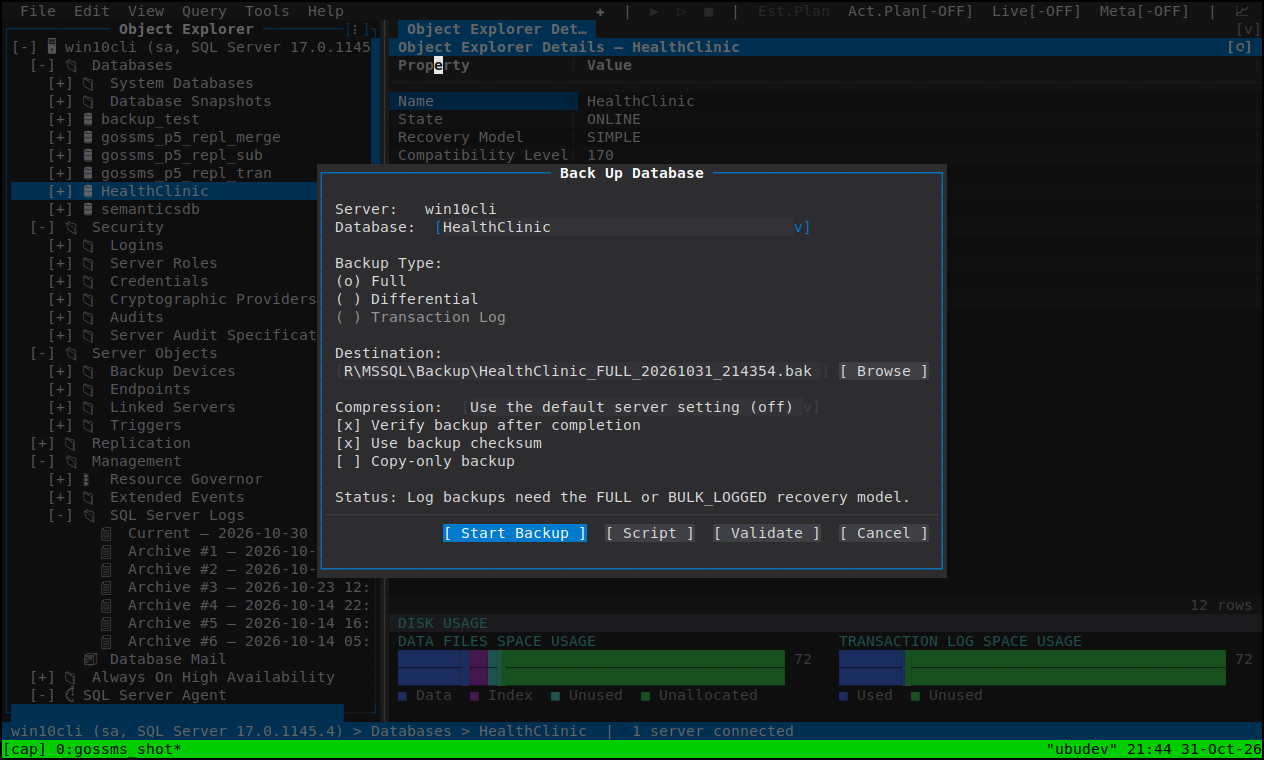
| Field | Behaviour |
|---|---|
| Database | Only databases a backup of this kind can be taken from. Snapshots and tempdb are not offered, because BACKUP DATABASE refuses them. |
| Backup Type | Full, differential and log. A type the database cannot take is greyed with the reason: a log backup on a SIMPLE database, or a log or differential backup of a database with no full backup yet to hang the chain on. The choice follows the database, so switching databases re-checks it. |
| Name / destination file | A default named for the database, the type and the moment — <db>_FULL_<yyyymmdd_hhmmss>.bak, _DIFF_….bak, _LOG_….trn — unique to the second, so two backups taken back to back do not collide. |
| Destination | A file or backup device on the server, or an Azure blob URL. Browse lists the server's filesystem — which is why it is switched off for a URL destination, where there is no filesystem to browse. |
| Copy-only backup | Takes the backup without breaking the differential or log chain. |
| Compression | Three choices — server default, compress, do not compress — because a checkbox cannot tell "server default" from "do not compress", and on a server whose backup compression default is 1, unticking it still compressed. Pinned off on Express and Web, which refuse WITH COMPRESSION. |
| Use backup checksum |
WITH CHECKSUM — make the server verify every page it writes. |
| Verify backup after completion |
RESTORE VERIFYONLY on the file when the backup finishes. |
The buttons are Start Backup, Script, Validate and Cancel. Validate builds the statement and reports whether the options hold together, without taking a backup; Script hands the T-SQL to a query window as SSMS's "Script Action to New Query Window" does.
What it refuses before starting:
- An existing destination file asks before it is overwritten. The exception is a blob target, where the statement itself never overwrites in place.
-
A URL destination needs a SQL Server credential named for the container. That
is a server-side prerequisite
BACKUP … TO URLwill not explain at run time, so the dialog says so the moment the destination is a URL. -
A snapshot or
tempdb— not listed, rather than offered and refused.
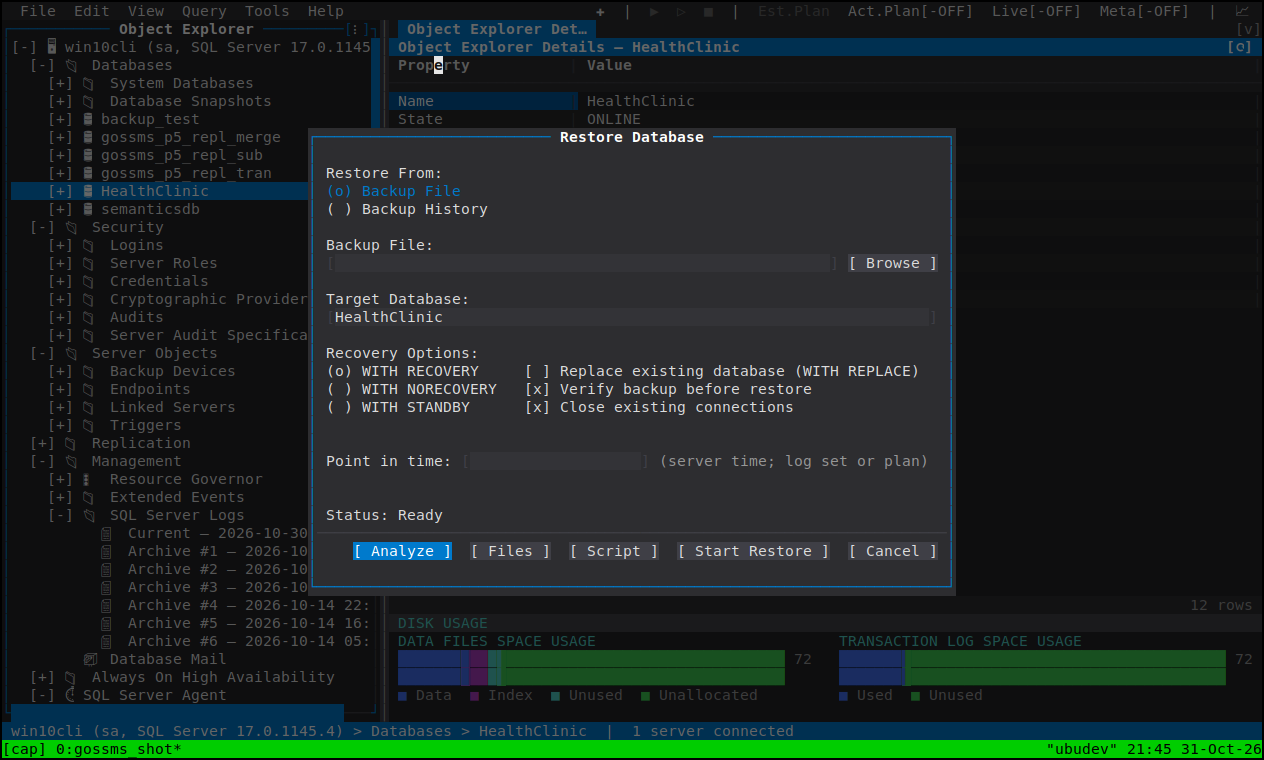
Two sources, matching how people actually find the backup they mean:
- Backup File — a file on the server, picked with Browse (again: the server's filesystem) or typed.
- Backup History — the databases that have a recorded history, then that database's backup sets, so the choice is a date and a log-sequence range rather than a filename you have to recognise.
Analyze reads the backup and switches the dialog to the backup set: what is in the media, which set is which position, what type it is, and the database and file list it carries. From there:
-
Recovery Options: WITH RECOVERY or WITH NORECOVERY — leave it in a
restoring state for the next log backup, or bring it up. A database already
sitting in
RESTORINGis offered the forward step only, becauseONLINEon it isMsg 5052. - Replace existing database (WITH REPLACE) — restore over a database that is not the one the backup was taken from, or under a name it already has.
-
Verify backup before restore — on by default:
RESTORE VERIFYONLYfirst. - Close existing connections — kill the sessions in the way of the restore instead of failing on them.
- File Locations — three ways to place the files: relocate to the server's default folders when renaming the database, keep the locations recorded in the backup, or relocate all files to folders you name. The Files view lists every file with its recorded location and its restore path side by side, which is the thing to look at before restoring onto a server whose disks are not where the source server's were.
Then Start Restore, or Script for the RESTORE statements.
RESTORE … TO URL / FROM URL is what a Managed Instance emits, since a Managed
Instance has no local disk for you to reach — see
Azure SQL Managed Instance.
The result, including a failure, is reported on the status bar and kept in the message history you get by clicking it. A backup or restore that a dialog started appears under Tools ▸ Background Tasks while it runs, and — if it was an export to a file rather than a backup — the destination is only replaced by a complete run.
- Database tasks — snapshots, attach/detach, shrink
- Scripting — Script Changes everywhere else
- Object Explorer — View Backup History