Repository navigation
Connecting
Everything about the first dialog: what a server name may look like, which authentication methods exist, what the encryption settings actually do, and where a saved password is kept.
File ▸ Connect... or F9 (Ctrl+Shift+O on terminals that encode it). The dialog has two panes: History on the left, and the connection itself on the right, on two tabs — Connection Properties and Connection String (Ctrl+PgUp/Ctrl+PgDn between them). On a terminal narrower than the two panes need, History is dropped rather than clipped.
Recent connections are listed on the left; pick one to fill the form, or type a new server. Up/Down walks the list, Enter connects to the highlighted connection, and Delete — set apart at the left of the button row — removes a saved connection after confirming. Reset clears the form. Esc closes the dialog, and while a connection is in flight it cancels the attempt.
The 30 most recent connections are saved automatically, per configuration file.
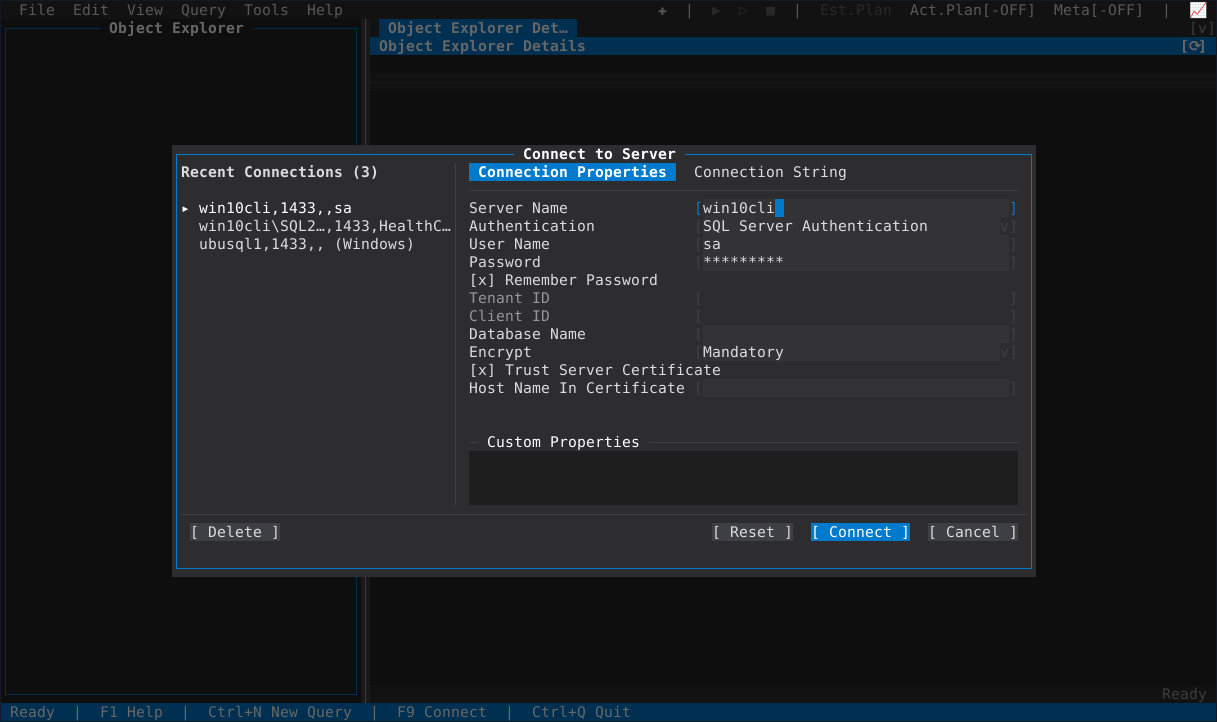
The Server Name field takes every form SSMS's own field takes:
host              host:port             host,port
host\instance     host\instance,port
plus an IPv6 literal bare (fe80::1), bracketed ([fe80::1]) or with a port
([fe80::1]:1433, fe80::1,1433), and a tcp: prefix is accepted and ignored
because TCP is the only protocol. A port written inside Server Name wins over
the dialog's own port field. A named instance found through SQL Browser has a
dynamic port, so pinning a port there reaches the default instance instead —
leave the port empty for a named instance unless you know it listens on one.
Database Name is the database the session opens with, which is also what the query editor's dropdown and IntelliSense start from.
| Method | What it needs |
|---|---|
| SQL Server Authentication | User Name, Password |
| Windows Authentication | Your Windows identity; User Name for a different one where the platform allows it |
| Microsoft Entra Default | Tenant ID; uses the credential chain the environment already has |
| Microsoft Entra Password | User Name, Password, Tenant ID, Client ID |
| Microsoft Entra MFA | Interactive sign-in with a second factor: User Name, Tenant ID, Client ID |
| Microsoft Entra Device Code | Tenant ID, Client ID; the dialog shows the code and the URL to enter it at |
| Microsoft Entra Service Principal | Client secret (Password), Tenant ID, Client ID |
| Microsoft Entra Managed Identity | Client ID; the identity the host is running under |
| Microsoft Entra Azure CLI | Tenant ID; the account az login is signed in as |
Sign-ins are shared process-wide, so a second connection to the same tenant does not prompt you again. File ▸ Clear Microsoft Entra Sign-ins drops them — the thing to reach for after switching tenants, or to force a fresh prompt.
Remember Password stores the password for that connection; see Where a password lives.
Encrypt takes Optional, Mandatory or Strict (SQL Server 2022+). Trust Server Certificate (skip validation) sits beside it, and its label says what it costs: it skips validating the server's certificate, which lets anyone on the network path impersonate the server and collect a SQL login's password. As in SSMS 20+, a new SQL-authentication connection defaults to Mandatory with the box clear.
The trade-off you will meet on-prem: with Mandatory and the box clear, a
server offering only SQL Server's self-signed fallback certificate fails with
x509: certificate is not valid for any names, or certificate signed by unknown authority. goSSMS says so on the failing attempt and names the box to tick —
and Host Name In Certificate is the field for a server whose certificate is
valid but issued for a name you did not dial, such as an instance reached by IP.
Saved connections keep whatever they were saved with.
Strict (TDS 8.0) needs a real certificate: on a server with only the fallback certificate it fails the handshake, which is the server's configuration and not a defect in the client.
The same connection as a string, generated from the form rather than typed beside it: what goSSMS will dial is what the tab shows, with the password masked. Editing the form updates it; it is the place to check an odd address, a named instance, or an option that has no field of its own.
Saved passwords are encrypted with AES-256-GCM using gossms.key, written
beside the config file with the narrowest permissions the platform allows:
- Linux/macOS:
~/.config/gossms/config.jsonandgossms.key - Windows:
%APPDATA%\gossms\config.jsonandgossms.key
Deleting both resets them. Editing a saved connection's server, port, user,
authentication or encryption settings by hand invalidates its stored password on
purpose — the password belongs to that pair of credentials and endpoint, so a
file edit cannot carry it onto a different server. Writes are atomic, so a crash
mid-save cannot leave a half-written config.json.
goSSMS asks for no privileges of its own: each action needs the permission it
would need in any other client. Connecting needs CONNECT SQL; listing
databases may need VIEW ANY DATABASE. Where a permission is missing the action
is disabled rather than left to fail, a properties page opens read-only, and a
value that could not be read shows as N/A and never as zero — see
Server and database properties.
Sessions appear on the server named by what they are doing: goSSMS for Object
Explorer and management, goSSMS - Query for a query window, and
goSSMS - Activity Monitor for Activity Monitor, so sp_WhoIsActive and a query
store read distinguish them.
File ▸ Disconnect closes the selected connection; every query panel on it reconnects on demand through Query ▸ Reconnect, and a query panel keeps its session's temp tables only until its connection is lost — see Query Editor.
- Object Explorer — what you get once connected
- Options and the terminal — config files, themes, clipboard
- Azure SQL Managed Instance — connecting to a Managed Instance