Repository navigation
Object Explorer
The tree of servers, databases and their objects, and the Details pane beside it. Everything else in goSSMS starts from a node in this tree: Properties, New something, Tasks, Script as, Filters.
Connected instance:
- Databases — System Databases (with the distribution database listed among them, its own menu as SSMS gives it), user databases and snapshots. A database the login cannot open is one row saying so rather than a folder full of errors, and an offline database says that too.
- Security — Logins, Server Roles, Credentials, Cryptographic Providers, Audits, Server Audit Specifications. Each database has its own Security folder underneath it.
- Server Objects — Backup Devices, Endpoints, Linked Servers, Server Triggers.
- Replication — Local Publications and Local Subscriptions. Hidden on Azure SQL Database.
- Management — Activity Monitor, Extended Events, Resource Governor, Database Mail, SQL Server Logs and the Agent error logs.
- Always On — availability groups with their replicas, databases and listeners.
- SQL Server Agent — Jobs, Schedules, Alerts, Operators, Error Logs and the SQL-only administration reports.
Inside a database: Tables, Views, External Resources (PolyBase), Programmability (Types in five sub-folders, Assemblies, Rules, Defaults, Plan Guides, plus the stored procedures, functions, sequences and synonyms), Query Store, Service Broker, Security, Storage (Full Text Catalogs, Stoplists, Search Property Lists, partition functions and schemes) — and Extended Events as well on Azure SQL Database, where sessions belong to the database.
Tables carry their own sub-objects: columns, keys, constraints, indexes, statistics, triggers and a full-text index when it has one.
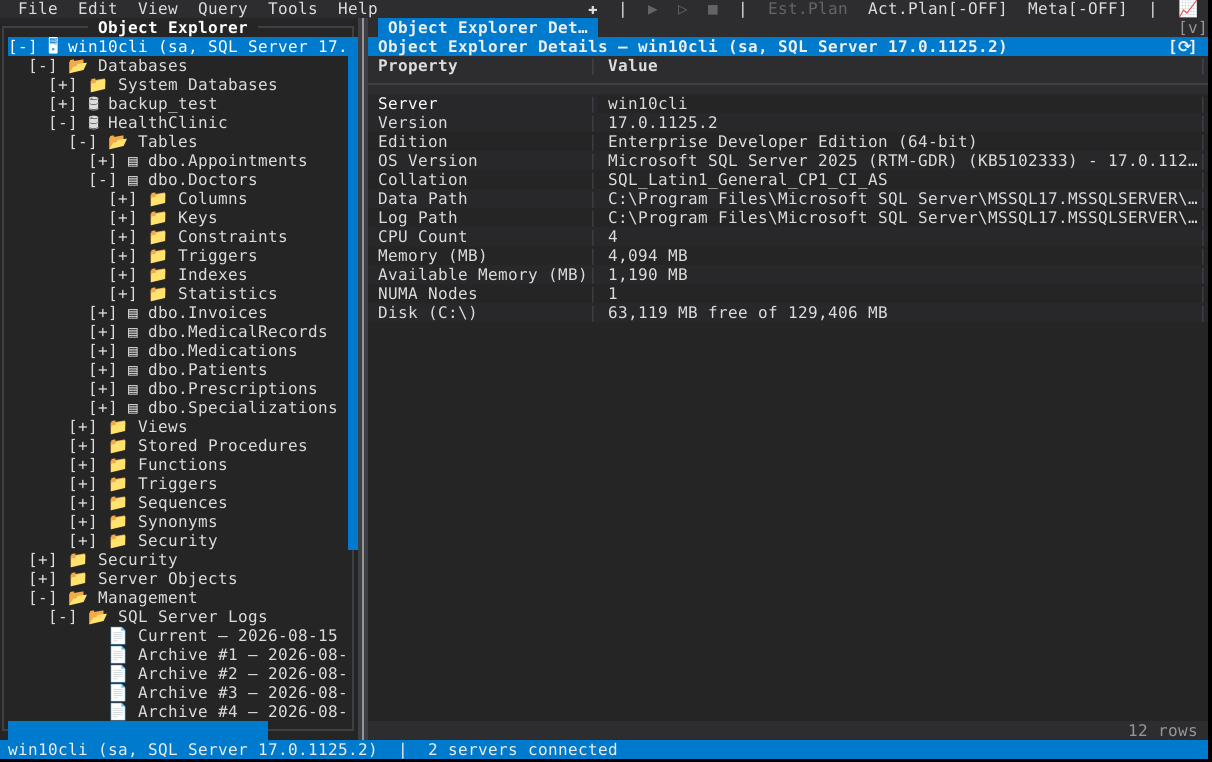
Folders load in the background and can be cancelled: expanding a node a second time supersedes the load still running for it rather than queueing another one.
| ↑ / ↓ | Move the selection |
| Enter or + | Expand (Enter on a leaf opens its Properties) |
| − or Backspace | Collapse |
| F5 | Refresh the selected node |
| Right-click, Shift+F10, the Menu key, Ctrl+Space | Context menu |
| Ctrl+Left / Ctrl+Right | Shrink / grow the explorer |
| Scroll wheel | Scroll the tree |
| Drag a node into a query editor | Inserts it as a quoted identifier |
The drag is armed by a press and only starts once the pointer has moved a few cells, so a slow click stays a click; what lands in the editor is the quoted, schema-qualified name, so a name with a space or a keyword arrives correct.
The right-hand pane shows properties for whichever node you select: the properties of one object, or a folder's children side by side as a grid — for queues that means status, retention, activation and messages waiting; for databases, state, recovery model and size with a disk-usage strip whose click pins a readout of every segment. View ▸ Object Explorer Details opens it as its own panel, which is where a folder's grid lives when you want it beside the tree.
Click a column header to sort a folder's grid by that column; click it again to
reverse the order, and the header carries ▲ or ▼ to say which. From the keyboard,
Ctrl+Space on a cell offers Sort Ascending and Sort Descending for its
column. The sort reads the cells as you see them:
- a cell that is a number sorts by value —
1,234,45%, and sizes across units, so512 B,4.0 KBand1.2 MBcome out in byte order; - everything else sorts as text, case-insensitively, by character code rather than by
the server's collation (
ésorts afterz); -
blanks sort last in either direction — an empty cell, a dash, a size still
reading
…— so reversing a half-loaded column does not bring the placeholders to the top. Once the sizes land, the rows re-sort.
The order is the pane's, not the query's: it survives F5 and the background fills, and each folder remembers its own while you move about the tree. A single object's Property/Value view is a record and keeps its fields' order.
Delete works from the Details pane's context menu over whatever the selection covers, because the tree has a single selection and SSMS's multi-object delete cannot come from there. Rename and Move to Schema stay in the tree: neither means anything applied to a set.
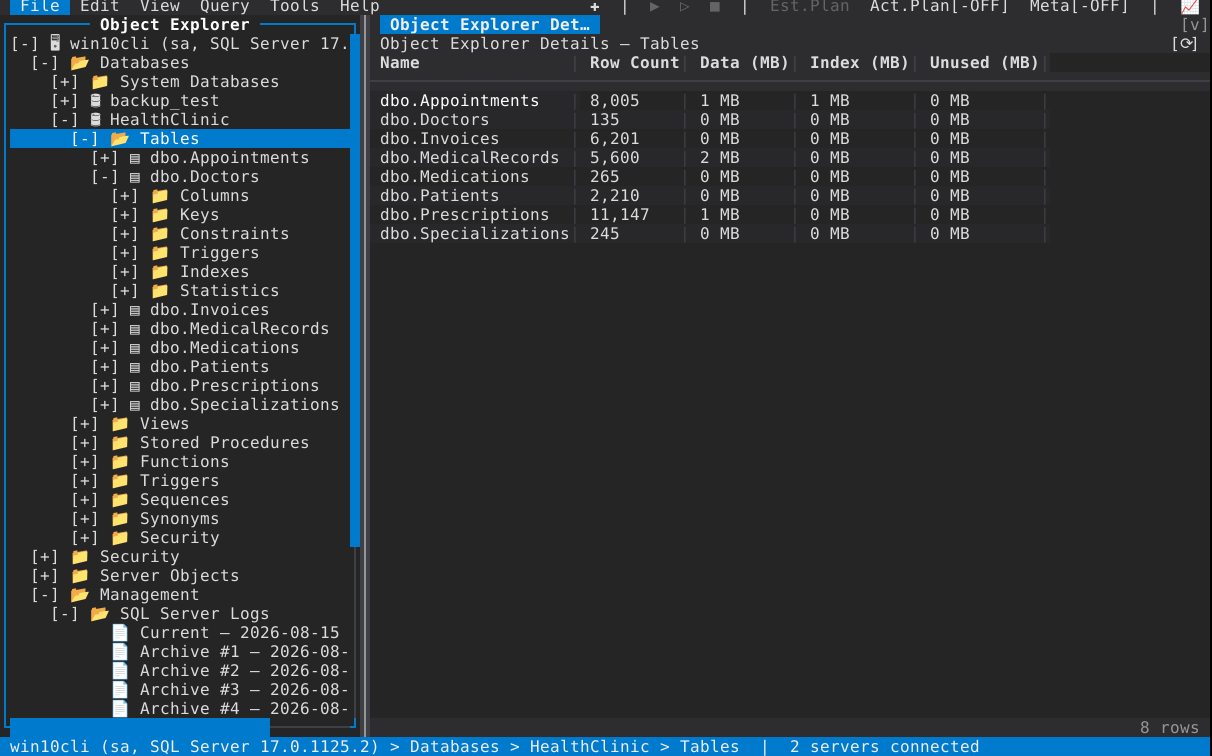
Every filterable folder offers Filter Settings...: one row per property that folder can filter on — name, owner, creation date, state and the rest the folder actually has — each with its own operator, and Clear Filter to drop it. A filter is applied while the children are fetched rather than while they are drawn, so what you see is what the server returned, and clearing one reloads the folder. The filter matches on the fields the tree already carries, so setting one costs no extra round trip beyond the reload.
Right-click offers Rename, Delete and Move to Schema where the object type allows it. Each confirms by naming the object; deleting something with dependents offers a cascade checkbox; and every one of them can be scripted instead of run from the confirmation, so the statement is what you review rather than what the server already did. Afterwards the parent folder refreshes itself.
What each object type means for each action — and which right it needs, at the right scope (object, schema, database or server) — is one table, which is also why an action is greyed rather than offered and refused. A DENY on the object, column or schema is asked about first and wins over a GRANT held higher up.
Principals SQL Server creates for itself are treated as built-in where the server
refuses to drop or rename them: dbo, guest, sys, INFORMATION_SCHEMA, the
fixed roles, public. Two deliberate exceptions keep their entries — sa really
can be renamed (a documented hardening step), and the vestigial db_* schemas
really can be dropped — so goSSMS does not grey a thing you are allowed to do.
View Dependencies on a table, view, procedure or function opens both directions of the relationship — what this object depends on and what depends on it — from the same catalog reads the Details pane uses, so the dialog and the pane cannot disagree about what a dependency is.
Two independent things can withhold an action, and the note on the item says which:
-
Permissions. Each action names the right it needs; the connect-time probe
answers what this login may do, and the answer is cached per connection (and
lazily per database). The rule is fail-open: an item is withheld only on a
measured no, never because a probe could not be run. A page you manage to
open with a value it could not read shows
N/A, not zero. - Engine edition. What an edition does not implement — Detach on a Managed Instance, for one — is refused by the edition, so no permission lifts it and the note names the edition rather than a right.
When you do try something the server refuses, the message names the right that was missing instead of repeating a driver error.
- Tools ▸ Query List lists every open query panel and jumps to one.
- Tools ▸ Background Tasks lists every task running or finished, with progress and a Cancel where the task can be interrupted; long writes run behind a progress dialog that says so when a statement cannot safely be stopped.
- Click the status bar for the last 256 status messages — the place to look for a background load's or a script's outcome after it has scrolled away.
- The menu-bar row carries an icon toolbar beside the menus. On a terminal too narrow for all of it, the lowest-priority buttons disappear first, keeping Execute; each still has a menu entry or a key.
- Scripting — Script as ▸ and its destinations
- Security — logins, users, roles, permissions
- Options and the terminal — icon styles and themes