Repository navigation
Database Tasks
The operations on a database from Object Explorer: creating one, snapshots, attach and detach, offline and online, shrink, backup history — and the two places that show what is running.
Databases (the folder) offers New Database…, Attach Database…, Back Up Database… and Restore Database…. A database offers its own set, and the entries it does not have are greyed with the reason: a permission it measured, or an engine edition that does not implement the statement.
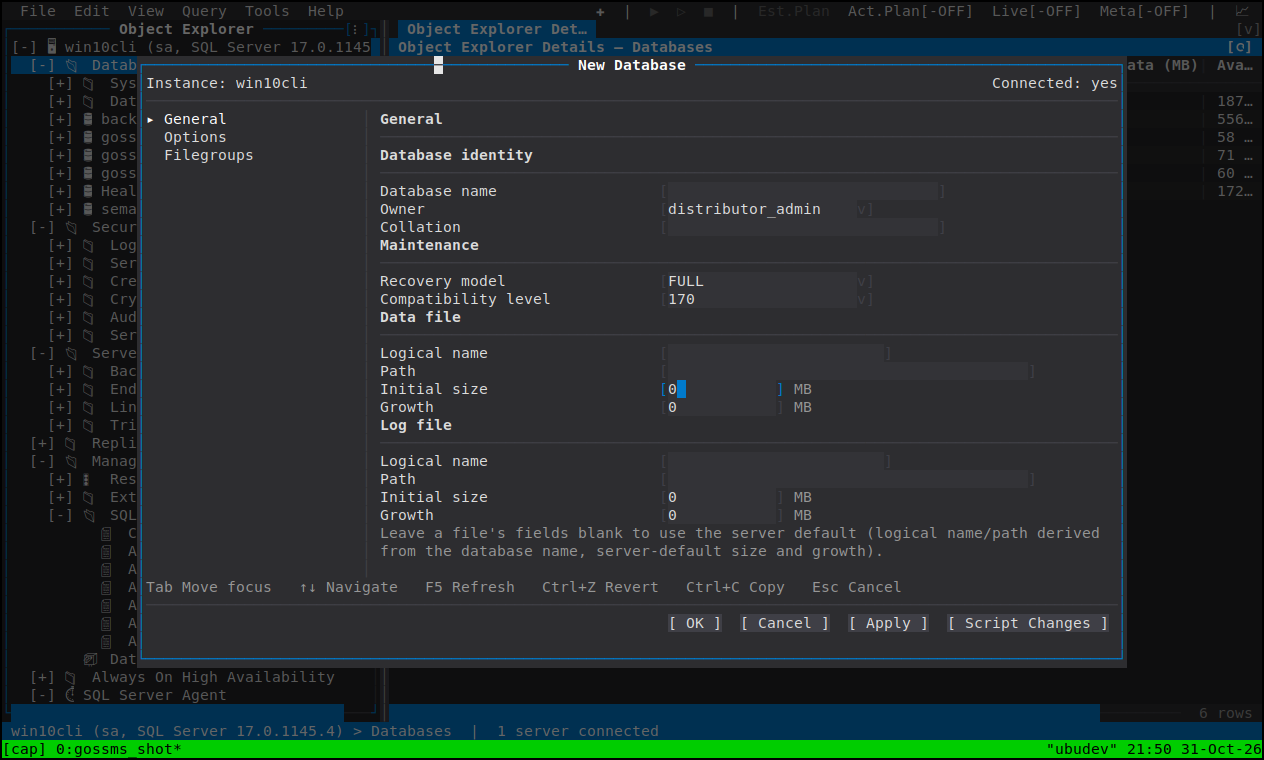
Three pages, applied in order: General (name, owner, collation, recovery model, compatibility, the primary file and its size and growth), Options (the database SET options and the containment and secondary defaults), Filegroups (the additional log and data files, with autogrowth and limits).
Against Azure SQL Managed Instance the file rows are refused up front rather than submitted and rejected, along with the rest of what the edition refuses — see Azure SQL Managed Instance.
Script Changes gives you the whole CREATE DATABASE, files and all.
New Snapshot… on a database names the snapshot and its sparse files, and the snapshot appears under the Databases folder. A snapshot's own Properties show its size on disk; Restore Database from Snapshot… reverts the database to it, and that is a revert of a live database, so it runs behind the progress dialog with no Cancel: a partially-applied revert is a worse place to be than a refused one.
Detach Database… lists the database's files with their paths before it lets you
proceed, and the list is not decoration: detaching removes the only place those
paths are recorded where a client can read them (sys.database_files is behind a
USE, and a detached database has none). The primary data file is listed first,
and those paths are what an attach will need.
Attach Database… on the Databases folder exists for the one case detaching
creates: files that have moved. SQL Server finds a database's secondary and log
files only at the paths recorded inside the primary file, so goSSMS reads that
recorded list back from the primary and makes every path correctable before
issuing CREATE DATABASE … FOR ATTACH.
On a Managed Instance neither is offered: the service layer refuses Detach, so the menu says the edition refuses it rather than letting you click into an error.
The menu carries one entry whose label follows the database's state — Take
Database Offline or Bring Database Online — because offering both is offering
one that cannot work. Taking a database offline rolls back every connection to it;
a database sitting in RESTORING can only be brought forward, so the entry for it
is Restore With Recovery, which runs the RESTORE … WITH RECOVERY.
A distribution database keeps the menu SSMS gives it, and is listed under System Databases; the offline/online pair is not offered on it.
Shrink ▸ Database… and Shrink ▸ Files… both script and execute nothing.
That is deliberate: a shrink moves pages, fragments every index it touches and can
run for hours, so the statement belongs in a query window where you can run it in a
maintenance window, wrap it in a job, or read it first. Each dialog is a
DBCC SHRINKDATABASE or DBCC SHRINKFILE builder — the target size or the free
space to release, the file chosen by type, filegroup and name — with the
WAIT_AT_LOW_PRIORITY row for a shrink that should not block a busy workload, and
its buttons are Script and Cancel.
Growing a file, and shrinking one that is already too big, are also available where you are already looking at sizes: Files on Database Properties.
View Backup History opens a query in msdb and executes it — the plainest form
of the thing, because the history is a table and a query window can filter it. It is
the starting point for a point-in-time Restore Database… (see
Backup and Restore).
- Tools ▸ Background Tasks lists every task, running or finished, with its progress and its outcome, and cancels the selected one where the task can be interrupted. The list updates as it draws, so a progress update arrives without you reopening it. Populations, long script generations, background catalog reads and long exports land here.
- The progress dialog covers a confirmed write that may take a while — a Delete, Rename, Take Offline, a failover — from the moment you answered until the server comes back. Esc or Enter cancels the statement running, and the dialog stays up until the server has stopped it. Cancel is greyed on the two operations that cannot be safely interrupted: a forced failover and a revert to a snapshot.
- A long write reports through the progress dialog and, if it is an export, keeps its destination untouched until it finishes — see Query Editor.