Repository navigation
Gradient
Gradient chooses a different block for each step between two or more colours or blocks.
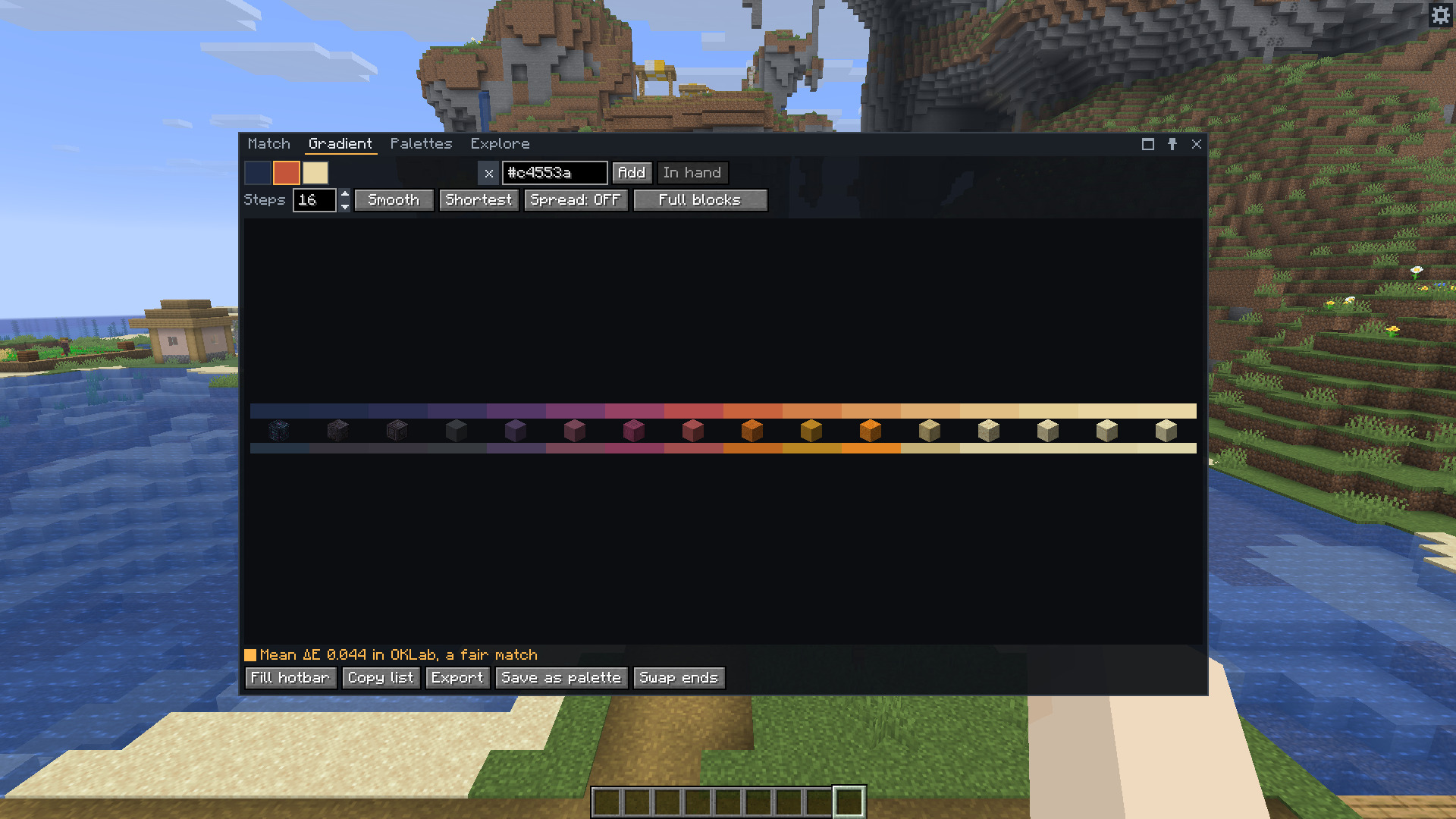
Click a stop to select it. Type a hex colour and press Add to insert it after the selected stop. In hand adds the block you hold. Right-click a Match result to add it as a stop here.
Drag a stop left or right to move it. A marker shows where it will land, and the gradient is worked out again when you let go. A click that doesn't move only selects the stop.
Right-click a stop or press its remove button to remove it. A gradient needs at least two stops and accepts up to eight. Swap ends reverses the stops.
The initial stops are #1F2A44 and #E9D8A6. Stops and the tab's choices last for the current game session.
| Control | Choices and default |
|---|---|
| Steps | 2 to 32, starting at 9 |
| Easing | Linear, Smooth, Ease in or Ease out. Smooth is the default. |
| Hue arc | Shortest or Longest, starting on Shortest |
| Spread | Prefers textures as busy as the ends. Off by default. |
| Kind | The Match tab's kind filter. It starts on All kinds. |
| More… | Opens the rest of the Match tab's filters. The number on the button counts the ones that are on. |
The colours follow the OKLCH colour wheel between the stops. Easing changes how the steps spread between them. Longest takes the long way around the wheel. Between equal hues it makes a whole turn.
Gradient uses the face, viewing distance, biome and colour difference from Settings. Side uses North for this tool. Any uses Top. Gradient doesn't apply the Shading toggle.
Gradient chooses only from blocks that pass the Match tab's filters. The two tabs share one set, so a block you filtered out in Match can't appear in a gradient. For example, set Creative-only blocks to Leave out and a dark gradient no longer picks a spawner.
The Kind control is the same one as in Match, and changing it in either tab changes it in the other. More… opens the same filters as in Match, with Cube, Solid and Opaque at the top. Lightness, chroma, tone and texture are judged on the face Gradient reads.
Kind starts on All kinds, so a gradient can include slabs, plants or chains. Choose Block for full blocks only.
Blocks covered by Chests and banners enter a gradient only while that filter is on. Their colour is a guess from the particle texture. Other blocks without a drawing block model, such as barriers, never enter a gradient. If too few blocks pass, loosen the filters or reduce the steps.
The upper strip shows the colours wanted. The blocks and their colours sit below. Hover a step for its wanted colour and ΔE, and click it to swap its block. The mod chooses the steps together so it can use each block only once. It finds the lowest total cost within its candidate pool.
The badge is always the mean difference in OKLab, even if matching uses another method.
| Badge | Mean ΔE |
|---|---|
| Green, a close match | Up to 0.02 |
| Amber, a fair match | Above 0.02 and up to 0.06 |
| Red, a loose match | Above 0.06 |
Click a step to open a slim list under the strip. It holds up to twenty blocks that come next closest to that step's colour, each with its ΔE in OKLab. They come from the same filtered blocks the gradient chooses from, and blocks other steps use are left out. Scroll the list with the wheel. Click outside it or press Escape to close it.
Click a block in the list to keep it on that step. The other steps are chosen again around it, so no block appears twice, and the badge shows the new mean. An amber corner on the icon marks a step you chose. Its turn-back button puts the gradient's own block back, and so do a right-click on the step and the first line of its list.
Your choice stays while you swap other steps, and when you close and reopen the window. It clears when you change the stops, the steps, the easing, the hue arc, Spread or a filter, when a matching setting changes, and when the block index is rebuilt.
Fill hotbar, Copy list, Save as palette and Export all use the blocks on show, with the ones you swapped in.
Fill hotbar opens Hotbar fill. Copy list copies the block ids with their state properties, one per line. Save as palette makes a new editable palette. Export opens the export dialog, starting with a strip.