Repository navigation
Palettes
Palettes keeps ordered block lists and gives you tools to make, inspect and use them.
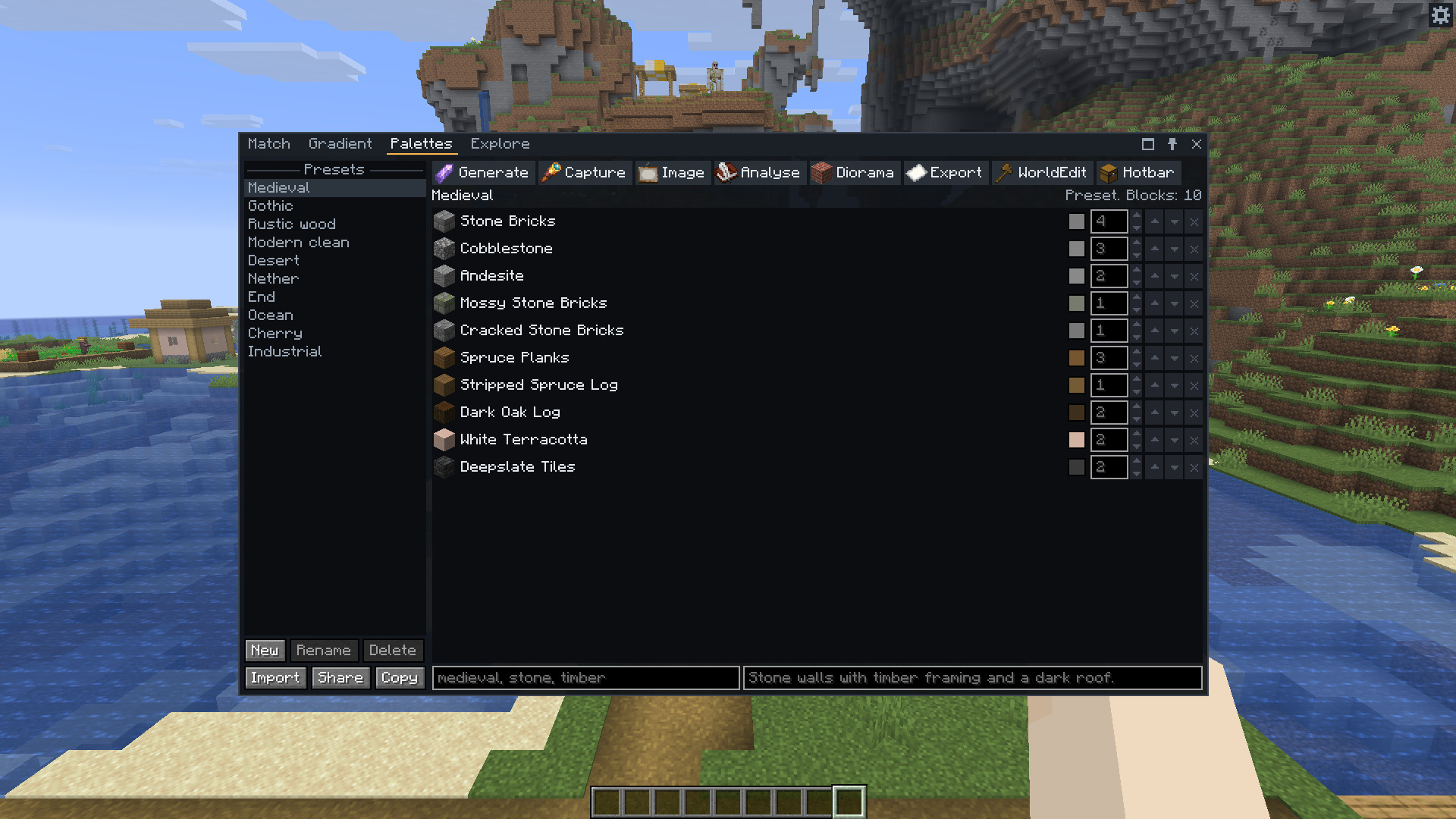
Your palettes sit above the Presets section on the left. Type in the search field above the list to keep only the palettes and presets whose name or tags contain every word you type. Case doesn't matter. The list says No palettes match when none do. A palette the search hides stays selected.
New starts an empty palette. Rename changes its name. Delete asks before removing the palette and its file. Import reads a share string or JSON file. Share copies a share string. Copy makes an editable copy.
The ten presets are Medieval, Gothic, Rustic wood, Modern clean, Desert, Nether, End, Ocean, Cherry and Industrial. They are read-only. Copy one to change it.
On the right, each entry shows its icon, name, state properties and colour. Use the arrows to move it up or down, its number to change the weight, or its remove button to delete it from the list. Weights start at 1. The spinner allows 1 to 999. The wheel scrolls the list, so click into a weight first to change it with the wheel. A weight of 3 makes a block occur about three times as often as one with weight 1 in a mixed wall or WorldEdit pattern.
Enter tags separated by commas and any notes you want to keep. Edits save automatically. Names, tags and notes can be any length. Unknown blocks stay in a palette so you can bring it back to a game that has them. Exports leave those blocks out and report them.
Add blocks with + on a Match result. Adding while a preset is selected starts an editable palette. See Sharing palettes for the saved files.
Generate starts with the Match target's colour. Type another hex colour or press In hand for the held block's colour. Choose a Harmony and a number of Colours, six by default. Generate also spreads lightness around the seed automatically. There is no separate lightness-ramp control.
| Harmony | Hues used |
|---|---|
| Similar | The seed and nearby hues, 15° either side |
| Analogous | The seed and hues 30° either side |
| Complementary | The seed and its opposite |
| Split complementary | The seed and hues 150° and 210° away |
| Triadic | Three hues 120° apart |
| Tetradic | The seed and hues 60°, 180° and 240° away |
| Square | Four hues 90° apart |
| Monochromatic | The same hue at different lightnesses |
Roll makes a palette from a random colour and harmony. Small random hue changes make repeated generations differ.
Generate and Image use the default Full cubes only, Solid blocks only, Opaque blocks only and Survival blocks only filters in Settings. They also use the settings' face, viewing distance, biome, colour difference and shading. Side uses North in these tools. Any compares candidate faces but uses Top when reading a held block's colour. Match's extra session filters don't apply. Each block id appears at most once, so the answer can have fewer blocks than requested.
Capture closes the window. Press X on the first corner and the opposite corner of a box. An outline shows the box while you aim. If you point at no block, the corner is your own block position.
Capture counts the block states in loaded chunks inside the inclusive box, leaving out air. It keeps the twelve most common by default. Captured blocks in Settings allows 1 to 64. Weights express their relative frequency, rather than their raw counts. State properties stay as placed.
Escape cancels. Leaving the world or changing dimension cancels too. You can reopen Palettes and press Capture again to cancel. Capture works in survival without operator rights. The maximum box volume is 4,000,000 blocks.
You can also give six absolute integer coordinates with /chroma capture x1 y1 z1 x2 y2 z2.
Image opens a file picker through Browse… or takes a file path in its File field. It accepts PNG, JPEG, GIF and BMP. Type a path if the system dialog doesn't open.
It groups the image's main colours and matches them to blocks. Colours starts at six and allows 2 to 32. Pixels less than half opaque are ignored. The new palette takes the image's file name.
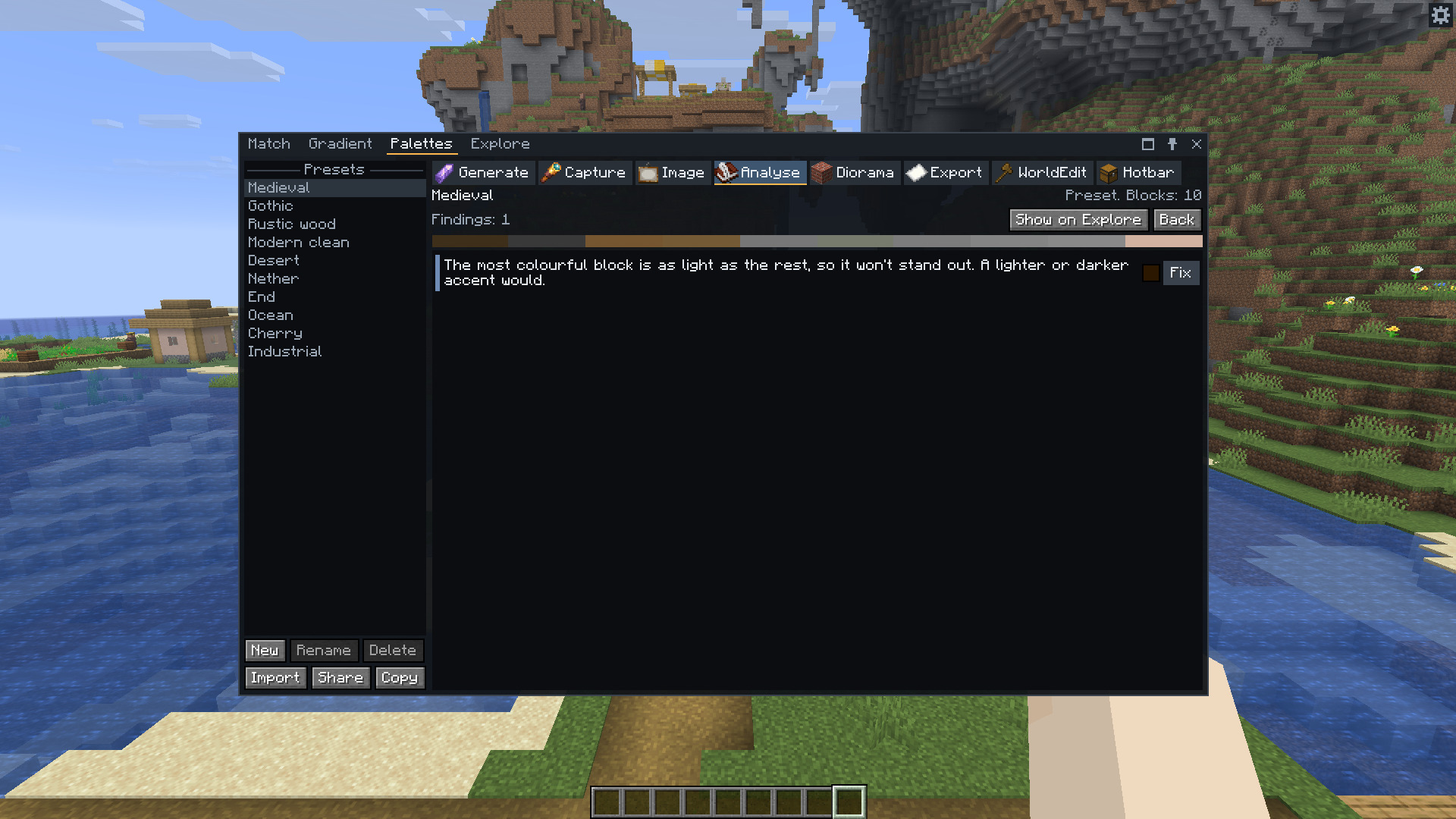
Analyse replaces the entries with a lightness strip and findings. It looks for darks, highlights, lightness gaps, a hue harmony, chroma balance, an accent and texture variety. It also reports palettes with fewer than three or more than twelve entries.
A finding with a suggested colour has Fix. It opens Match on that colour and a suitable filter, ready for you to choose a block. It doesn't edit the palette automatically. Size findings have no suggested colour or Fix button.
Show on Explore outlines the palette's blocks on Explore. Back or Escape returns to the entries. Analyse treats each entry equally, regardless of its weight.
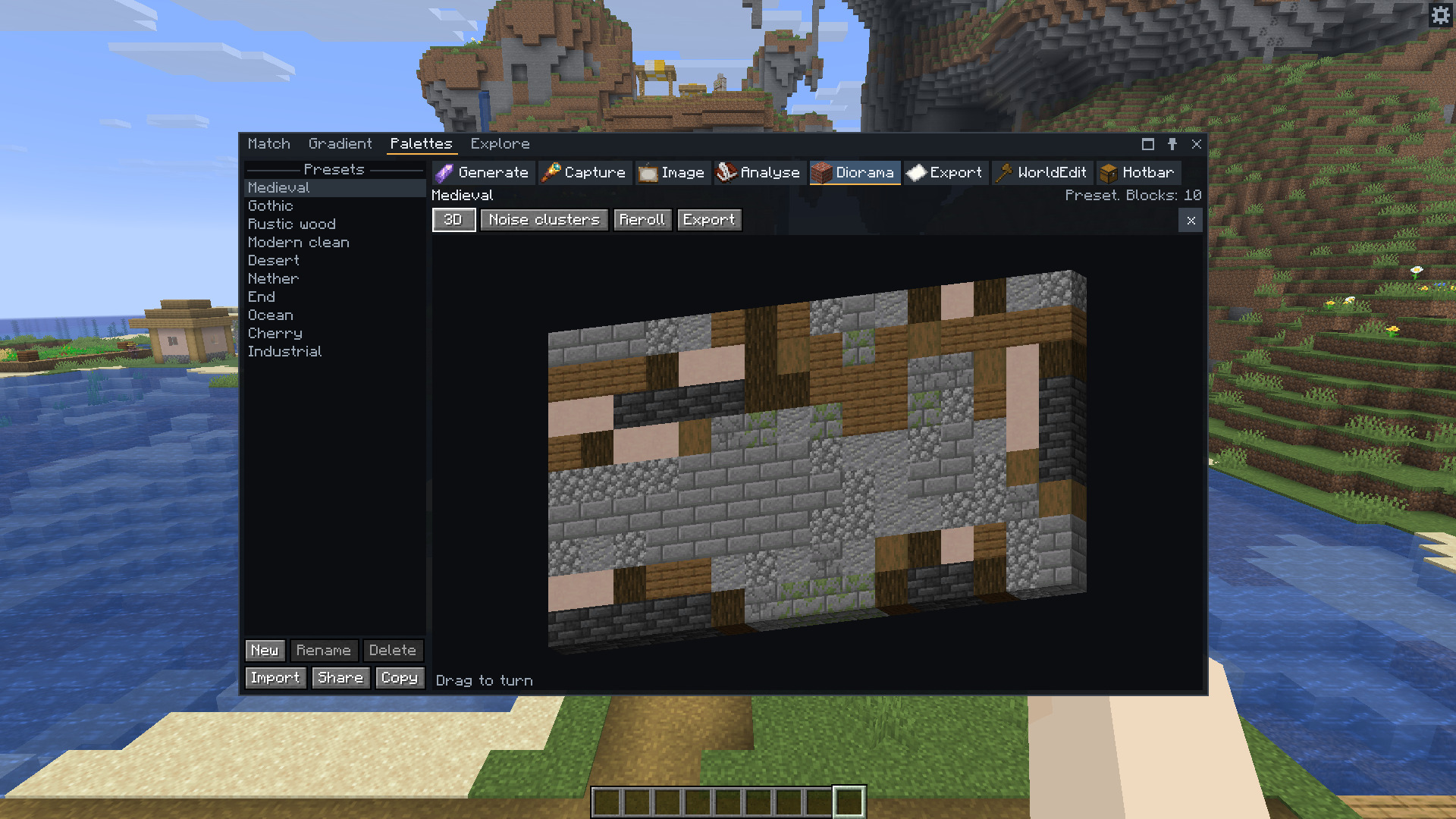
Diorama replaces the entries with a 16 by 9 wall, one block deep. Flat tiles the selected face textures. 3D draws the block models. Drag the 3D view to turn it: the wall follows the cursor, so dragging down shows more of its top and dragging right brings its left side round.
The 3D view is orthographic by default, with far blocks as big as near ones. Set Diorama projection to Perspective in Settings to draw near blocks bigger and far ones smaller, with a field of view of 50°. The wall sits a little further back in that view, so its near end stays in the picture. The flat view doesn't change.
Noise clusters makes patches of similar blocks. Height gradient runs through the palette order from bottom to top. Random dither mixes blocks throughout the wall. All three respect weights. Reroll changes the arrangement.
Export opens the export dialog with this layout and arrangement. Keep its dimensions to reproduce the wall. Back or Escape returns to the entries.
Export opens Export and Litematica. WorldEdit opens the WorldEdit command builder. Hotbar opens Hotbar fill with Fill and Undo.
At narrow window sizes, the toolbar uses icons. Hover one to see its action. Controls that can't apply stay visible with a tooltip explaining why.