Repository navigation
Match
Match lists the blocks whose textures come closest to a colour or another block's face.
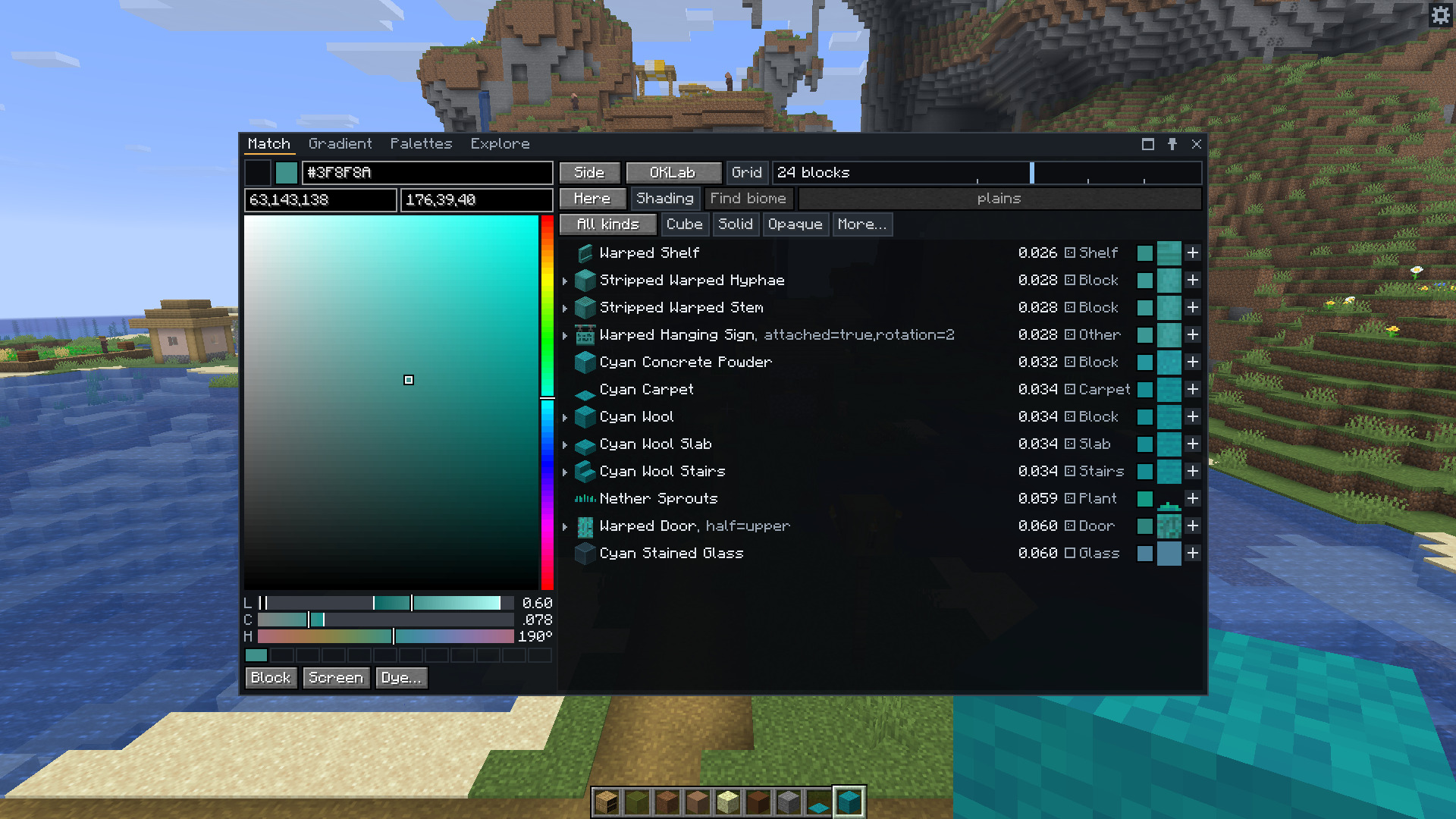
Use the colour square for saturation and brightness, and the hue bar to change hue. The OKLCH sliders change lightness, chroma and hue. Their coloured parts show what your screen can display. Grey parts are outside the sRGB colour range. The picker lowers chroma when a colour needs to fit that range.
Type a hex code, RGB values from 0 to 255, or HSL values. HSL uses hue from 0 to 360 and saturation and lightness from 0 to 100. Click a recent colour to use it again.
Click the item slot to match the block in your hand. Scroll over the slot to step through your hotbar. It takes a click on the held block, rather than a dragged item.
Block closes the window so you can point at a block and press X. The window returns on that block's face. Screen lets you click a colour in the game picture. Eyedropper and screen picker explains the difference.
Dye… opens a list of dyeable items in the target colour. Click one to get it. It needs creative mode or operator rights. The list includes leather armour, leather horse armour and wolf armour, plus items other mods put in minecraft:dyeable.
| Control | What it does |
|---|---|
| Face | Side picks the best of the four sides. Any picks the best of all six. Top, Bottom, North, South, West and East choose one face. Side is the default. |
| Colour difference | OKLab is the default. CIEDE2000, CIE76, sRGB and Map colour are also available. A smaller ΔE means a closer match. The number has a different scale for each method. |
| Viewing distance | Chooses how much texture detail matters. Drag or scroll the slider. It starts at 24 blocks. See Texture and viewing distance. |
| Biome | Here uses where you stand. Chosen lets you pick a biome. All uses where you stand and shows tinted blocks' ranges. See Biome tints. |
| Shading | Compares faces with the game's usual face darkening. It starts off. |
| Find biome | Finds five biomes that bring a tinted target block closest to the last flat colour you matched. |
| Grid | Shows the results as texture tiles instead of rows. |
The kind control starts on All kinds. It offers Block, Slab, Stairs, Wall, Fence, Fence gate, Pane, Trapdoor, Door, Shelf, Carpet, Glass, Leaves, Plant, Fluid, Light and Other.
Cube lists full cubes. Solid lists blocks you can't walk through. Opaque lists blocks you can't see through. These start off unless you change their defaults in Settings.
More… opens the remaining filters. Its button lights up while one of them narrows the results.
| Filter | Choices |
|---|---|
| Same texture all round | Only blocks with the same texture on every face. Off by default. |
| Tinted by biome | Any, Only or Leave out |
| Creative-only blocks | Any, Only or Leave out. Survival blocks only in Settings starts this on Leave out. |
| Light sources | Any, Only or Leave out |
| Technical blocks | Includes blocks outside the ordinary creative tabs. It follows the Block index setting. |
| Chests and banners | Includes chests, banners, shulker boxes and heads, whose colour is a particle-texture guess. It also includes bells, whose model only shows the support frame. It starts off. |
| Tone | Any tone, Warm, Cool or Neutral |
| Lightness | A minimum and maximum from 0 to 1 |
| Chroma | A minimum and maximum from 0 to 0.4. A maximum of 0.4 removes the upper limit. |
| Texture | Flat, Grainy or Busy. Select more than one to include them. With none selected, all pass. |
| Mods | Include or leave out a mod's namespace. With none included, all namespaces can pass. |
Reset filters returns them to the defaults in Settings. It also clears the extra filters.
There is one set of filters. Explore plots only the blocks that pass them, and Gradient chooses only from those blocks. Gradient shows the same kind control and its own More… button, and a change in either tab shows in the other. Resource packs and modded blocks explains Technical blocks and Creative-only blocks.
A row has the item icon, block name, state properties when they differ from the default, colour difference, texture badge, kind, colour swatch and matched face's texture. The texture shows the detail at your viewing distance. A green corner on the icon marks a block tinted by the game. Hover for the matched face and other facts.
The list starts at twelve results. Settings allows 3 to 60. It normally keeps one row per block, using the closest indexed state. List states separately shows those states as separate rows.
| Action on a result | What happens |
|---|---|
| Click | Gives the block's item, in creative mode or with operator rights |
| Shift-click | Copies its block id and differing state properties |
| Right-click | Adds it as a stop and opens Gradient |
| Ctrl-click, or the + button | Adds it to the current palette |
| R while hovering | Opens its recipe in an installed recipe viewer |
| Arrow beside the row | Opens its material set |
Adding to a preset or with no palette selected starts an editable palette. Getting an item doesn't reproduce every state property, such as a log's placed orientation.
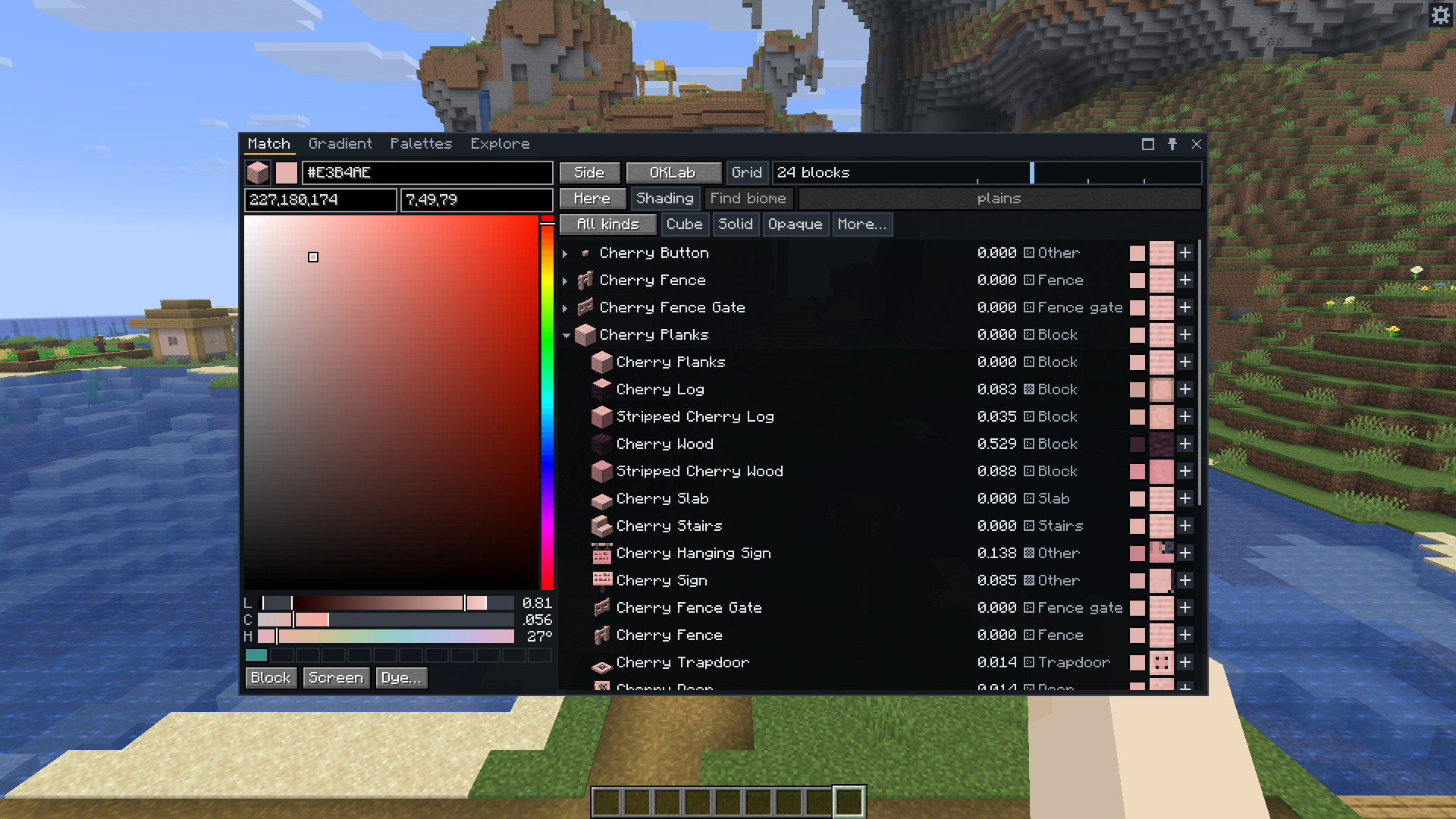
The arrow opens related blocks, such as a material's slab, stairs, wall, fence or log. Make a palette of these blocks creates and selects a new palette named after the material, such as Cherry.
The mod groups sets by block names and a table of common exceptions. Modded blocks can join a set when their ids follow those names.