Login Page
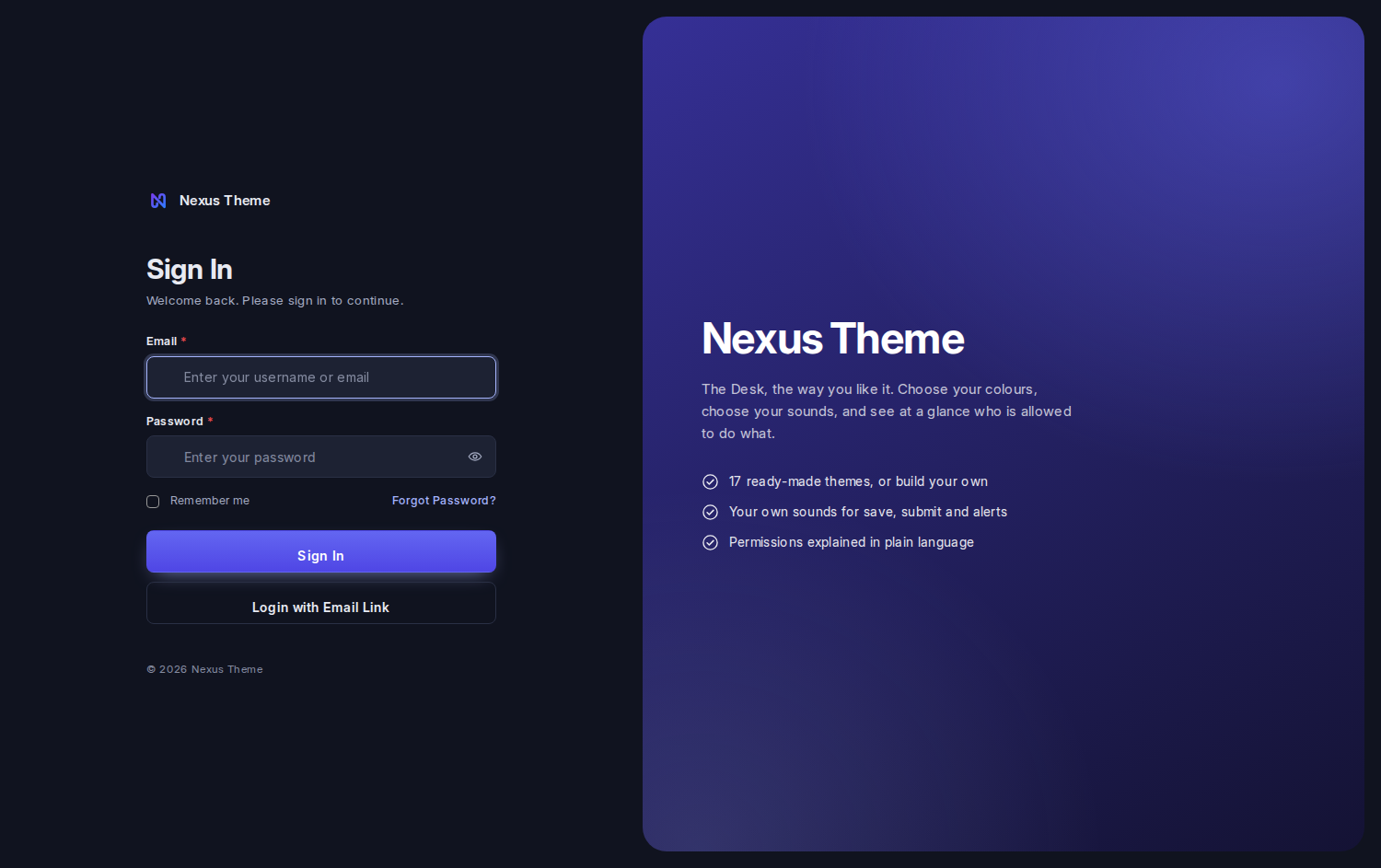
Nexus Theme can replace Frappe's sign-in screen with a two-column page painted in your site's own theme: your logo and the form on the left, a coloured panel with your words on the right.
It is off by default. Installing the app changes nothing about /login until an administrator turns it on.
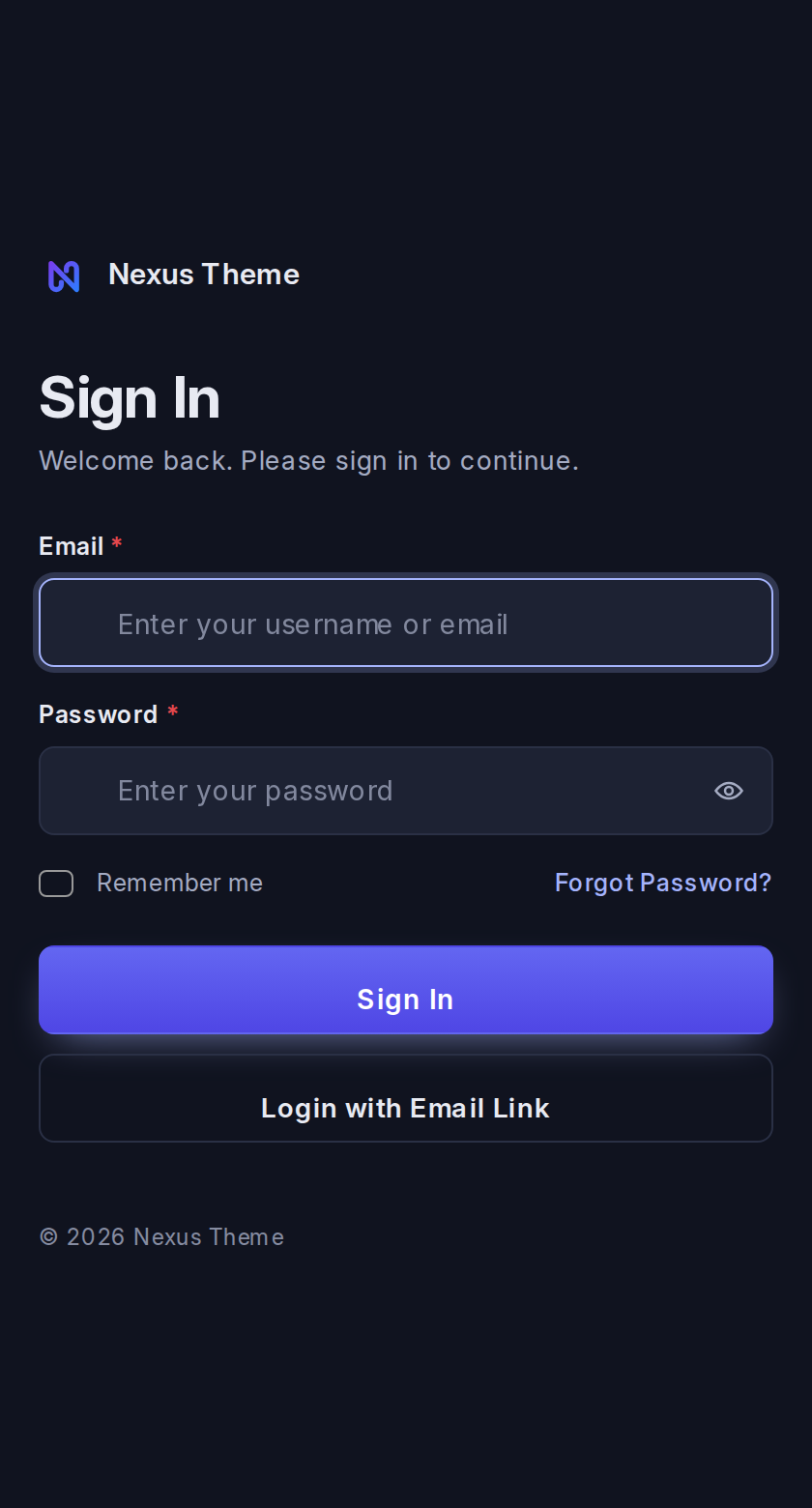
On a phone the panel steps aside and the form fills the screen.
Every word on that panel is yours to write. This screenshot is a site that put its own name in the Panel Headline; a fresh install shows a plain "Welcome back" until an administrator types something else.
- Open Nexus Theme → Theme Settings (System Manager only).
- Under Login Page, tick Use the Nexus Login Page.
- Fill in the words you want on the panel (all optional).
- Save, then open
/loginin a private window to see it.
To go back, untick the box. Frappe's own page returns immediately.
| Field | Where it appears |
|---|---|
| Sign-in Subtitle | The small line under the Sign In heading |
| Footer Line | Bottom of the form. Empty means ©, this year and the Login Brand Name |
| Panel Headline | The large heading on the coloured panel |
| Panel Text | A paragraph under the headline |
| Panel Points | One per line, up to six, each shown with a tick |
| Panel Figure and Panel Figure Note | A short figure such as 300+ and the line beside it. Leave both empty to hide the row. |
| Login Brand Name and Login Brand Logo | The name and logo above the form. Empty means the site's own app name and logo. |
The name and logo above the form come from Login Brand Name and Login Brand Logo. Left empty they fall back to Navbar Logo and the site's own app name and logo. Login Background becomes the picture behind the panel.
Open Theme Studio, pick a theme, and press View Login. A preview of the sign-in screen opens, drawn with the theme you have selected and the words you have written. Pick a different theme and press it again to compare.
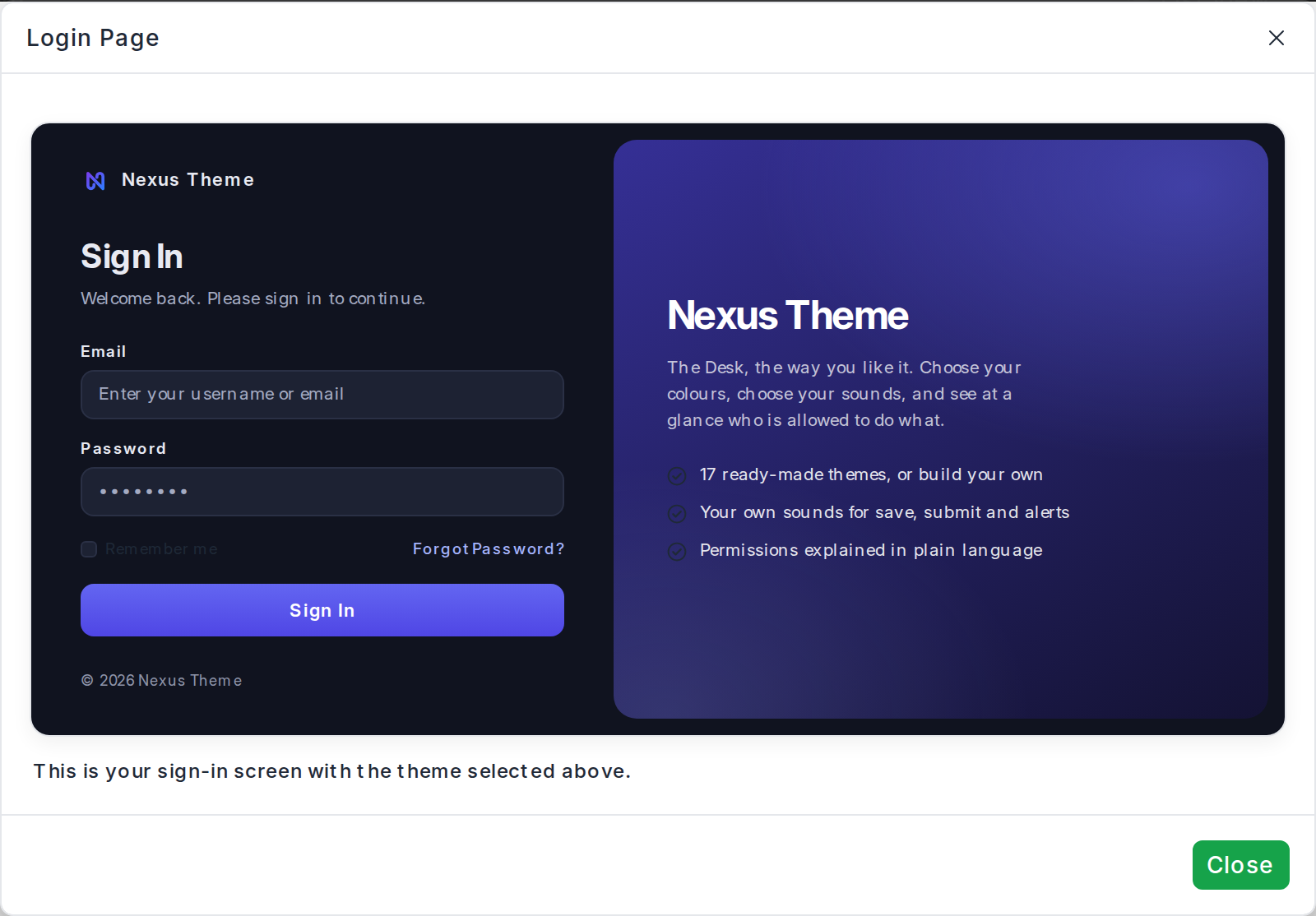
The button is there whether or not the page is switched on, so you can look first and decide after.
Everything you type is shown as plain text, so a stray angle bracket in your copy can never become part of the page.
The page takes its colours from the Site Default Theme: background, text, inputs, the accent, the button and the corner radius. The panel is painted in the colour the theme is known by: its sidebar colour when the theme has a Solid or Gradient sidebar, otherwise its accent, with a glow of the button colour beside the Sign In button. So the sign-in screen and the Desk look like one product. Set a light theme and the page is light; set a dark one and it is dark. With no site default set, the page uses a neutral light palette.
Someone who has already picked a theme of their own on the Desk sees the login page in their theme. The browser remembers it, and the page repaints before it is shown, so there is no flash of the wrong colours. Nothing about that is sent to the server; it never leaves their browser.
On a phone the panel steps aside and the form fills the screen.
Password sign-in, the error banner, forgot password, sign-up, login with an email link, social logins, LDAP and two-factor. The page loads Frappe's own login script and keeps every element that script uses, so the behaviour is Frappe's; only the layout and the styling are the app's.
Remember me remembers your username on that device. It does not change how long you stay signed in, which is Frappe's own session setting.
- The switch is the only thing that turns it on, and unticking it is instant.
- If the page ever cannot render, Frappe's own login page is served instead, automatically.
- No file in Frappe, ERPNext or any other app is changed. The page is registered through Frappe's supported hook for app-provided routes, and that hook answers for
/loginonly.
Upload it as a public file. Nobody is signed in on the login page, so an image stored as a private file cannot be read there. The page leaves it out rather than showing a broken icon, and falls back to the site's app logo. The same applies to the favicon.
See also: Theme Settings for the rest of the site-wide options.