Permission Inspector
For System Managers. Open Nexus Theme → Permission Inspector or go to /app/nexus-permission-inspector.
Frappe has a small built-in form that is also called Permission Inspector (under Users → Permission Inspector, at
/app/permission-inspector). It checks one document for one person at a time. The Nexus Theme inspector is a different tool with its own address, so the two never get in each other's way.
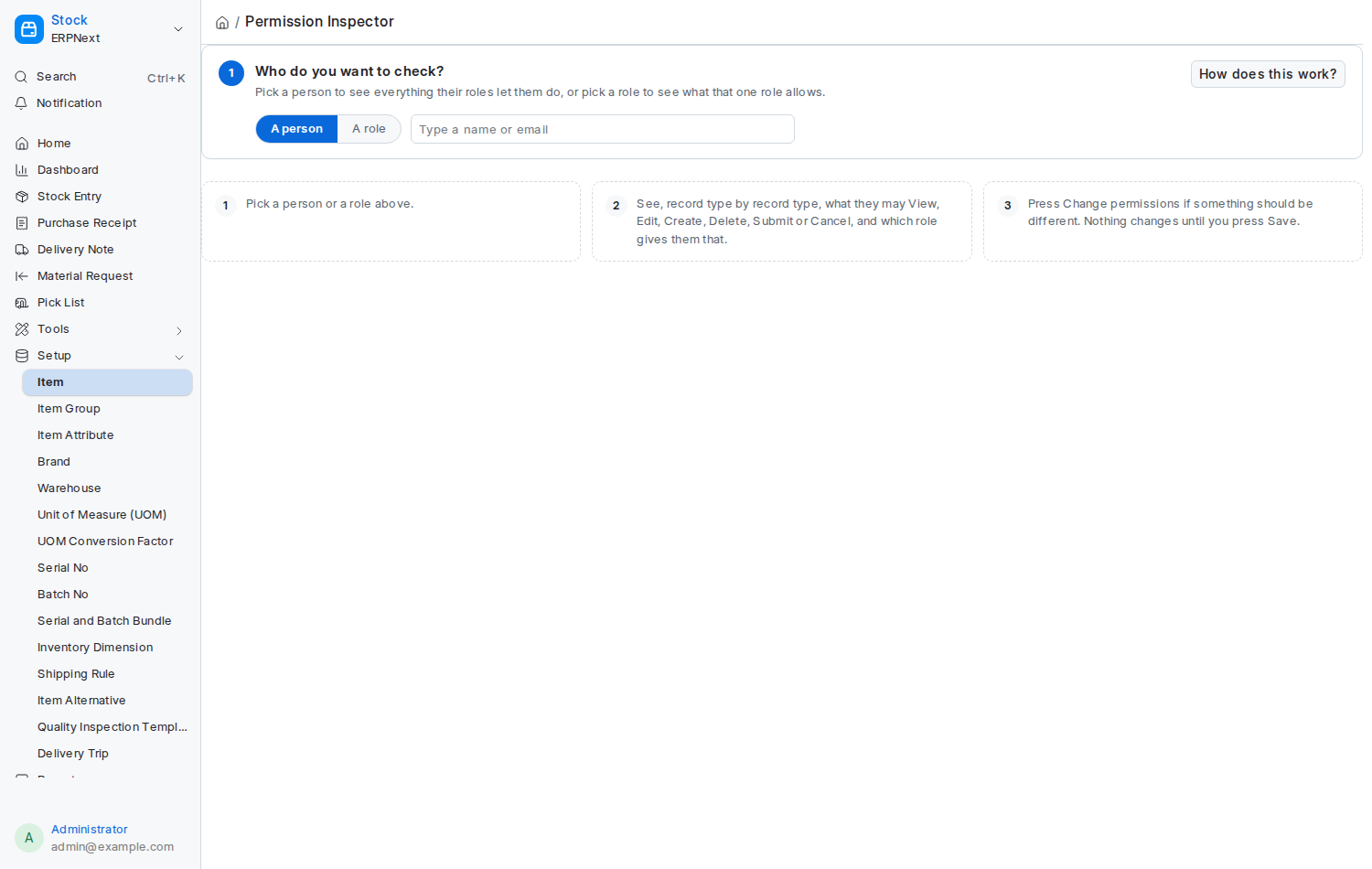
- Roles decide what someone can do. Every person has roles such as Accounts User or Sales User, and each role allows actions like View, Edit or Create on each type of record. A person can do something if any of their roles allows it.
- User Permissions decide which records they can see. They narrow a person down to, say, one Company or one Customer. They never add abilities.
- Changing a permission changes a role. So a change made here applies to everyone who has that role, not only the person you picked.
The How does this work? button on the page shows the same three points.
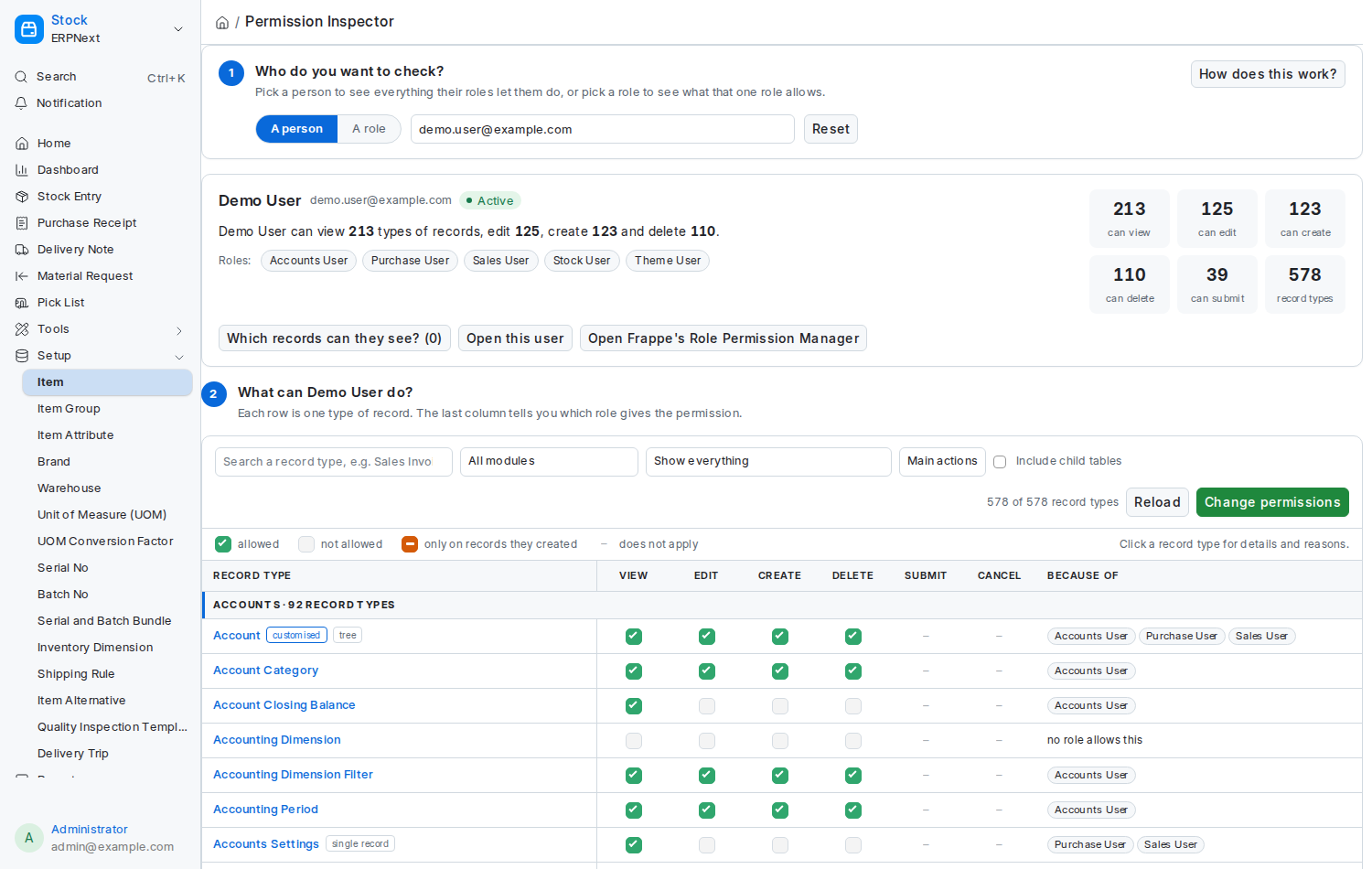
Choose A person or A role and type a name. The page shows a summary in plain words, for example:
Abbas can view 120 types of records, edit 80, create 62 and delete 12.
Under it you see the person's roles, warnings that matter (the account is disabled, a role is switched off, the Administrator cannot be limited), six counters, and three buttons: Which records can they see?, Open this user, and Open Frappe's Role Permission Manager. A long role list folds after the first twelve; press N more to see the rest.
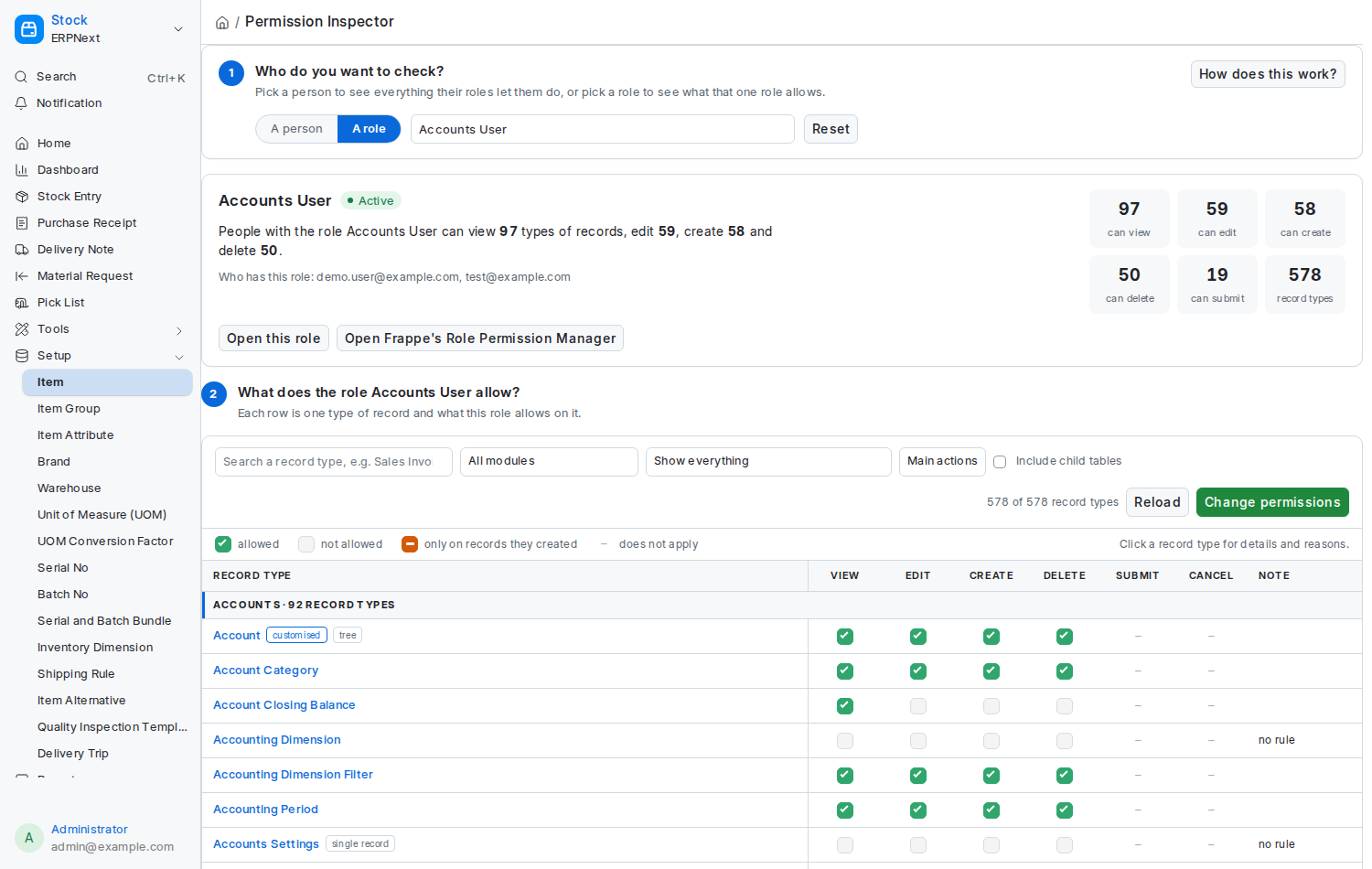
A role instead of a person: who holds it, and what it allows across every record type.
The six counters follow every edit you make below, before anything is saved.
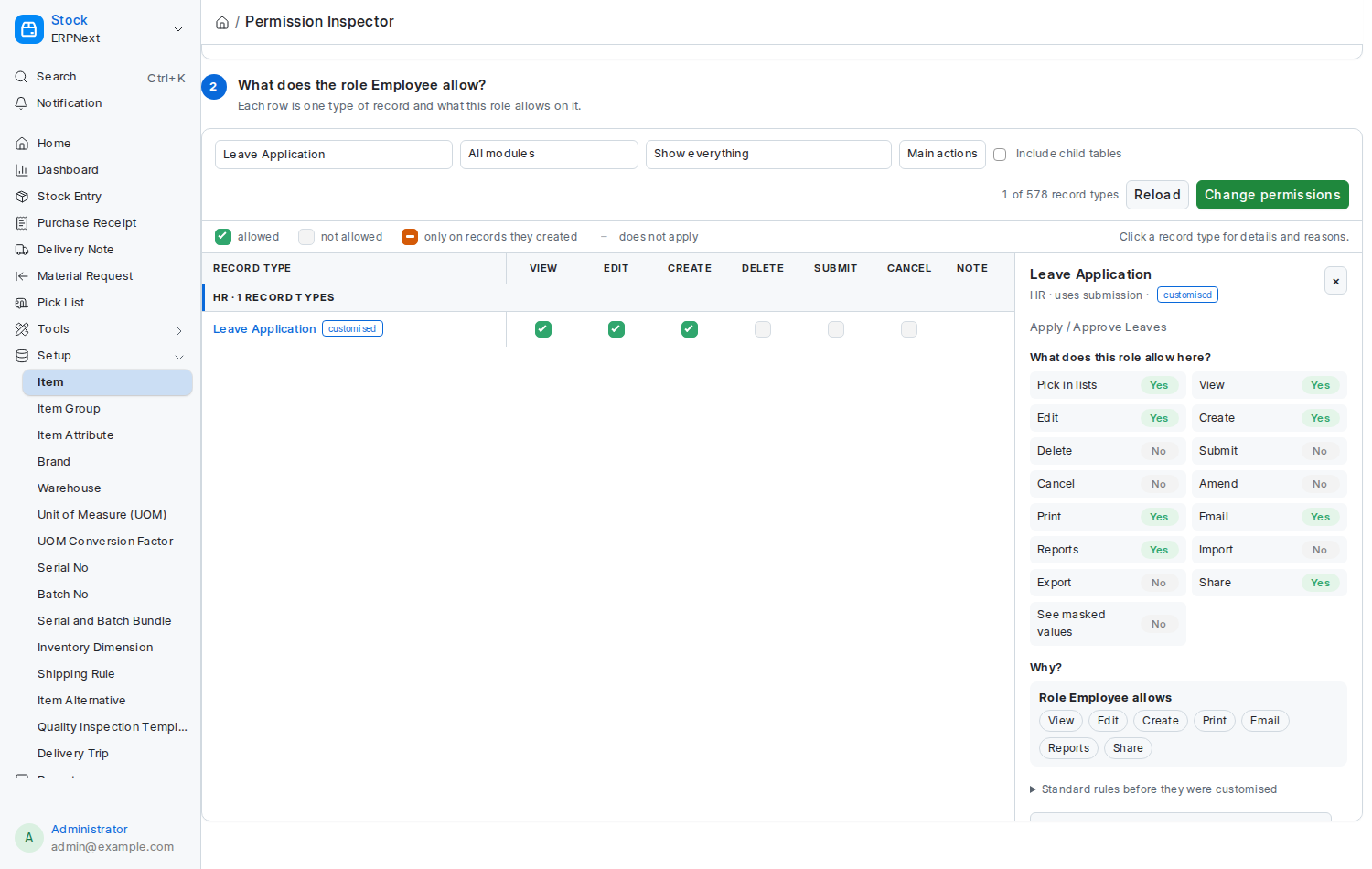
Each row is one record type (Frappe calls it a DocType), grouped under its module. Each cell is a tick box, so a whole column reads at a glance:
| Box | Meaning |
|---|---|
| Ticked (green) | Allowed |
| Empty | Not allowed |
| Amber, with a bar instead of a tick | Allowed only on records they created themselves |
| – (no box) | Does not apply to this record type (for example Submit on a record type that never uses submission) |
A small amber dot on the corner of a ticked box means the role also has a separate own records only rule on top. Hover any box for the same thing in words. The legend above the table repeats all of this.
By default the six main actions are shown: View, Edit, Create, Delete, Submit, Cancel. Switch the Main actions drop-down to All actions to add Amend, Print, Email, Reports, Import, Export, Share, Pick in lists, See masked values and any custom permission types on your site. Hover a column heading for a one-line explanation of that action.
The last column, Because of, names the role that gives the permission. Hover a cell to see every role behind it.
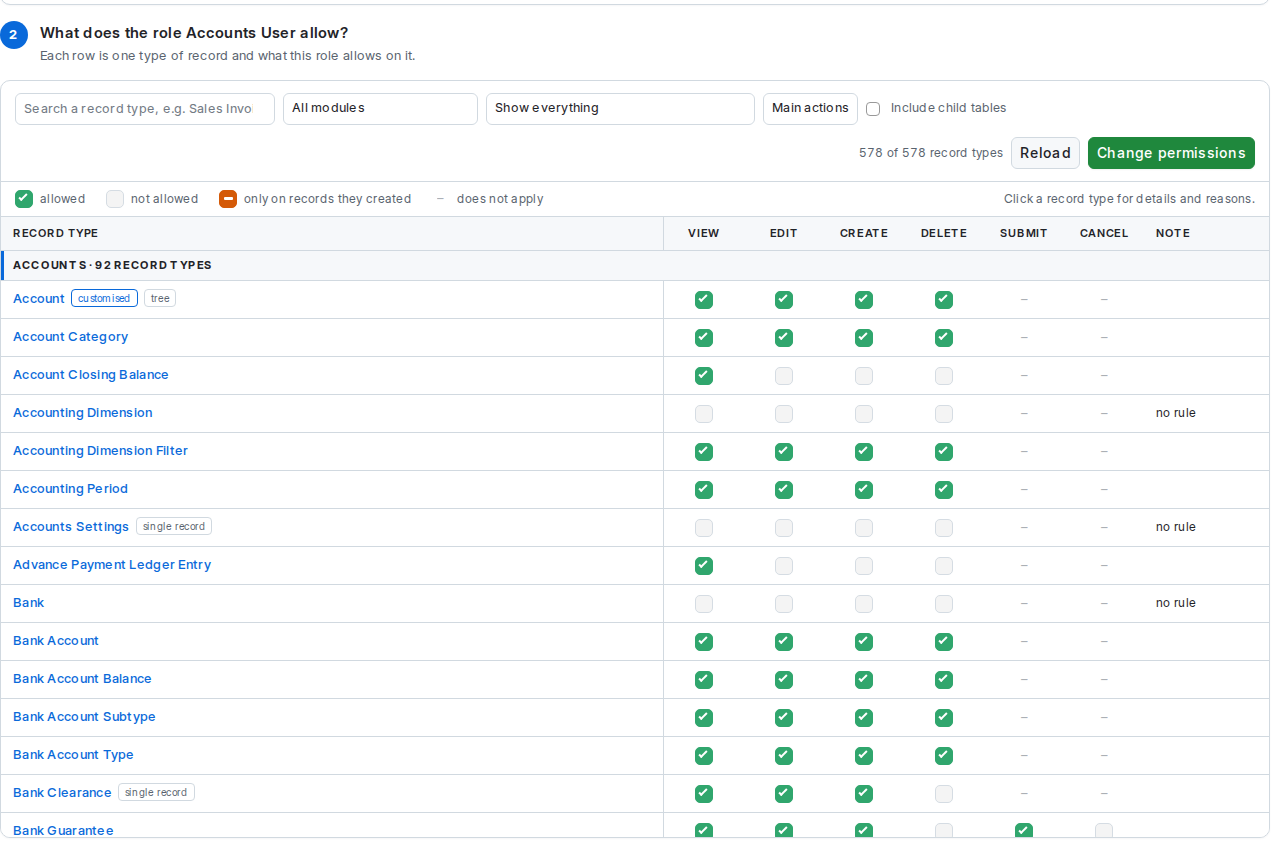
Every box is the same size, so a column reads top to bottom at a glance. The record-type column stays put while the rest scrolls sideways.
Filters above the table:
- Search a record type, e.g. Sales Invoice
- All modules narrows to one module
- Show everything / Only what they can access / Only what they cannot access / Only record types with customised rules / Only my unsaved changes
- Include child tables adds the rows inside other records (such as the items on an invoice); they follow their parent and cannot be changed on their own
A panel opens on the right with:
- What can Abbas do here? Every applicable action in words, worked out by Frappe's own permission engine from their roles, the way it decides for a record: Yes, No, Own only (only on records they created) or Shared records only (no role allows it, but some records were shared with them). A User Permission can still narrow which records a Yes applies to; Which records? shows it.
- Why? Each role's rule in words: Role Accounts User allows: View, Edit, Create, Submit…
- Which records? Any User Permission that narrows this record type, such as Only where Company is Acme Ltd.
- The standard rules before they were customised, if someone changed them.
- Buttons to open the same record type in Frappe's Role Permission Manager or to manage User Permissions.
- Press Change permissions. An orange banner confirms you are in editing mode and reminds you that nothing is saved until you press Save.
- Looking at a role: click any box to tick or untick it. Looking at a person: click a box and a small dialog lists that person's roles. Tick the role that should allow the action, or untick the roles that currently allow it. The dialog reminds you that the change applies to everyone with that role.
- Related actions follow Frappe's own rules automatically, and the page tells you when they do: turning Edit off also turns off Submit, Cancel and Amend; turning Cancel on also turns on Submit and Edit; Import needs Create.
- Changed cells get an orange outline and a bar at the bottom counts your unsaved changes. Use Only my unsaved changes in the Show drop-down to review them.
- Press Save changes. A confirmation spells out every change in a sentence, for example Everyone with the role Accounts User will no longer be able to Edit on Sales Invoice. Confirm, and Frappe enforces it immediately. Discard throws the edits away.
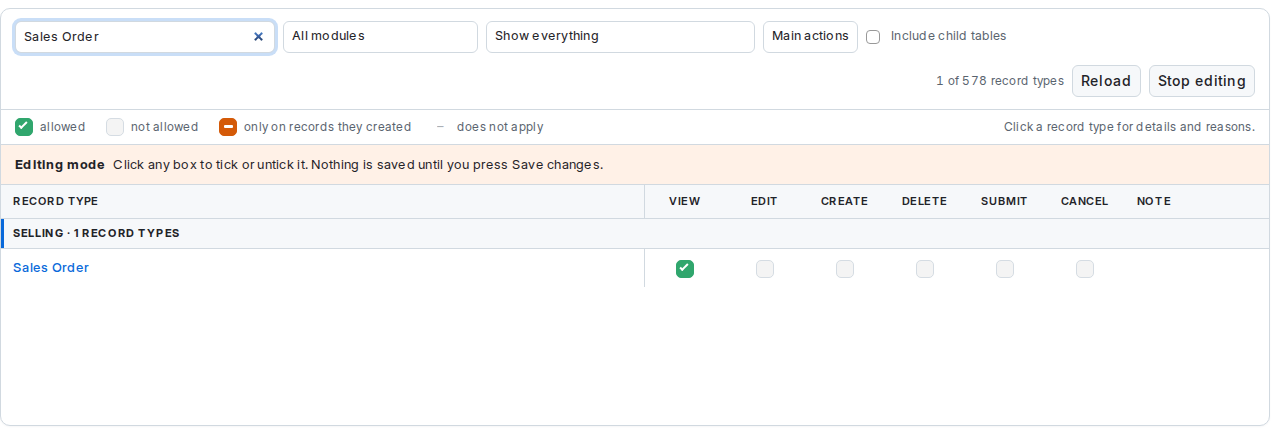
Editing mode. Changed boxes get an outline and the counters above update as you go, so you see the effect before committing to it.
What you cannot change here, and why:
- The Administrator account is above the permission system.
- Roles Frappe manages itself (Administrator, and for managers who are not Administrator also All, Guest, Desk User and custom user-type roles).
- Child tables, and the DocType, Module Def and Patch Log record types that Frappe's own manager also refuses.
- A record type must keep at least one rule; the page refuses to remove the last one.
Press Which records can they see? in the summary to open the User Permissions panel. It lists every restriction on the person, such as Company = Acme Ltd, applies to every record type, with buttons to Add a restriction or Manage all in Frappe's own User Permission list. This layer is shown separately on purpose, so that abilities (roles) and visibility (User Permissions) are never confused.
- Every request is checked on the server: without the System Manager role, every read and write is refused, whether or not the page is visible.
- Writes go to the same Custom DocPerm records that Frappe's Role Permission Manager writes, so the two tools always agree.
- A batch of changes is saved as one transaction. If any rule is invalid, nothing is saved and the message names the role and record type at fault.
- After every save the permission cache is cleared and the rows are re-read from the database, so the table shows what Frappe now enforces rather than what was requested.
- Permission changes are site-wide. A role is shared by everyone who holds it, and the confirmation dialog states this before every save.
See also: Recipes for common permission tasks, FAQ and Troubleshooting if a change does not seem to apply.