Record Types
Everything the two studios do is stored in three ordinary Frappe record types, listed in the Nexus Theme workspace sidebar. You do not have to open any of them — Theme Studio and Sound Studio create and update these records for you. They are here so you can see what is stored, fix something by hand, or set a theme up for the whole company.
| Record type | Holds | Who owns a row | Create by hand? |
|---|---|---|---|
| Theme Definition | One theme: colours, fonts, corner radius | The app, or whoever saved it | Rarely — see below |
| User Theme Preference | Which theme one person is using | One row per person | No |
| User Sound Preference | Which sound one person hears per event | One row per person | No |
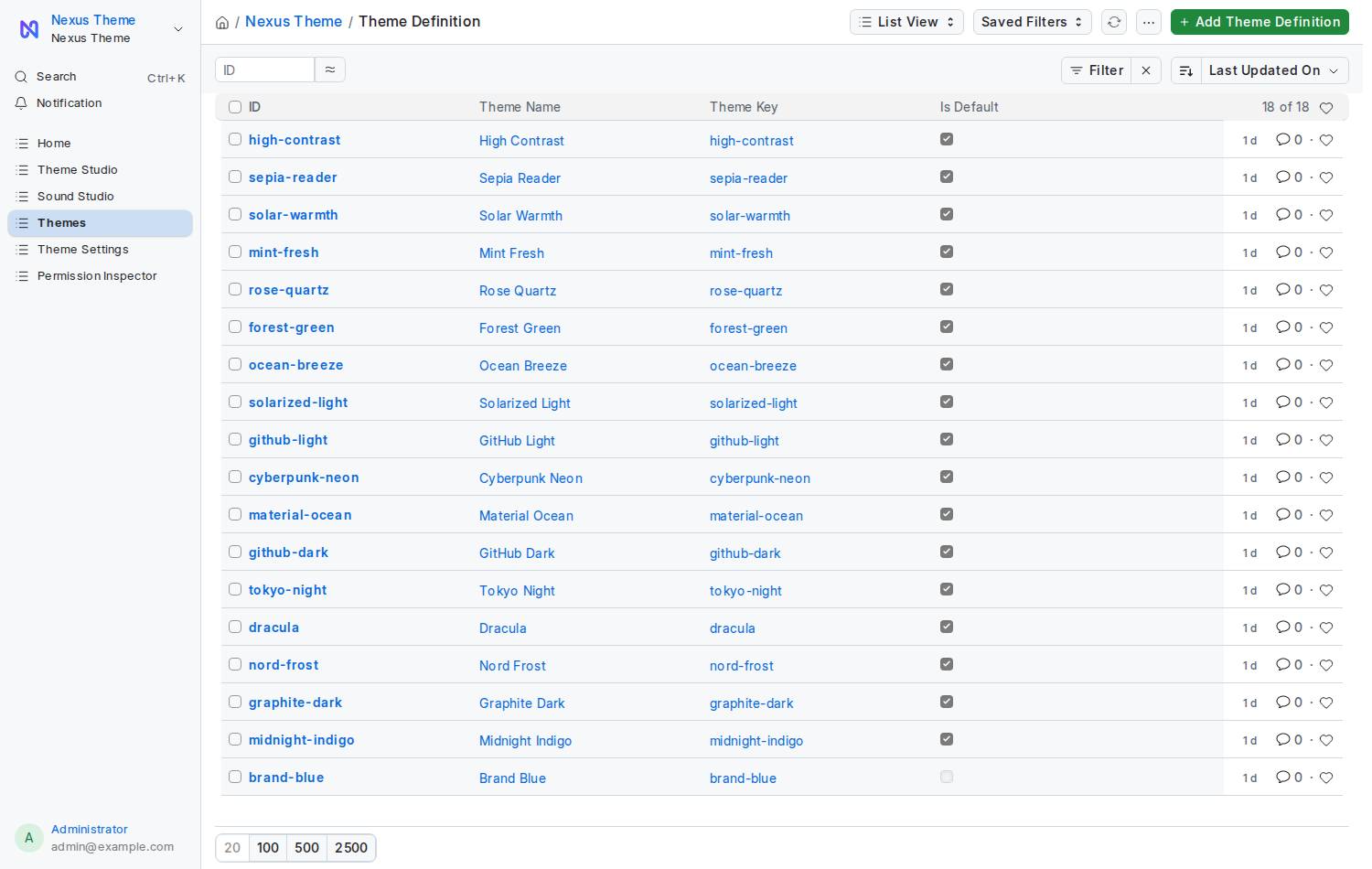
One row is one theme: the 17 that ship with the app, plus every theme anyone saved with Save as Custom….
Open one and you see exactly the values Theme Studio edits, in four groups: Identity, Colors, Buttons and Typography.
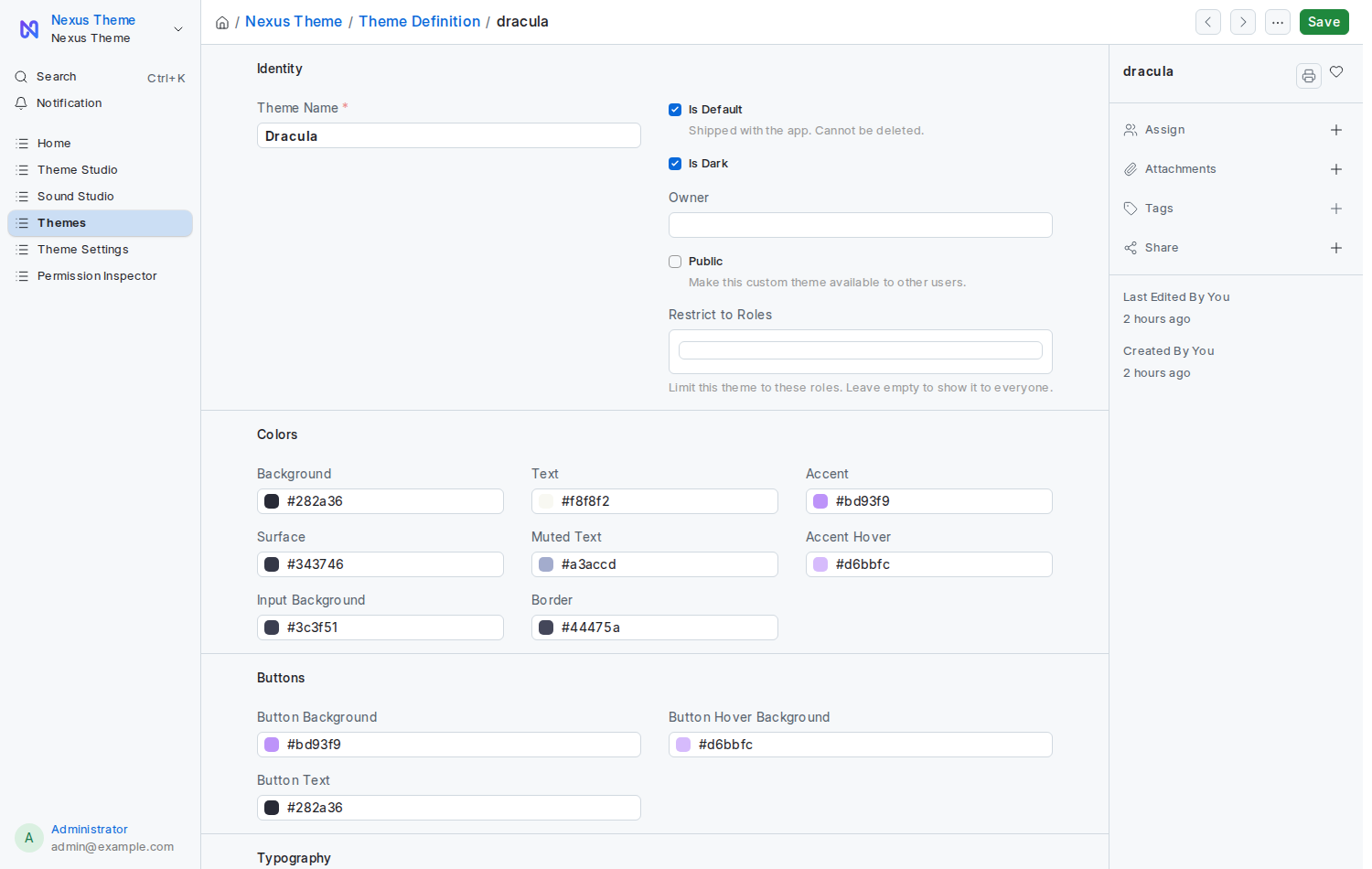
| Field | What it means |
|---|---|
| Theme Name | The name people see in Theme Studio |
| Theme Key | The short id used in the URL and the stored preference. Lowercase letters, digits and hyphens. |
| Is Default | Ticked on the 17 shipped themes, which cannot be deleted |
| Is Dark | Tells the app this is a dark theme, so Auto Light/Dark can pair it |
| Owner | Who saved it. Empty on the shipped themes. |
| Public | Everyone on the site sees it under Public Themes |
| Restrict to Roles | Empty shows it to everyone; fill it in and only those roles see it |
| Colors / Buttons / Typography | The eleven colours, font family, base size and weight, corner radius |
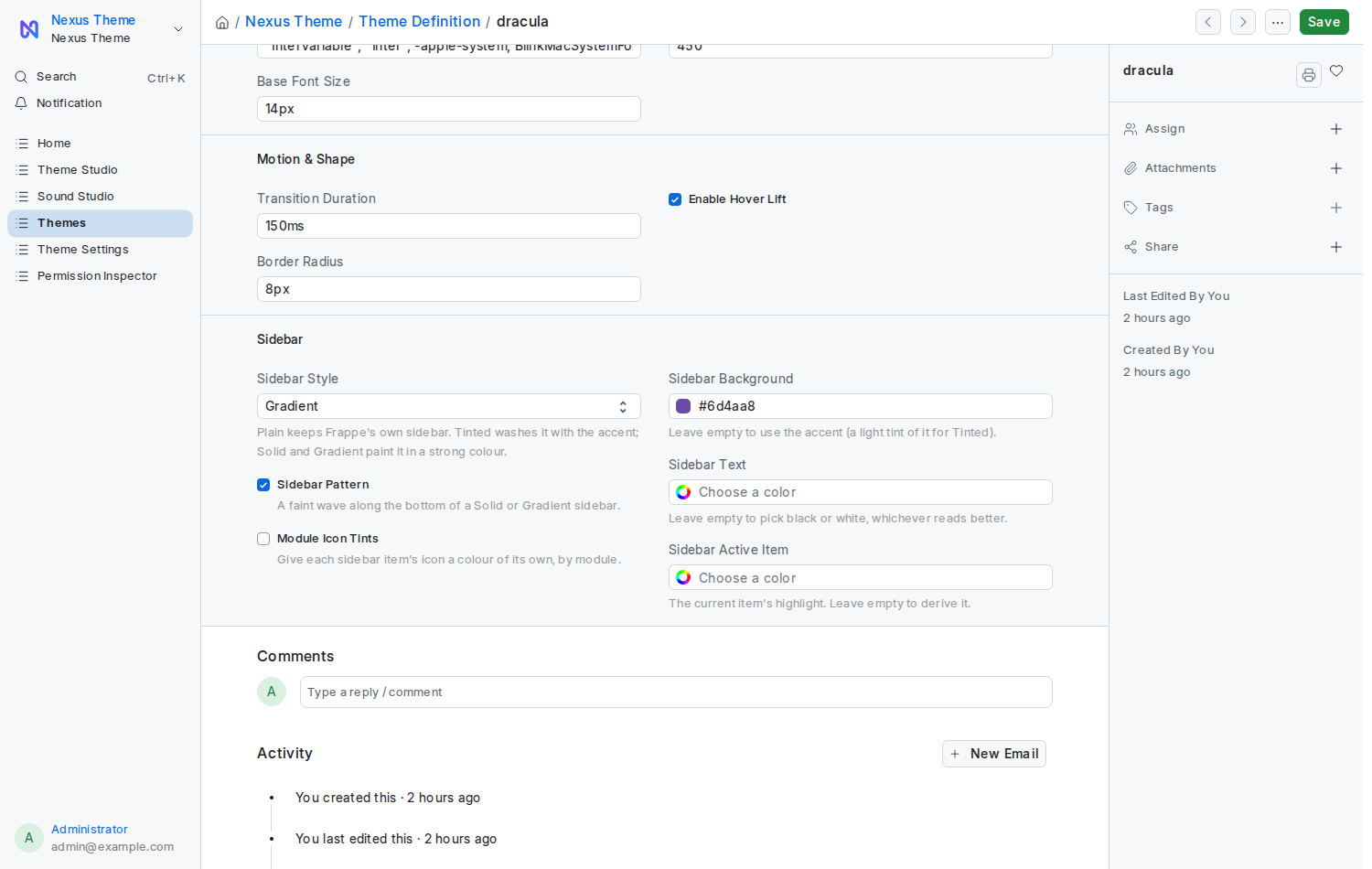
| Sidebar | Sidebar Style (Plain, Tinted, Solid, Gradient), Sidebar Pattern, Module Icon Tints, and optional Sidebar Background, Text and Active Item colours. Empty colours are worked out from the accent. |
Most people never do — press Save as Custom… in Theme Studio instead, which fills every field and checks readability first.
Create one here when you want a company theme that exists before anyone opens Theme Studio: build "Acme Blue", tick Public, then set it as the Site Default Theme in Theme Settings. Doing it here also lets you restrict a theme to certain roles, which Theme Studio does not offer.
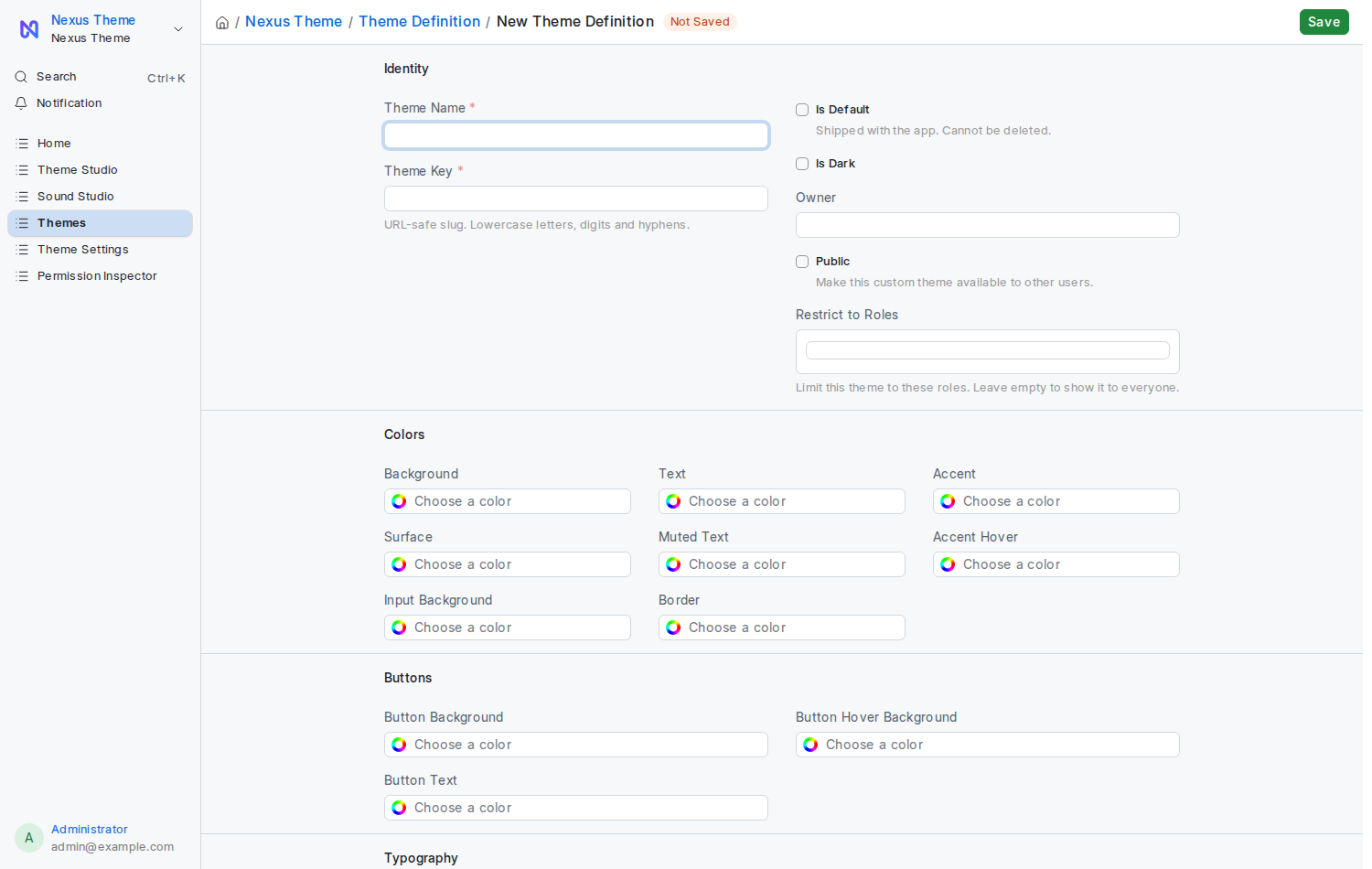
Theme Definition → + Add Theme Definition, then:
- Theme Name and Theme Key (both required; the key must be unique)
- Every colour under Colors and Buttons — leaving one empty gives a theme with a hole in it
- Tick Is Dark if the background is dark, Public if others should see it
- Save
Leave Is Default unticked; that flag marks the themes that ship with the app.
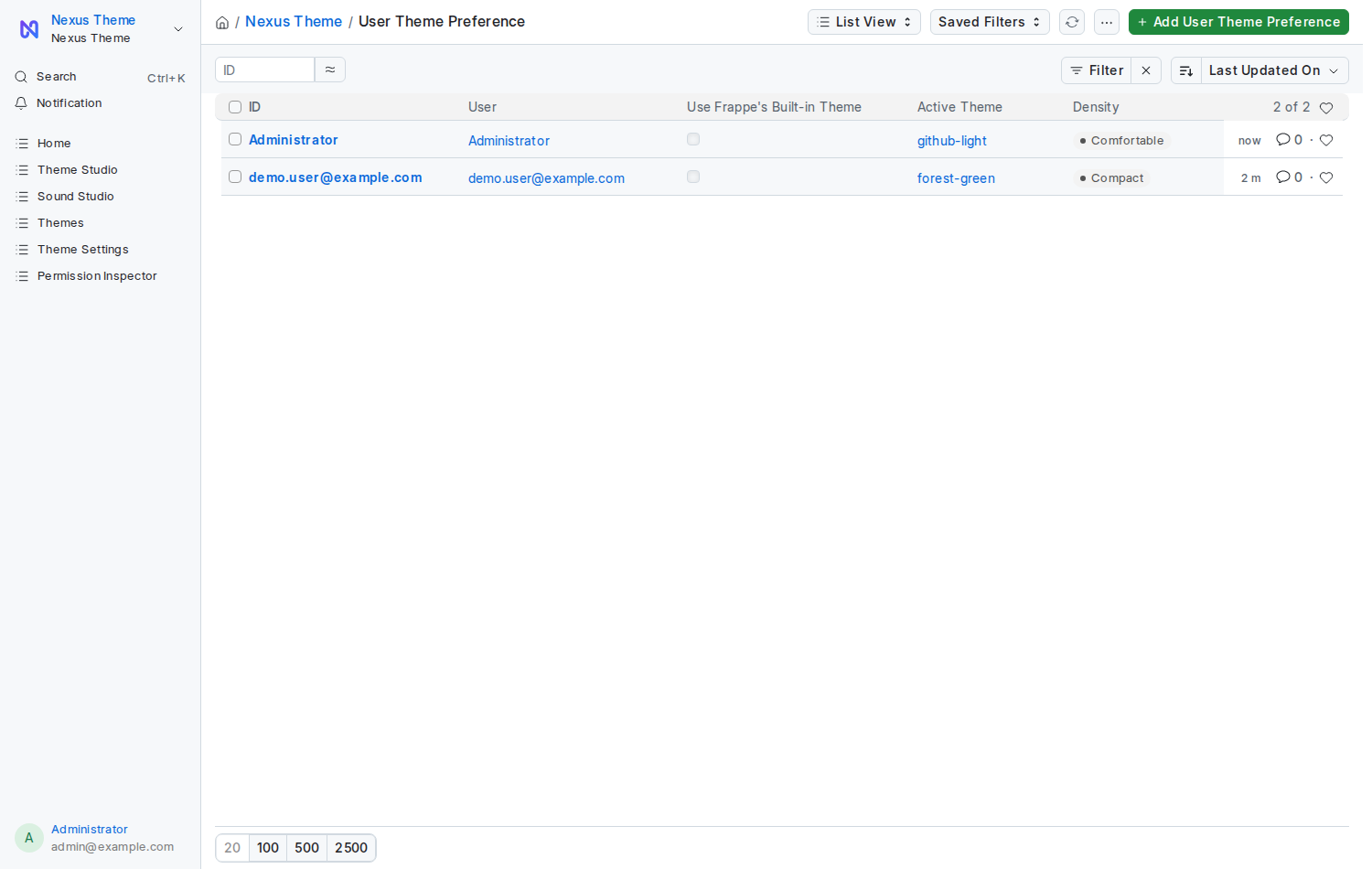
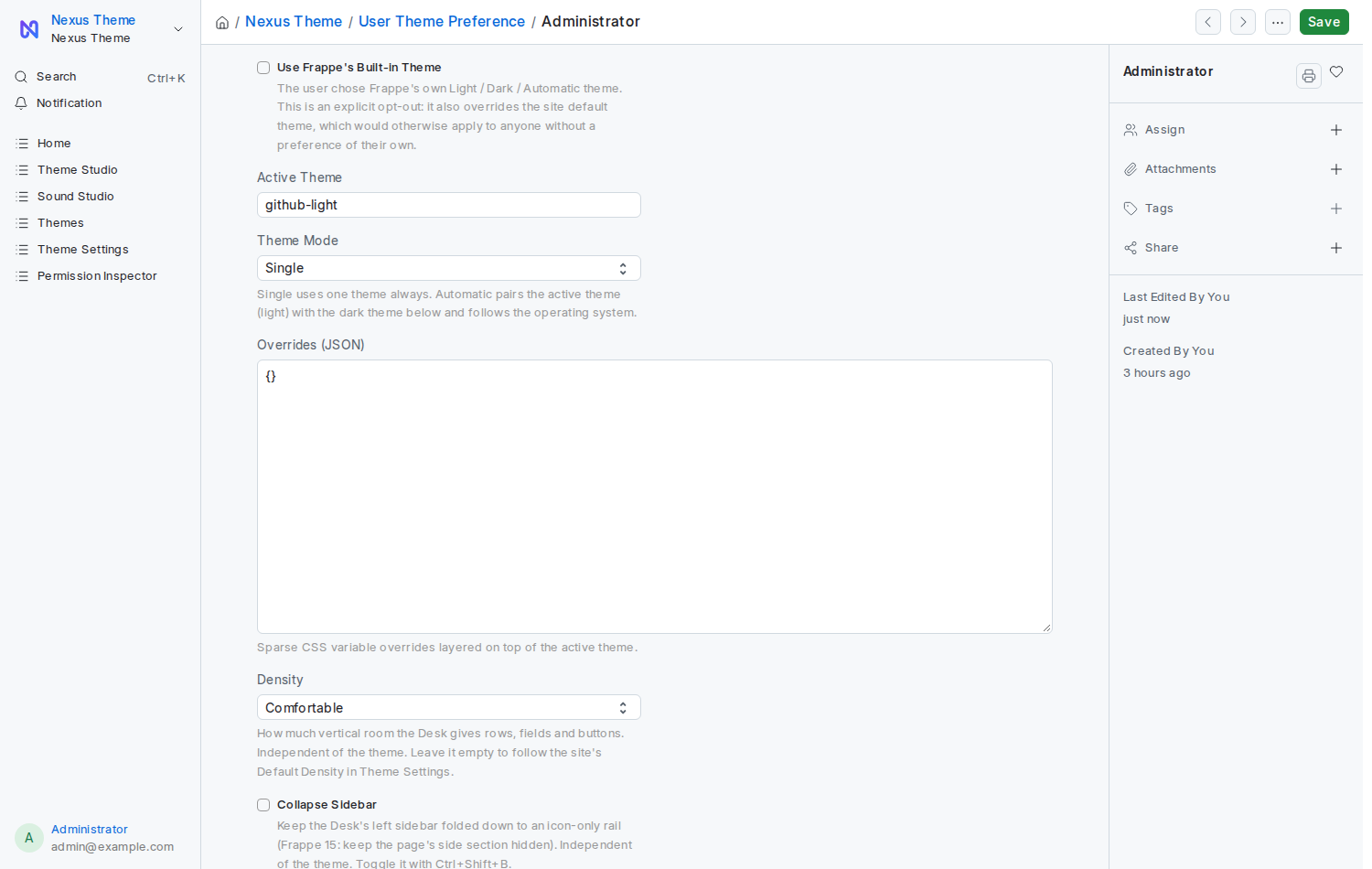
One row per person, named after their account. It is what makes a theme follow someone to every device they sign in from.
| Field | What it means |
|---|---|
| User | Whose preference this is, and the row's name, so there is only ever one per person |
| Use Frappe Theme | This person turned Nexus off and is back on Frappe's stock look |
| Active Theme | The theme they are using |
| Mode | Single uses one theme always; Automatic follows the computer's light/dark setting |
| Dark Theme | Used after dark when Mode is Automatic |
| Overrides | Colours they changed by hand on top of the theme, as JSON |
| Density | Compact, Comfortable or Spacious. Empty means "follow the site's Default Density". A row may hold only a density and no theme. |
| Collapse Sidebar | Ticked while this person keeps the sidebar folded to a rail. See Mini Rail. |
When to create one: never, in normal use. The row appears by itself the first time someone presses Apply.
Two reasons to open one:
- To see what someone is using when they ask for help.
- To reset someone who has made their Desk unreadable: tick Use Frappe Theme and save, or delete the row. They are back on the site default at the next reload.
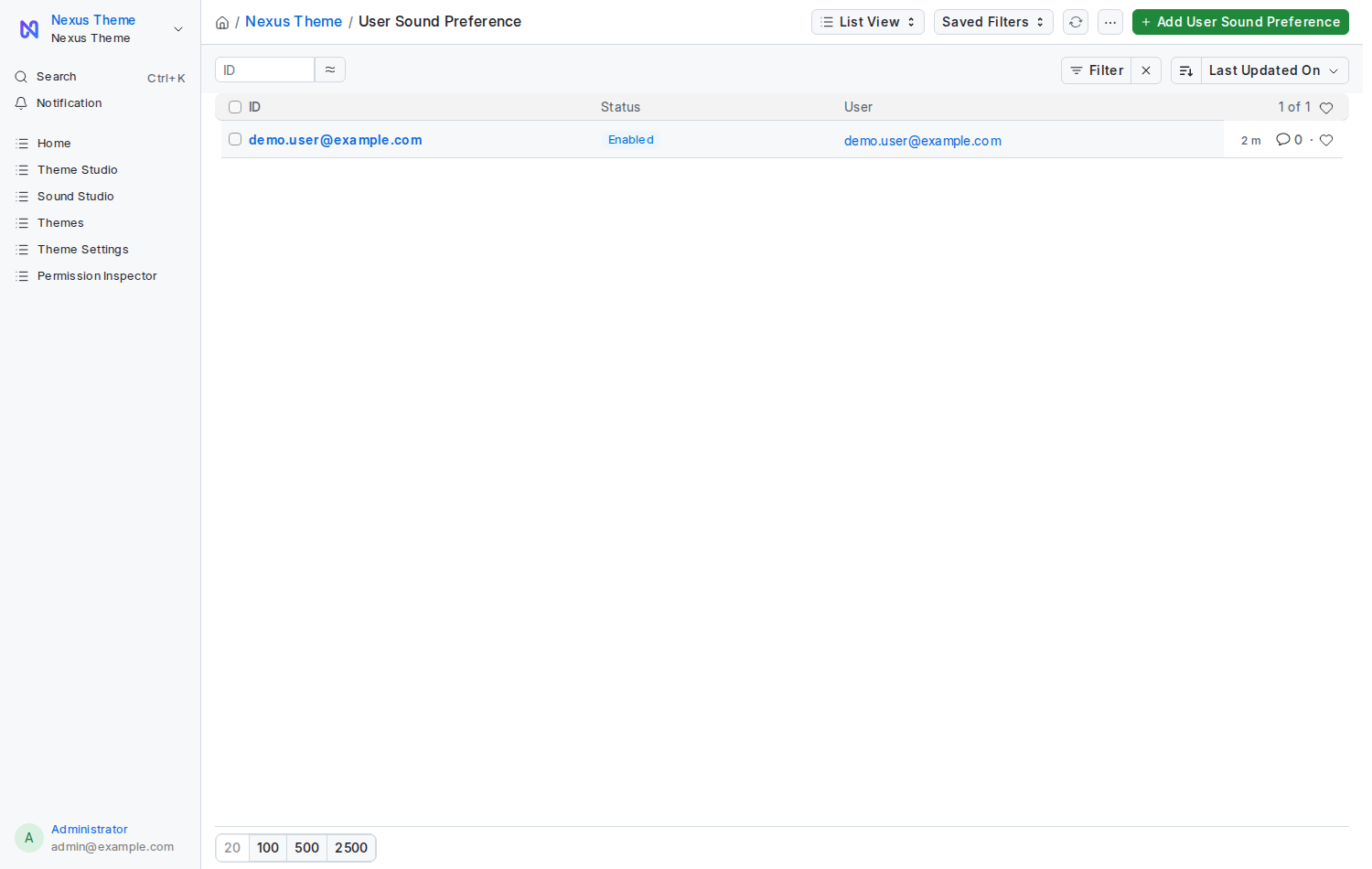
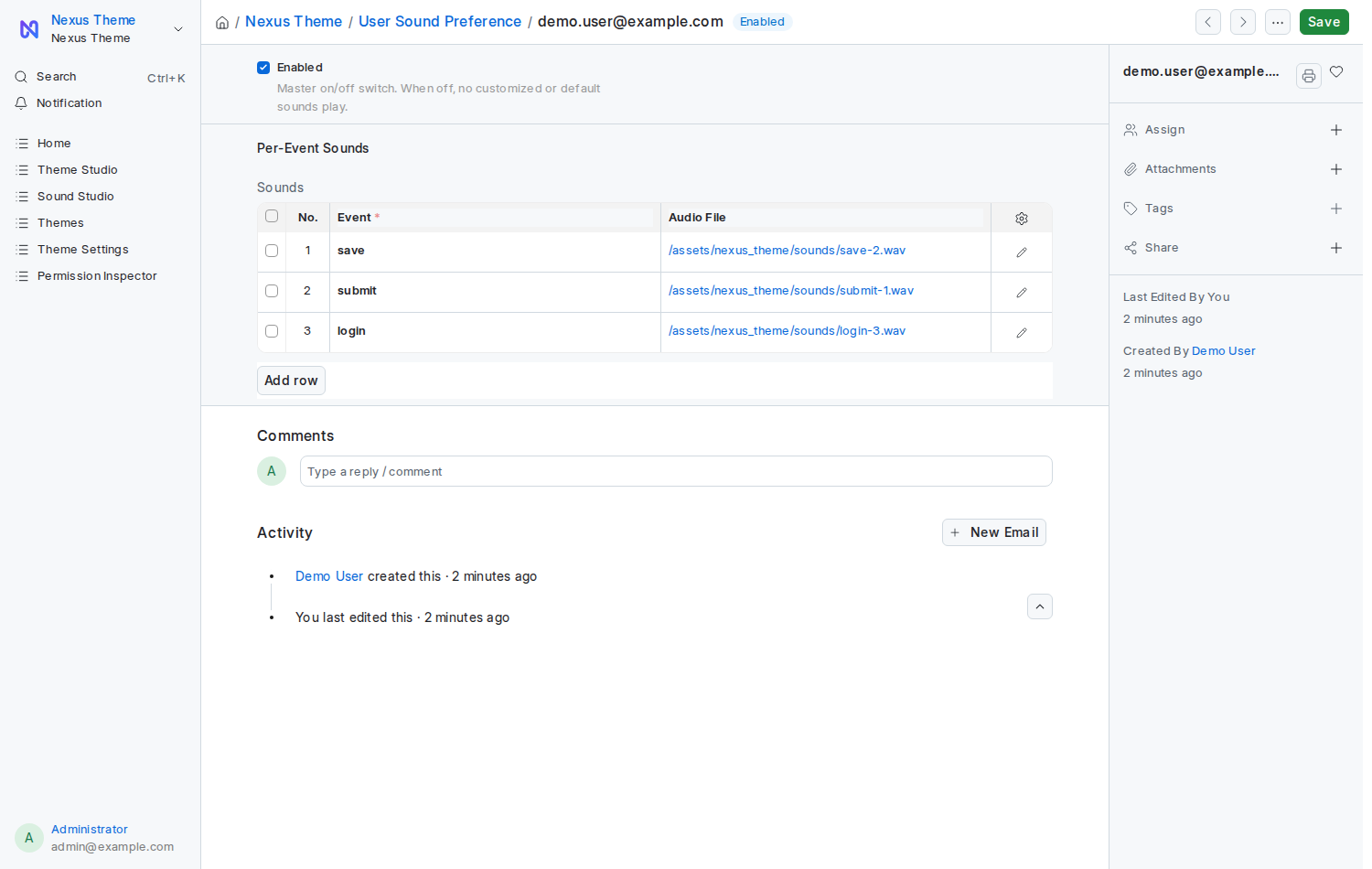
One row per person, holding their master switch and a child table of the sounds they chose.
| Field | What it means |
|---|---|
| Enabled | Their own master switch; unticked means the Desk stays silent for them |
| Sounds | One row per event they changed: the Event key (save, submit, login…), the Audio File and the Volume
|
Only events the person actually changed appear. An event with no row plays the sound that ships with the app.
When to create one: never, in normal use. Sound Studio writes the row the first time someone picks a sound or moves a slider.
Open one to silence a person (untick Enabled) or remove a file they uploaded (delete its row). To silence the whole site, untick Allow User Sounds in Theme Settings — that overrules every row here.
Deleting a row is safe. These two are only preferences. Delete one and that person goes back to the site default at their next reload; nothing else about their account is lost.