Theme Settings
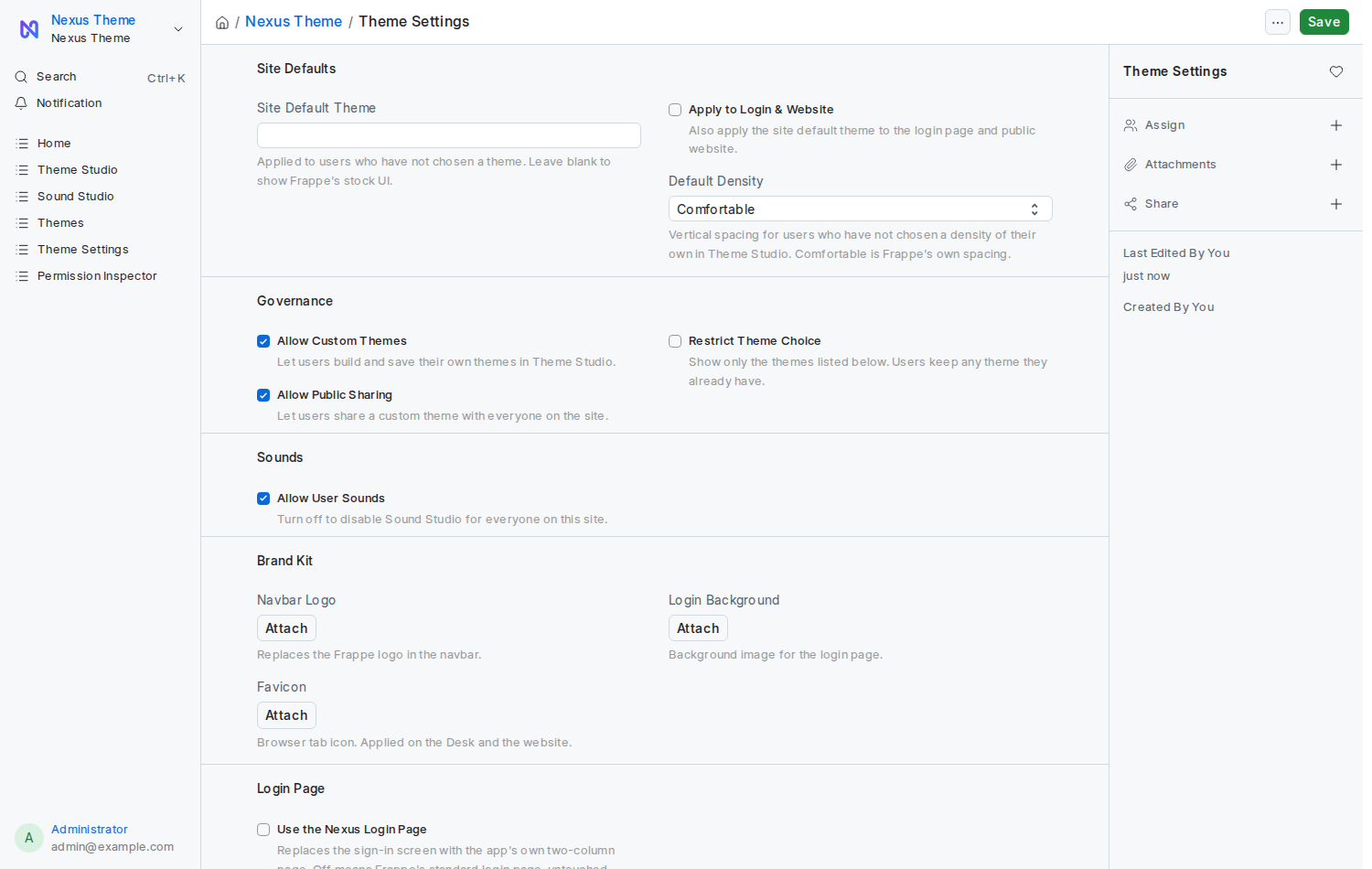
Open Nexus Theme → Theme Settings or /app/theme-settings. You need the System Manager role. Every option is off by default, so the app changes nothing about your site until you decide.
| Setting | What it does |
|---|---|
| Site Default Theme | Applied to everyone who has not chosen a theme. Leave blank to keep Frappe's stock look. People who chose Frappe's own look on purpose are left alone. |
| Apply to Login & Website | Also applies the site default theme to the login page and the public website, not only the Desk. |
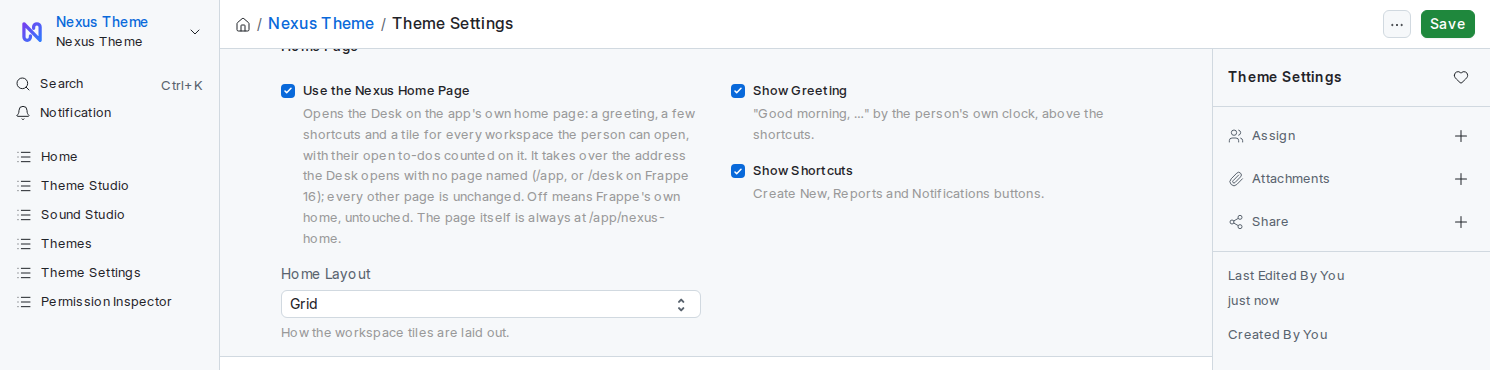
| Use the Nexus Home Page + Home Layout, Show Greeting, Show Shortcuts | Opens the Desk on the Nexus home page. Off by default. See Home Page. |
| Default Density | Compact, Comfortable or Spacious for everyone who has not chosen a density of their own in Theme Studio. Comfortable is Frappe's own spacing. See Density. |
| Allow Custom Themes | Lets people build and save their own themes in Theme Studio. |
| Allow Public Sharing | Lets people share a custom theme with everyone on the site. |
| Restrict Theme Choice + Allowed Themes | Shows only the listed themes in Theme Studio. Anyone already using another theme keeps it; they are not reset. |
| Allow User Sounds | Turn off to switch Sound Studio off for everyone. Their choices are kept for when it is switched on again. |
| Navbar Logo | Replaces the Frappe logo in the navbar. |
| Favicon | The browser-tab icon on the Desk and the website. |
| Login Background | A background image for the login page. On the Nexus login page it sits behind the coloured panel. |
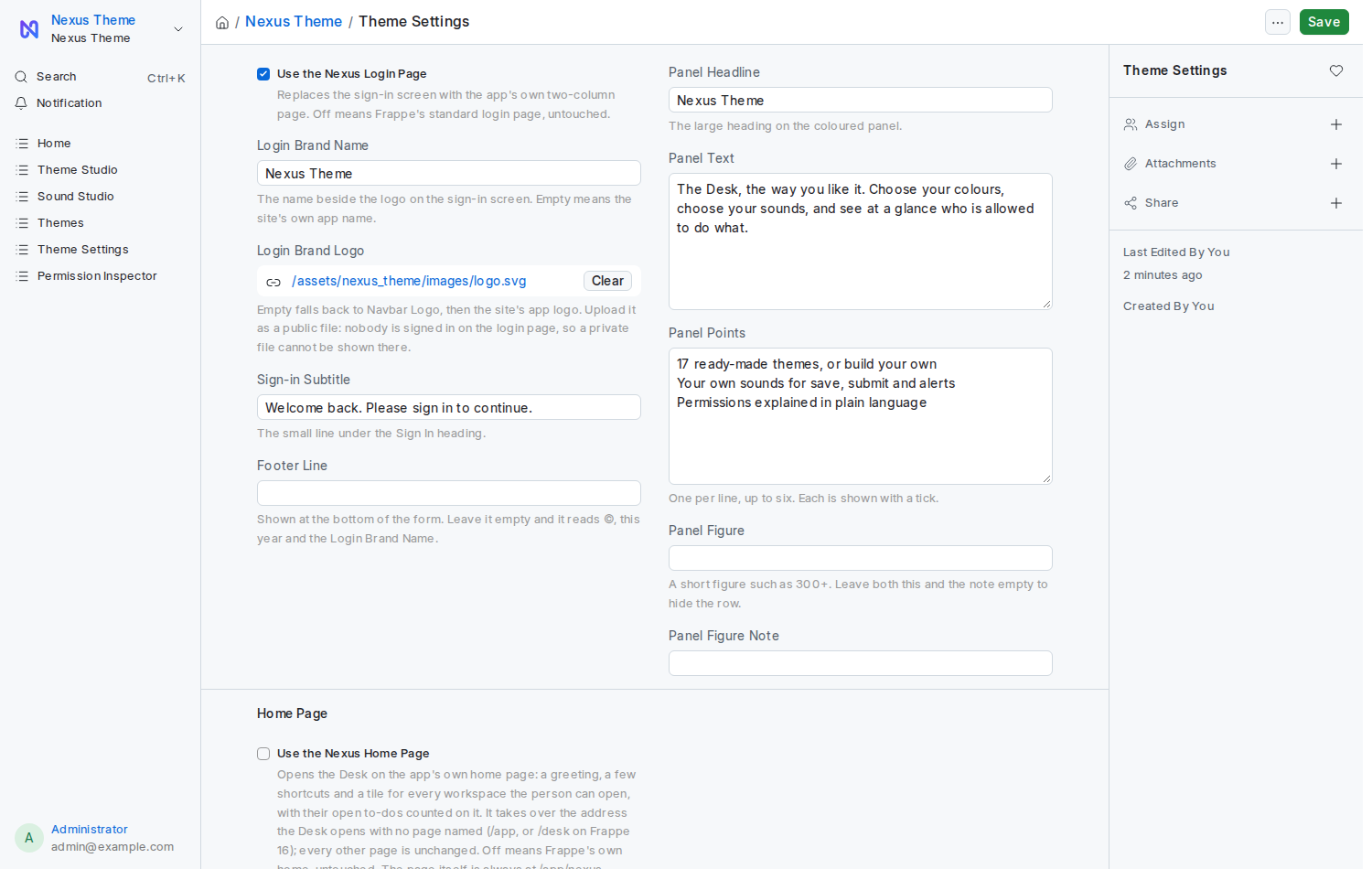
| Use the Nexus Login Page and the panel copy | Replaces Frappe's sign-in screen with the app's own two-column page. Off by default. See Login Page. |
A theme can also be limited to certain roles: open the theme record (Themes list) and fill Restrict to Roles. People without one of those roles will not see it.
The Login Page section further down holds every word on the sign-in screen:
The Home Page section switches on the Home Page:
See Record Types for the three record types the studios write to.
- Company look for everyone, still free to personalise: set a Site Default Theme, tick Allow Custom Themes, leave Restrict Theme Choice off.
- Locked-down branding: set a Site Default Theme, tick Restrict Theme Choice and list the approved themes, untick Allow Public Sharing.
- Quiet office: untick Allow User Sounds.
- Restrict Theme Choice needs at least one theme in Allowed Themes, and the Site Default Theme must be one of them. The form tells you if not.
- A theme that is the site default or on the allowed list cannot be deleted until it is taken out of Theme Settings.
- Narrowing the allowed list never resets anyone. People keep the theme they already have; they just cannot pick others outside the list.
- Choosing Frappe's own look in Theme Studio opts a person out of the site default until they pick a Nexus theme again.
| Feature | Needs |
|---|---|
| Theme Studio, Sound Studio, personal preferences | Theme User (granted automatically to every Desk user) |
| Theme Settings, Themes list edits, deleting other people's themes | System Manager |
| Permission Inspector | System Manager, checked on the server for every request |
| Website users (portal logins) | Nothing. They never see the Desk tools and never receive the Theme User role. |
The Theme User role is created at install time and granted to every Desk user then, on every migrate, and whenever a user is created or promoted to a Desk user. If someone is missing it, run bench --site yoursite.com migrate.