Repository navigation
Home Workspace
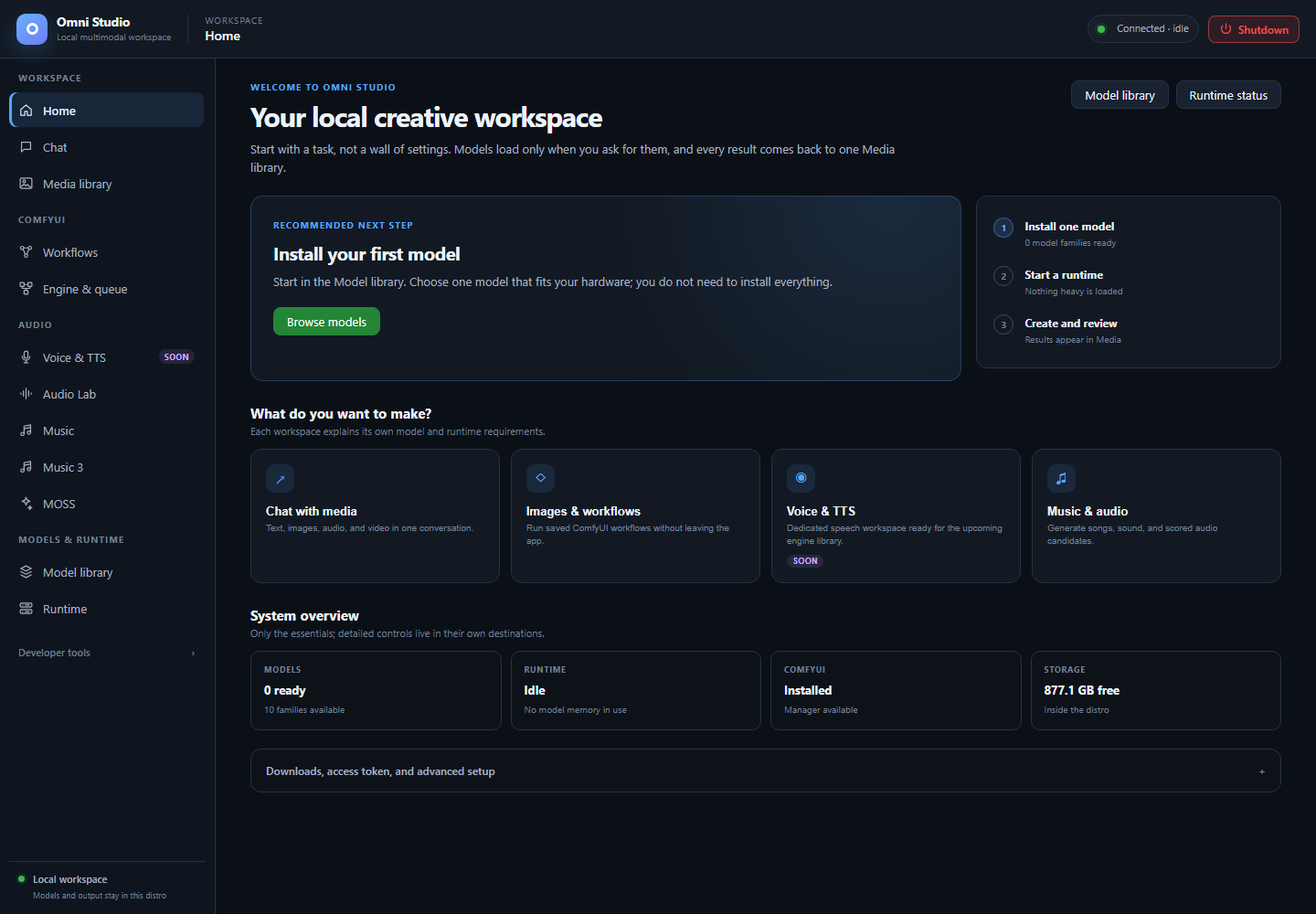
Home recommends installing a model; the gateway is connected and idle. Captured September 25, 2026.
Home is the first workspace destination. It is not a settings dump. It tells you whether any model is installed, whether anything heavy is loaded, how much disk remains inside the distro, and what to do next. Detailed installers live on Model library and the audio tabs; Home only keeps the essentials plus an advanced panel for downloads, the HuggingFace token, and LoRA adapters.
Open it from the sidebar: Workspace → Home. The page title reads Home.
The heading is "Your local creative workspace." Two buttons jump away:
- Model library — install weights
- Runtime status — see GPUs and workers
Use those when you already know you need downloads or a spawn. Otherwise stay on Home and follow the recommended next step.
Home computes one card from live state:
- If no chat/standalone model family is installed: "Install your first model." The primary button is Browse models. Audio Lab and ACE-Step are excluded from this count because they install on their own tabs.
- If models are installed but nothing is running: "Start a runtime when you are ready." Loading is explicit. The app stays light until you spawn a worker or start Comfy. The primary button is Open Runtime.
- If something is already running: "Choose what you want to create." The primary button is Open Chat, and View recent media appears so you can skip straight to the library.
Trust this card. It is the same three-step progress drawn beside it:
- Install one model
- Start a runtime
- Create and review — results appear in Media
You do not need to install everything. One family that fits the GPU is enough to learn the rest of the UI.
Four large buttons send you into a task, not a settings page:
| Card | Destination | Honest note |
|---|---|---|
| Chat with media | Chat | Text is the dependable path. Image works on verified Qwen/MiniCPM variants. Audio/video input is model-specific and often blocked. |
| Images & workflows | Workflows | Needs a ComfyUI engine before Run is enabled. Requirement checks still work while Comfy is stopped. |
| Voice & TTS | Voice & TTS | Marked Soon. Not a working synthesizer. |
| Music & audio | Music (ACE-Step) | Songs, not Chat. Load a DiT model on the Music tab. |
Each workspace explains its own model and runtime requirements after you arrive. Home will not pre-download those models for you.
Four readiness tiles:
- Models — how many standalone families are ready versus how many exist
- Runtime — idle, or a count of workers + Comfy instances
- ComfyUI — Installed / Not installed, and whether Manager is available
- Storage — GB free inside the distro
"Idle" is success when you are not generating. It means no model memory is in use. Do not start runtimes "just in case."
Open Downloads, access token, and advanced setup. Most operators only need this once.
Install missing defaults queues the baseline assets the app considers required. The button is disabled when nothing is missing. When it is enabled, Home also shows how many GB of defaults are still absent.
Do this only if you want the packaged baseline in one shot. Individual models and variants still belong on Model library. Large checkpoints download one at a time; watch Install activity on this same panel and the download jobs table on Model library.
If disk headroom is too small, fix the host disk before retrying. The installer will not magically compact the VHDX.
Gated model cards (many official Stable Audio and some Omni checkpoints) refuse anonymous download. Home shows one of:
- Not connected — no token saved. Only needed for gated downloads.
- Connected — signed in as a HuggingFace username
- Needs attention — the saved token was rejected
- Not verified — saved but the check could not complete
Do this:
- Create a token at huggingface.co → Settings → Access Tokens. It starts with
hf_. - Accept every gated model card with the same account.
- On Home, paste the token into the password field and click Save token.
- Wait for the badge to turn Connected.
Replace a rejected token the same way. The field is write-only; the UI will not echo the secret back.
You can also save a token from the CLI (omni-cli setup hf-token) as
described in Jobs, tokens, composition, and media retrieval.
A LoRA is a small adapter that restyles a compatible Omni chat model without redownloading the base. Most users skip this until a workflow or a spawn form asks for one.
Search HuggingFace
- Type a query such as the model family name.
- Press Enter or click Search.
- Install from a result if the repo is the adapter you actually want.
Install from a repository ID
Open Install from a repository ID, paste organization/repository,
optionally give a local name, and click Download.
Installed adapters lists names, sizes, and whether the adapter file is present. Pick one later on Runtime when spawning a compatible worker. Audio engine LoRAs (ACE-Step packs) are not this list; those install on the Music tab.
Downloads you start from Home appear here with job id, kind, target, status, and a Cancel button while running. Log opens the installer output when the job recorded any.
Statuses you will see: running, cancelling, completed, failed, cancelled. Failed gated downloads usually mean the token is missing or the model card was not accepted. Open the log, fix the account, save the token, retry once.
Polling rules for these jobs are in
Jobs, tokens, composition, and media retrieval.
Do not confuse an install job_id with an ACE-Step output folder id.
- It will not spawn a worker. That is Runtime, Chat, Testing, or an audio tab.
- It will not start ComfyUI. That is Engine & queue (or the Runtime shortcut).
- It will not install Audio Lab / ACE-Step weights through a generic "Install base" path. Those engines have dedicated installers.
- It will not make Voice & TTS work. That card is Soon.