Repository navigation
Installation and First Run
This page is the physical Windows path: keep the folder together, start
Omni_Studio.exe, wait for the Linux distro, and recognize the window chrome
before you click Chat.
- Confirm the host matches What Omni Studio is: Windows 11 or Windows 10 21H2 or later, WSL2, WebView2, and disk headroom on the drive that holds the app. A compatible NVIDIA GPU and Windows driver are needed for CUDA workloads; CPU-capable workloads can use the CPU. Python is included in the release.
- Confirm the folder still contains
Omni_Studio.exe,webview.dll,app.json,bridge.py,bridge_watchdog.py,runtime/, andlinux/. The preinstalled-image import createsext4.vhdxbeside the executable. Older bootstrap installations can usewsl/ext4.vhdxinstead. Keep the app folder together. - If using a GPU, close other GPU-heavy apps. First-time WSL CUDA initialization can be slower when the card is already full.
- If this PC has never used WSL, run
wsl --installonce as Administrator and reboot. Do not skip that reboot.
Download and extract the Windows ZIP from
Releases.
Run Prepare-Omni.cmd once. It downloads the Linux image parts, verifies their
SHA-256 checksums, and joins them into linux/rootfs.tar.gz. The image already
contains the Linux dependencies; preparation does not install an AI stack from
the internet. Keep the terminal open until it says Ready.
For an offline transfer, download every omni-rootfs-...tar.gz.001 (and following
numbered part) asset into linux/parts/ beside the extracted app. Run
Prepare-Omni.cmd -Offline to verify and assemble them without network access.
The destination PC still needs WSL2 and WebView2, plus a compatible Windows
GPU driver if using CUDA workloads. Python is already included.
Model weights are downloaded separately through Model library.
Do this: in File Explorer, open the Omni Studio folder and double-click
Omni_Studio.exe.
Then: a native window opens. On a cold first launch the launcher imports
or starts the WSL distro linbox-Omni_Studio, runs the packaged setup when
needed, and starts the bridge at port 9200. The WebView loads the local UI.
First boot can take several minutes. Later launches are faster because the VHDX already exists. A first GPU-using start (ComfyUI, a large worker) can still spend extra minutes while WSL initializes the shared CUDA driver. That delay is driver bring-up, not model download.
Windows registers the name linbox-Omni_Studio once per user. A second extracted
folder with the same app identity reuses that registration. Keep one active
installation folder; do not treat a second extraction as an independent studio
or overwrite an existing studio's disk.
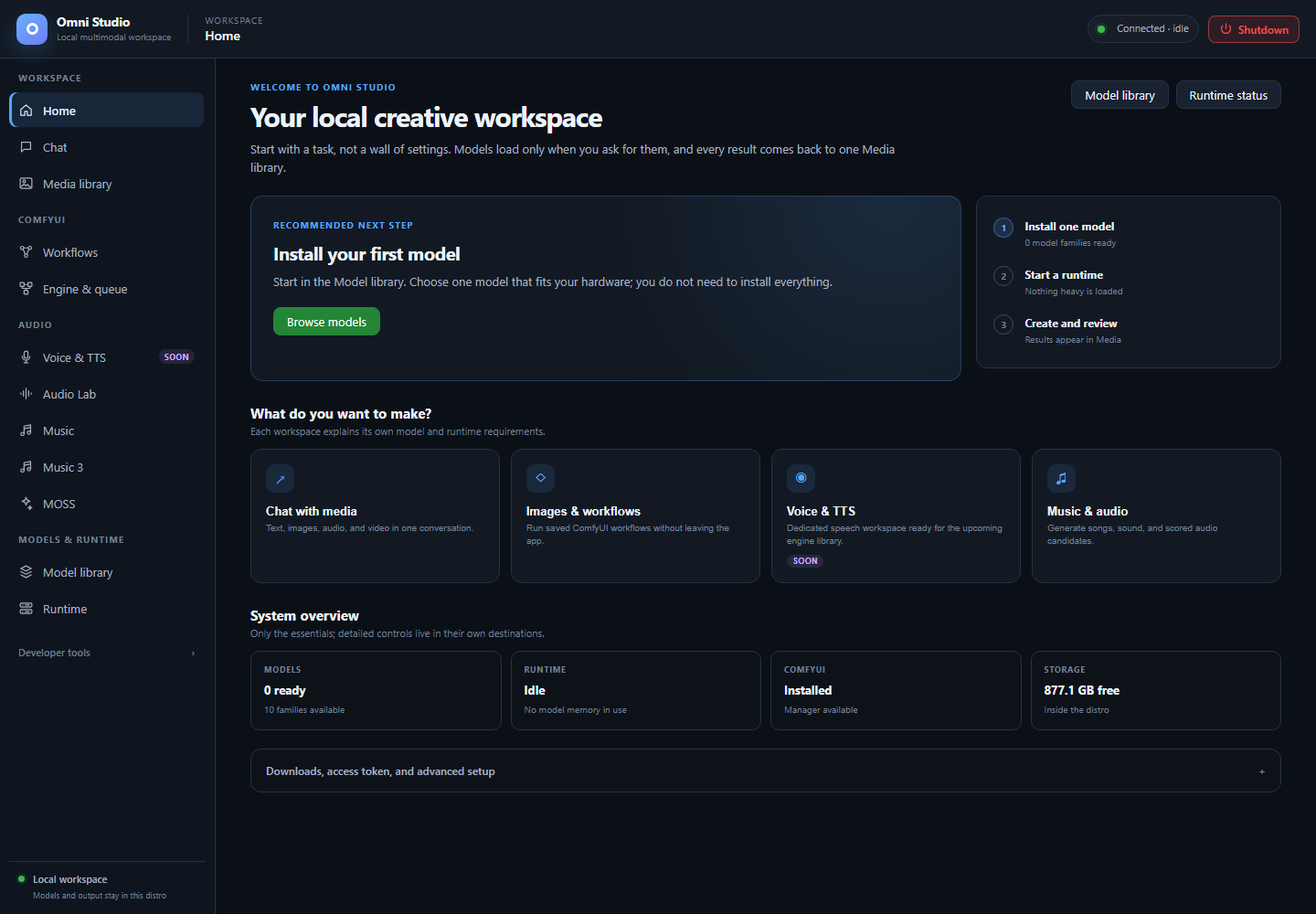
The browser content after connecting. This captures the app workspace, not the native Windows setup window.
The left cluster reads Omni Studio with the subtitle "Local multimodal workspace." That is the product, not a browser tab title you can ignore.
Next to the brand, two lines track where you are:
- the section (Workspace, ComfyUI, Audio, Models & runtime, Developer tools)
- the page title (Home, Chat, Media library, and so on)
These update when you change sidebar destinations. They are the same labels this manual uses.
The pill on the right starts as Connecting... while WebView2 waits for the
bridge and gateway. It turns into a connected/ready state once /api/session
succeeds.
If it stays on Connecting:
- wait through first-boot setup
- confirm WSL is running:
wsl -d linbox-Omni_Studio -- echo ok - do not click every destination hoping that loads models; nothing behind the UI works until the gateway answers
- check Logs after it connects; the live stream is empty until then
The UI retries with a bounded backoff (about 1, 2, 4, then 8 seconds) and reacquires the session token after a 401. A brief disconnect during a gateway restart is normal. A stuck Connecting state after ten minutes is a host problem (WSL, VHDX, antivirus locking the VHDX, missing WebView2).
The top-right Shutdown control unloads models, stops ComfyUI, cancels jobs, and closes the Windows host. It is not "log out of chat." Read Shutdown before you use it mid-generation.
The left rail is the entire product map.
Workspace
- Home — status, HuggingFace token, recommended next step
- Chat — multimodal sessions
- Media library — every persisted result
ComfyUI
- Workflows — choose, verify, run graphs
- Engine & queue — start Comfy, watch the queue, manage nodes
Audio
- Voice & TTS — a reserved speech hub marked Soon. The MOSS page documents the separate speech controls and their decoder requirements.
- Audio Lab — Stable Audio + CLAP
- Music — ACE-Step songs
- Music 3 — MiniMax Music 3
- MOSS — sound effects and speech-engine controls; see the MOSS page for speech-runtime compatibility.
Models & runtime
- Model library — downloads
- Runtime — devices, workers, API keys
Developer tools (collapsed <details> until you open it)
- Testing — one-shot load and prompt
- Logs — live SSE log
On a narrow window a hamburger button opens the same rail over a scrim. Escape or the scrim closes it. Arrow keys move between tab buttons when one is focused.
You can also jump by URL hash once the UI is up: #chat, #media,
#workflows, #comfy, #tts, #audio-lab, #ace-step, #minimax-music3,
#moss, #models, #server, #testing, #log, #setup. The app remembers
the last tab in browser storage.
The footer of the sidebar repeats the storage rule: Local workspace — Models and output stay in this distro.
Do not try to generate on a blank install. Follow Home's three-step progress:
- Install one model in Model library (or Home's advanced defaults). You do not need every family.
-
Start a runtime only when you are ready to use that model:
- Chat model → spawn a worker on Runtime or from Chat
- Images/video → start Comfy on Engine & queue
- Music/audio → load the engine on its own tab
- Create and review in Chat, Workflows, or an audio tab, then open Media library
If a gated HuggingFace repo is involved, save a token on Home before the download. See Jobs, tokens, composition, and media retrieval.
app.json records:
- distro name
linbox-Omni_Studio - start command
/opt/omni_studio/venv/bin/python3 /opt/omni_studio/bridge.py - window size 1440×900
- a terminal affordance (
terminal: true) so the launcher can expose a Linux shell for recovery
The Windows-facing API is http://127.0.0.1:9200. The in-distro gateway
default of 8200 is not the address you type in a Windows browser. If you open
Edge on Windows, use 9200, or stay inside the WebView.
- Moving only the exe. The distro disk and WebView2 library stay behind. Keep the app folder together.
-
Deleting
ext4.vhdxbecause it looks large. The registered disk, beside the executable or underwsl/in older installations, is your studio. Sparse size on disk can be smaller than the number Explorer shows. - Opening the UI and immediately starting Comfy, ACE-Step, Music 3, and a 7B chat worker. They fight for VRAM. Start one family, use it, unload it.
- Treating Voice & TTS as ready because it is in the sidebar. It is labelled Soon.
- Assuming Chat attachments always work. Qwen audio/video input and native speech output are not wired. Moshi is hidden from Chat because there is no usable batch/stream path.
You should see Home with:
- a recommended next step card
- counts of ready model families and active runtimes
- ComfyUI installed/not installed
- GB free inside the distro
- an advanced panel for HuggingFace and LoRAs
If Home renders but every count is zero, you have a working app and an empty library. That is a good first-run state. Go to Model library.
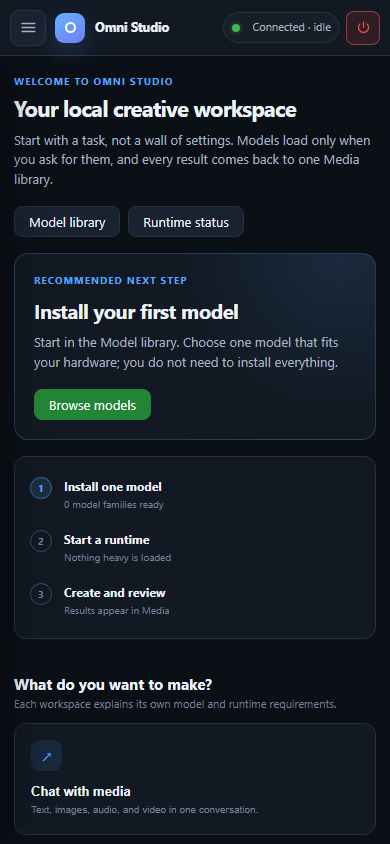
At this width the sidebar moves behind the hamburger button. Open it to choose a destination; press Escape or click the dark scrim to close it.