Repository navigation
Media Library
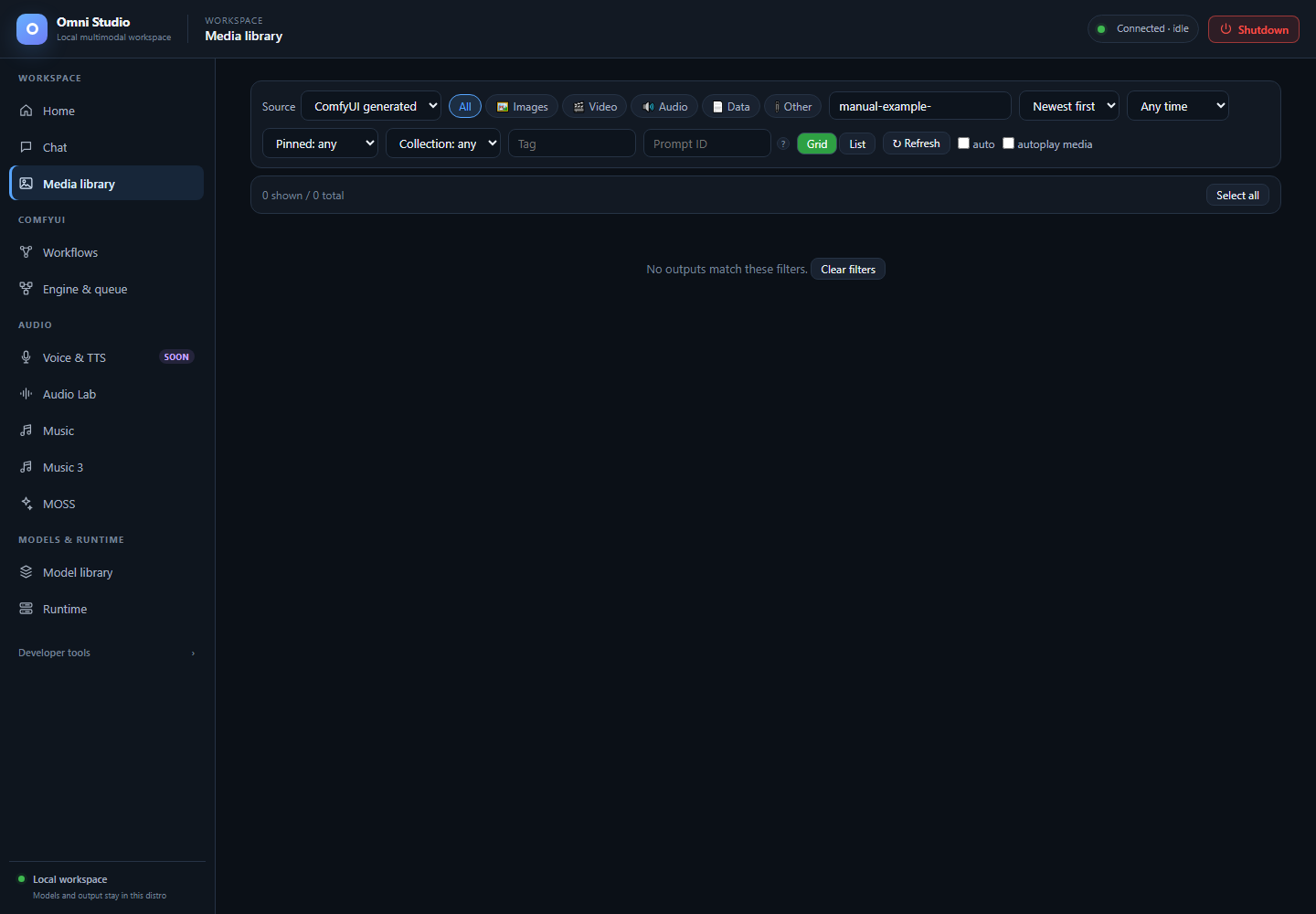
The filename prefix filter has no matches. Clear filters returns to the library; existing personal media is outside this capture. Captured September 25, 2026.
Media library is the single place generated files come back to. Chat images that were only attached in a session are not this library. ComfyUI outputs, ACE-Step songs, Audio Lab clips, Music 3 WAVs, MOSS speech, and composed masters are.
Open it from Workspace → Media library. The sidebar reminder is the rule: models and output stay inside the distro; this page is how a Windows user sees them.
The Source dropdown chooses which Linux tree you are browsing:
| Source | What it is |
|---|---|
ComfyUI generated (output) |
Normal finished graphs. Start here. |
ComfyUI inputs (input) |
Files uploaded as workflow inputs. |
ComfyUI temp (temp) |
Intermediate/cache frames. Treat as disposable. |
Omni (TTS / STT) (omni) |
MOSS, ACE-Step, Audio Lab, Music 3, compositions |
If a song "vanished," you are probably still on ComfyUI generated. Switch to Omni (TTS / STT).
Kind chips: All, Images, Video, Audio, Data, Other.
Other filters:
- Filename starts with... — prefix match, not full-text search inside PNG metadata
- Newest first / Oldest first / Largest first / Name A→Z
- Any time / Last 24h / Last 7 days / Last 30 days
- Pinned: any / Pinned only / Unpinned only
- Collection: any plus named collections once you create them
- Tag — exact tag filter
-
Prompt ID — the ComfyUI
prompt_idassigned when a graph is queued. Workflows and PNG metadata show it. Use this to isolate one run.
Grid and List change layout. Refresh reloads (keyboard R when the page is focused). auto refreshes every 10 seconds while you wait for a graph. autoplay media starts audio/video when you open or browse the lightbox.
An empty filtered view offers Clear filters. An unfiltered empty view explains that Chat, ACE-Step, Audio Lab, and Workflows populate this library.
Click a card to open the lightbox in grid view, or use the checkbox/row in list view. Ctrl+click toggles. Shift+click ranges from the last clicked index. Select all / Clear sit on the toolbar once a selection exists.
The toolbar then shows how many files and how many bytes are selected.
With a selection:
- Pin / Unpin — pins survive prune policies. Pin keepers before you run maintenance.
- Tag… — prompts for a tag string and writes metadata (files do not move).
- Add to collection… — groups items under a named collection.
- Export ZIP — requests a synchronous archive of the exact selected paths and streams it to a chosen file when the browser supports a save picker. The fallback download is capped at 128 MiB; split larger selections. This is the supported way to get files onto Windows NTFS.
- Delete — immediate and not recoverable. Confirm. Model-weight deletion elsewhere in the app is the same rule; media deletion here only removes output files, not checkpoints.
Metadata (tags, pins, collections, notes) lives in
/opt/omni_studio/cache/runtime/output_metadata.json, keyed by storage kind
and relative path. Clearing metadata does not delete the media. Listings
use server-side sorting and pagination so older files remain reachable.
ZIP responses contain the archive itself; there is no ZIP job to poll.
Click a thumbnail to open the player over the grid.
- Zoom, pan, and rotate from the lightbox chrome
- Embedded PNG metadata (prompt and workflow JSON) is readable when Comfy wrote it
- Pin, tag, and collection controls exist on the lightbox as well as the toolbar
- Play/pause, scrub, loop
- Playback rate
- Picture-in-picture and fullscreen
- Frame step for checking a diffusion video one frame at a time
- Play/pause, scrub, mute, loop, rate
- Use this to A/B ACE-Step candidates and MOSS SFX without leaving the app
autoplay media on the filter bar starts playback when you move to the next item. Keyboard shortcuts in the lightbox include pin (P) and the usual player keys; Escape closes the overlay.
Clicking through items does not change Source or filters.
The library is the /api/outputs tree. From Windows, with the app running:
omni-cli.bat outputs list --kind omni --media-kind audio --limit 50
omni-cli.bat outputs get ace_step/JOB/01.wav --kind omni --out /mnt/d/take/01.wav
kind must match the Source dropdown (output, input, temp, omni).
Use the exact relative path the list printed. Guessing Windows paths under
\\wsl$ is how people copy a symlink and think the file is missing.
HEAD/GET on a single file supports range requests so the lightbox can seek. You do not need to think about that unless a download is truncated; retry the CLI get.
The list view does not decode every WAV. When you need sample rate, duration, channels, or pixel size, either open the lightbox or call the metadata route (CLI and API). Composition and ACE analyze also persist objective facts.
The GUI does not currently ship a full multi-segment editor. Long-form
assembly is a special usage of POST /api/outputs/audio/compose: 2–64
segments, trim, gain, crossfade, optional loudness, 16- or 24-bit, 1–4 CPU
threads. That call is a background job. Poll it, then find the master
under Omni source, compositions/<id>/.
Full recipe: Jobs, tokens, composition, and media retrieval.
Use composition when ACE-Step extend/complete would regenerate audio you wanted to keep. Extend is generative; composition is an edit of existing files.
CLI omni-cli outputs prune can drop old unpinned files (--older-than 30d,
--max-gb, --dry-run). Pin first. Prune is immediate for files it selects.
-
Workflows —
prompt_idorigin - Music / Audio Lab / MOSS
- Command-line interface