Repository navigation
Model Library
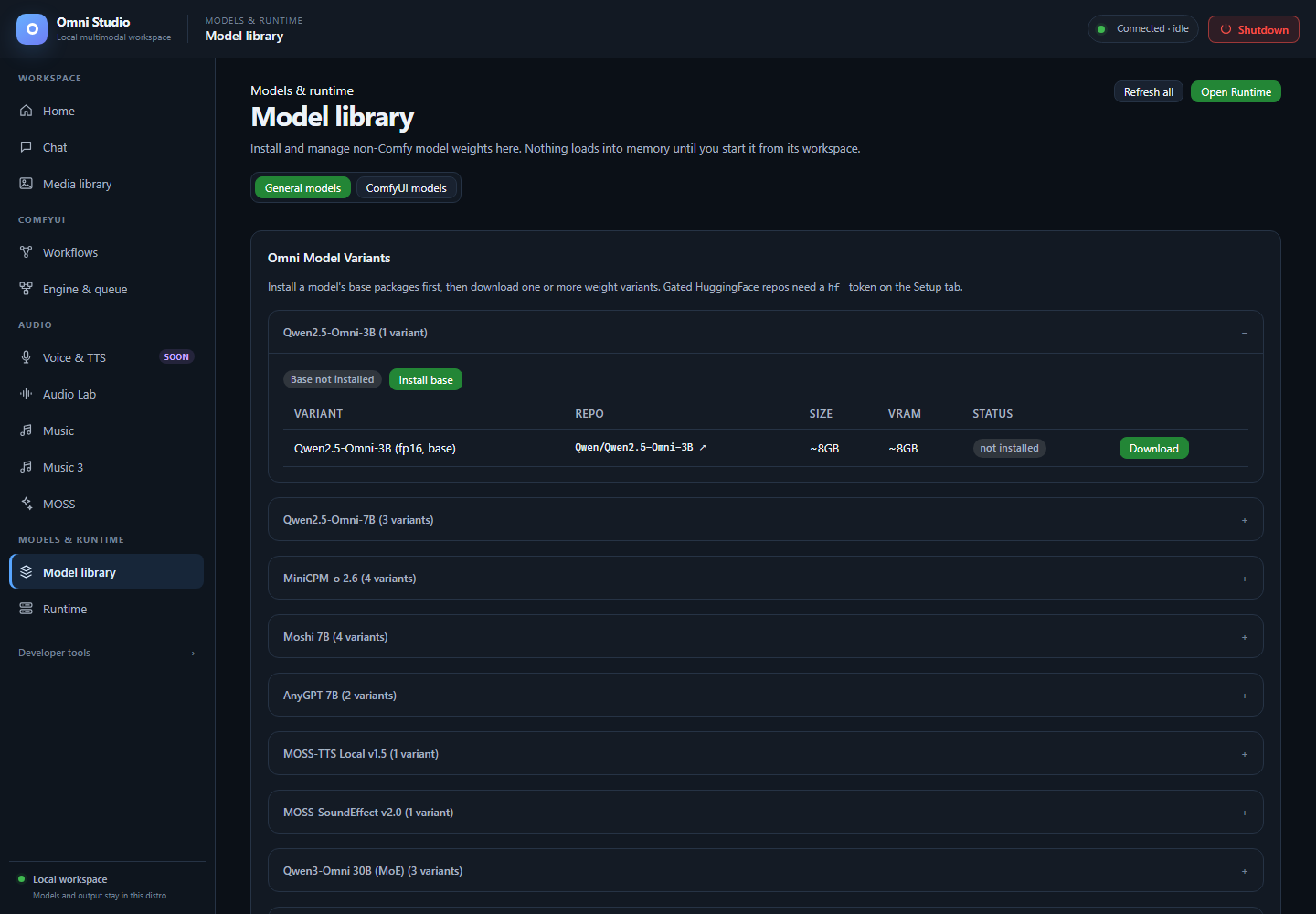
Expand a model family to inspect variants, size and installation status before downloading. Captured September 25, 2026.
Model library is where weights land on disk. Nothing in this tab loads a
model into VRAM. After a download shows installed / ready to load, you
still spawn or load from Runtime, Chat, Engine, or the matching audio tab.
Open Models & runtime → Model library. Two views share the page:
- General models — Omni chat families, Audio Lab registry, ACE-Step registry, generic LoRAs
- ComfyUI models — template catalog, filesystem scan of Comfy folders, download jobs for Comfy assets
The switch is sticky. Use ComfyUI models when you are feeding Workflows; use General models for Chat and audio engines.
Refresh all re-reads Comfy, Audio Lab, ACE-Step, setup status, and install jobs.
Each family is a <details> block (the first one starts open).
Do this to install a chat model:
- If the badge is Base not installed, click Install base. That pulls packages/runtime, not necessarily every weight variant.
- In the table, pick a variant (quantized vs full, size, VRAM estimate).
- Click Download on that row.
- Watch the job. Gated HuggingFace repos need the Home token first.
- When the row says installed / ready to load, go to Runtime or Chat.
The table columns are Variant, Repo (link to huggingface.co), Size, VRAM, Status. The repo link is the model card you must accept for gated weights.
You do not need every variant. Install one that fits. Qwen 7B GPTQ-int4 is the verified 24 GB text/image path. Qwen 7B base fp16 is installed-capable but heavier. 30B families will analyze as invalid on a typical 24+12 GB box; the installer may still let you download them, which wastes disk. Read Feature compatibility before a 30B download.
Audio Lab and ACE-Step are not installed with this Omni "Install base"
button. Their cards live further down (and on their own tabs) because a
generic /api/setup/install/{model} correctly refuses them.
Groups: Stable Audio models, CLAP models, VAE swaps (non-default). Each row can install or show installed. Open Audio Lab jumps to that workspace after weights exist.
Tiers you will see in the Audio Lab tab itself: official Stability, vetted community, untested community. Untested community uploads may fail to load. All downloads go through HuggingFace Xet.
Groups: DiT models, text encoders (LM), VAE swaps. Native 1.5 models also need a shared core; new installs include it. Partial older installs may prompt you on the Music tab to install the shared core once.
Lyric2Vocal and Text2Samples adapters are not offered as working downloads. Official weights are unreleased; the registry refuses fake installs. See Music.
This table is the generic Omni-chat LoRA list from Home. It is not ACE LoRA packs. If it is empty, search on Home. Pick a LoRA later on the Runtime spawn form for a LoRA-ready family.
Switch to ComfyUI models. The heading changes and the primary jump buttons become Workflows and Open ComfyUI.
The native ComfyUI git checkout contains templates that reference model files. That catalog is large, so the page does not load it until you click Load template catalog.
After it loads:
- Badges show template count, model refs, missing, and "need a link"
- Search template models filters by filename, category, template, URL
- Status chips: missing, downloadable, installed, needs-link, all
- Per-row install when a HuggingFace/Xet URL is known
- Batch downloads (advanced) — category + limit. Use this only when you intentionally want many files. It is easy to fill the VHDX.
"Need a link" means the template named a file but Omni could not find a download URL. Use paste a direct HuggingFace/Xet file link (direct install into a category) rather than guessing a folder from the display name.
Refresh scan re-reads the checkout. It does not update Comfy core; core update is a different button on Engine & queue.
Comfy installs appear here with the same job table pattern as Home. Cancel
running jobs if you picked the wrong file. Deletion of an installed Comfy
asset is immediate and recoverable: false — resolve the exact category and
relative filename first (CLI omni-cli comfy assets delete CATEGORY FILE).
Below the catalog, Omni lists what is already on disk under
/opt/omni_studio/comfyui/models/<category>: checkpoints, diffusion_models,
vae, clip, loras, controlnet, and the rest of the Comfy folder contract.
Empty categories are omitted. This is the truth Workflows will see when it says a model is missing.
Keep Comfy weights in those category folders. Do not dump .safetensors into
the Windows app directory.
A completed download is installation state. Runtime/Chat/Music load is a different state. You can have ten checkpoints installed and zero VRAM used. You can also have a worker running after you deleted nothing — delete the worker first if you need the GPU, not the files.
Typical toast/log lines:
- 401/403 — token missing, wrong account, or model card not accepted
- disk errors — VHDX/host full; free space on the Windows drive
- Xet/network resets — retry the same job once; do not start a duplicate install of the same variant
Save the token on Home, accept the card, then Download again.
- Home — token and default downloads
- Runtime — spawn after install
- Engine & queue — Comfy assets and nodes
- Feature compatibility — do not download Moshi expecting Chat