Repository navigation
Importing playlists
Import a track list by matching it to music already in your loaded iBroadcast library. Nothing downloads audio or changes track metadata. For a public URL, start with the public playlist guide.
The route is read the file → link columns → resolve/check matches → review and create. If you stop between these steps, use Pause import; for a result that may have been sent, use save recovery.
Open Playlists → Import CSV…. The import creates a new private iBroadcast playlist after review. It does not replace an existing playlist or change music metadata, artwork, favourites or the current play queue.
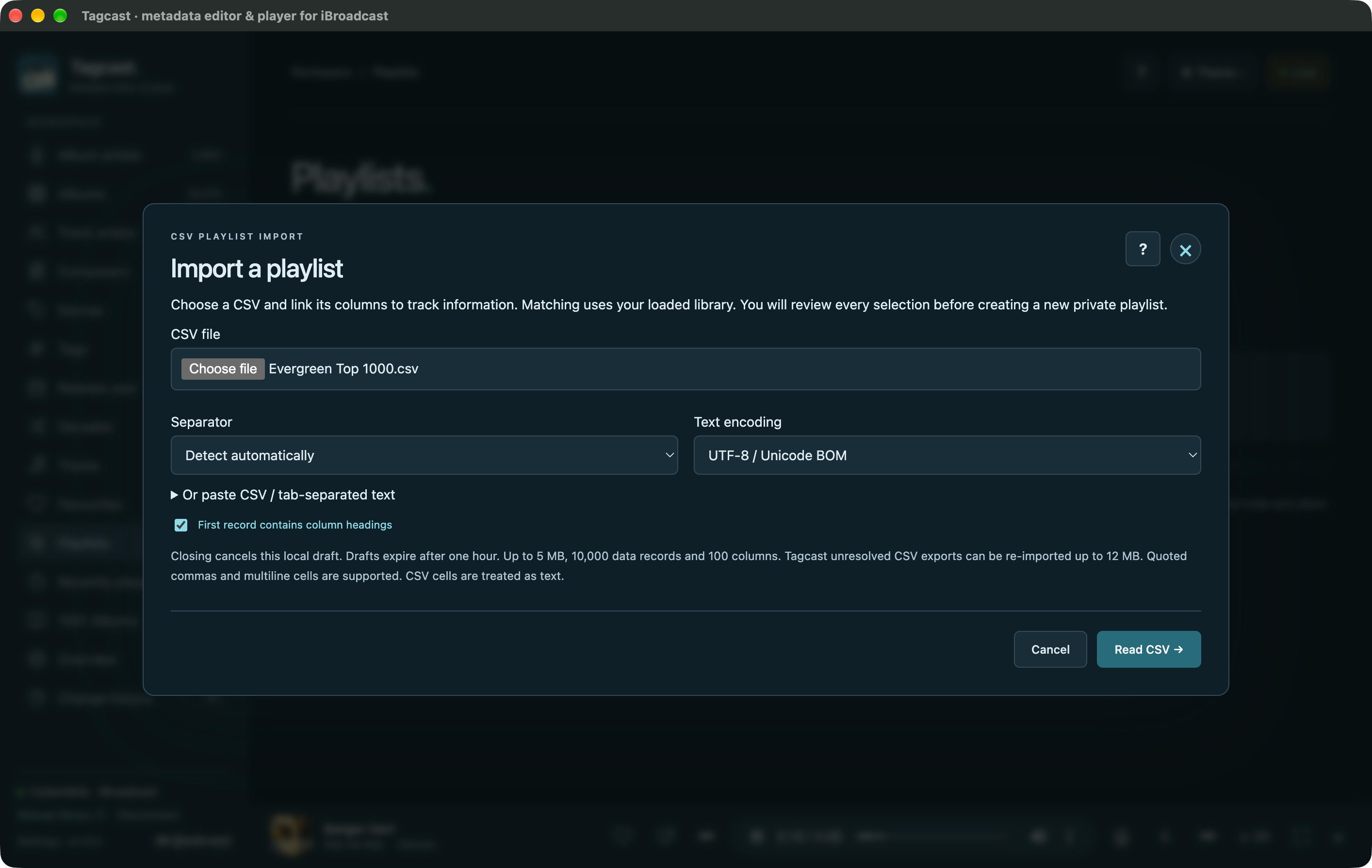
- Choose a CSV/TSV file (up to 5 MB), or expand Or paste CSV / tab-separated text. Choose the separator and whether the first record is a header. UTF-8 and Unicode BOMs are detected; Windows-1252 and UTF-16 can also be chosen. Check the preview.
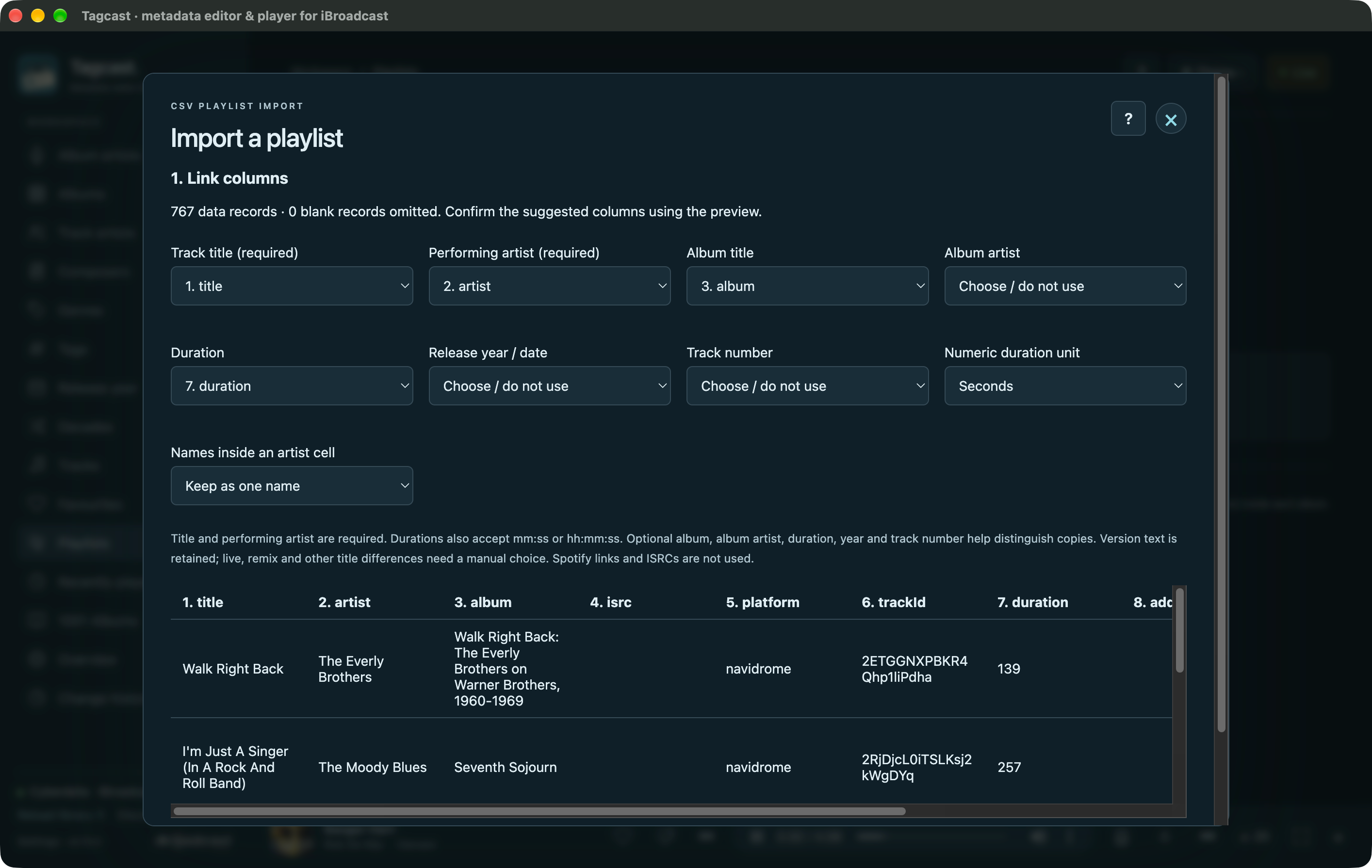
- Link Track title and Performing artist, using separate columns. Suggested
mappings can be changed. Album, album artist, duration, release year/date and track
number are optional. Choose Milliseconds for Spotify's
Duration (ms);mm:ssandhh:mm:sswork too. GenericDatecolumns are not assumed to be release dates. Semicolons inside artist cells split names only if explicitly selected. - Choose Match tracks. Only a unique exact full-title and performer match, consistent with the mapped optional fields, is selected automatically. Multiple library copies, invalid cells and live/remix/remaster title differences remain for manual review. Album or year differences can also prevent an automatic choice; omit those optional columns if the export uses compilation/remaster metadata you do not want to require. Change columns (resets matches)… allows a fresh mapping.
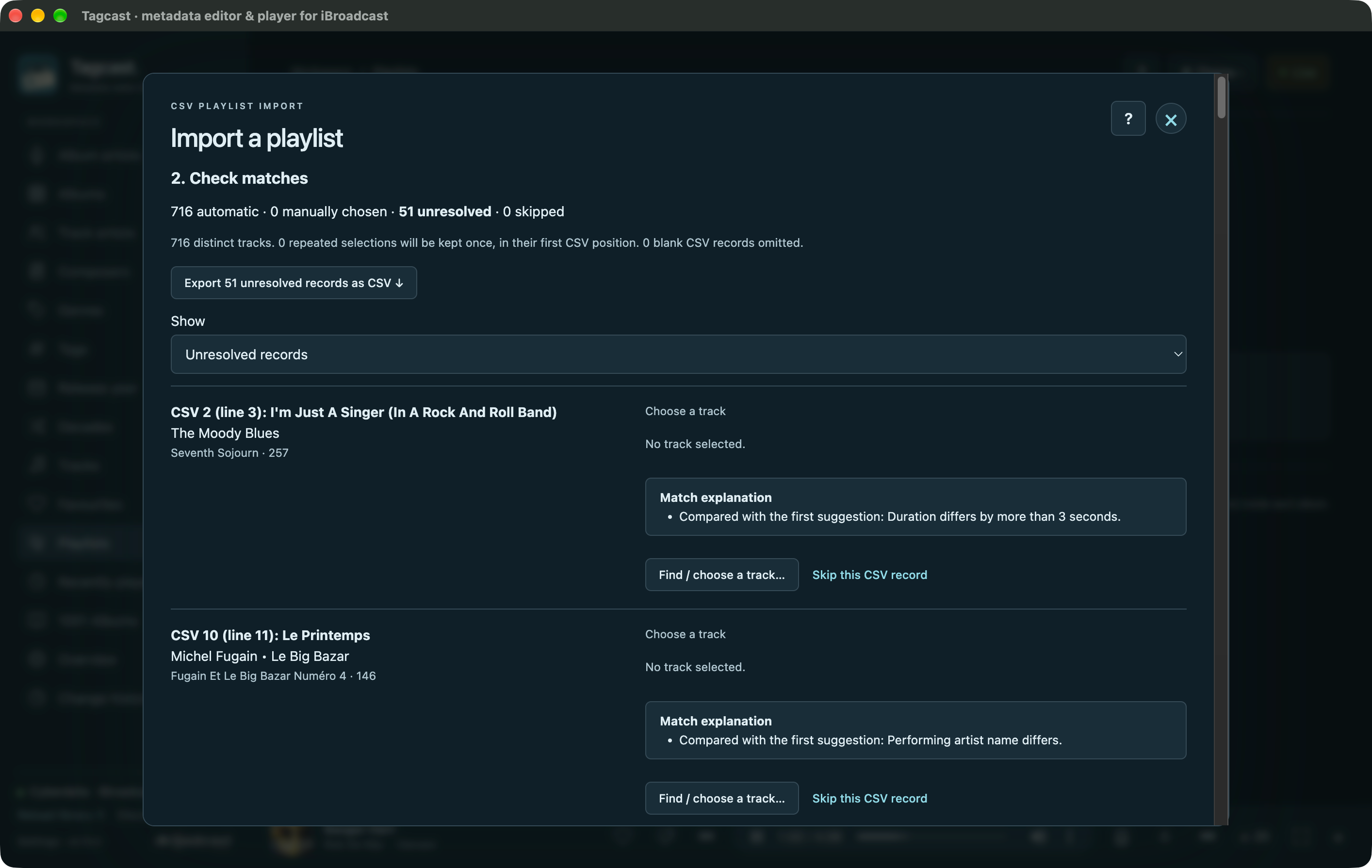
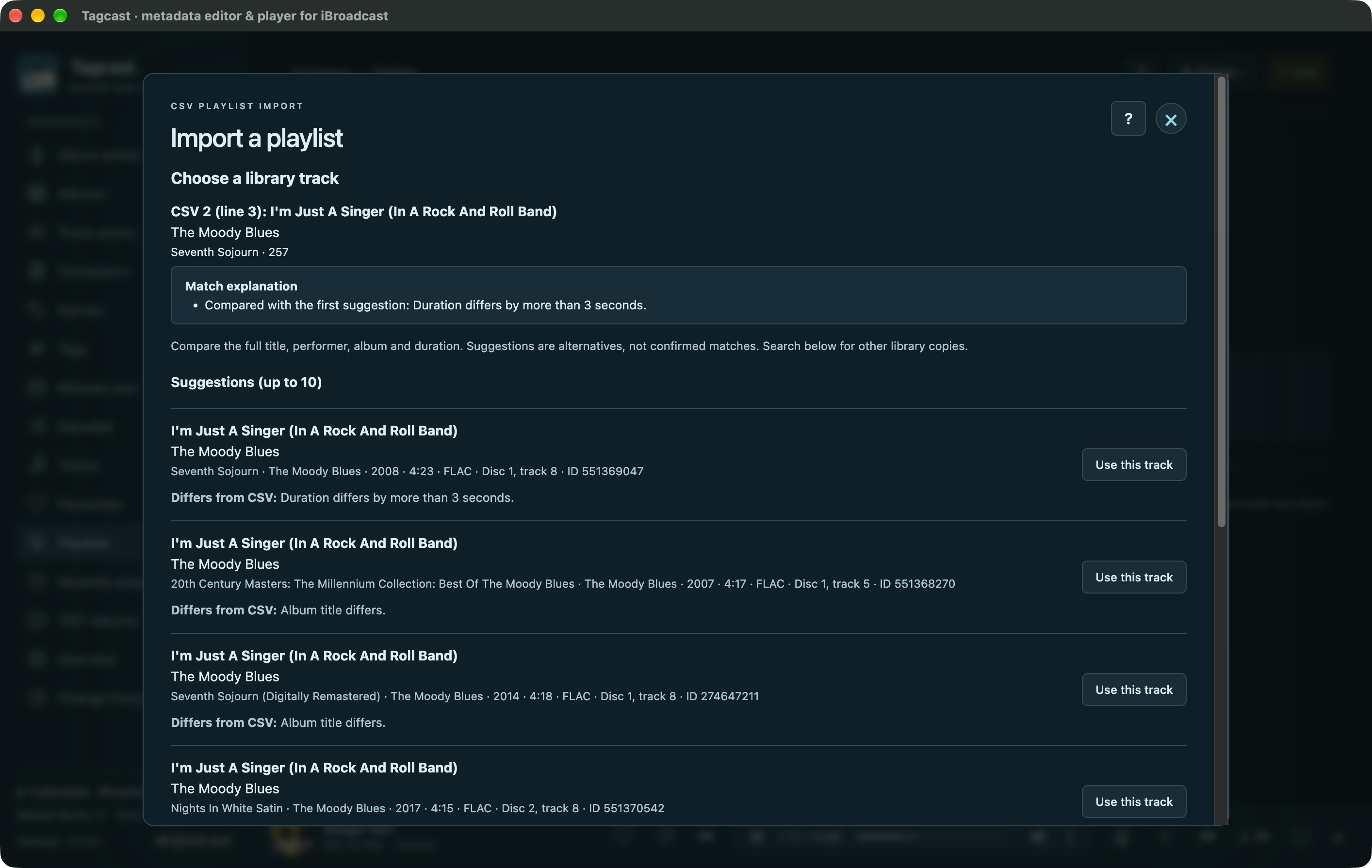
- Results open with Show → Unresolved records selected. Use Show to inspect automatic or manual matches too. Find / choose a track… and Change match… show up to ten suggestions with full title, artists, album, duration, format and native track identity. Search the entire loaded library for other copies or spelling differences; results are paginated. Choose a track or explicitly Skip this CSV record. The Unresolved records filter helps find remaining decisions. Match explanation says why a row was not linked automatically, comparing it with the first suggestion where available. Each suggestion lists its differences from the CSV: title/version, performing artist, album, album artist, year, track number or duration. Duration differences up to three seconds are accepted; missing library values, invalid CSV fields, multiple matching copies and absent suggestions are explained separately. These explanations do not relax the matching rules.
- You can choose more matches, or immediately continue with the tracks already selected. Enter the playlist name/description and choose Review N matched tracks when unresolved records remain, or Prepare playlist review when all are resolved. At least one selected track is required. For example, a 1,000-row CSV with 100 matches can create a 100-track playlist without reviewing the other 900 rows individually. The final review explicitly shows how many unresolved records will be left out; Back to matches preserves those rows and your choices if you want to add more. Check the final ordered list and counts. The importer keeps CSV order, omits skipped/blank records and retains repeated selected track IDs once, at their first position. It does not sort by a rank/date column.
- Choose Create private playlist in iBroadcast and wait for the read-back confirmation. When unresolved records remain, a Playlist created screen lets you export them before choosing Open imported playlist. Otherwise the playlist opens immediately. Use the existing cover and folder controls to organise it further. If creation is uncertain, check Playlists before importing again; the same reviewed creation cannot be sent twice.
Export N unresolved records as CSV is available beside the matches, in the final review and after a partial import. It includes every unresolved row across all pages, with the original columns, cell values and CSV order. Automatically matched, manually chosen and explicitly skipped records are excluded. You can review the file or import it again later. Tagcast adds no native track IDs or replacement metadata to the file.
The download uses UTF-8 with a BOM, commas and quoted multiline cells. A short Tagcast format line allows spreadsheet-safe text escaping to be reversed automatically during re-import; keep that line when editing the file. Re-import can accept these identified Tagcast exports up to 12 MB. Confirm column mappings, duration units and artist-name splitting as usual. Download before discarding the import dialog, or explicitly choose Pause import to keep a checkpoint across restarts. Ordinary unpaused drafts expire after one hour.
Parsing, matching and manual search use only the loaded library on the local server. CSV cells remain text: URLs, Spotify links, ISRCs, artwork URLs and other unlinked columns are not fetched or sent to providers. The browser receives small pages, not the complete track catalogue. Native additional performing artists are considered; composer credits do not count as performing artists.
Limits are 10,000 data records, 100 columns and 2,000 characters per cell. Quoted separators, accents, multiline cells, short rows with empty trailing cells and blank records are supported; malformed or oversized input is rejected visibly. The original CSV is never changed. Ordinary unpaused drafts stay in memory and expire after one hour; closing asks before discarding progress. Explicitly paused checkpoints persist across restarts and are revalidated on resume. Library/account/connection changes invalidate the active draft; paused imports remain bound to their original account.
These 0.70.0 screenshots illustrate the same file/column/matching/review workflow used in 0.80.0. Some styling and progress controls differ; use the current steps above for pause/resume and partial imports.
1. Choose the export. Select the file, encoding, separator and header setting.
2. Link the columns. Check title, performing artist and optional album/duration fields against the preview. This export stores numeric durations in seconds.
3. Review unresolved records. This example finds 716 automatic matches among 767 records and leaves 51 choices for manual review. Reasons identify differences.
4. Choose a library copy. Compare the candidate's artist, album and duration before selecting it. A different album or duration remains a manual decision.
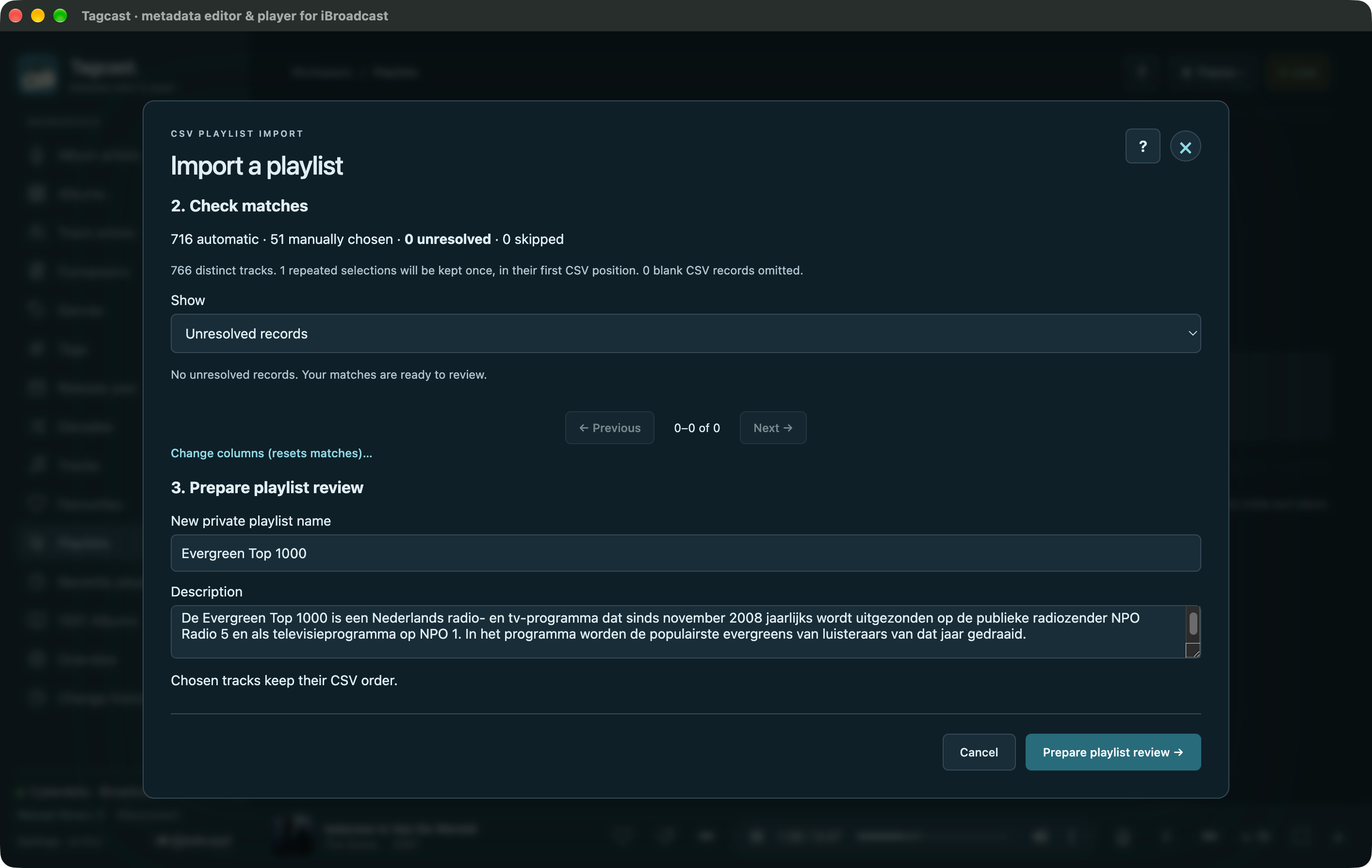
5. Name the playlist. After the manual choices, all 767 records are resolved. One repeated selected track is kept once, leaving 766 distinct tracks in CSV order.
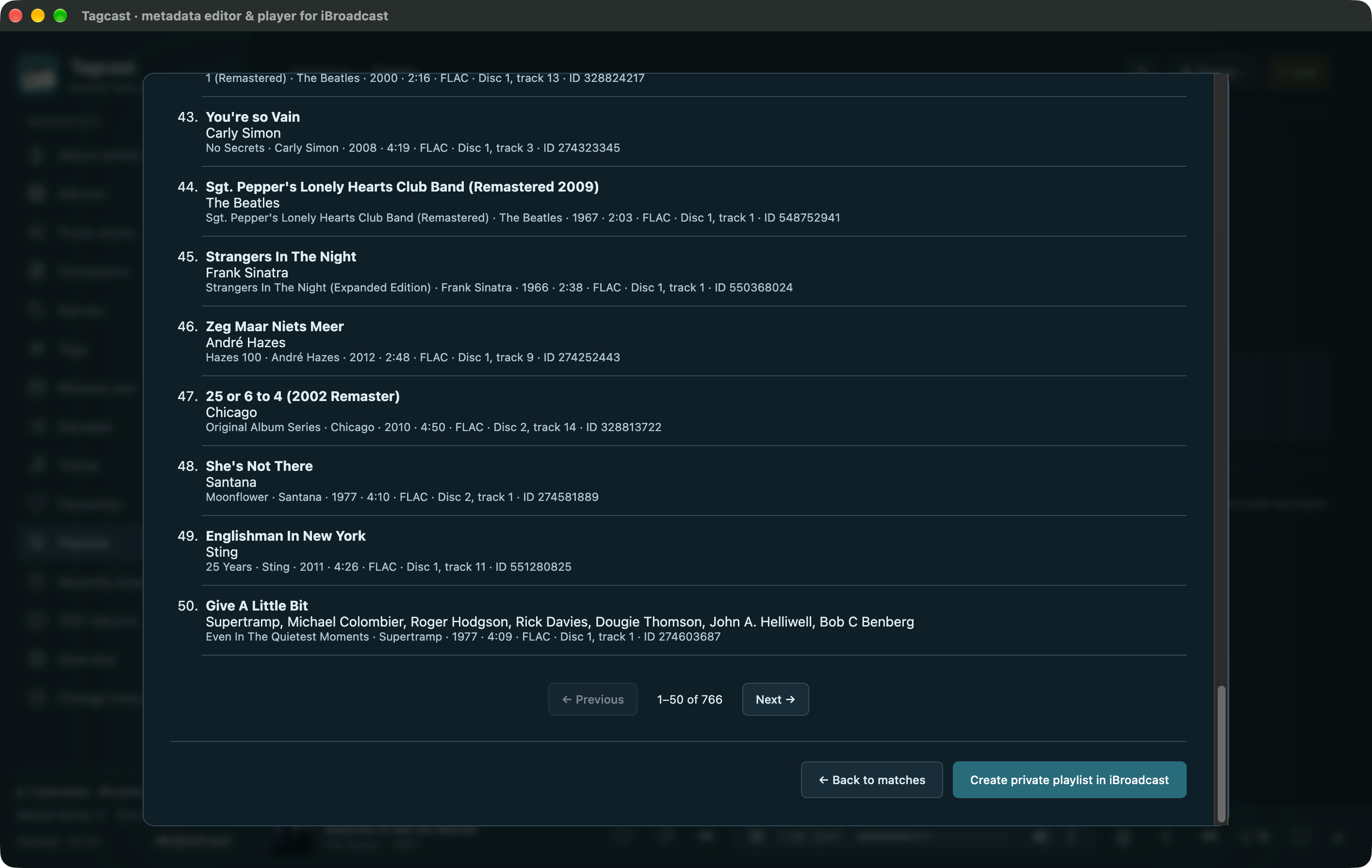
6. Check the final list. The review is paginated; use Next to inspect later tracks. Create the playlist only after confirming the order and counts.
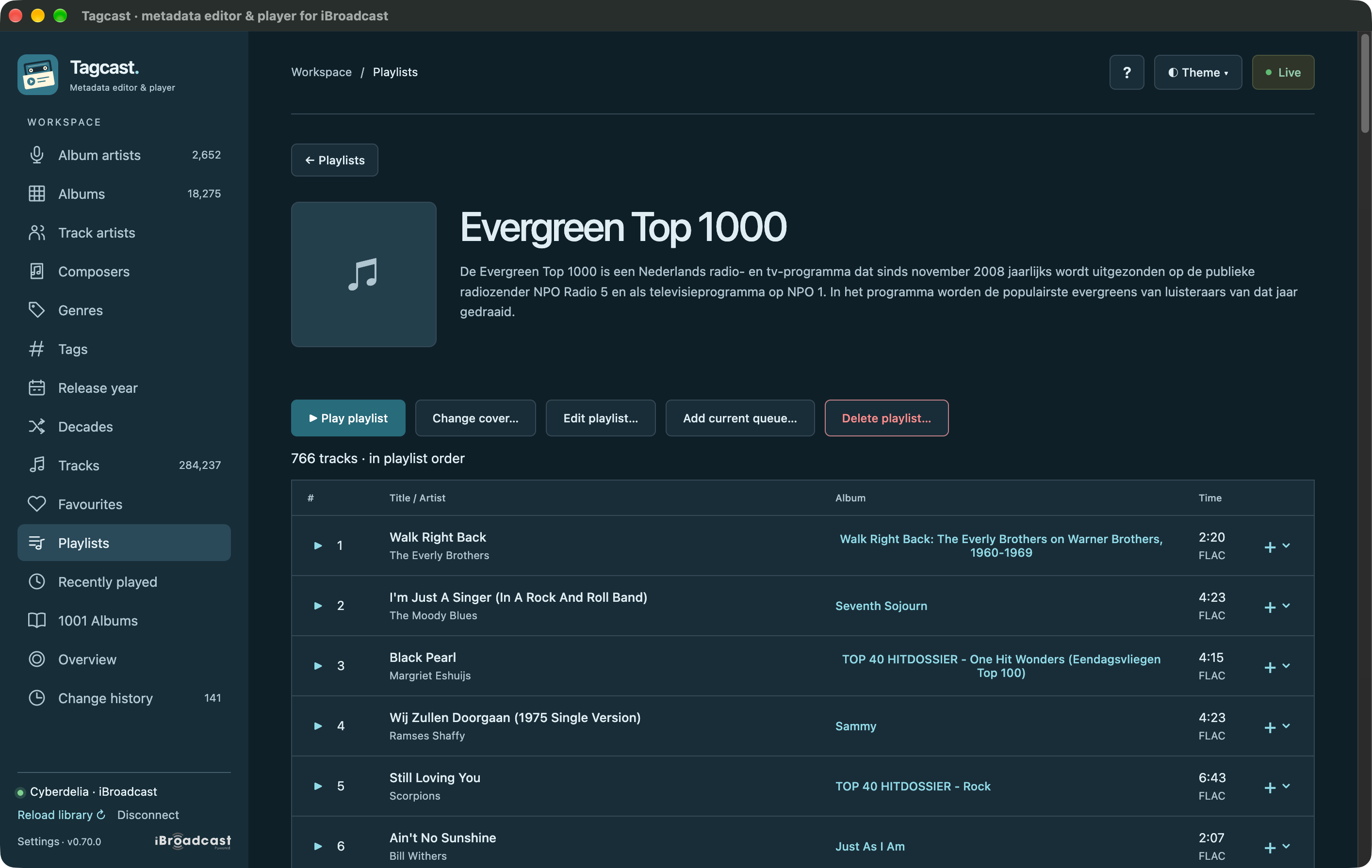
7. Open the confirmed playlist. The playlist appears after read-back. Use Change cover for the separate image comparison.
In Link columns, When multiple tracks match defaults to Choose manually. You can instead choose Prefer FLAC, Prefer oldest year, Choose first match, or FLAC first, then oldest year. These options select only among active tracks that already match every mapped field, including title/version, performing artist and any mapped album, year, track number or duration (within three seconds). Invalid CSV fields and different versions still require attention.
FLAC is preferred when available. Oldest year uses the stored track year, falling back to album year, with unknown years last; this may be a compilation or reissue year. First match and remaining ties use the lowest native track ID for a stable choice. The explanation identifies preference selections and Change match lets you choose another copy. The final review and explicit creation remain required. Paused imports retain the preference and reapply it on resume; older saved imports keep manual selection. Changing the preference and matching again resets choices.
Mapping Album title makes matching stricter: a nonempty album value must match for automatic selection. Choose do not use to allow matching copies on other albums or compilations.
After reading a CSV, choose Pause import in its heading to save your work locally for the current account. Playlists → Paused imports… keeps up to 10 imports / 64 MB per account, including after restarting Tagcast. No playlist is created by pausing, listing or resuming. Saved copies do not expire after one hour; ordinary unsaved active drafts still do.
Upload missing tracks to iBroadcast, then choose Refresh library & resume. Tagcast refreshes the shared library and matches the original CSV again. Unchanged manual choices and skipped records are retained, along with the playlist name, description, filter and matching page. If a chosen track changed or disappeared, its row returns to unresolved with an explanation. New or ambiguous copies use the same conservative matching rules. Changing column mappings resets previous choices.
Resuming returns to matching (or unfinished column mapping), requiring a new final review before creation. Closing a resumed draft leaves its last saved checkpoint; choose Pause again to replace that checkpoint with your latest choices. Remove… separately reviews deletion of the local saved copy, without changing existing playlists or music. Full storage and write errors leave the open draft intact.
Creation consumes a saved import before its request is sent. A confirmed read-back removes its checkpoint. An uncertain request remains visible for checking Playlists and cannot be resumed or sent again, including after restart.
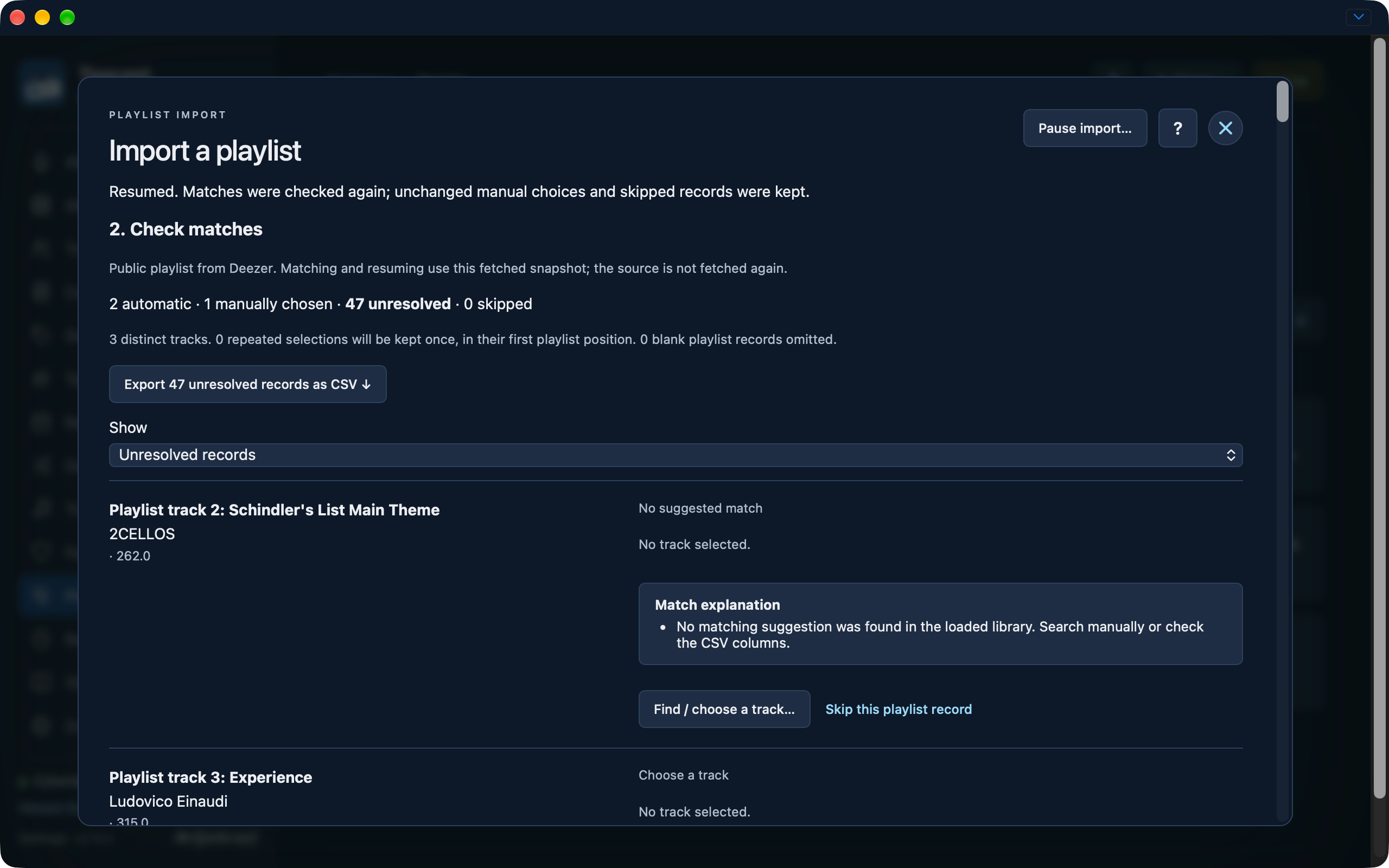
A resumed Deezer import shows the resume notice and one retained manual choice, alongside two automatic matches and 47 unresolved records. This is matching progress, not a created playlist.
After choosing/pasting CSV input or starting a draft, Close, Cancel and Escape ask before discarding the import. Choose Keep importing, close that confirmation, or press Escape in it to continue with the same column mapping, matches, manual choices, text, filter, page and scroll position. Discard import closes the draft. While playlist creation is running, the confirmation explains that closing does not cancel the accepted request. Empty and finished imports close directly. Account/library replacement still clears an invalid draft automatically; successful creation and single-use save protection are unchanged.
If you see an older interface after an update, use the version checks before reloading an unsaved draft.