Repository navigation
Various Artists
Use this when a compilation should appear under Various Artists, while its individual tracks keep their own performers. For an intentional collaboration between named album artists, keep the separate artist credits instead.
These illustrative screenshots show Tagcast 0.80.0. Uploads were still completing during the original session, so library totals and the final image’s track-table total differ; its album-header total was adjusted for this example. Changing the album artist does not add or remove tracks. Check the artist fields in this walkthrough, not differences between the displayed counts.
Open the compilation. The album heading may currently list a primary artist and several additional album artists. These are album-level labels, separate from the performers of each song.
For a multi-disc set, edit all discs together. In this example, the album contains three discs. If the editor offers Edit all 3 discs together, choose that before preparing the change.
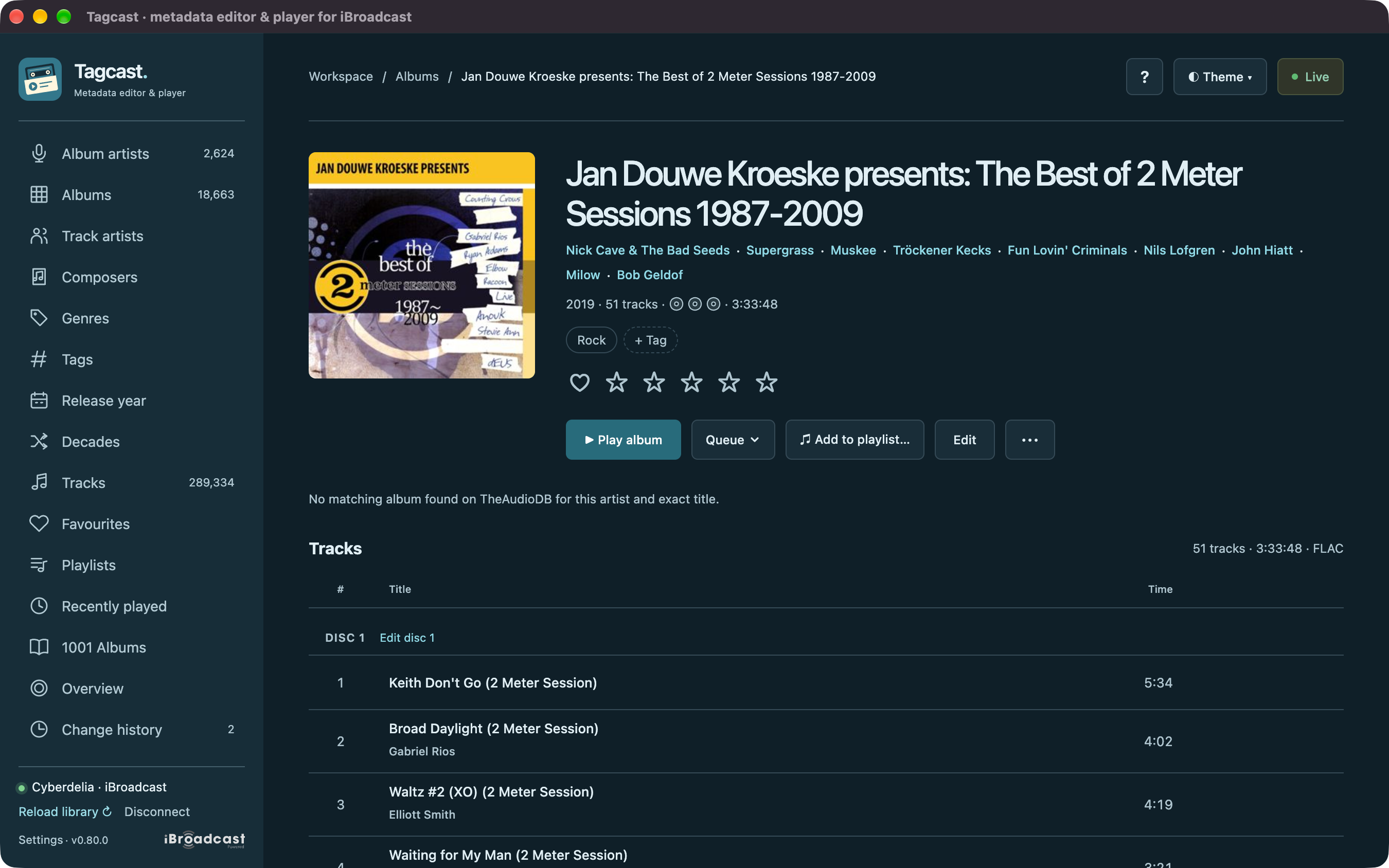
Choose Edit and stay on the Edit album tab. The primary Album artist is above Additional album artists. Leave the Edit tracks tab alone unless you also intend to change individual songs.
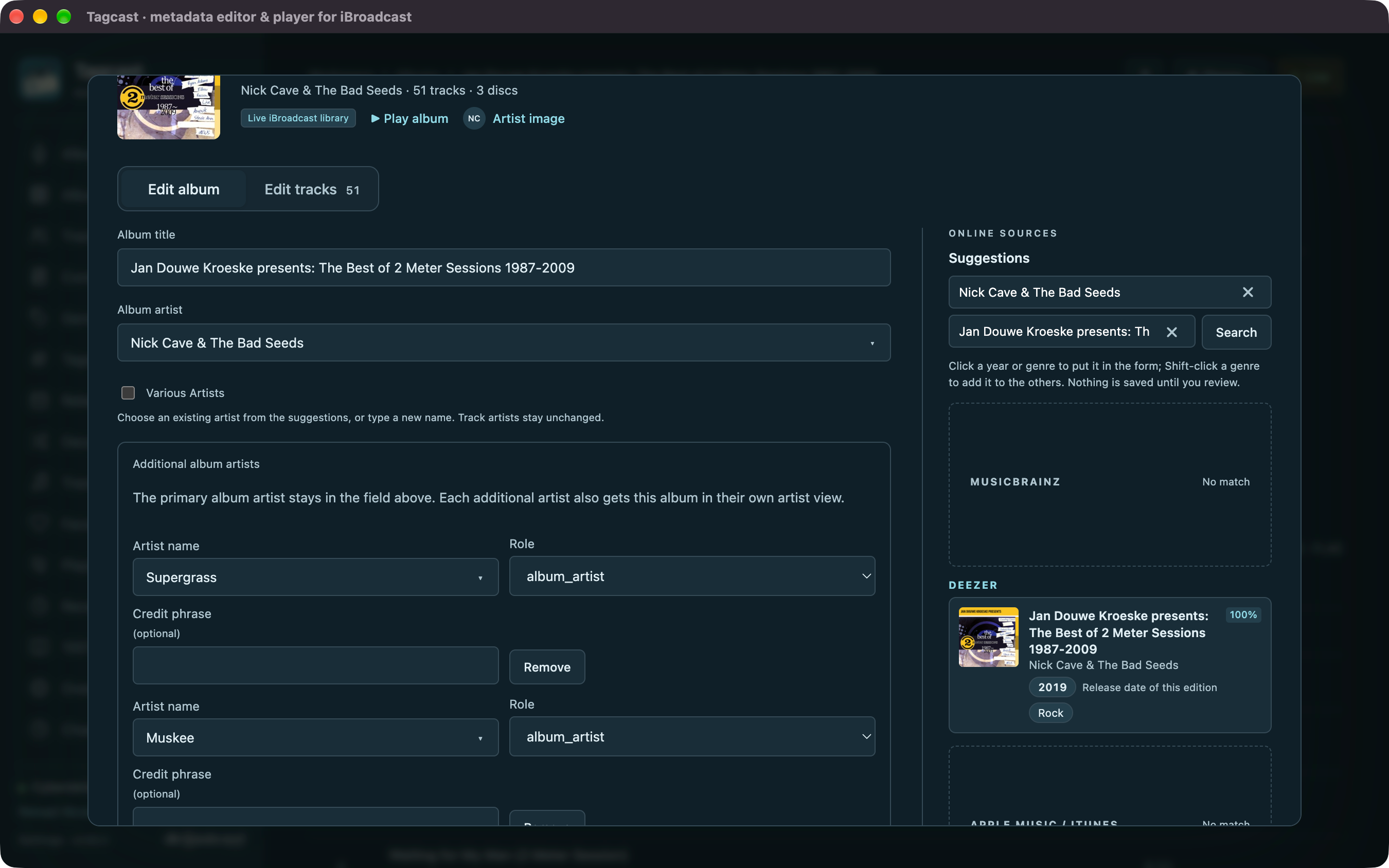
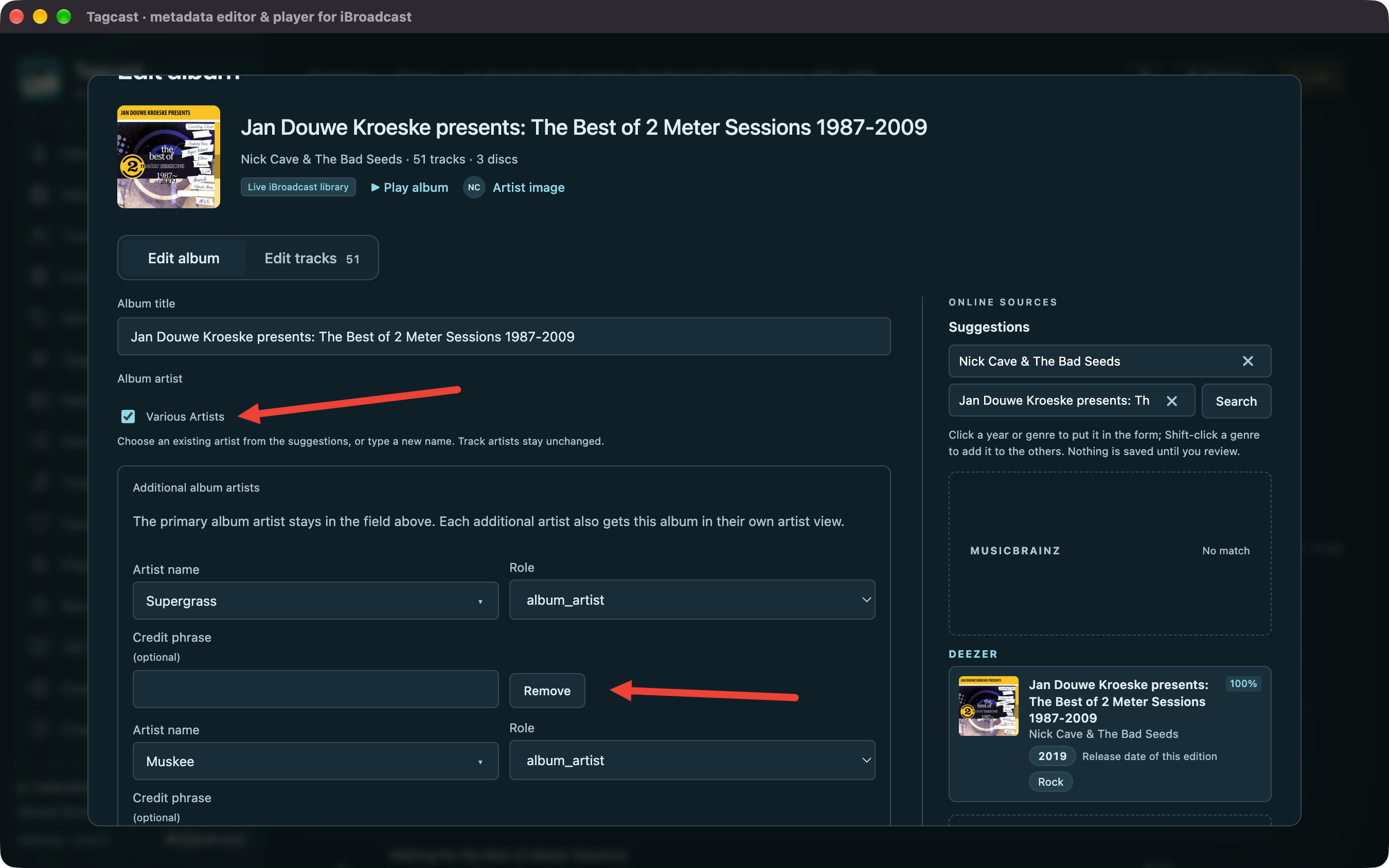
Tick Various Artists beneath Album artist. Tagcast uses iBroadcast's native Various Artists identity, rather than creating an ordinary artist with that name.
This choice clears additional album artists in the before/after review. Individual track artists and track credits stay unchanged. In 0.80.0, the additional album artist rows can still remain visible in the editor after ticking the box. You do not need to remove those rows manually: check the proposed Empty value in the next step. The lower red arrow points to Remove, which is not needed for this procedure. Leave those controls alone and continue to Review.
Since 0.85.0: the additional album-artist fields are hidden when selecting Various Artists, with an explicit explanation of what will be cleared on saving. Unticking restores the draft fields. See Clearer Various Artists editing. The screenshot below retains the earlier 0.80.0 presentation.
Untick the checkbox to enter a named album artist again. When editing a selection within one album artist, enable Change Album artist first.
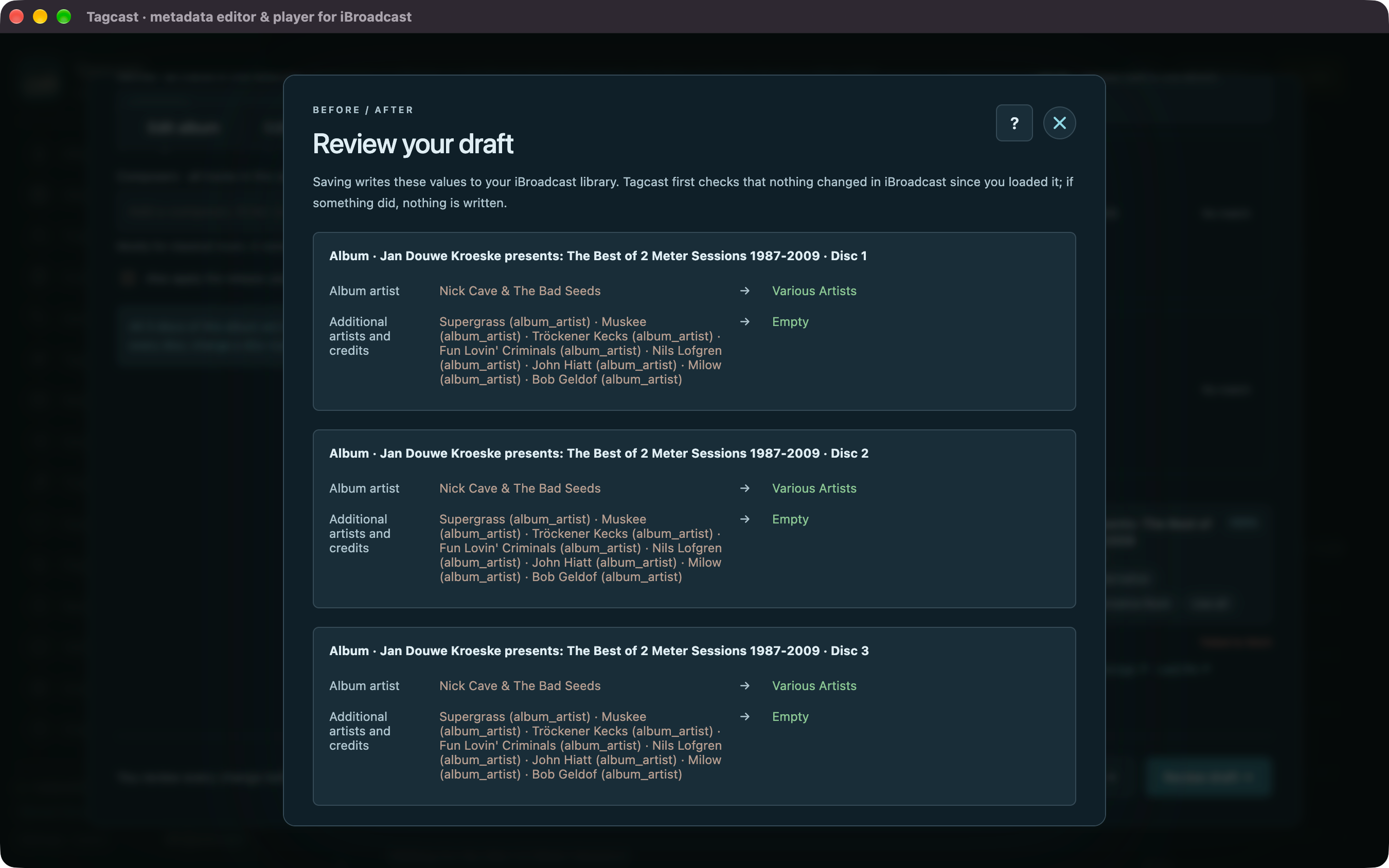
Choose Review draft. For each included disc, check:
- Album artist: the named artist becomes Various Artists.
- Additional artists and credits: the previous album-level entries become Empty.
- Track artists and track credits have no changes, unless you deliberately edited them separately.
Return to the editor if the review contains an unexpected change. Nothing has been written at this stage.
Choose Save N records to iBroadcast and wait for the read-back result; the number reflects the records in your review. Each disc is saved separately. Metadata requests can retry temporary errors while the save is running; this is different from repeating a finished, unconfirmed save. For partial, blocked or unconfirmed results, follow save recovery before doing anything again.
The album heading now shows Various Artists. Individual performers remain on their tracks. This changes the iBroadcast library metadata; it does not edit your local MP3 or FLAC files.
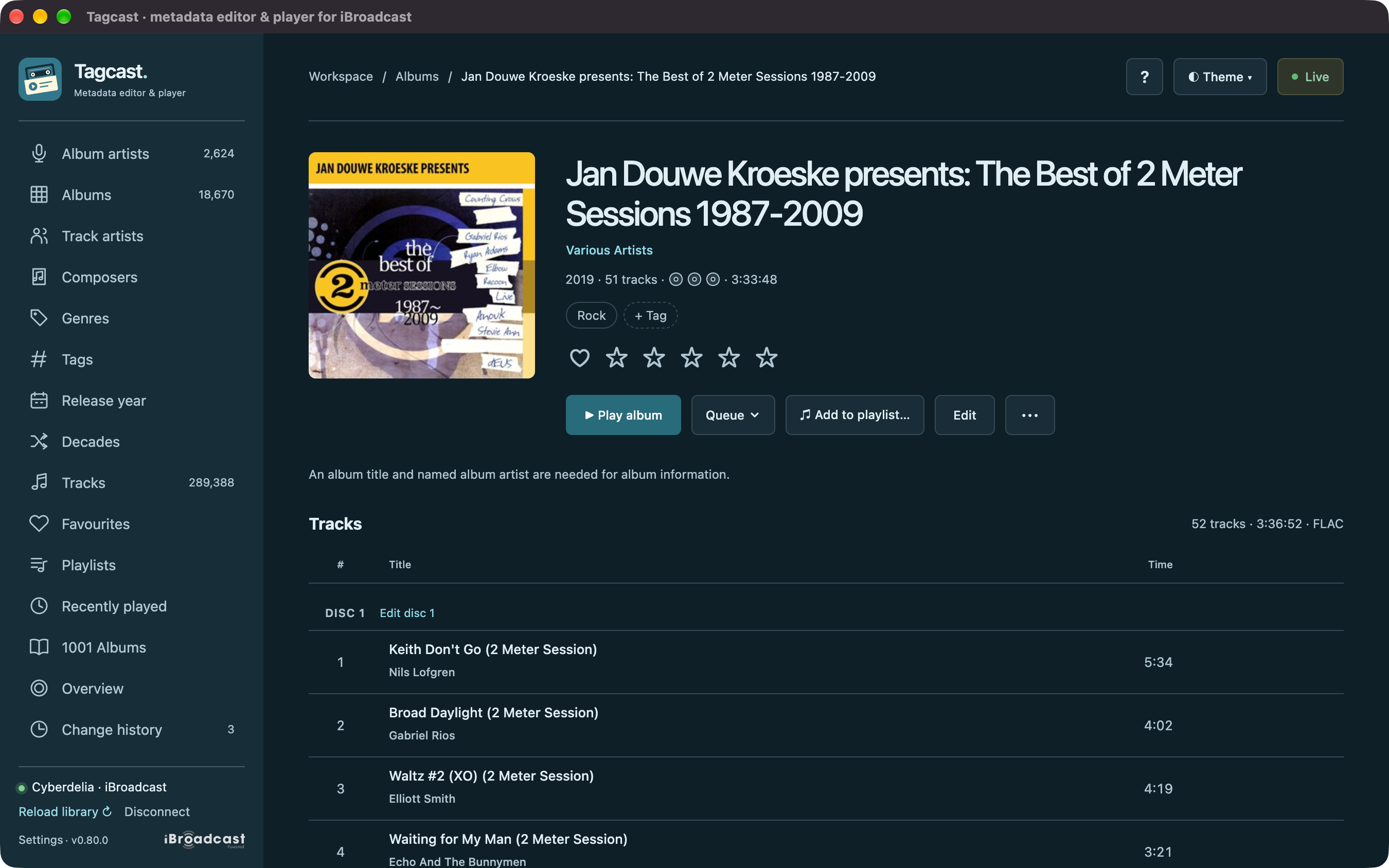
The screenshots illustrate the workflow; use the confirmed save result and the current library when checking your own album.
See also artist credits, metadata editing and saving and history.