Repository navigation
Editing metadata
Edit one album, all discs of one set, or a selection within one album artist. Suggestions fill the draft; review and saving remain explicit.
- Open an album and choose Edit. Edit its title, album artist, release year or disc number, and genres or composers for its tracks. Individual tracks can also have their own title, artist, year, track number, genres and composers.
- Use the online suggestions beside the form if helpful. Click a year or genre to fill the form, Shift-click a genre to add it, or choose Use all for the suggested genres. Suggestions do not save anything by themselves.
- Choose Review draft →, inspect the before/after values, then choose Save N records to iBroadcast. Tagcast checks the existing values first and downloads the library again to confirm accepted writes. Change history shows the progress and result.
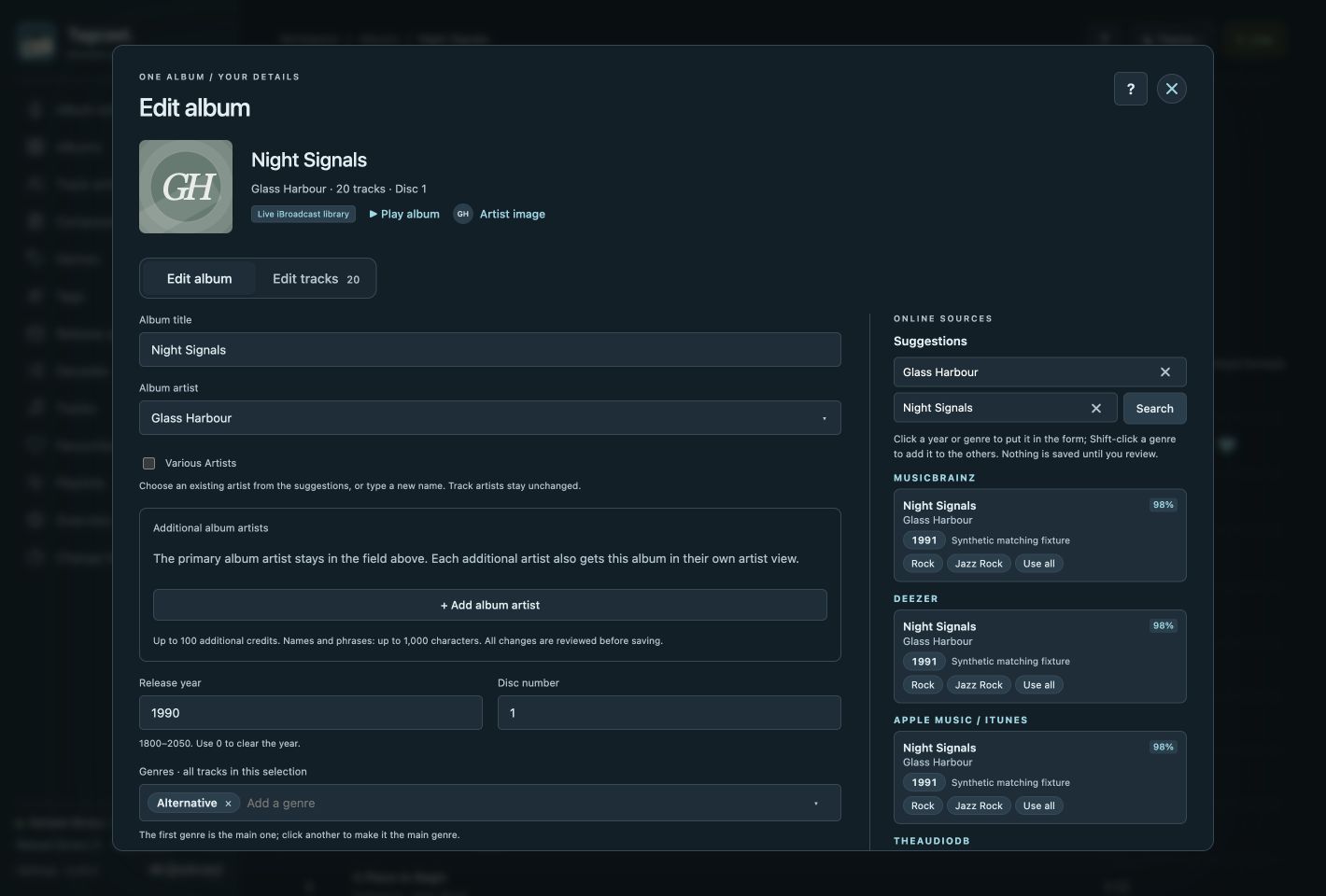
0.80.0 sample album: suggestions fill the draft; the fields below the visible area remain accessible by scrolling. Nothing has been saved. Select a screenshot to open the full-size image.
To edit several albums, open one album artist, tick their album cards and edit the selection. Only the fields you enable are changed. Album year changes leave track years alone unless you tick Also apply the release year to tracks; individual track edits take precedence over album-wide edits.
Since 1.1.0, a Metadata editing preference in Settings can preselect this checkbox in new drafts. It starts off and can still be overridden per draft. It does not reconcile previous year differences or decide whether the album year or track year is correct.
Also since 1.1.0, Album and track years in Cleanup lets you compare existing values and prepare a reviewed year change in either direction, or apply one chosen track year to both the album and all tracks. It does not infer which date is correct or change years automatically.
For compilations, tick Various Artists beneath Album artist. This uses iBroadcast's native Various Artists album artist and preserves every track's artist and additional credits. Untick it to enter an album artist again. The choice is included in the normal before/after review, also for all discs of a set; when editing a selection, first enable Change Album artist.
New album and track years must be 1800–2050; use 0 or clear the field to remove a year. The editor and server both enforce this range, including online suggestions and album-wide track-year changes. An existing year outside the range can remain untouched while you edit other metadata.
Genres are separate labels: the first is the main genre, and the others become additional genres. Split or Split combined genres explicitly separates labels such as Pop;Rock. Composers are stored as composer credits; other credits, such as featured artists, are preserved.
Choosing Various Artists also clears additional album artists in the review, while keeping track artists and track credits. Follow the illustrated walkthrough. Before album edits, check Combine Multi-Disc Album Sets. For an incomplete save, use recovery guidance.
Opening Edit keeps the existing album dialog, with Edit album and Edit tracks tabs. The album tab contains shared fields and online suggestions. The tracks tab shows an independently scrolling track list beside the selected track’s details, credits and lyrics; narrow screens stack the list above the form. Multi-disc sets retain their disc headings.
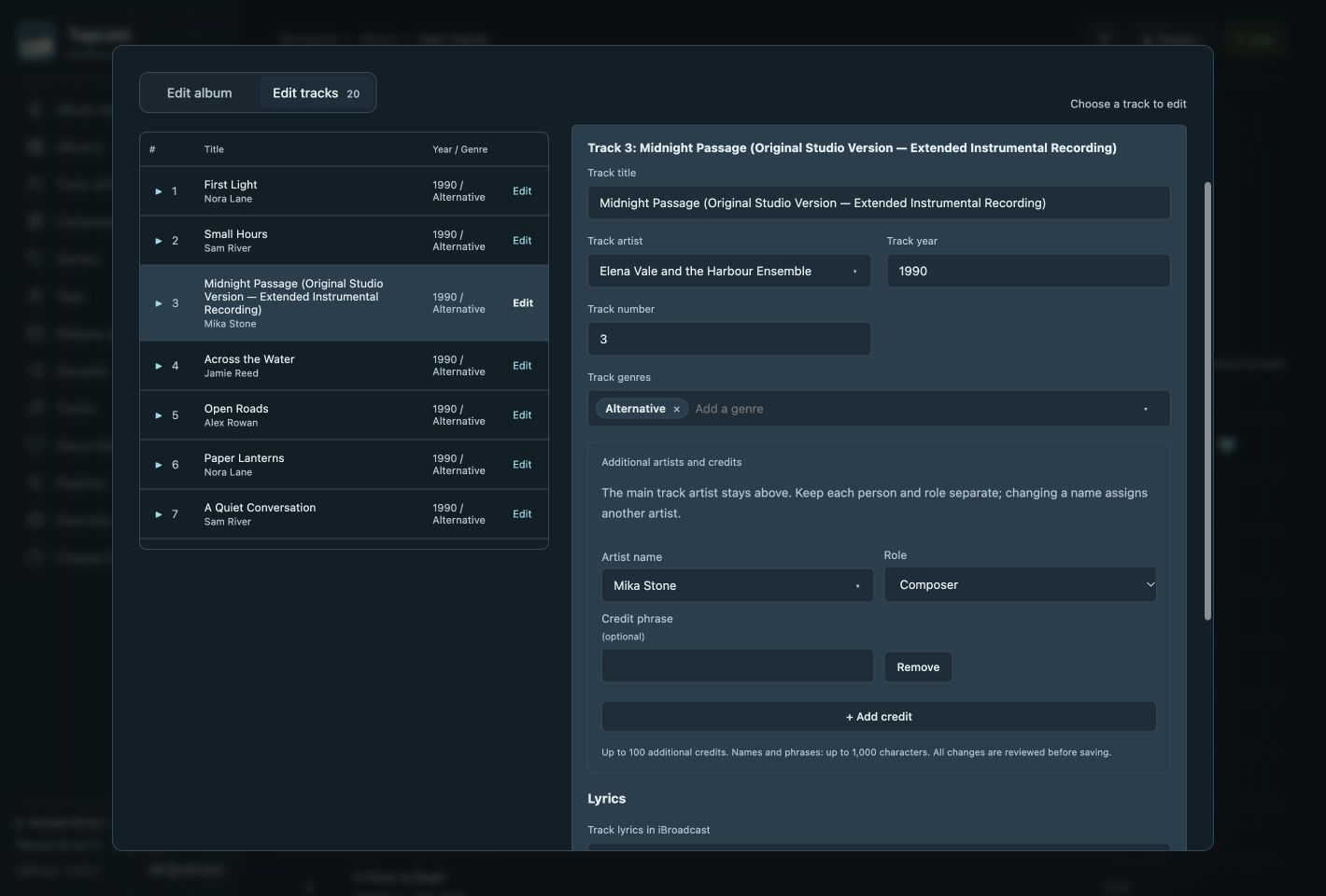
0.80.0 sample album: select a track on the left to edit its own metadata and credits on the right. These changes join the same metadata review.
Switching tabs keeps typed values, credit choices and drafts. It does not fetch metadata, save, change playback or add browser history. Arrow keys, Home and End move between tabs. Review draft still includes metadata changes from both tabs; validation returns to the tab containing the invalid field. Lyrics keep their separate review/save. Editing several albums by one artist retains its shared fields and existing save scope.
The Album artist, individual Track artist, additional artist/credit name, Genres and Composers fields offer searchable lists of existing library names. Click the arrow to browse, or type part of a name to filter. Choose with the mouse or Up/Down and Enter; Escape closes the list and Tab continues through the form. A new name can still be typed normally. Selection only changes the draft; review and save are unchanged.
Genres and composers work on the selection-wide fields and on individual tracks.
Selecting a suggestion adds one complete chip. A stored genre such as Pop;Rock
stays one label until you explicitly choose Split. The first genre remains the
main genre. Free typing still accepts Enter or ; to add another label, and existing
length/count limits remain in place without silently truncating text.
Artist choices reuse loaded native names, including track-only artists. Genre choices use exact active labels, and composer choices use existing composer credits. The small unique catalogues are collected during the existing album-summary pass and refreshed with confirmed read-backs; no extra iBroadcast or provider request or full track view is needed. Lists display up to 40 matches at once; type more to narrow a longer list. Credit phrases keep their existing free-text field.
The editor, server and cleanup use 200 characters per genre label and 20 labels per track, including the main genre. These are Tagcast's limits. Overlong input shows a message beside the field and stays editable; it is never silently shortened. Existing values can remain untouched while editing other fields. The same length check applies to legacy single-genre writes.
See also artist credits, online sources, artwork, lyrics and lyrics file import.