Repository navigation
Trash and duplicates
Trash operations require their own review. Metadata can suggest copies; it cannot establish audio identity or sound quality. Tagcast moves music to iBroadcast's trash, never permanent deletion.
One album · Complete albums · Library-wide suggestions · Interrupted results
Open an album to remove selected tracks, including unwanted copies. To find candidates, use Albums → Filter and sort → Show → Duplicate tracks. It detects repeated positive track numbers on one disc, such as 1, 1, 2, 3, 4, 4, even when titles differ. Then follow these three reviewed steps:
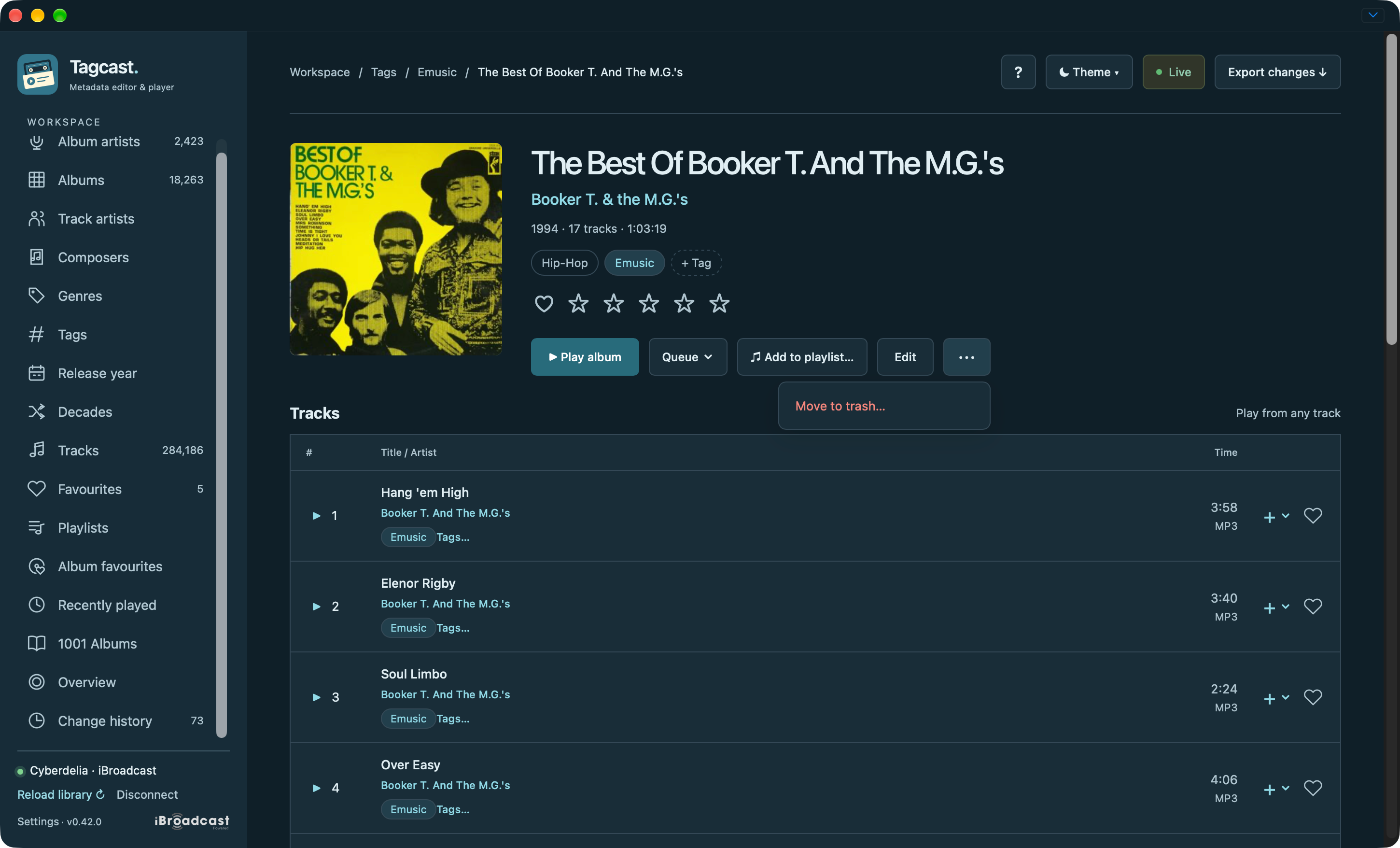
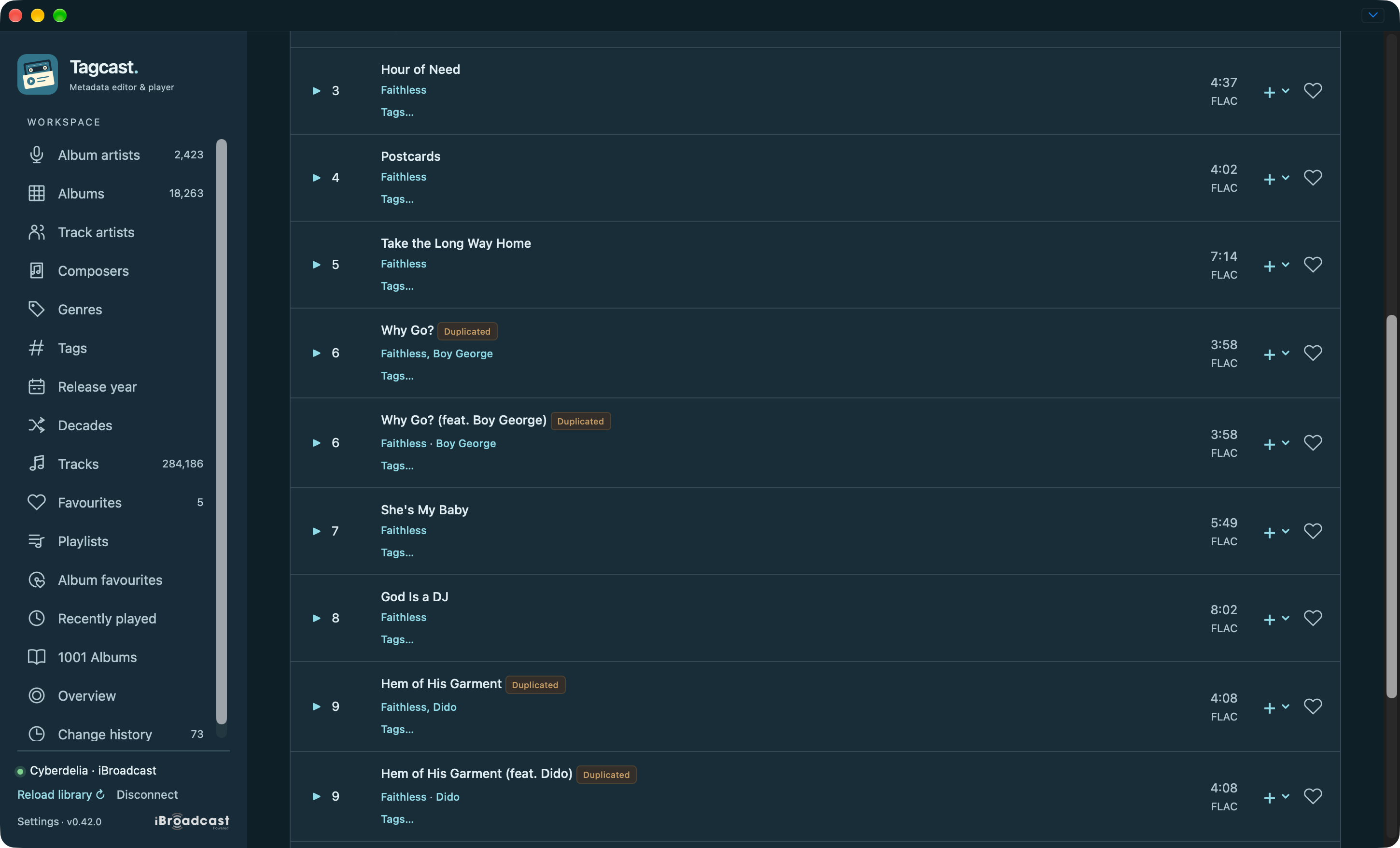
- Open the album and choose ⋯ → Move to trash… Duplicated appears on album cards, list rows and tracks with repeated positive track numbers on the same disc, even when titles differ. Hover over a track badge for the matching reason. Checkboxes appear beside the tracks; nothing is sent yet.
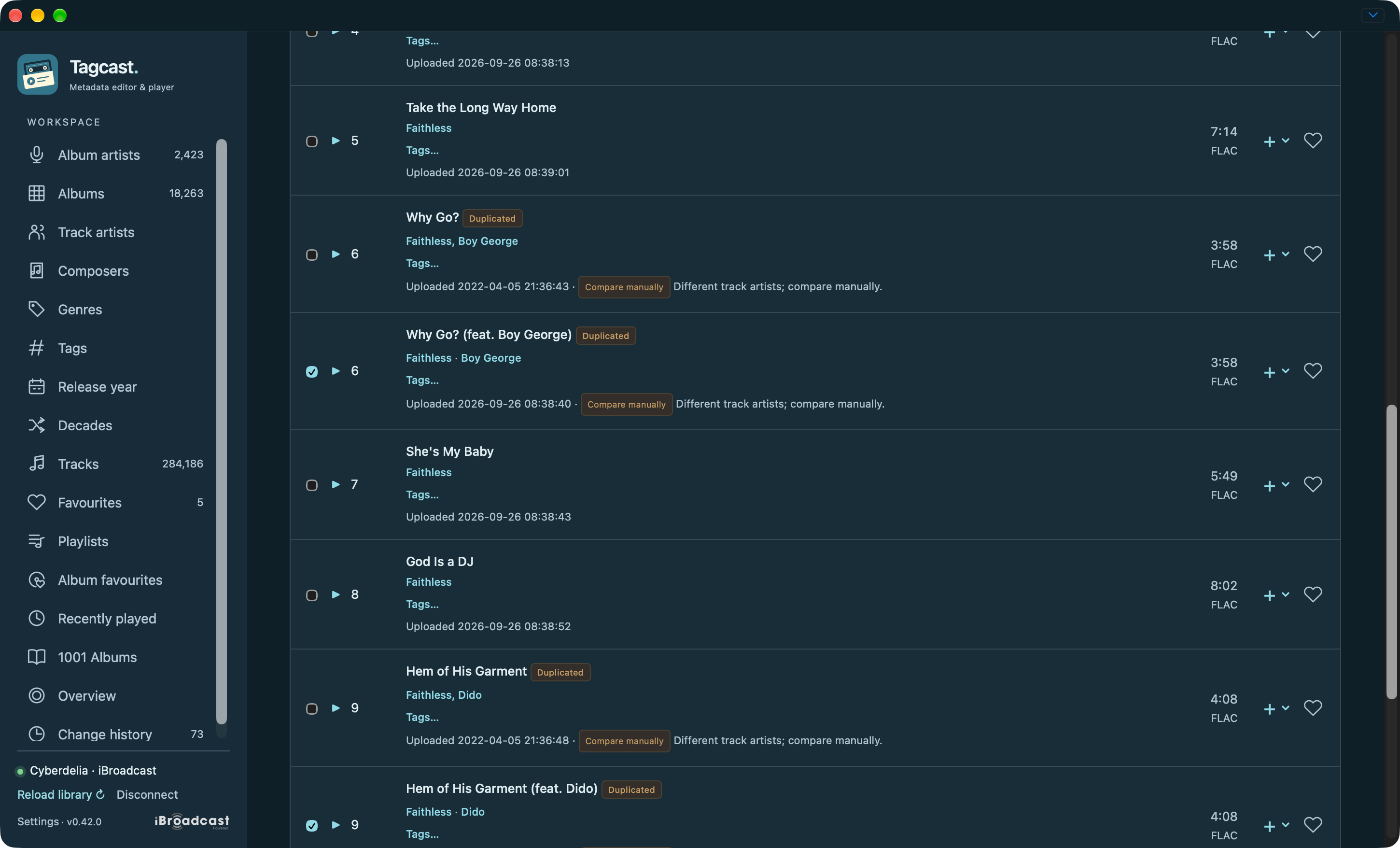
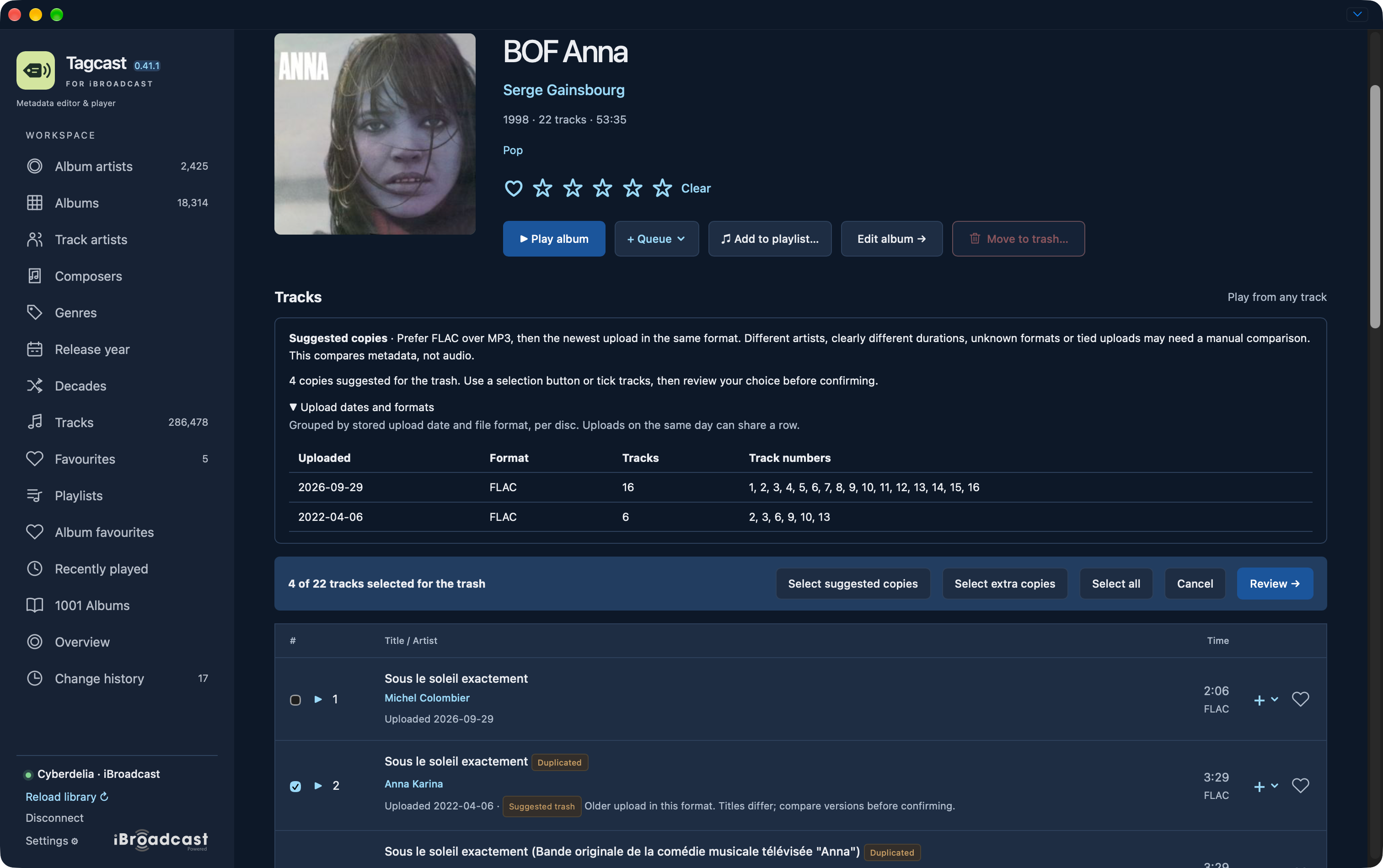
- Select the copies you want to remove. Upload dates/times and Suggested keep, Suggested trash or Compare manually labels help you compare the copies. Select suggested copies prefers FLAC over MP3, then the newest upload within the same format. Upload dates and formats groups the tracks by day and format on each disc, so two uploads of ten tracks are easier to identify. Nothing is preselected on opening. Tick tracks individually, or use Select extra copies to select each matching title after the first on its disc, regardless of format or date. It leaves differing titles unselected so you can compare and select those manually. The first matching copy stays unselected. Check the selection and change it if you prefer to keep another copy; listen and compare the displayed duration and file format where available. Select all selects the entire album, including tracks without duplicates. The bar shows the selected track count.
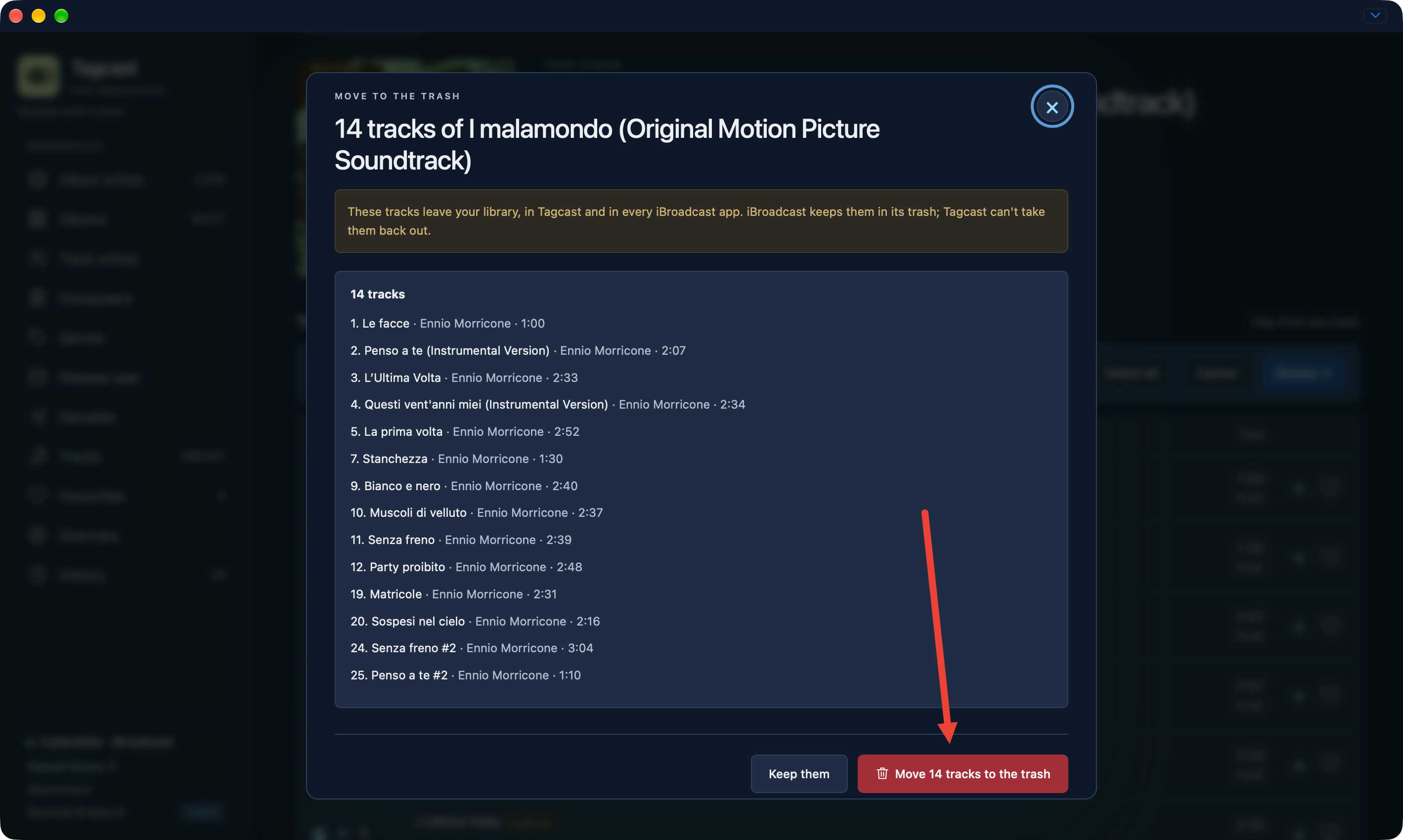
- Choose Review → and confirm the list. Check the titles and count, then choose Move N tracks to the trash. Use Cancel while selecting or Keep them in the review to leave the tracks unchanged.
Tagcast first checks that the selected tracks are still active on their albums, then moves them to iBroadcast's trash and reads the result back. Wait for the checking to finish; Change history shows the result. These tracks leave the active library in Tagcast and other iBroadcast apps. They are never permanently deleted by Tagcast, and your local music files are unchanged. Restore them through iBroadcast's trash; Tagcast cannot restore them. An album disappears from Tagcast when it has no active tracks left.
The stricter title comparison ignores case, spacing and quotation marks. For
example, Red Shoes (from the "Dumplin'" Original Motion Picture Soundtrack) and
Red Shoes (from the Dumplin' Original Motion Picture Soundtrack) match at the
same track number on the same disc. Straight and curly apostrophes also match.
Version text such as (Live) or (Radio Edit) remains part of the comparison.
At a repeated track number, differing versions receive the Duplicated label
and require manual selection; they are not automatically selected as extra copies.
A repeated title at track 1 and track 17, or on separate discs, is not a duplicate. Missing track
numbers are not matched. Audio files and recording quality are not compared,
and the format preference does not prove recording quality or audio identity.
The suggestions compare only repeated positive positions on the same disc. Different
artists, durations differing by more than two seconds, unknown/incomparable formats,
missing dates and tied newest uploads can require manual comparison. Different
titles are explicitly flagged even when duration and artist agree. The suggestion
keeps unresolved preferred copies; it never chooses an arbitrary winner.
Select extra copies retains its separate, stricter title rule and keeps the first.
Step-by-step screenshots: remove duplicate tracks
1. Open ⋯ → Move to trash… on the album. Opening this menu does not select tracks or send a change.
2. Compare repeated track positions. The Faithless example shows Duplicated badges even when title text or artist credits differ.
3. Check uncertain copies manually. Upload timestamps and file formats remain visible. Different artist credits are marked Compare manually; the checked rows below were chosen by the user, not by an automatic suggestion.
4. Choose Review → before confirming. Review the exact tracks and count. Only Move N tracks to the trash sends the change; Keep them closes the review.
Automatic suggestions — earlier interface. This retained BOF Anna example shows upload groups and four suggested copies selected for review. The earlier interface is retained to illustrate the suggestion controls; it is not a new live run.
Final review — earlier interface. This retained example lists fourteen selected tracks and the explicit confirmation button. The interface styling is older; the review and confirmation steps remain the same.
In Albums, use any filter, such as 1–2 tracks, then tick albums in the grid or list and choose Move selected albums to trash…. Albums by different artists can be selected together; the same action is available on an album artist's page. Selections survive paging and filter changes. The selection count flags albums outside the current results, and Clear clears the whole selection. The review lists every album and lets you expand its tracks. Confirm once; larger selections use batches of up to 20 displayed albums / 500 tracks, checking complete membership and reading back each batch before continuing. Stop or close the review to prevent later batches. Changed albums or unconfirmed results stop processing. Results go to Change history; restarting never resumes the operation automatically. A single album/set above 500 tracks requires smaller track selections from its album page.
To find candidate albums, open Albums and choose the Duplicate tracks filter. Open an album to inspect its tracks.
For many albums, choose Review suggested copies across all albums… on that page. Analyse all albums prepares a local draft using the same format/date rules as Select suggested copies, across the entire library regardless of search or pagination. Opening the dialog only reads its saved report.
Expand an album to compare each proposed copy with the retained copies. Uncheck an album or an individual proposed track to keep it. Uncertain copies stay out of the selection; differing titles have an explicit comparison notice. After reviewing, tick the approval checkbox and choose Move selected copies to trash. Tagcast processes up to 200 tracks from 20 displayed albums per batch, checks current metadata and retained copies before writing, and reads the results back. Stop after current request prevents later batches. Drafts and results survive restarts on this computer and belong to the connected account. Check outstanding and continue checks interrupted requests first; an uncertain request is never automatically resent. Export the full report to keep a copy, and use Refresh album list afterwards to update the displayed counts. A new analysis replaces the old report. Batch results use this report separately from metadata Change history.
For uncertain results, use save recovery. Keep the workflow's report; it is not an automatic Undo or proof that an interrupted request failed.