Repository navigation
Playlists
Play, organise and edit your iBroadcast playlists. For imports, see CSV and matching or public Deezer/ListenBrainz URLs.
Browse · Play/shuffle · Edit tracks or text · Remove one position · Reorder · Folders/covers · Large playlists
Playlists lists your editable iBroadcast playlists. Open one to play from its first track or any selected position, rename it or uncheck tracks in an edit. Add to playlist… on an album includes all of its discs in order. Save as playlist… in Now playing saves the entire queue; Add this track to playlist… adds only the currently playing track. A track's + ▾ → Add to playlist… does the same for a selected track without loading its entire album. Choose a private new playlist or find an existing playlist by name; Add current queue… on a playlist page appends directly to that playlist after review. Repeated track IDs are retained once in their first position, as iBroadcast's append operation does. System playlists cannot be edited; folders have separate reference-management controls. Nothing is sent until Save to iBroadcast, and a stale preview is rejected before writing. A failed/uncertain creation or append is never retried automatically; inspect Playlists first.
Open a playlist and choose Delete playlist… to review its name and track count. Confirm Delete playlist to remove that playlist from iBroadcast. Its music stays in your library and the current play queue keeps running. System playlists and folders are protected; a changed name or track list requires a new review. Deletion is read back, cannot be undone in Tagcast and is never retried automatically.
| Goal | Control | What is saved |
|---|---|---|
| Change only name/description | Edit playlist…, leaving all tracks checked | Changed text fields only; every stored position and cover stays intact. |
| Remove several chosen tracks | Untick tracks in Edit playlist…, then review | A full replacement list, preserving the order of retained choices. Up to 10,000 tracks. |
| Remove one occurrence | The row's × beside its + menu | Only that stored position; repeated copies and unavailable positions elsewhere are retained. |
| Change order without adding/removing | Reorder tracks… | The complete stored permutation, including repeated/unavailable positions. |
All routes require review, current-data checks and read-back. Their retry rules differ: a full replacement can retry temporary errors; text-only, single-row and reorder writes do not. After any final uncertain result, inspect the current playlist before a new review.
The playlist catalogue and folders offer card/list icon buttons (accessible labels Show playlist cards and Show playlist list). This browser remembers the choice independently of album layout. List rows show a small cover, name, active track count and total duration. Folder rows count playlist references instead of tracks. Unavailable tracks and missing duration are labelled. Switching uses the current page; the totals come from the already-loaded library. The view choice keeps search and pagination.
Opening, searching and paging playlists or folders use the loaded account library, without a remote status check on each visit. Destination choices share the same copy. Reload library retrieves changes made in another app; Tagcast's existing save read-backs also refresh this copy. An older cache without playlists is upgraded on first use. Write preconditions and verification still check fresh iBroadcast data, so caching does not bypass stale-review checks.
When editing a playlist, leave all track choices checked to change only its name or description. The review shows Before and After for changed text only. Saving sends only those fields, without a track list; repeated, missing or trashed stored positions and the cover remain intact. Empty descriptions are supported. No changes means no write. Returning to Edit review preserves typed text and choices.
Unchecking a track still prepares the existing full replacement, with its ordered track review and 10,000-track limit. Both routes check the current playlist first and read back afterwards. Name and description are verified explicitly; uncertain results need inspection before a new review. Full-content replacement can retry temporary failures while its request runs; text-only writes do not. See automatic retries and recovery.
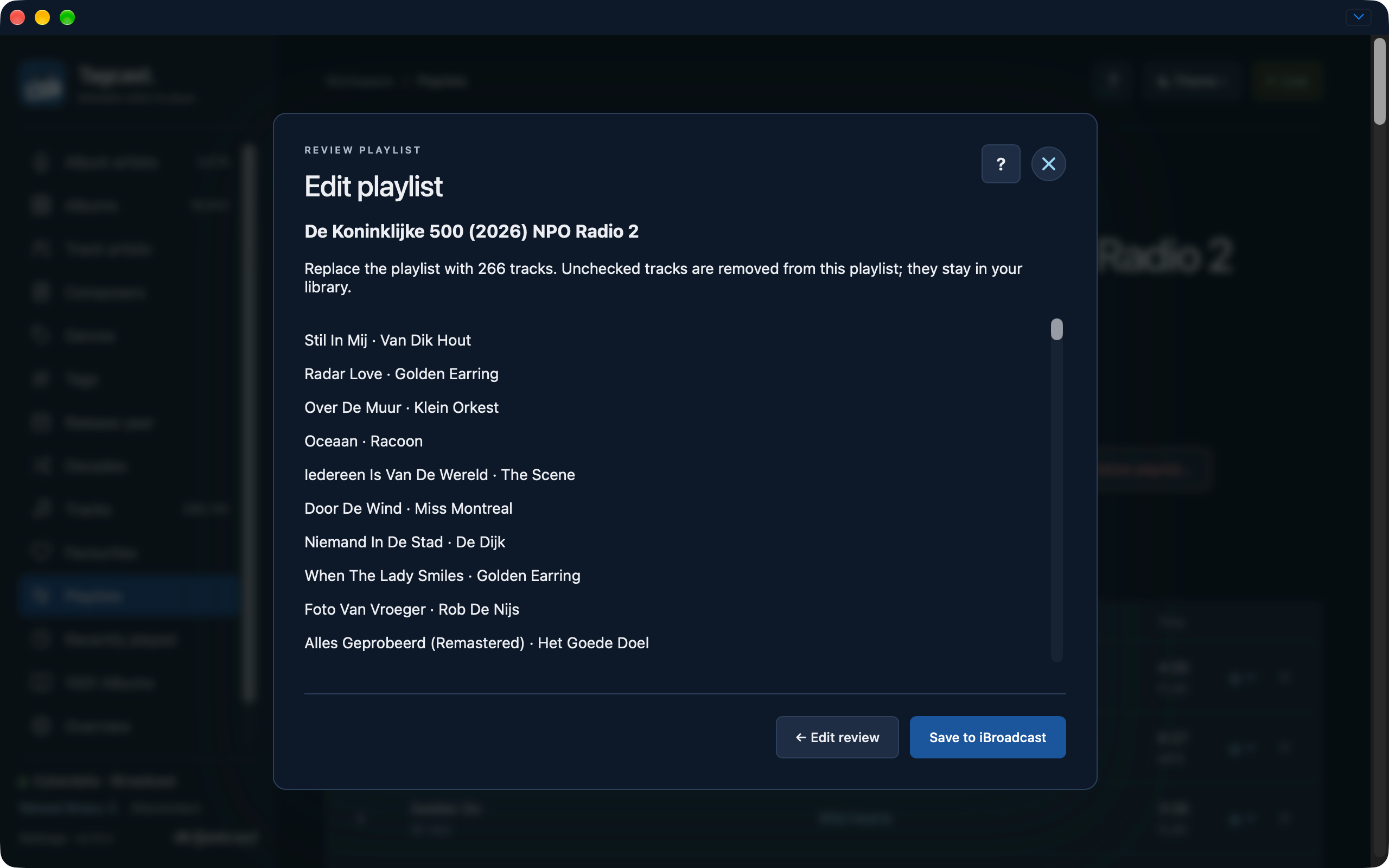
This earlier-interface 266-track replacement review shows the ordered review after unticking tracks, rather than a name/description-only review.
Open a playlist and choose Shuffle playlist, beside Play playlist, to start all of its entries in a newly mixed play queue. Each stored position is included once per pass, with no extra repetitions. Choosing Shuffle again makes another random order. A small playlist can happen to receive the same order by chance. Previous/Next follows that mixed queue; Now playing shows its order.
The stored playlist and its displayed row positions keep their original order. Play playlist starts ordinary ordered playback again. Neither opening a playlist nor changing its display reshuffles or replaces the current queue. Above 10,000 tracks, the button is Shuffle this page and mixes only the current page, just like Play this page. Empty playlists disable both buttons.
Track metadata is read in the existing bounded batches. Stop, a newer Play or Shuffle choice, library replacement or a connection change cancels a pending load; failed loads retain the previous audio and queue. Remote controllers use the connected device controls. No native playlist definition or metadata is saved.
Tagcast marks the playing track in playlist lists with the same quiet background, left accent stripe and speaker icon as album tracks. The playlist position becomes Play on hover or keyboard focus, and the speaker while playing. The marker follows track changes, pause, resume and stopping, including when returning to a playlist during playback or browsing a large playlist page. Numbering remains the position in the playlist, not the track number on its album.
This uses the existing player and loaded row IDs, without extra library requests, metadata writes or replacing the queue when opening a list.
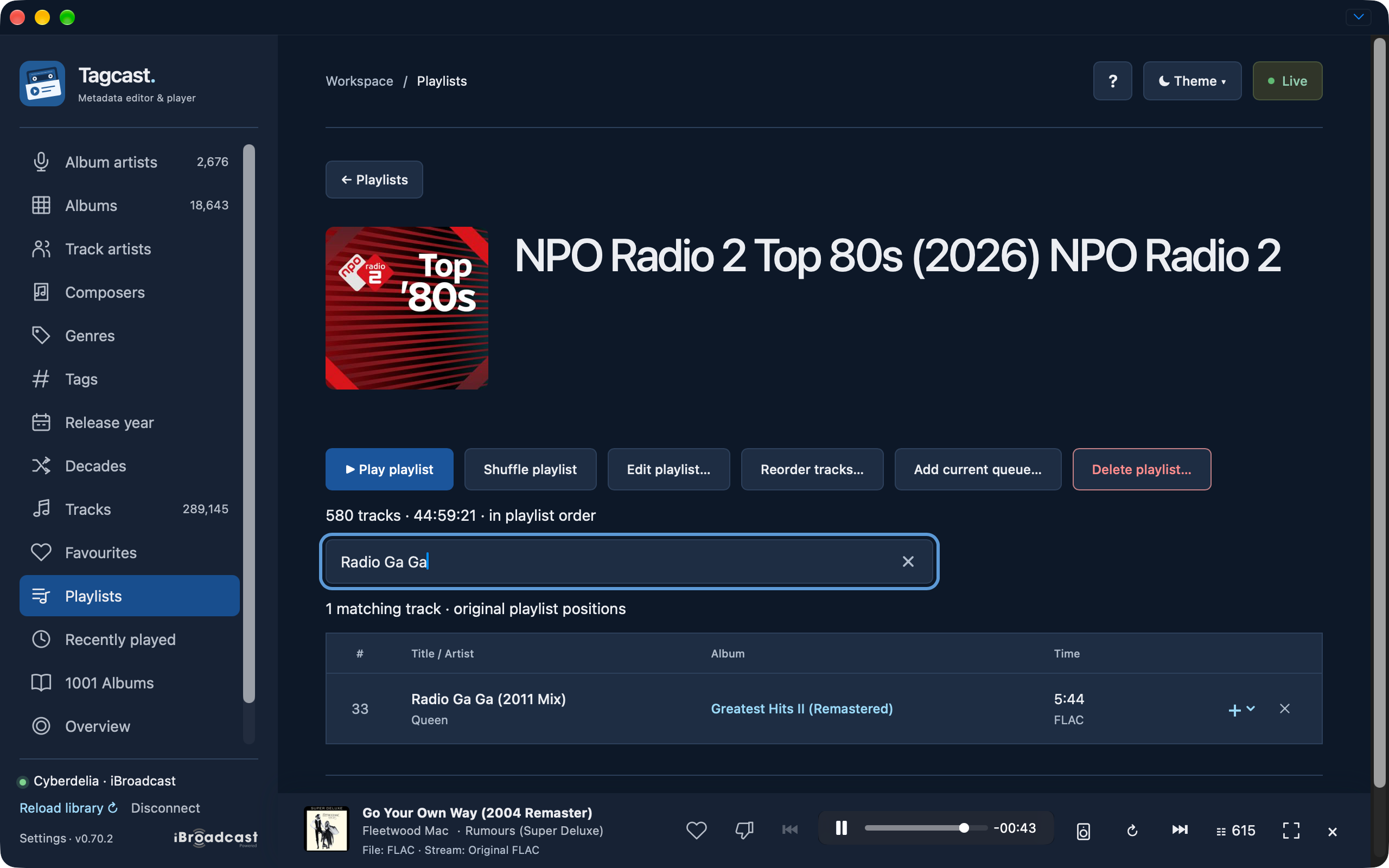
A playlist's search field matches title, artist or album across every page, using the already-loaded library. Results retain their original playlist position numbers, including repeated track IDs. The full track count and duration remain visible. Clearing the search restores the complete list; it does not change playback or the saved playlist. An empty search field has space above the table.
The cross beside a track's + menu opens a short removal review. Confirming removes only that stored occurrence, preserving other copies, unavailable positions, remaining order, playlist details and artwork. The track stays in your music library and current play queue. This action supports user playlists with up to 10,000 saved positions; folders and system lists are excluded. A fresh check blocks changes made elsewhere, and read-back confirms the complete result. Uncertain writes are never automatically repeated. Search and paging remain after success.
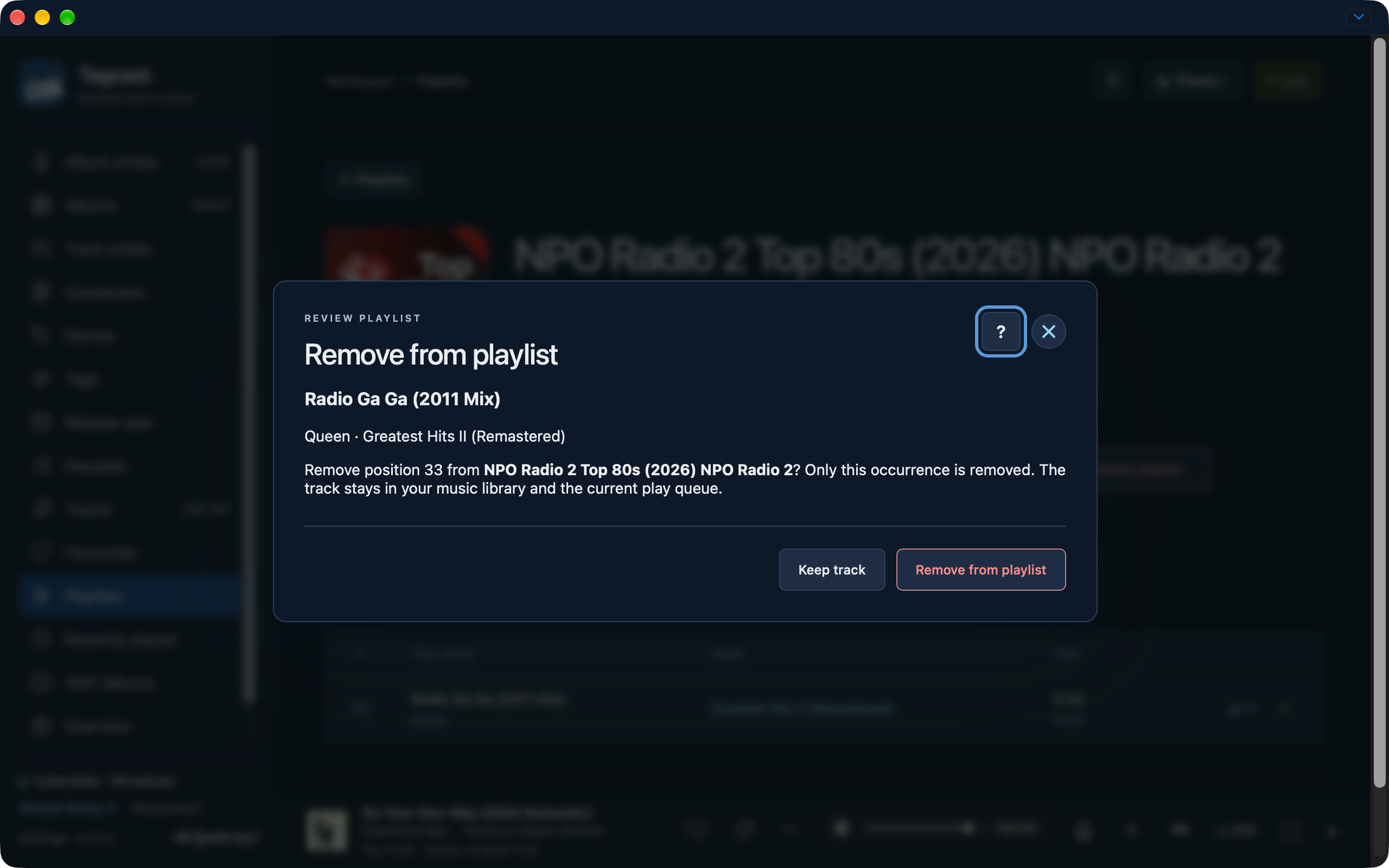
Earlier development interface, 22 October (0.70.2): this review removes one occurrence at position 33. The library track and current play queue are retained. Select a screenshot to open the full-size image.
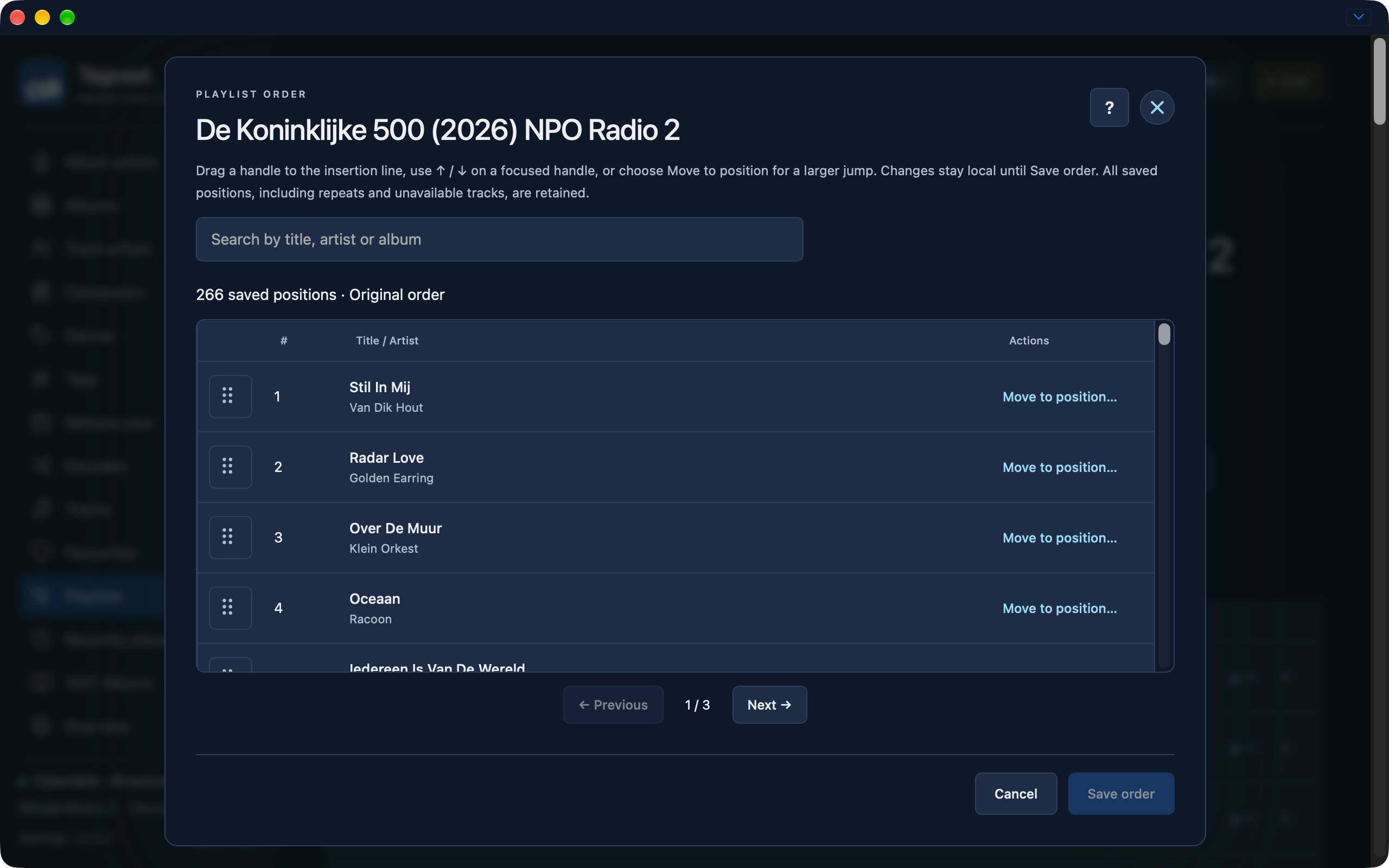
Reorder tracks has its own search field. It searches title, artist and album across the complete draft, retaining any unsaved moves. Result numbers, drag, Up/Down and Move to position refer to that full draft, including hidden rows. Clear the search to see every position again. Save order still saves the full permutation; Cancel discards the local moves, independently of the search.
Capture examples: search at original position 33 and single-occurrence removal review.
Open a playlist and choose Reorder tracks…. Drag a handle to the insertion line for a small move, or choose Move to position… and enter a number for a larger jump, including another page. A focused handle also supports Up/Down. The editor shows 100 positions per page and reveals the moved position. Touch users can use Move to position. Repeated tracks and unavailable positions stay separate and are retained; this does not remove, add or deduplicate tracks.
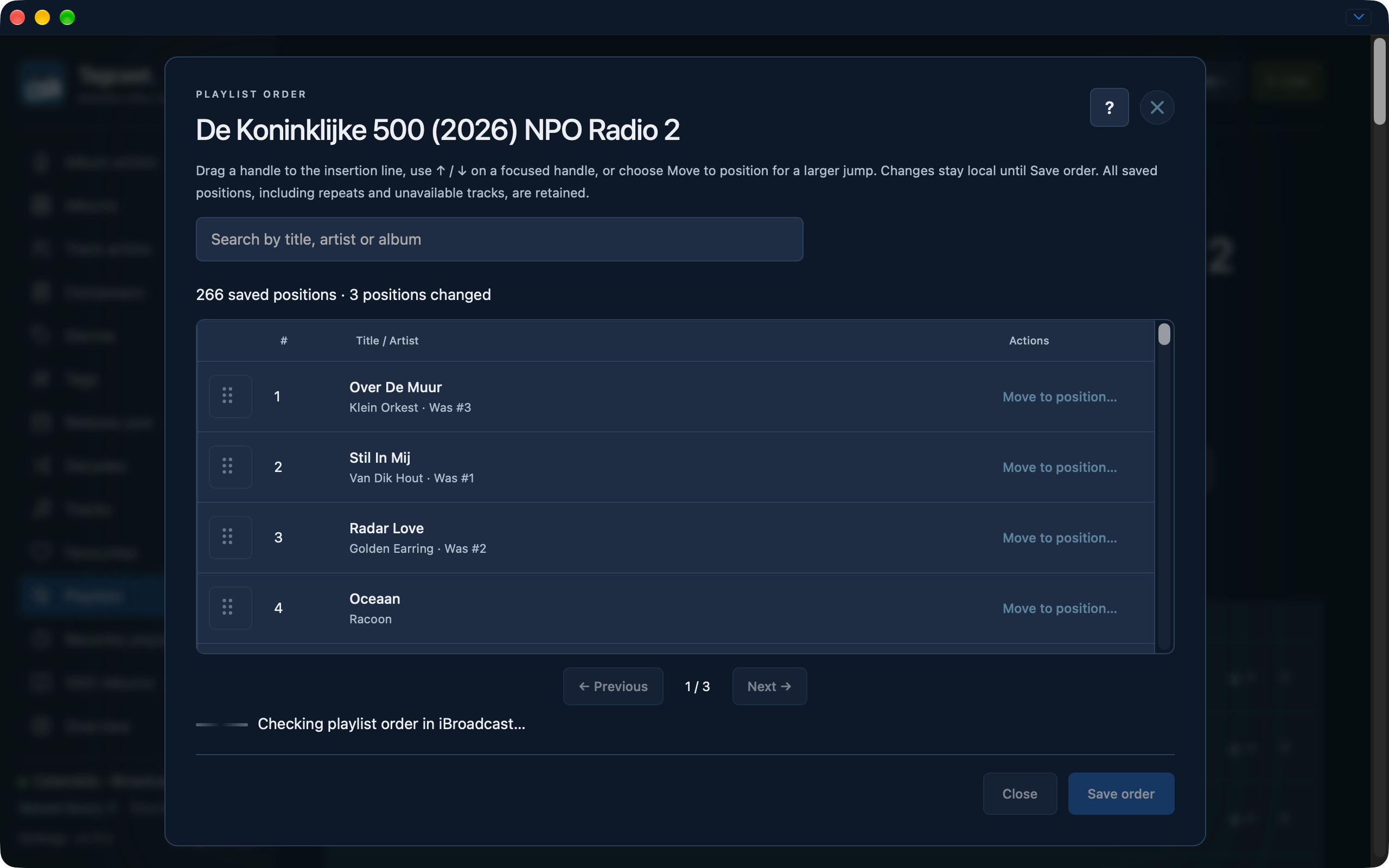
Changes stay local until Save order. Cancel, Close or Escape discards the unsaved draft. The playing queue stays as it was. Save order checks that the playlist has not changed elsewhere, sends only its new track order and verifies both that order and unchanged playlist details/cover. An uncertain save is never repeated automatically: close and reload the playlist before preparing another change. Reordering is available for user playlists with 2–10,000 saved positions; folders and iBroadcast-managed lists are excluded.
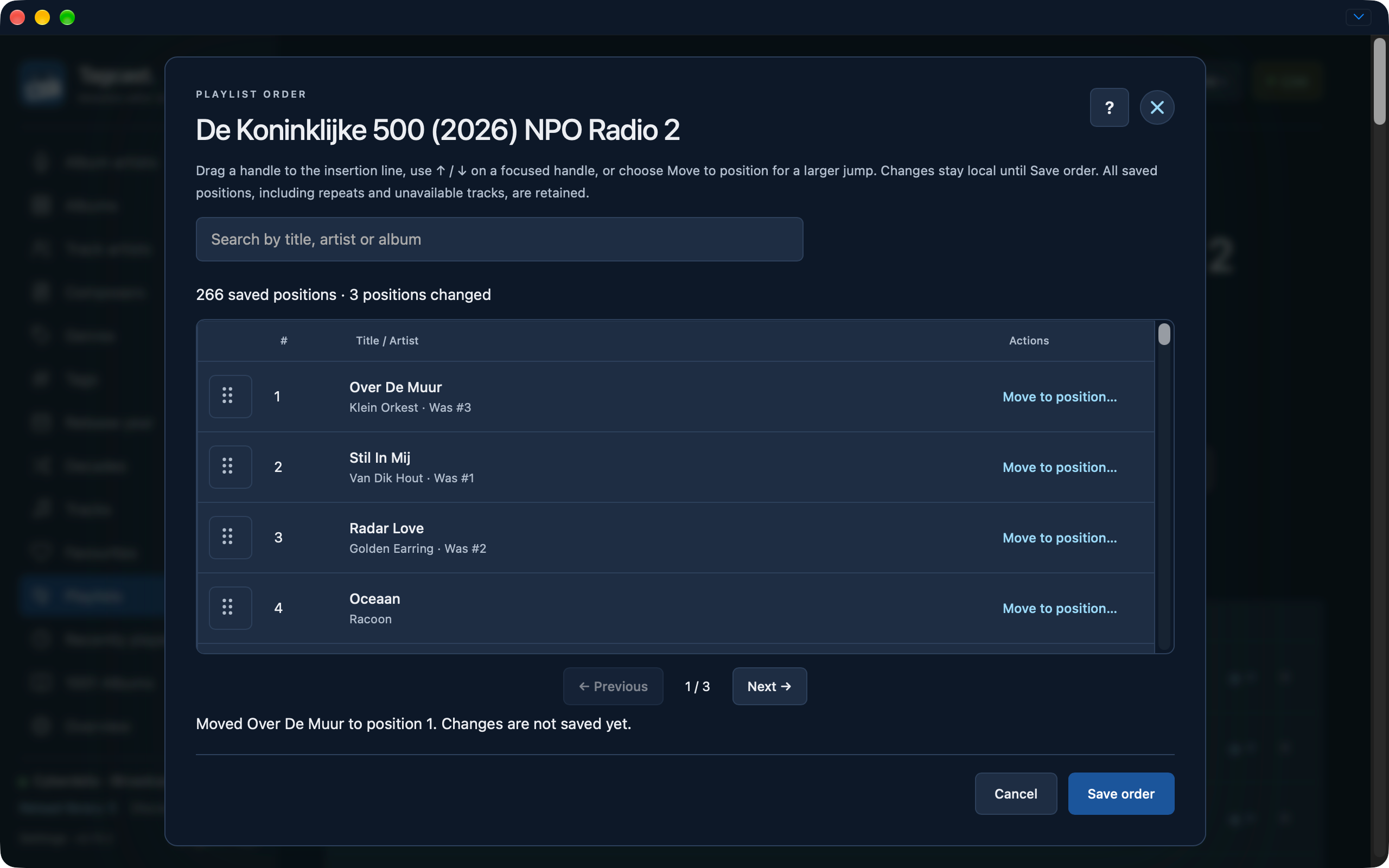
Earlier development interface, 22 October (0.70.2): the move is still local. Was #3 and the changed-position count help check the new order before Save order.
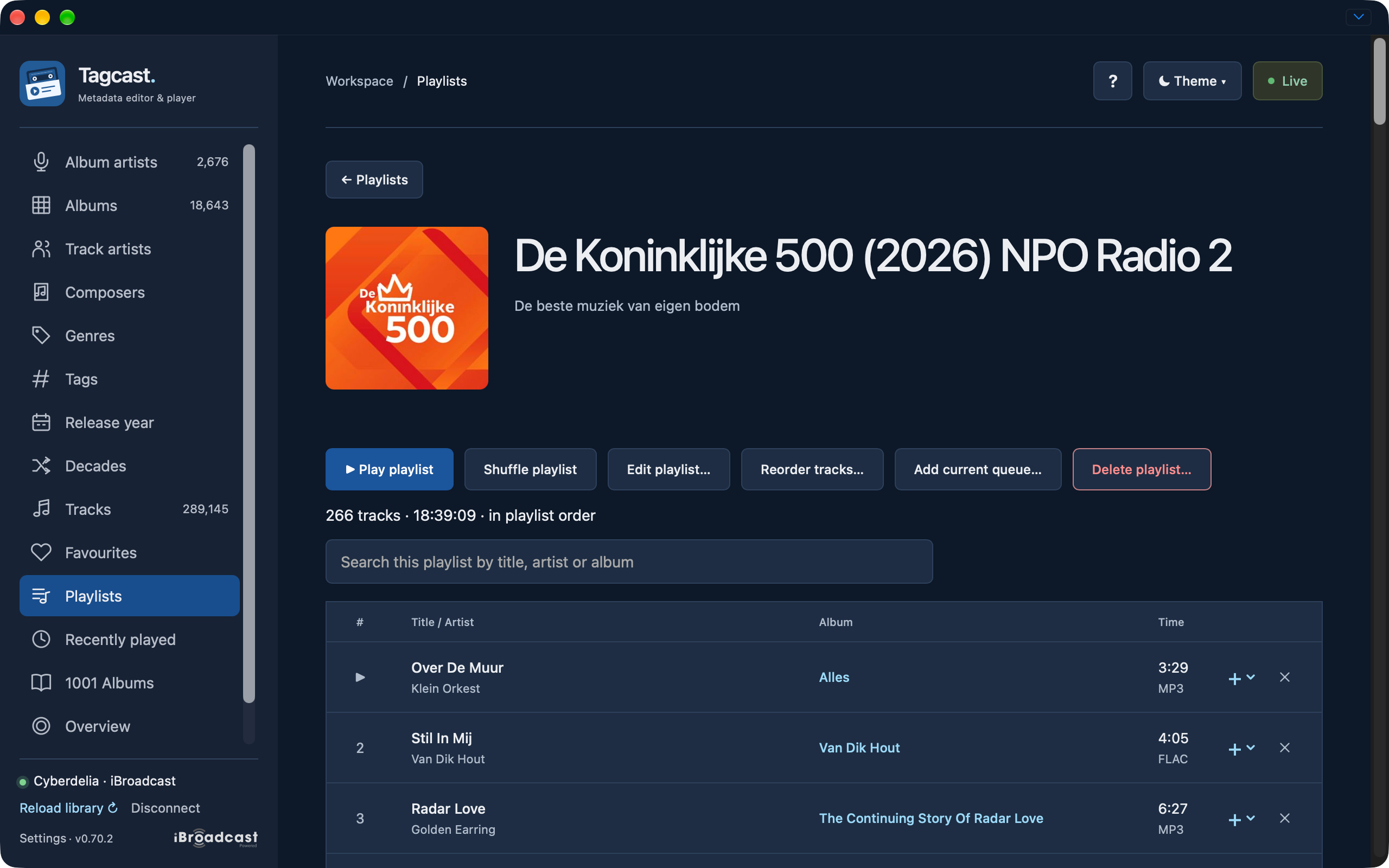
Earlier-interface examples show original order, an unsaved move, the checking phase and the resulting playlist. The checking capture alone is not a success confirmation; the later detail view shows the new first track.
Playlists shows native covers and playlist folders. Open a folder to browse its contents; ← Playlists returns to the root. Search from the root also finds playlists inside folders. Folder pages show up to 100 references at a time.
- Create folder… asks for a name, then presents a review. Confirm explicitly to create an empty folder in iBroadcast.
- Rename folder… changes the name and optional description after review.
- Add playlists or folders… offers searchable, paginated existing choices. Select up to 100 references per review, including nested folders. A folder cannot be placed inside itself or a parent folder.
- Remove from folder… removes only that reference. The playlist and its music remain available. Other folder references retain their order.
- Delete empty folder… is available only after the folder is empty and has been removed from its parent folders. It never deletes member playlists or music.
To change a playlist cover, open that playlist and use the cover image control. Use an image file or image URL, compare Now and New, then choose Save to iBroadcast. The image uses the existing format/size validation. Only the playlist's artwork ID is changed; track/album artwork, track order, playback and metadata Change history are preserved. Covers appear on playlist cards and in their headers.
Folder and cover writes check the reviewed account, session and current native playlist definition before sending, then read back the result. An uncertain mutation is never automatically repeated; check Playlists before trying again. System playlists remain protected, and folders are excluded from track destination choices. See CSV playlist import for the separate importer.
Changing a cover sends one artwork-only playlist update, regardless of playlist length. The dialog then waits for verification through a fresh full-library download. For a large iBroadcast library, this check can take much longer than the image upload. It does not upload a cover for each playlist track. If the library changed elsewhere, a pre-save check can also need a full download. The dialog shows compact activity feedback while saving/checking; this does not shorten the verification itself.
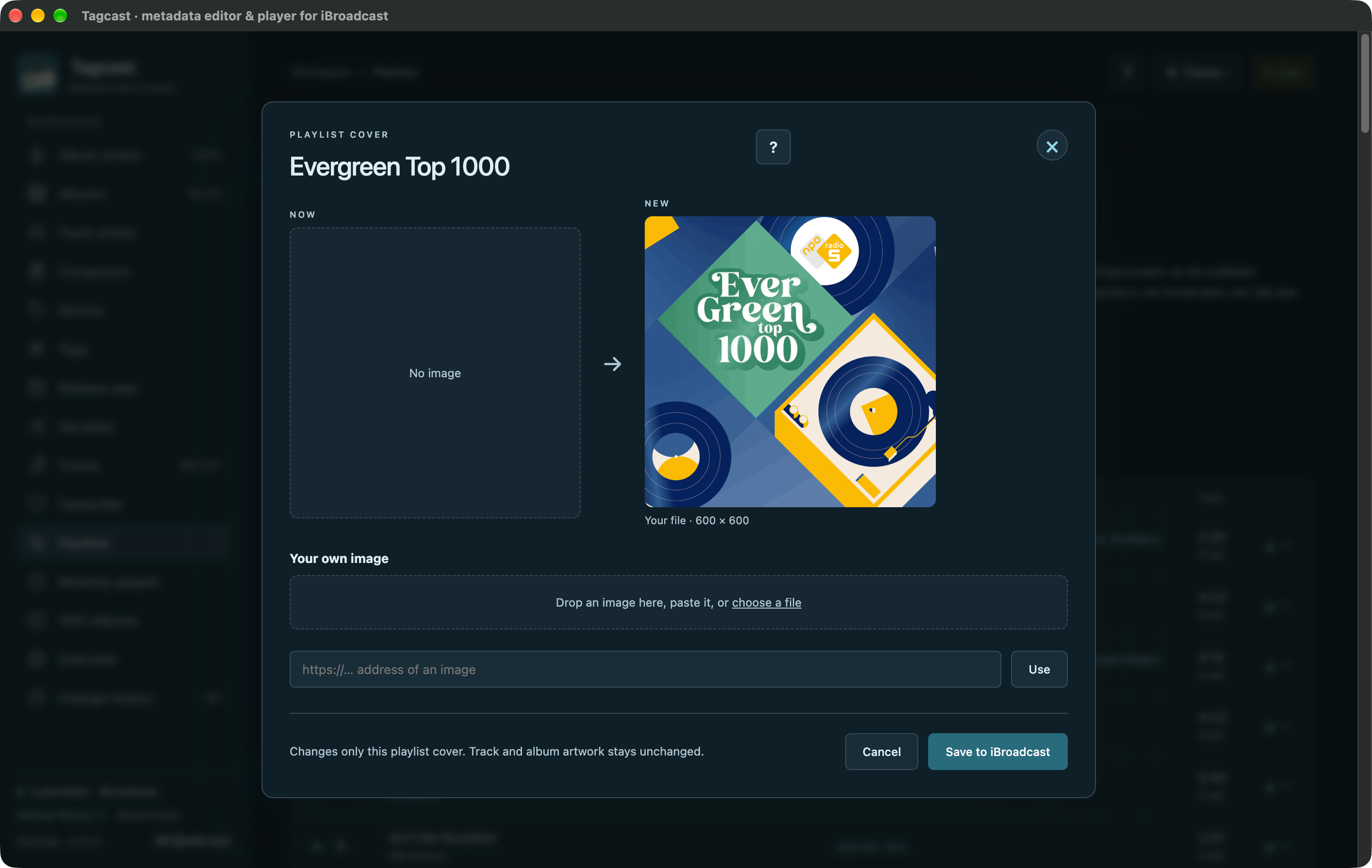
Earlier interface: Now shows no existing cover; New is the selected replacement. Save changes only this playlist’s cover, not its tracks or their artwork.
Existing playlists with more than 10,000 tracks can be opened and browsed, 100 tracks per page. Only the current page's details and track IDs are sent to the browser. The button says Play this page: it queues that page, or starts from the selected row within it, without loading the whole playlist.
You can still append an album, individual tracks or the current queue after review, and delete the playlist definition after review. Tagcast checks the complete stored playlist against a compact snapshot before either action; changes made elsewhere require a new review. Deleting a playlist never deletes its music.
Creating/appending a submitted list and full-content replacement remain limited to 10,000 tracks per operation. Full-content editing is disabled for oversized playlists; use iBroadcast for that. This is a Tagcast write/UI boundary, not an inferred iBroadcast playlist-size limit.
Playlist overview cards also show total time after the track count, for example 267 tracks / 18:42:37, including cards inside folders. Missing durations remain labelled; these totals reuse the loaded library without extra requests. Cards and list rows count active positions, including repeats, and show unavailable positions separately so the count and total time describe the same playable selection.
Playlist details show the duration of the whole active playlist beside its track count, including repeated positions and tracks on other pages. The total uses the already-loaded library and adds no iBroadcast requests. Missing durations are reported separately; a partial known time is labelled known.
Hover the playlist cover or focus it with the keyboard to choose Change cover. This opens the cover comparison and explicit save. The action remains visible on touch devices, including when there is no cover yet. Playlist folders keep their existing folder display.
For album/artist images and the difference in artwork Undo support, see Artwork and artist images. Playlist cover changes have no Change history entry and no artwork Undo. For an incomplete result, see save recovery.