User en Consumption And OBD2
This is where the app helps you burn less and see what you spent. Every litre you don't use is money saved and CO₂ avoided.
It lives in two tabs at the bottom of the screen:
- ⛽ Fuel — your tank level, your real consumption and cost, and your fill-up history. Turn it on by picking Medium or Full in Settings → Use mode.
- 🛣️ Trips — your trip logbook, the eco-coaching, and your Carbon dashboard. This appears on the Full mode.
You don't need any special hardware for most of this — your phone's GPS is enough. A plug-in OBD2 adapter just makes the numbers more precise (covered lower down).
In the Fuel tab, tap ➕ Add fill-up. Enter:
- Date (defaults to now)
- Vehicle — petrol/diesel or EV, from your vehicle list
- Fuel type
- Litres / kWh
- Total cost
- Odometer reading
- Optional: station, notes
If you searched a station recently, the app pre-fills the brand, fuel type and price for you — no retyping.

Two camera shortcuts save you from typing:
- Scan the pump display — point the camera at the pump's screen and the app reads the litres, total and price.
- Scan the receipt — snap the printed receipt and it pulls out the same figures.
Either way you can tap to correct anything before saving — the scan is a head start, not a lock.
F-Droid build note: the camera-scan shortcuts rely on on-device text recognition that ships only in the Google Play / App Store builds. The fully GMS-free F-Droid build has no scanning — enter fill-ups by hand there. Everything else on this page works identically.
Once you've logged a couple of fill-ups, the Fuel tab shows a stats card that turns your fill-ups into the numbers that matter:

- Tank level and range — how full you are and roughly how far that gets you (measured live when an OBD2 adapter is plugged in).
- Average L/100 km (or MPG) — your real-world consumption.
- Average cost per km and total spent — the running cost of your car.
- An accuracy indicator that climbs as the app learns your vehicle, plus the small corrections it applies so the estimate stays honest between fill-ups.
Tap Export any time to save all of this as a file you can open in a spreadsheet.
If your car can run on more than one fuel — an E10/E85 flex-fuel engine, for example — the per-litre price at the pump doesn't tell you which one is cheaper to drive on. E85 is cheaper per litre but you burn more of it, so the only honest comparison is cost per kilometre.
To unlock it, open Settings → Vehicles → (your car) → Combustion and turn on "I may fill up with different fuel types." Then, whenever you log a fill-up, the form reminds you to record the exact fuel you actually pumped — that's what keeps the comparison honest.
Once you've logged at least two full tanks per fuel, the Fuel tab grows a "Cost per kilometre by fuel" card:
- A winner chip crowns the fuel with the lowest verified cost per kilometre (e.g. Cheapest per km: E85 (0,086 €/km)).
- A row per fuel shows its real L/100 km, cost/km, total spent, and the number of fills behind the figure.
- A transparency footnote discloses any mixed tanks (more than one fuel in a tank) — each is attributed whole to its dominant fuel.
- Until each fuel has two closed tank-to-tank intervals, the card shows "Log at least two full tanks per fuel to crown the cheapest" instead of a winner.
This is the answer to the flex-fuel driver's real question: not "which fuel is cheaper at the pump?" but "which fuel costs me less for the same drive?"
Each fill-up gets a badge comparing your L/100 km to a rolling average of your last three same-fuel fill-ups:
| Delta | Badge | Meaning |
|---|---|---|
| ≥ 3 % better | 🟢 Improving | You burned noticeably less than your baseline |
| within ±3 % | ⚪ Stable | Roughly the same as usual |
| ≥ 3 % worse | 🟠 Worsening | You used more — check tyre pressure, driving style, cold weather, roof box |
Learning phase: the badge only shows after you have at least 4 fill-ups of the same fuel type, so the rolling average is meaningful.
Open it from the Trips tab. The Carbon dashboard turns all your driving into two honest numbers — what it cost you and how much CO₂ it produced — and then breaks them down so you can see where it goes:

- By trip length — short hops are often the most expensive per kilometre (a cold engine drinks fuel); the dashboard makes that visible.
- By speed band — see how much of your fuel (and CO₂) is burned crawling in town versus cruising on the motorway.
It's a clear, guilt-free picture of your car's footprint, built entirely from data on your own phone.
The Trips tab is an automatic logbook of everywhere you've driven:
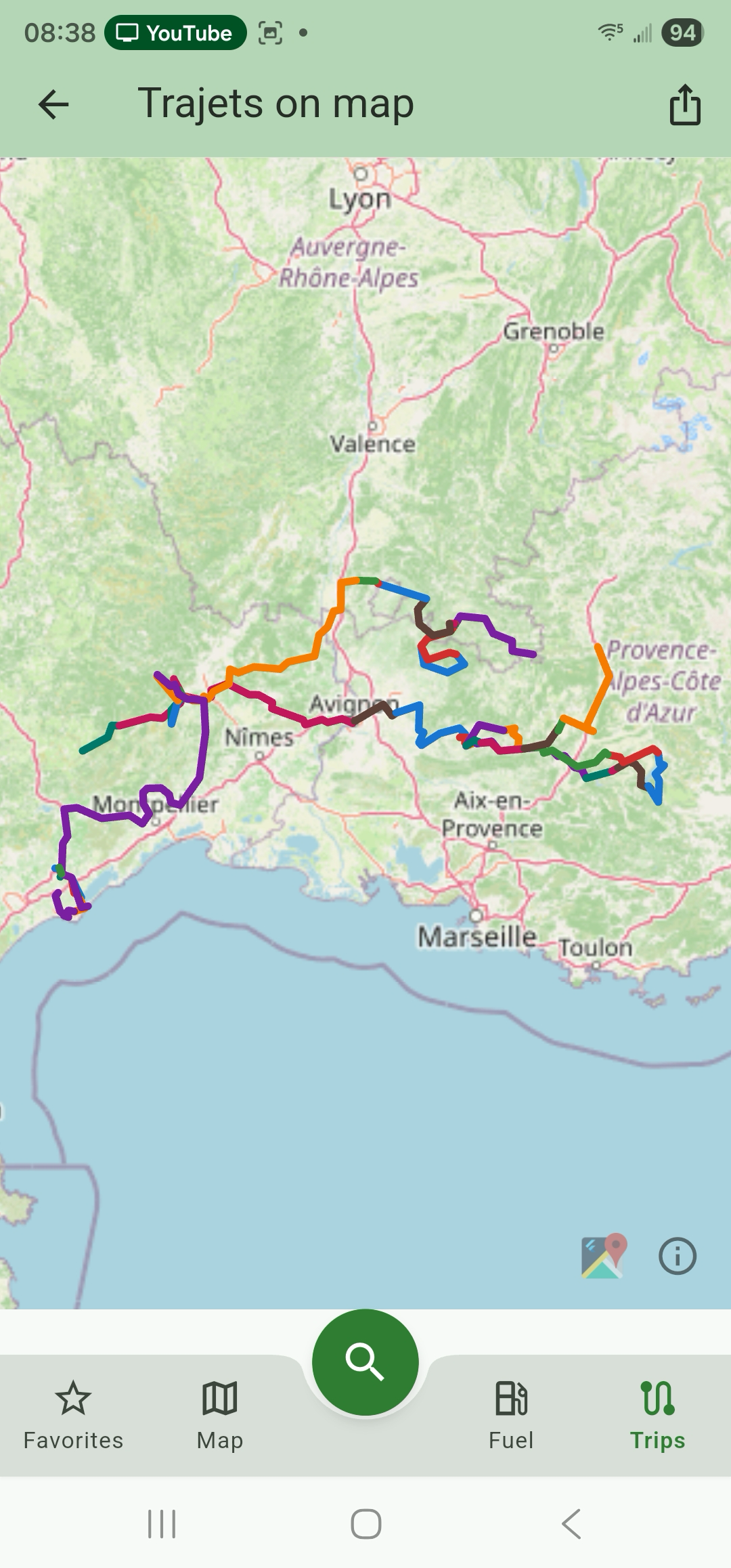
- This month vs last month at the top, so you can see if things are trending up or down.
- A list of trips, newest first.
- An all-trips map showing every route you've recorded.
You don't need any hardware to record a trip — there are two ways.
The app records a trip using your phone's GPS alone — no adapter, no Bluetooth, nothing to buy. You get the route, the distance and the time, plus a route map you can export.
The L/100 km here is a careful estimate: the app learns your car from your recent fill-ups and the distances you drive. After a handful of fill-ups it settles to within a few percent of your real consumption; until then it's clearly marked as preliminary.
If you plug in an inexpensive OBD2 adapter (covered below), trips record themselves with live engine data — giving a far more accurate consumption figure and the detailed eco-coaching, with no learning period.
When you've paired an adapter to a vehicle, the app can take recording fully hands-off:
- Auto-pair — the first manual pairing remembers the adapter ↔ vehicle association.
- Auto-connect on BLE proximity — when the OS sees the paired adapter advertise, the app reconnects in the background.
- Auto-start on movement — once connected and moving, the trip starts itself.
- Auto-save on disconnect — when you turn the engine off and the adapter loses power, the trip is finalised and saved.
Platform note: Auto-record is verified on Android. On iOS, the OS-level background wake required for "auto-connect when the adapter powers up" is still in progress (tracked by issue #1542). Until that ships, iOS users start trips manually.
When you turn the phone sideways while a trip is recording, the recording screen switches to a dedicated zero-touch, glanceable layout built for someone who is actually driving — everything is visible at once, in large high-contrast type, with no scrolling and no small buttons to hunt for. Portrait keeps the familiar scrolling list; landscape is the in-car view.
It splits the screen into two zones:
- Left — live driving feedback (the most time-critical glance): the big instant consumption number with the eco-coaching cues (lift-off / anticipate / smooth accel on GPS-only, or shift up / shift down / ease pedal on OBD2), and a large Speed read-out underneath.
- Right — trip & radar: the Closest-station radar card (price, station, and the proximity fill-bar) on top, then a 2×2 grid of large tiles — Distance · Avg · Elapsed · Fuel used.
The recording status banner stays pinned at the top ("Recording with GPS — OBD2 reconnecting…"), and the Pause / Stop controls remain large and reachable. Prop the phone in a dash mount, glance, and drive — you never need to touch the screen.
While a trip is recording, you can also shrink the app into a small floating tile (Android Picture-in-Picture) and keep your map app on top. The tile is context-adaptive — it shows the most useful number for the current state, big enough to read at a glance:
| Situation | Big number | Secondary row |
|---|---|---|
| OBD2 connected | Live L/100 km (or L/h at idle) | distance · elapsed |
| GPS-only, mid-trip (distance ≥ 0.1 km) | Distance so far | elapsed |
| Pre-roll (GPS warming up, distance ≈ 0) | Elapsed time | — |
The static "L/100 km" header from older versions is gone. Each layout picks the most useful figure for what's actually streaming, so the tile is never wasting space on a placeholder.
When a trip is recording and you cross within profile.approachRadiusKm (default 1 km) of a station, the PiP tile flips to a huge fuel-price layout for that station. You see the price for your active fuel type, the brand, and the distance, all big enough to read at a glance.
Which station is targeted depends on Settings → Profile → Approach overlay:
- Nearest (default) — the first station whose radius you crossed.
- Cheapest in radius — the cheapest station currently inside your radius.
When you leave the radius, the price layout stays for a 5-second grace period before switching back to the default tile — short detours through the radius don't flicker.
You don't need to actually drive past a station to see the overlay work. Open Settings → Privacy Dashboard → Test approach overlay. The button pushes a synthetic in-radius state for 30 seconds — the PiP tile flips to the price layout immediately so you can verify it renders, then automatically clears.
Tap any trip in the list to open its detail page. At the top is a plain-English summary of the drive:

- Date, vehicle, and (if used) the OBD2 adapter
- Distance and duration
- Average consumption and fuel used
- Fuel cost for the trip
- Average and maximum speed
Below that, your route is drawn on a map and coloured by efficiency — green where you were sipping fuel, amber where it was borderline, red where you were wasting it. It's an instant picture of where on the drive the fuel went.
On the Full mode (with an adapter), each trip is scored and broken down so you can actually improve:
- A driving-style score for the trip.
- A wasteful-behaviour breakdown — harsh acceleration, heavy braking, long idling, speeding — so you can see which habit is costing you the most.
- Throttle and RPM histograms showing how much time you spent in the efficient band versus over-revving.
- GPS diagnostics for the technically curious (signal quality, sample count).
If you've turned on voice announcements (Settings → Profile), the app can read out short coaching tips while you drive, so you never have to look at the screen.
An OBD2 adapter is a small device that plugs into your car's diagnostic port (usually under the dashboard) and exposes real-time engine data over Bluetooth: RPM, speed, fuel flow rate, MAF, engine load, and the accurate odometer. It's entirely optional — everything above works with GPS alone; the adapter just makes the numbers and the coaching more precise.
Sparkilo recognises 16 adapter models by Bluetooth advertisement name. Each row carries a compatibility tier so you know what to expect before buying:
- ✅ Tested — the maintainer has confirmed it pairs and streams live PID data on real hardware. Safest pick if you don't already own one.
- 👤 User-verified — at least one user has reported it working.
⚠️ Theoretical — the profile name and Bluetooth transport are correct, but no end-to-end verification yet. Most should still work; if yours does (or doesn't), open an issue so we can promote it.
| Adapter | Transport | Notes | Compatibility |
|---|---|---|---|
| vLinker FS | Classic BT | Dominant Amazon-EU model; recommended | ✅ Tested |
| vLinker BM-Android | Classic BT | Classic SPP sibling to vLinker BM+ | ✅ Tested |
| SmartOBD (BLE) | BLE | Generic ELM327 v1.5 clone | 👤 User-verified |
| SmartOBD (Classic) | Classic BT | Same brand, Classic SPP variant | 👤 User-verified |
| vLinker FD / MC | BLE | Nordic UART FFF0 family | |
| OBDLink MX+ | BLE | Scantool premium adapter | |
| Carista OBD2 | BLE | Nordic UART FFF0 family | |
| Veepeak BLE+ | BLE | Nordic UART FFF0 family | |
| ieGeek Scanner | BLE | ELM327 v2.1 BLE clone | |
| vLinker BM+ | BLE | BLE-only sibling to vLinker BM | |
| Konnwei KW902 | Classic BT | ELM327 v1.5 Classic clone | |
| Vgate iCar Pro | BLE | BLE variant (WiFi variant not supported here) | |
| Panlong WiFi | — | WiFi-only; included so the picker labels mis-paired entries | |
| BAFX 34t5 | Classic BT | Legacy ELM327 v1.5, mostly US-sold | |
| Generic ELM327 (BLE) | BLE | Catch-all for unfamiliar BLE FFF0 clones | |
| Generic ELM327 (Classic) | Classic BT | Catch-all for unfamiliar Classic-SPP clones |
If your adapter isn't in the list, the generic ELM327 profile picks it up automatically. Most ELM327 v1.5 / v2.1 clones work; older or exotic chips may need a longer init delay (see Trouble connecting in Troubleshooting).
- Turn car ignition to the "on" position (engine running or key in run).
- Plug the adapter into the OBD2 port.
- In the app, go to Trips → Start, or Settings → OBD2 → Pair.
- Grant Bluetooth Scan and Bluetooth Connect permissions when asked (Android 12+). On older Android you grant Location instead — this is the OS requirement, not a tracking choice.
- Wait ~8 seconds for the scan. The list shows every compatible adapter it finds.
- Tap your adapter to connect. The app runs the ELM327 init handshake (ATZ, ATE0, ATL0, ATH0, ATSP0) and confirms.
Once connected the app can query:
- Odometer — tries standard PID A6, falls back to PID 31 and manufacturer Mode 22 (VIN-based) if your car doesn't expose A6
- Speed (km/h), RPM, engine load %, throttle %
- Instantaneous fuel flow (L/h) — via PID 5E, or derived from MAF (mass airflow) if unavailable
- Fuel level %
See also: Privacy, Profiles & Sync (auto-record consent + approach test surface) · Troubleshooting Next: Price History & Predictions →