User en Finding Stations
The bottom bar has five spots, and the big round Search button sits in the middle, raised into a little notch so it's always the easiest thing to reach. It's the one button you use to find fuel or charging anywhere in the app:
- From any screen → tap it to start a search.
- On the results list or map → it opens a short Criteria sheet (fuel type, how far, nearby vs along a route).
- Inside that sheet → tap Search again to run it.
The button is smart: its label changes to match what it'll do, and in route mode it waits until you've typed a destination. You never have to hunt for separate "search nearby" and "search along route" buttons — it's all the one button.
In the Criteria sheet you pick how the app looks for stations:
Uses your current location. Pick:
- Fuel type — E10 / E5 / Super 98, Diesel, LPG, CNG, E85, or EV charging (the list adapts to your country)
- Radius — how far to look
- Open now, highway only, and amenities (shop, car wash, air, WC) if you want to narrow it down
The results can be sorted by Distance, Price, A–Z, or 24 h (always-open first). A small line tells you which official open-data source the prices came from.
Each result is a card you can read at a glance:

- Price — the headline price for the fuel you searched for.
- Trend arrow — ▲ / ▼ / ▬ next to the price tells you whether this station's price has been going up, down, or holding steady lately.
- Star rating — the community rating (and your own, if you've rated it).
- Amenities — little icons for shop, car wash, air, toilets, and so on.
- Distance from you, and how fresh the price is ("2 min ago").
- ★ favourite — tap the star to save it.
Type a postal code matching your active country's format (5 digits DE, 5 digits FR, 4 digits AT, etc.). Useful for checking prices before a trip.
Type a city name. The app uses OpenStreetMap Nominatim to geocode. Results are cached for 24 hours.
Switch the source to Route and enter a destination — see Route Planning for the full flow, including "Best stops" mode.
Inside the Criteria sheet, tap the filter row to narrow down:
- Open now — exclude closed stations
- Amenities — car wash, shop, toilets, air, jet wash (when reported by the data source)
- Accepted payment methods — Apple Pay, Google Pay, contactless, brand apps, etc.
- Ignored stations — previously hidden stations stay hidden across all searches
The Fuel Station Radar is a one-tap live scan centered on your current GPS position. It differs from a regular search in that it actively refreshes your location fix and queries a wide 60 km corridor of nearby stations, then merges a direct in-radius fetch so the result always includes everything a regular search would find.
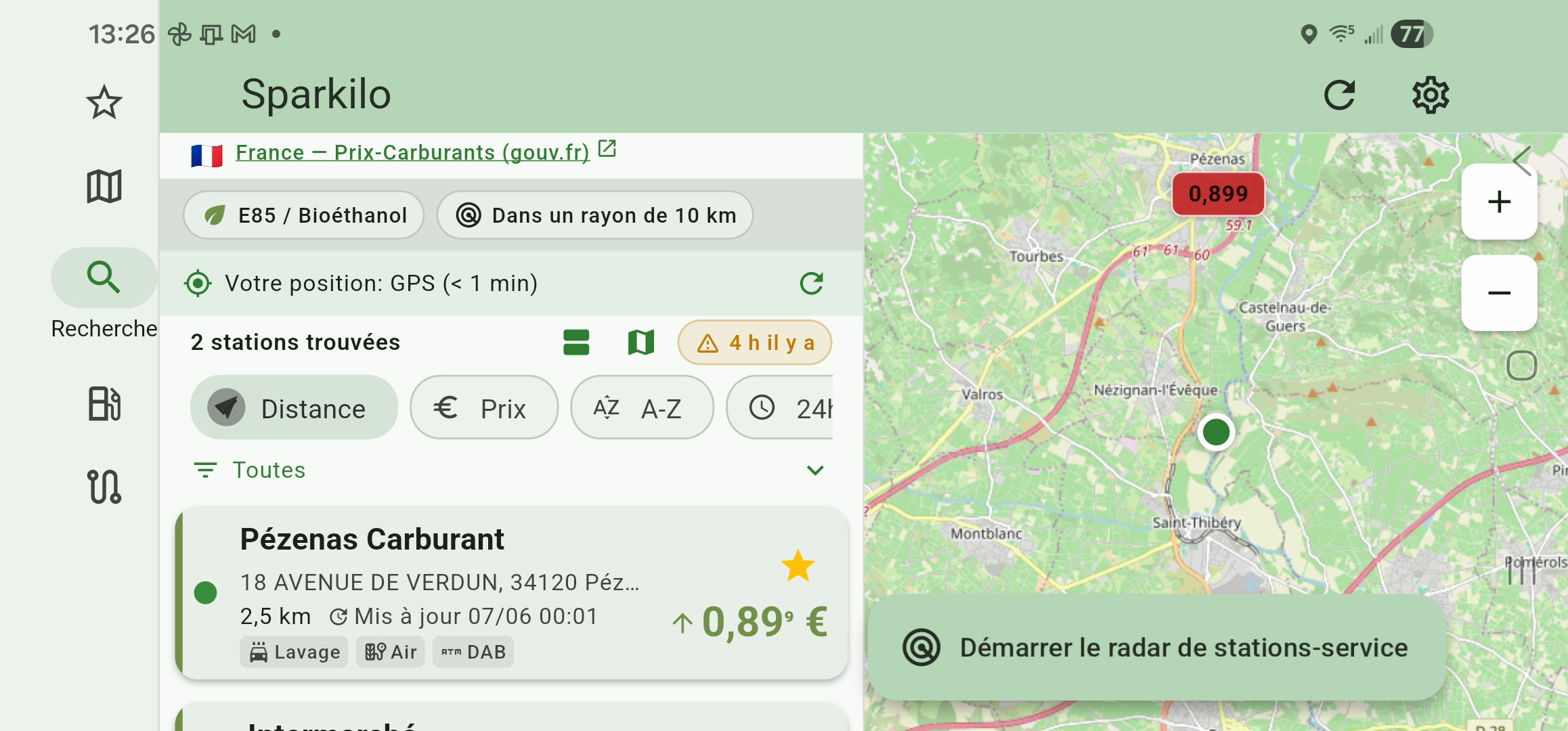
How to use it:
- Run a normal nearby search to get a first result list.
- A floating Start fuel station radar pill appears bottom-right in the results.
- Tap it — the app refreshes your GPS, fetches and caches station locations, and switches the list to Fuel Station Radar result mode.
- Results are sorted by distance, with prices for your preferred fuel type.
- Tap Stop radar (the same pill, now with a stop icon) to dismiss and return to the regular list.
The radar keeps network traffic low: station locations are stable (forecourts don't move), so they are cached for up to an hour and reused across taps. Only the price for a station you're about to approach is fetched just-in-time.
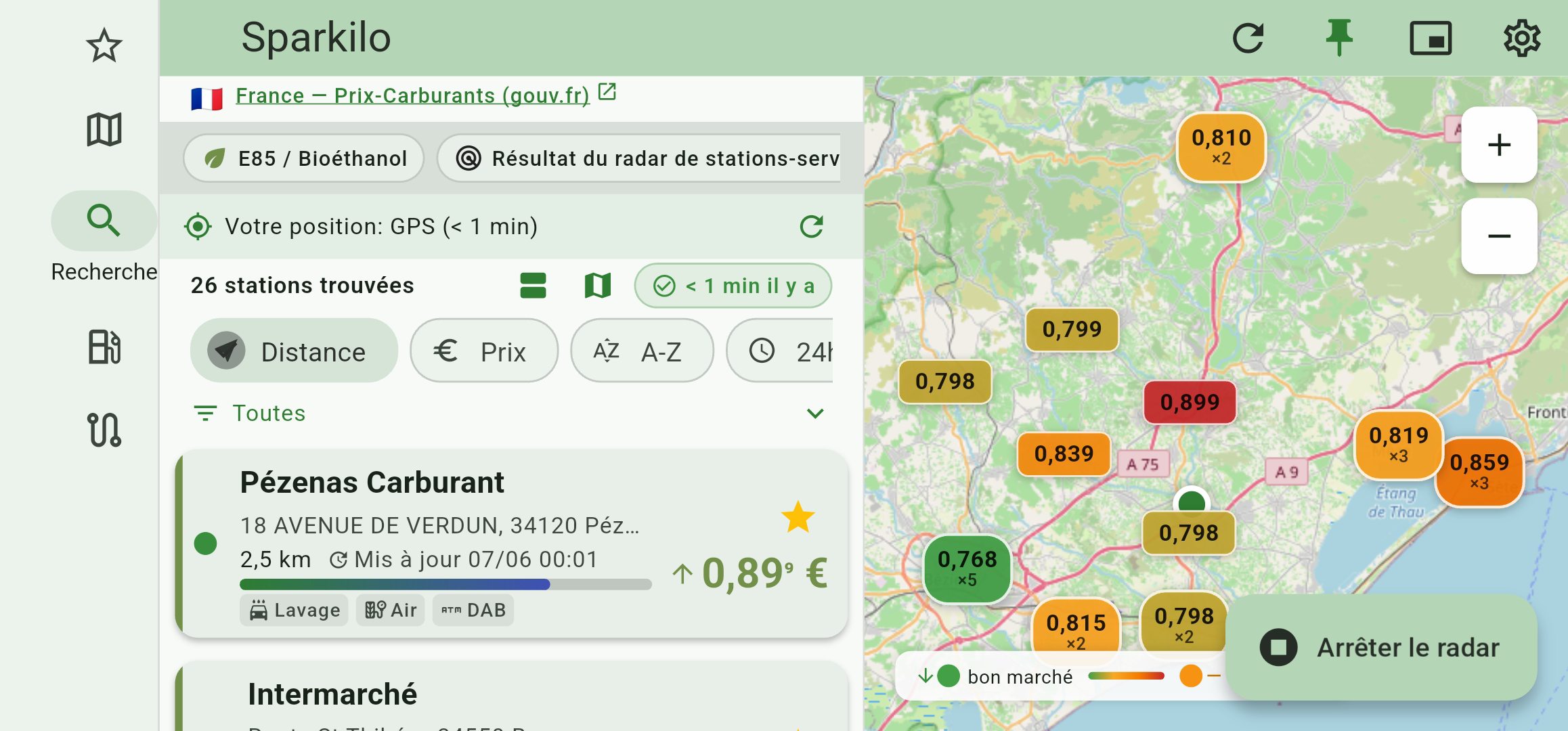
During trip recording, the radar runs continuously and pins a Closest station card to the top of the recording screen. It shows:
- Station name and price for your preferred fuel
- Distance away, with a proximity fill-bar that fills to 100 % as you reach the station
- Swipe left/right to page through the ranked candidate list
When you drive inside the configured approach radius the card locks onto that station and the PiP overlay flips to a large price display.
Each country is served by its own official government open-data source. Sparkilo does not use a single aggregator. The result header always names the active source (e.g. France — Prix-Carburants (gouv.fr), España — Geoportal Gasolineras (MITECO), Deutschland — Tankerkönig). This means:
- Fuel grades differ by country — Spain sells E5 and E10 is rare; France lists SP95-E10 prominently; Germany publishes E5, E10, and Diesel.
- Price cadence differs — Germany updates every ~5 minutes via Tankerkönig, while Italy and Spain publish a daily bulk file that is locally filtered (no per-search network call needed).
- Station density differs — a densely-reported country like Germany may return 30 results in a small radius; a country with a thin dataset may return fewer.
This is why the same search query produces different-looking results on each side of a border — it's pulling from a completely different source.
Each Sparkilo profile is linked to a country and a preferred fuel grade. The app activates the matching data provider when you switch profiles. If you regularly drive in two countries:
- Go to Settings → Profiles and add one profile per country.
- Set the preferred fuel for each (e.g. SP95-E5 for France, Super E10 for Germany).
- Switch profiles when you cross the border — or let a route search pick the right fuel automatically for each leg.
Every result shows when the price was last updated. Colors:
- Green — less than 5 minutes old
- Yellow — 5–30 minutes old
- Orange — up to a few hours old (offline or stale cache)
- Red-outlined — clearly stale, more than a day old
If you see stale data, tap the refresh button at the top. The app will retry the live API.
Switch to the Map tab. Every station in view is a coloured pin:
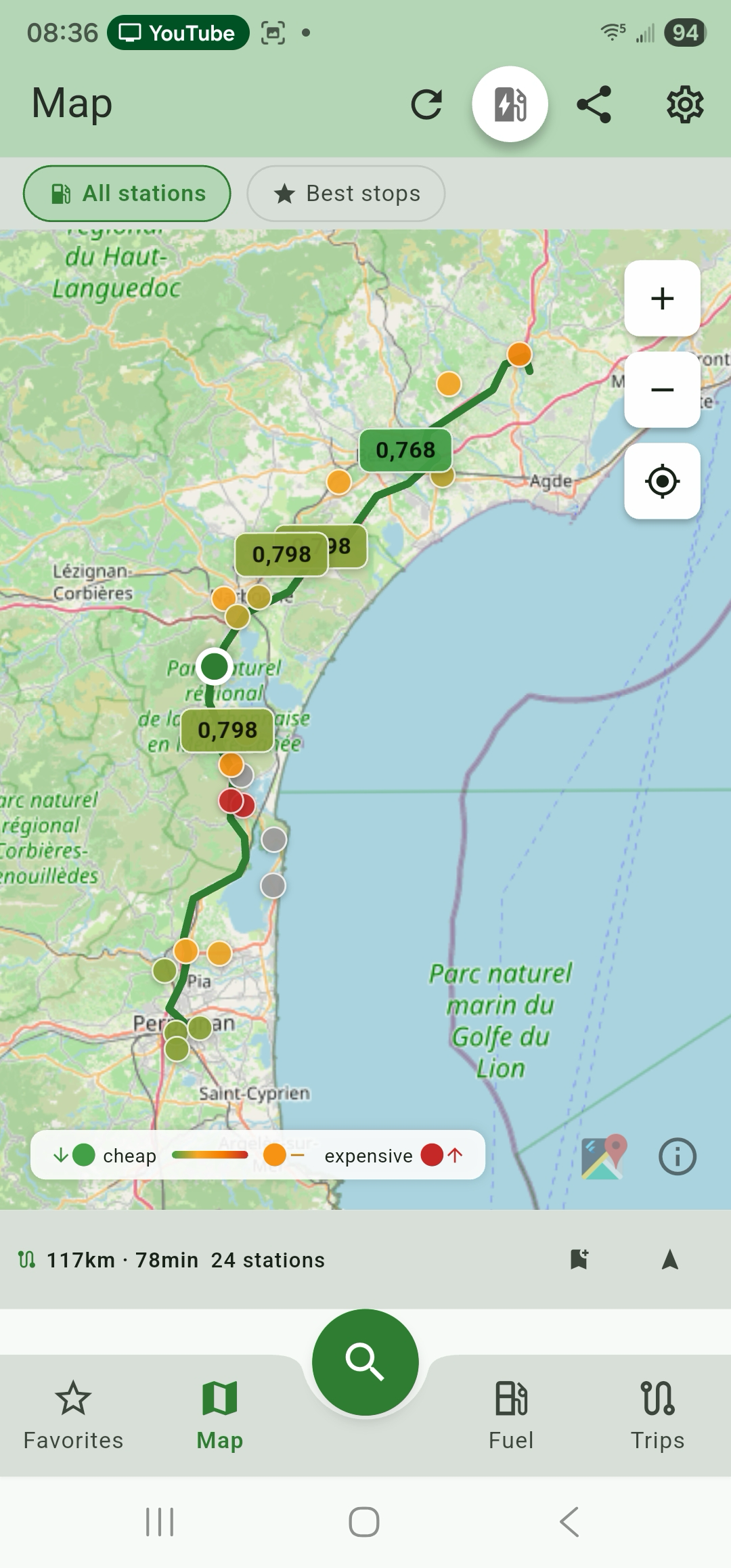
- Colour shows price at a glance — green is cheap, red is expensive (relative to what's on screen).
- Cluster markers group pins when you zoom out; tap to zoom in.
- Tap a pin for a compact card with the price and a button to go there.
- An EV toggle flips the map to show charging points instead of fuel.
- A share button lets you send the current view to a friend.
Long-press anywhere on the map to drop your own marker and search from that spot.
The map uses OpenStreetMap — free, no Google, fully privacy-respecting.
On any station card in the list:
- Swipe right — open in your default navigation app (Google Maps, Waze, OsmAnd, Organic Maps)
- Swipe left — hide the station from results (you can unhide via Settings → Ignored stations)
Tap a station to see:
- A prominent brand header at the top — falls back through brand → name → street, so an Intermarché with an empty brand field still renders "Intermarché" big rather than the street address.
- Full address + opening hours
- All fuel types + prices (if reported) in a dedicated prices section
- Accepted payment methods (and a shortcut to launch the payment app)
- Accepted brand loyalty programs
- Price history (last 30 days, if your phone has recorded any)
- "Best time to fill" recommendation (after the learning phase — see Price History)
- Rate the station (★ 1–5) — private, private-with-sync, or shared
- Add to favorites
- Set a price alert
The AppBar at the top is intentionally minimal — back arrow + actions. The station name and the cheapest-price chip used to live up there but they doubled the brand header in the body, so they're gone. No more fly-in animation either; the page lands clean.
Want to know what a trip will cost before you set off? The built-in fuel-cost calculator does the sum for you. Give it three numbers:
- Distance of the journey
- Your car's consumption (L/100 km)
- The fuel price
…and it tells you the litres you'll burn, the total cost, and the cost per kilometre. It smart-fills the consumption and price from your own data when it can, so often you only type the distance. Handy for deciding whether a cheaper station a little further away is actually worth the detour.
Add the Sparkilo widget to your home screen for at-a-glance prices without opening the app.
- The widget shows your cheapest favorite (or the nearest station) and the current price.
- Tap the widget — opens the station detail directly. The route is correct whether the app was cold-killed or already warm in memory.
- Tap the refresh icon — re-pulls live prices in the background without opening the app at all.
- Background prices are refreshed automatically every 30 min (charging) or 1 h (otherwise), respecting Doze.
If the widget shows stale data and the refresh icon doesn't help, see Troubleshooting.
When your phone is connected to an Android Auto head unit, Sparkilo shows a driver-safe car version with two screens:
- Search — the stations from the last search you ran in the phone app, as a scrollable list with prices.
- Radar — the cheapest stations around your current route.
Run the search (or start the radar) in the phone app first; the result list then mirrors to the car display, where you can browse it hands-free. Each car list entry shows the station name, your fuel's price, and distance. If a screen is empty, open the app, run a search or start the radar, and it will appear in the car.
Android Auto is read-only on the car side by design — there is no on-screen keyboard for typing a search while driving. It is an Android-only surface; CarPlay is not provided.
See also: Favorites & Alerts · Route Planning Next: Favorites & Alerts →