Repository navigation
Backups
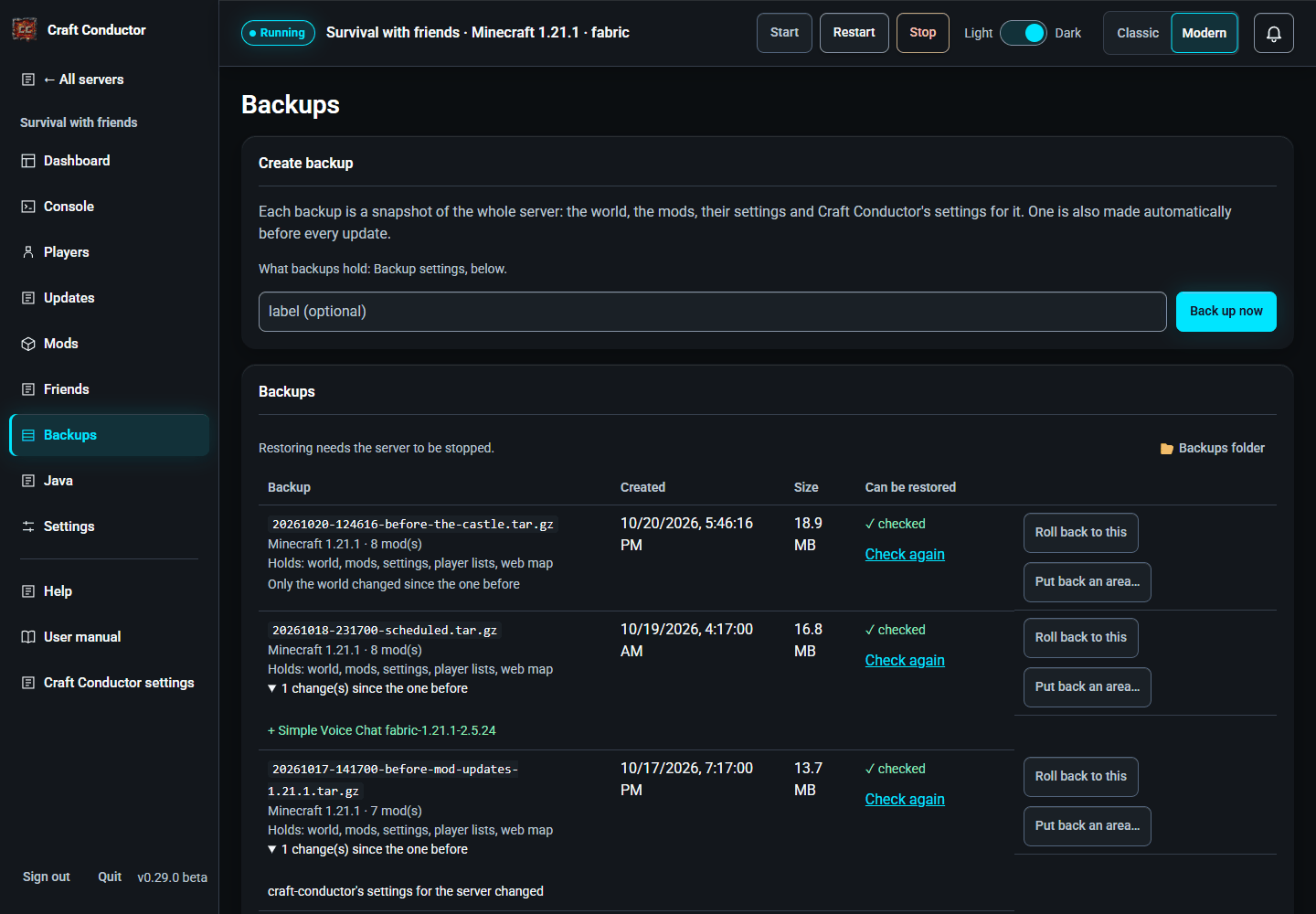
Create backup saves the server as a .tar.gz, even while it runs: what Backup settings (on this page) say backups hold. Backups go in the server's own backups folder, or, when you chose a folder for backups (Craft Conductor settings → Folders), in a folder named after the server there. Craft Conductor also backs up before every update. The newest 10 are kept (Backups to keep).
Backup settings choose what the backups you make, and the scheduled ones, hold: The world, Mods and plugins, Mod and plugin settings, Player lists and Web map files, and two sensitive parts that go in locked to this computer and your account: Passwords, keys and IP bans, and Logs and crash reports (they show players' IP addresses). Only Craft Conductor on the computer, and for the account, that made the backup can open its locked part: restored anywhere else, the backup brings back everything else, and the server keeps its own passwords, keys, IP bans and logs. A backup with a locked part is readable by your account only. Backups made before an update or a new world always hold everything a roll back needs (their locked part too; logs aren't needed). Restoring a backup that left something out keeps the server's own copy of it. Each backup in the list says what it holds; Put back an area… needs one that holds the world.
Each backup is a snapshot of the whole server: besides the files, Craft Conductor notes the Minecraft version, the mods, the server's settings, its mod config files and Craft Conductor's own settings for it. So the list says, for each backup, what changed since the one before (mods added, removed or updated, a new Minecraft, settings, config files, the world's size), and Roll back to this (with the server stopped) first lists exactly what it will undo, then puts all of it back: the world, the mods, the configs, and Craft Conductor's settings and mod list. Backups made by Craft Conductor before 0.15 only hold the files: Restore puts those back, and an update check then puts the mod list right.
Restoring safely: a backup is unpacked next to the server first, and the server is only replaced once that worked. A backup that's damaged or cut short, one holding a file or link that would end up outside the server's folder, or one bigger than the free disk space is refused, and the server is left exactly as it was. A backup cut short (the disk filled up, or Craft Conductor was stopped while making it) is never listed, and its unfinished file is removed.
-
Can be restored: each backup is read back right after it's made (every file, and the world's
level.dat), and marked ✓ checked, or says what's wrong with it (a message tells you too). Check reads an older one. - Put back an area… (with the server stopped) undoes damage in one place, like griefing or a creeper crater, and keeps everything else in the world as it is now. Type two opposite corners (the x and z numbers F3 shows in the game) and pick the Overworld, the Nether or the End. The chunks there go back to how they were in that backup: blocks, chests, animals and villagers; players' inventories don't change. Craft Conductor backs up the world first, so you can undo it.
To back up by itself, set Make a backup under Settings → Schedule. To keep backups safe from a broken disk, set Also copy every backup to under Backup settings: a USB drive, or a folder OneDrive, Dropbox or Google Drive syncs. Each backup is copied there too, in a folder named after the server, keeping the newest few. If the drive isn't plugged in, the backup is still made and the copy is skipped.
Moving the server to a different PC? Backups are for this computer. Use Export server… (at the bottom of this page, or Settings → Move to another computer): it puts the server in one file, and you pick what goes in.
This page is the user manual that comes with Craft Conductor (Help → User manual in the app). It's made from manual.md: change it there, not here.