Repository navigation
Getting started
- Download Craft Conductor for your computer from the releases page: Windows, Mac (Apple silicon) or Linux.
- Open it. On Windows, if SmartScreen says it "protected your PC", choose More info → Run anyway (Craft Conductor isn't code-signed). On a Mac, the first time, see On a Mac just below.
- Craft Conductor opens in your browser. Until you've made a server, the downloaded program first offers to set up your Minecraft for a friend's server (Join a friend's Minecraft server): to run your own, press Run my own server under Or run a Minecraft server of your own, and the control panel opens in a new tab. Read and accept the notice (what Craft Conductor does and doesn't do).
- Sign in with the password
PASSWORD(in capitals). Craft Conductor asks you to choose your own right away: a password, or a 4–8 digit PIN. A PIN only works in a browser on the server's own computer. Under the boxes, Your password needs lists what it must have and ticks each one off as you type: a password needs 4 or more characters (and can't bePASSWORD), a PIN 4 to 8 digits, and both boxes must match. To use Craft Conductor from your phone or another computer, the password must be strong: 12 or more characters, with an uppercase letter, a lowercase letter and a special character (like ! ? # %). With remote access on, that's what the list asks for. - Craft Conductor then asks once Where should Craft Conductor keep your files?: Servers (worlds, mods and settings), Backups and Exports (servers packed to move to another computer), each with where it goes now. To keep one somewhere else (another drive, say), press its Change…: a folder browser of this computer opens, where New folder… makes one; then Use this folder. Use these folders saves them (see Where Craft Conductor keeps things). You can change them later in Craft Conductor settings → Folders.


On a Mac: macOS blocks apps from the internet that aren't notarized, so the first time, open Terminal and run:
cd ~/Downloads
chmod +x craft-conductor-macos-arm64
xattr -d com.apple.quarantine craft-conductor-macos-arm64
./craft-conductor-macos-arm64
After that, double-clicking it works.
Servers run while Craft Conductor runs. Closing the browser tab doesn't stop Craft Conductor: your servers keep running, and anything Craft Conductor is doing (creating a server, an update) carries on. Open Craft Conductor again from its icon to come back to the control panel. Quit (at the bottom of the menu) stops everything cleanly.
If closing the tab would lose something that only lives in the page (an upload on its way, settings or a config file you haven't saved, a New server form you've started, mods picked but not added, a mod test's report), your browser asks first ("Leave site?").
Joining a friend's server rather than running your own? See For friends: joining a server below.
The first time you use Craft Conductor, before you have a server, a message asks whether you'd like the guided setup: Guide me, or Skip (it isn't asked again). Once you have a server it isn't offered. It's a checklist in a corner of the page, from making your first server to a friend joining it:
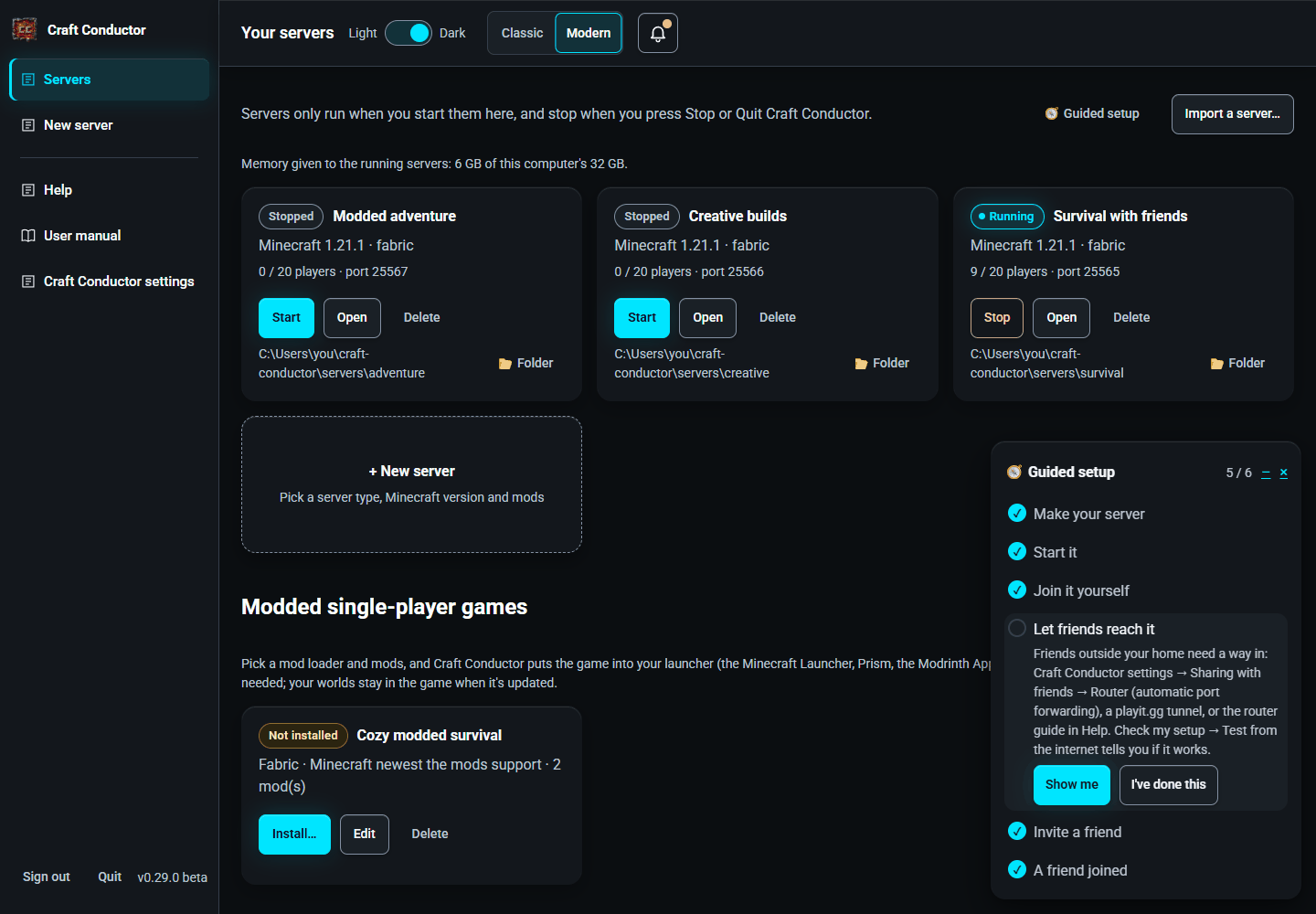
- Make your server, 2. Start it, 3. Join it yourself, 4. Let friends reach it, 5. Invite a friend, 6. A friend joined.
Each step ticks itself as it happens (Craft Conductor sees the server running, who has joined, the router or tunnel set up, the friends' download switched on). Show me opens the page for the next step; I've done this ticks the two steps Craft Conductor can't always see. – hides it to a small button (press it to open it again), and × stops it. Start it again any time: Help → Start the guided setup, or 🧭 Guided setup on the Servers page.
← What it can and can't do · Creating a server →
This page is the user manual that comes with Craft Conductor (Help → User manual in the app). It's made from manual.md: change it there, not here.