Repository navigation
Creating a server
Go to New server. One step at a time:
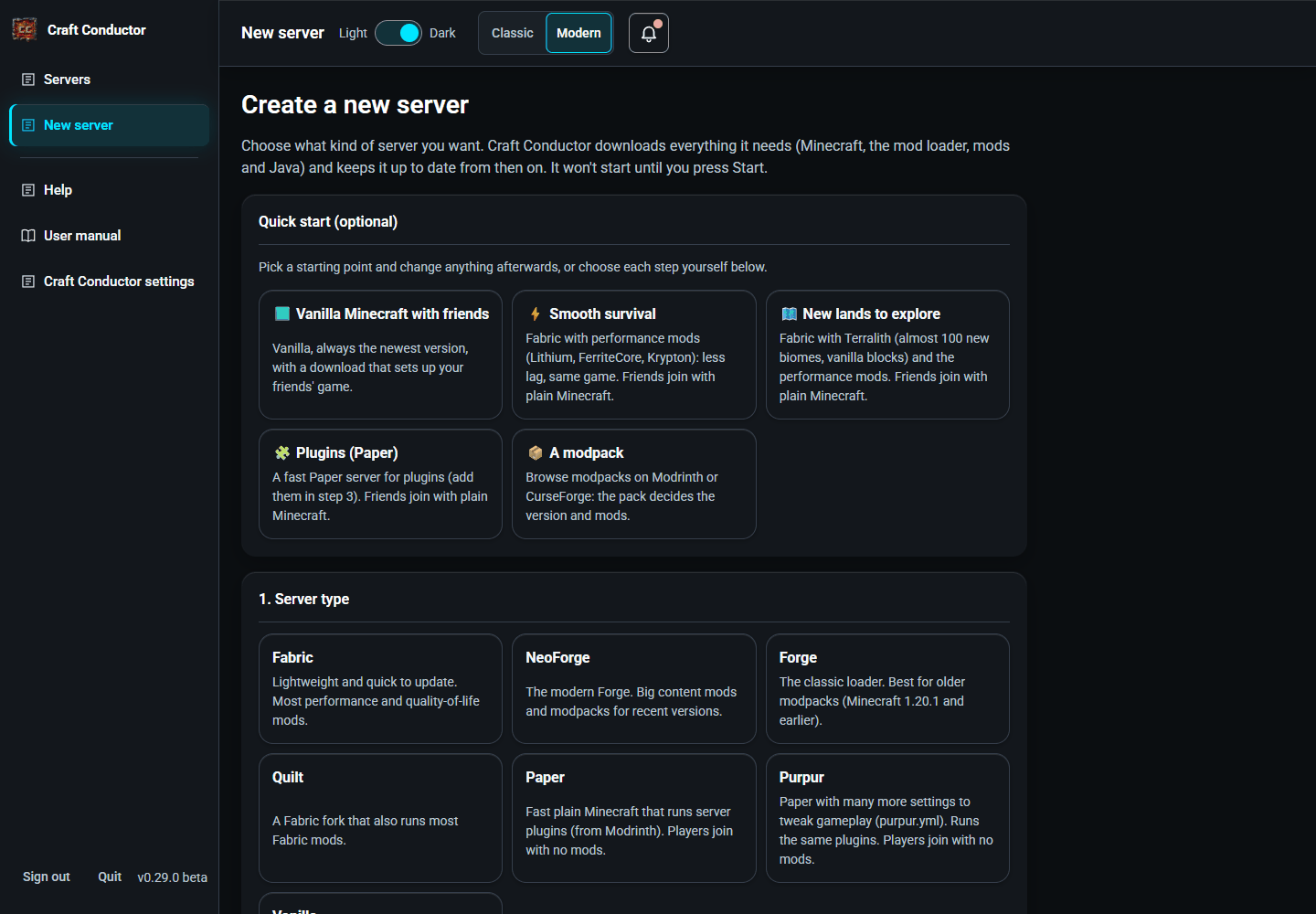

Quick start (optional). Ready-made starting points fill the form in for you; change anything afterwards:
- Vanilla Minecraft with friends: Vanilla, the newest version, and a download for your friends.
- Smooth survival: Fabric with performance mods (Lithium, FerriteCore, Krypton): less lag, the same game.
- New lands to explore: Fabric with Terralith (new biomes made of vanilla blocks) and performance mods.
- Plugins (Paper): a Paper server to add plugins to.
- A modpack: opens the modpacks in the mod browser (Modrinth or CurseForge).
The mods in these run on the server only, so friends join with plain Minecraft. Memory is set for the kind of server, within what this computer has.
1. Server type. Fabric, NeoForge, Forge and Quilt run mods; Paper runs plugins (Spigot/Bukkit ones too); Purpur is Paper with many more gameplay settings and runs the same plugins; Vanilla is plain Minecraft.
2. Minecraft version. "Newest release" is recommended: the server is made on the newest Minecraft its server type runs (the note under the list says which; NeoForge and Forge can take a few days to support a new Minecraft), then upgrades only once every mod supports the next Minecraft (a "forever server"). Picking a specific version keeps it on that version (mods still update). Tick "Show beta versions" to try snapshots and pre-releases (worlds opened in them can't go back).
The version and server type you pick are what the server is made on. Your mods never change them: Craft Conductor finds builds of the mods for your choice, or tells you which one it can't find (see When a mod can't be used below).
3. Mods (or plugins):
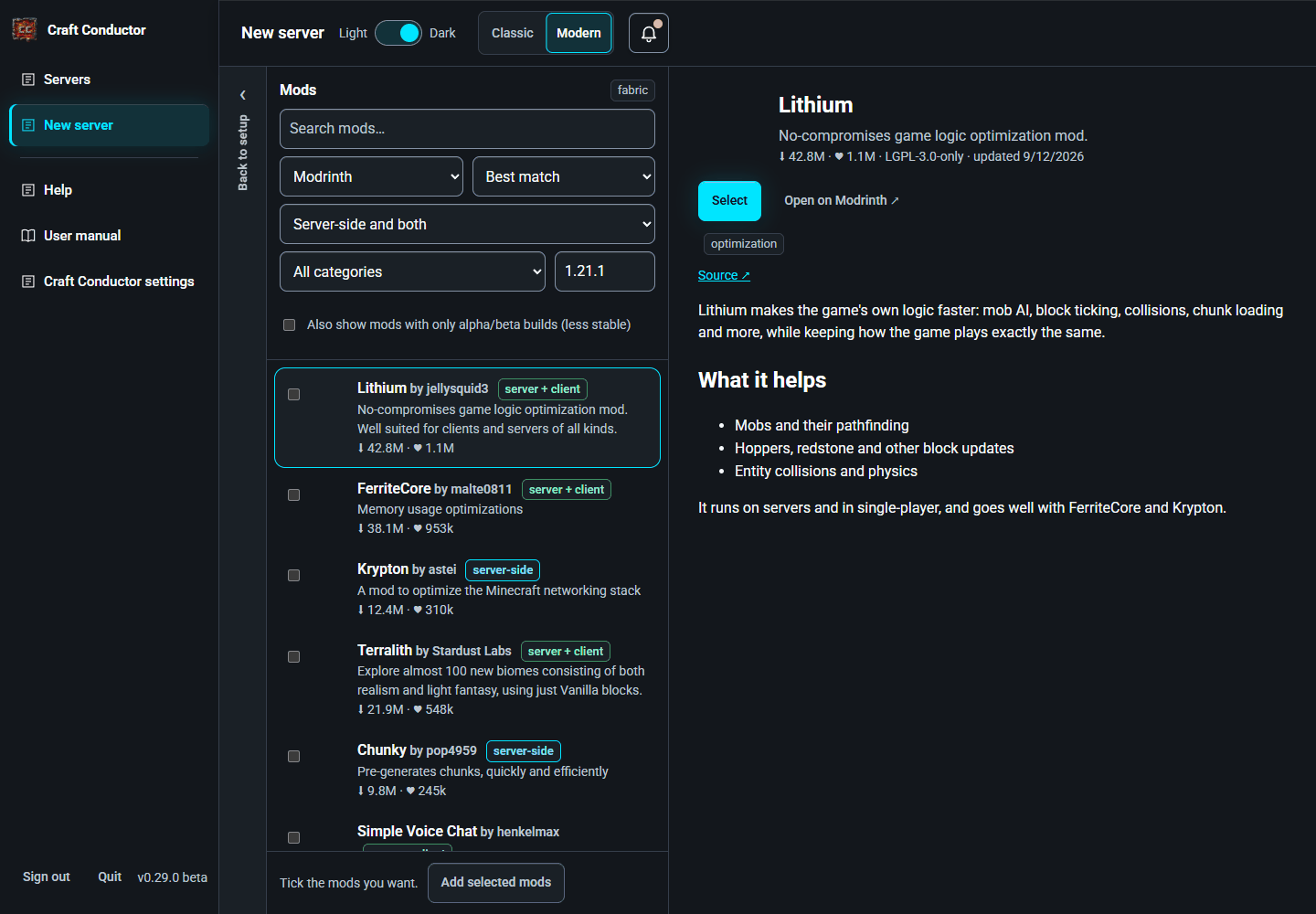
- Download mods opens the mod browser beside the form: search Modrinth and CurseForge, read a mod's page on the right, tick the ones you want, and press Add selected mods. Mods that need other mods bring them along, from Modrinth or CurseForge: a mod a CurseForge mod needs can come from Modrinth when only Modrinth has a build for your Minecraft version and server type, and the other way round. A mod found on both is installed once.
- The results keep coming as you scroll: the first 20 show straight away, and the next 20 load in the background while you're still reading, so the list rarely makes you wait. What you ticked, the mod open on the right and where you were in the list stay put. Loading more… at the bottom means the network is slow; Couldn't load more has Try again; That's everything is the end of the search. With a keyboard, Tab through the results (the next ones load as you go) or press Load more at the bottom. Results with no build for your Minecraft version are left out and counted at the top ("5 result(s) hidden"), and so are mods already on the server or in your friends' mods, whether you picked them or they came along because another mod needs them ("2 already added, hidden"); if page after page has nothing to show, the list stops and offers Keep looking. A search goes 10,000 results deep at most. Changing the words, filters, sort, source or Minecraft version starts again from the top. The same goes for Mods for players on the Friends page.
- Runs on narrows Modrinth mods by where they run: server-side and both (the default for a server), server-side only, or both. Tags show where each one runs.
- "Also show mods with only alpha/beta builds" includes less stable mods, with a warning.
-
Local files adds
.jarfiles from your computer. Modpacks builds the whole server from a Modrinth or CurseForge modpack (see Modpacks below). - Required mods must work on the Minecraft version you picked for the server to be made; an optional one that doesn't is left out. Every mod holds back upgrades until it supports the new version.
- Test these mods checks they work together before you create the server.
When a mod can't be used. A mod you picked, and each mod it needs, is looked for on the site it comes from, then on the other one (Modrinth and CurseForge): when only the other site has a build for your Minecraft version and server type, it comes from there, and its row in Manage Mods says from CurseForge (or from Modrinth). If neither has one, the Manage Mods button glows orange, and the mod's row says Dependency unavailable (or No Forge build for Minecraft …, with the server type, when it's the mod itself), and which mods need which: for example "Biomes O' Plenty requires GlitchCore, but no compatible GlitchCore release was found for Minecraft 1.21.2 using NeoForge. Craft Conductor checked CurseForge and Modrinth." Craft Conductor doesn't change your server type or Minecraft version to make it work. For the mod itself, it says which other server types have a build of it for your Minecraft version, with a Use NeoForge (or Use Fabric …) button for each, and whether it has a datapack build: Stay on Forge: use its datapack keeps your server type and puts that datapack in the world's datapacks folder instead (the world is made with it; a datapack needs no other mods, so Terralith's doesn't need Lithostitched; players don't need it). When other Minecraft versions appear to work, it names them, with a Use Minecraft … button for each (it asks first, then checks your other mods again for that version). Choose another Minecraft version takes you to the list, and Remove takes the mod out. If you press Create my server anyway, a required mod that can't be used stops the server from being made, and the page says why, the same way.
Changing the server type or Minecraft version. Your mods are checked again for the new choice. When one of them can't be used as it is, the page scrolls to Manage Mods and the button glows orange (pulsing, or steady with Less motion) until you open it; it glows again when you close it if something still needs fixing. Manage Mods then starts with What changed: the mods that came or went, and why (for example, after switching from Fabric to Forge, "Lithostitched was removed: Terralith has no build for Forge 26.2, so nothing needs it now."). If the players' mods (Manage Friends Mods) have one with no build for the new choice, that button glows too, and the page goes there once you've closed Manage Mods (or straight away when the server's mods are fine).
Modpacks. Modpacks (or A modpack under Quick start) opens the mod browser on modpacks. Pick Modrinth or CurseForge as the source (CurseForge needs an API key; the browser asks for one the first time). Pick a pack, choose its version and press Use this modpack. The browser stays open while the pack loads ("Loading modpack…"; a big pack takes a while), then setup comes back with it: the server gets the pack's Minecraft version, mod loader, mods and configs, and stays on that Minecraft version. The pack's mods are held at the exact files the pack lists, so players on the real pack can join: they aren't updated by themselves, and they don't bring extra mods the pack doesn't list (only a new version of the pack changes them; mods you add yourself still update, and Change version in Manage Mods can free a pack mod). The mod loader is held at the pack's build too (NeoForge 21.1.109, say, not the newest NeoForge), since a newer one on the server can refuse players on the pack. Manage Mods lists the pack's mods, marked with its name; Remove leaves one out at once, and a bar offers Undo for a few seconds. Like the mod browser, Manage Mods slides over the page; the ‹ Back to setup bar on its left (or Escape) goes back.
- A Modrinth pack says which of its mods only run on players' computers, and those stay off the server.
- A CurseForge pack doesn't say. When its author publishes an official server pack, Craft Conductor looks at which mods that server pack has: the pack's other mods only run on players' computers, so they go in your friends' download instead of on the server (they appear under Manage Friends Mods, marked with the pack's name, and leave again if you pick another pack). Like the server's, they're held at the files the pack lists, so friends get the same builds as the real pack (Change version on the Friends page can free one). Without a server pack, Craft Conductor asks Modrinth about each mod (the same mod is found by its file, or its name): one Modrinth says only runs on players' computers goes in the friends' download too, and its row says so. The rest go on the server; if one of them stops it, the Dashboard offers to move it to players' mods (see Mods).
- A pack's mod that only has beta or alpha builds (common for older Minecraft versions) gets the same kind of build the pack uses.
- Some CurseForge mods have to be downloaded by hand (see Mods you download by hand below).
4. World. A new world (seed, type, structures, hardcore), or Import a world: a singleplayer save or a world .zip from any Java version. Files in a .zip that would land outside the world's folder, or that Windows can't have (like NUL or a name with :), are left out, and so are links (shortcuts) in a singleplayer save; the activity log says which. A world bigger than the free disk space is refused before anything is written. A singleplayer world that's open in Minecraft is refused too, until you choose Save and Quit to Title there (or close Minecraft): a copy made while the game saves could catch the world half-written.
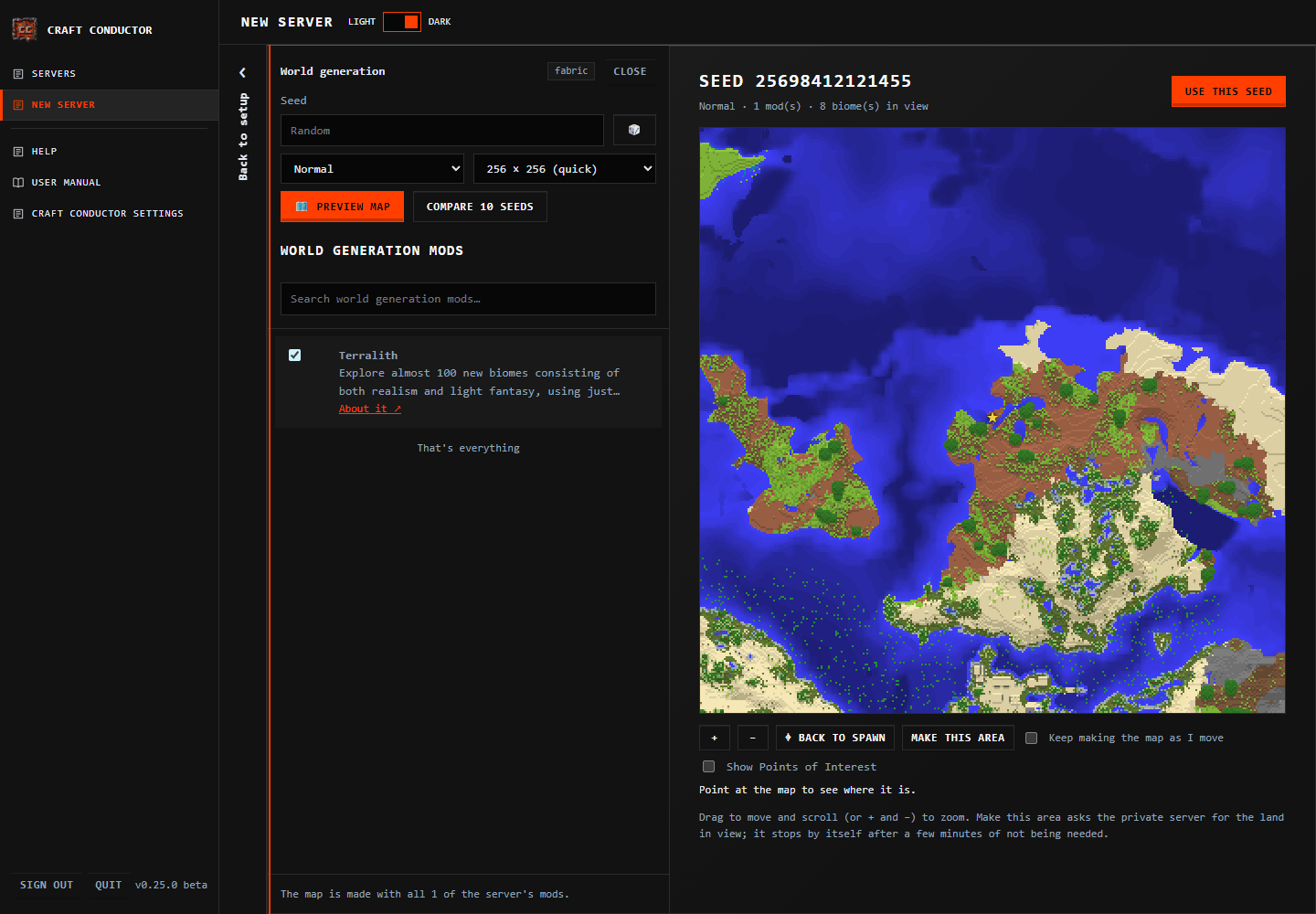
World generation & map preview (under the new world's settings) slides open beside the form:
- World generation mods lists Modrinth's world-generation mods (or plugins) that work with your server type and Minecraft version, more of them as you scroll down (like the mod browser). Ticking one adds it to the server's mods (with what it needs); unticking removes it.
- A release mod may need a library that only publishes beta or alpha builds. Craft Conductor names those required libraries and asks before allowing early builds for that mod and its dependencies. Declining leaves the incompatibility visible; it does not silently omit the required library.
- Type a seed (or press 🎲 for a random one), pick the world type and a map size, and press Preview map. Craft Conductor makes the world in a private server on this computer (nobody can join it), with all the mods you've picked, the mods they need, and the Chunky mod to generate the area (the line under the list counts them, and the progress names them), then draws it from above: north is up, one pixel is one block, and ★ is the spawn point. Point at the map to see the coordinates and the biome there.
- A clean map first: the map shows the land and the spawn point, nothing else, so it doesn't give away what players would otherwise find by exploring.
- Maps are always made with villages, temples and other structures, so the land looks as Minecraft makes it; they stay hidden unless you show them (below). Whether the server's own world has them is Villages, temples and other structures on the World card. When that's off, the panel says so: the map still has them, the server's world won't.
-
Show Points of Interest (under the map, off to begin with) marks villages, pillager outposts, temples, woodland mansions, ocean monuments, igloos, witch huts, shipwrecks, ruined portals, ancient cities, trail ruins, trial chambers and the like with a symbol (point at one for its name and coordinates), including a world-generation mod's own structures. The Points of interest list under it counts them and gives each one's coordinates; on the map you can move around, pick one to go there. Mineshafts and buried treasure (underground, and everywhere) aren't shown; strongholds are.
- The first time for a world (a seed and world type), it warns that points of interest reveal what's normally undiscovered: in competitive speedrunning without a set seed that's an unfair advantage, and some Minecraft purists consider it a "soft cheat". Keep Hidden (the default) leaves the map clean; Show Points of Interest shows them, and you aren't asked again for that world until the page is reloaded. Every other seed starts hidden.
- Unticking it removes the symbols at once. The world isn't made again either way: the land and the map stay as they are.
- If they can't be loaded, the map still works, and a short note under it offers Try again.
- Move around the map: drag it to move, and scroll (or press + and −) to zoom, from 4 pixels a block out to 32 blocks a pixel. ⌖ Back to spawn brings you back. Where the land hasn't been made yet the map is checkered; press Make this area and the private server makes the land in view (it asks first when that takes more than a minute), or tick Keep making the map as I move and it makes the land as you go. This choice is remembered on this browser when you leave the preview or reopen the page. The private server stays on while you explore, and stops by itself after five minutes of not being needed.
- It takes a minute or two the first time (Minecraft and the mods are downloaded) and less for the next seeds with the same mods. Bigger maps and heavy mods take longer; Stop cancels it. You can close the panel and carry on: the map is there when you come back.
- Earlier maps keeps the seeds you've looked at; Use this seed makes one the server's seed (and world type), leaving the World card's other settings as they are.
- Compare 10 seeds makes maps of 10 random seeds one after another, with the same mods, so you can pick the one you like (lots of ocean, a big mountain range, a biome you're after). It asks first: it takes a while (each map is a new world) and the computer works hard meanwhile. The maps appear side by side as they're made; press one to look closer and Use this seed. Stop comparing keeps the maps made so far, and ← Back to the seeds compared returns to them.
- Maps need Minecraft 1.18 or newer, and aren't available for modpacks or imported worlds. Vanilla servers are previewed with Fabric, which makes exactly the same worlds.
- If a map can't be made, it says why (when the private server crashed, which mod it blames). Its server's log is kept as
last-failed.login thepreviewsfolder of Craft Conductor's own folder (.craft-conductor) until Craft Conductor restarts.
5. Settings. The server's name (shown in the multiplayer list), max players, difficulty, game mode, memory and port. Above 16 GB of memory, Craft Conductor offers Aikar's flags (tuned garbage collection that avoids lag spikes). Advanced settings has the rest of Minecraft's server settings. Under Friends (optional), Friends outside your home picks how friends who aren't on your Wi-Fi join (playit.gg is chosen at first; see Friends outside your home). When the server can be reached from the internet, the whitelist starts on, and Your Minecraft name puts you on it; with Only friends at home, it starts off (anyone with the address can join) until you turn it on.
Friends (optional). Tick "Make a download for my friends" to get an invite for them. Set up now opens the mod browser for mods for players' computers (a minimap, JEI...), and Local files adds your own. Mods your server's mods need on players' computers are added by themselves. A mod that runs on both sides ("server + client" in the browser) is also added to the server's mods, with the mods it needs, and a message says so ("X also runs on the server, so it was added there too, with Y"); the list shows it as also on the server. Removing it from the list asks whether to remove it from the server too. Mods that only run on players' computers stay with the players.
Will the mods start together? A moment after each change to the mods (yours, a modpack's, your friends', a version you picked), Craft Conductor downloads them and looks inside each file the way Fabric, Forge and NeoForge do when Minecraft starts: every mod has the other mods, and the versions of them, it says it needs (the mod sites don't always say). While it checks, Create my server waits ("Checking that the mods start together…"). When something wouldn't start, the button stays off, the mod manager with the problem (Manage Mods for the server, Manage Friends Mods for players) glows and the page goes to it. There, the mod's row is red and says what's wrong ("Iris 1.11.4 needs Sodium any 0.9.x version, but Sodium 0.8.9 is the one there."), with a version that works when there is one (Use Iris 1.10.9), Change version and Remove. The files it downloaded are kept, so creating the server doesn't download them again.
Almost done. Accept the Minecraft EULA and press Create my server. Craft Conductor downloads Java, the loader, Minecraft and the mods, then checks the server starts. The progress stays on the page, and the lower part of the screen shows how to open your router for friends outside your home. When it's ready, the server's Dashboard (or its Friends page) opens.
If setup fails, the page says why and where the detailed report is saved; change your choices and try again.
Mods you download by hand. Some CurseForge authors don't let other apps download their mods. On New server, Craft Conductor looks for them as soon as you press Use this modpack or add CurseForge mods: when there are some, a message says so and the Manage Mods button glows orange. Manage Mods then starts with "The owners of these mods require you to download them directly from CurseForge.", a Download from CurseForge ↗ link to each mod's page for the exact file the server needs, and Load downloaded mods, which opens a file picker on your Downloads folder (where the browser allows it). The rest of your mods are listed below. Create my server won't go ahead until they're all loaded ("The required mods for the modpack are not downloaded…"): load them, or remove the modpack or those mods.
Craft Conductor finds them by itself. Download each file on its CurseForge page as usual: while the page waits for them, Craft Conductor looks in this computer's Downloads folder every few seconds, and as soon as you come back to its tab. Each one it finds is marked ✓ loaded, a message says "Found … in your Downloads folder", and the orange glow and the warnings go once they're all in. It looks only for the files it's waiting for, by their names (and the names browsers give a second copy, like name (1).jar), never at anything else there; it copies each one (the file stays in Downloads) and keeps it only when the copy matches CurseForge's checksum. A file with the right name but not the right contents (another version, or a download that went wrong) is marked wrong file: download it again from its link. Files without a CurseForge checksum aren't picked up: load them yourself.
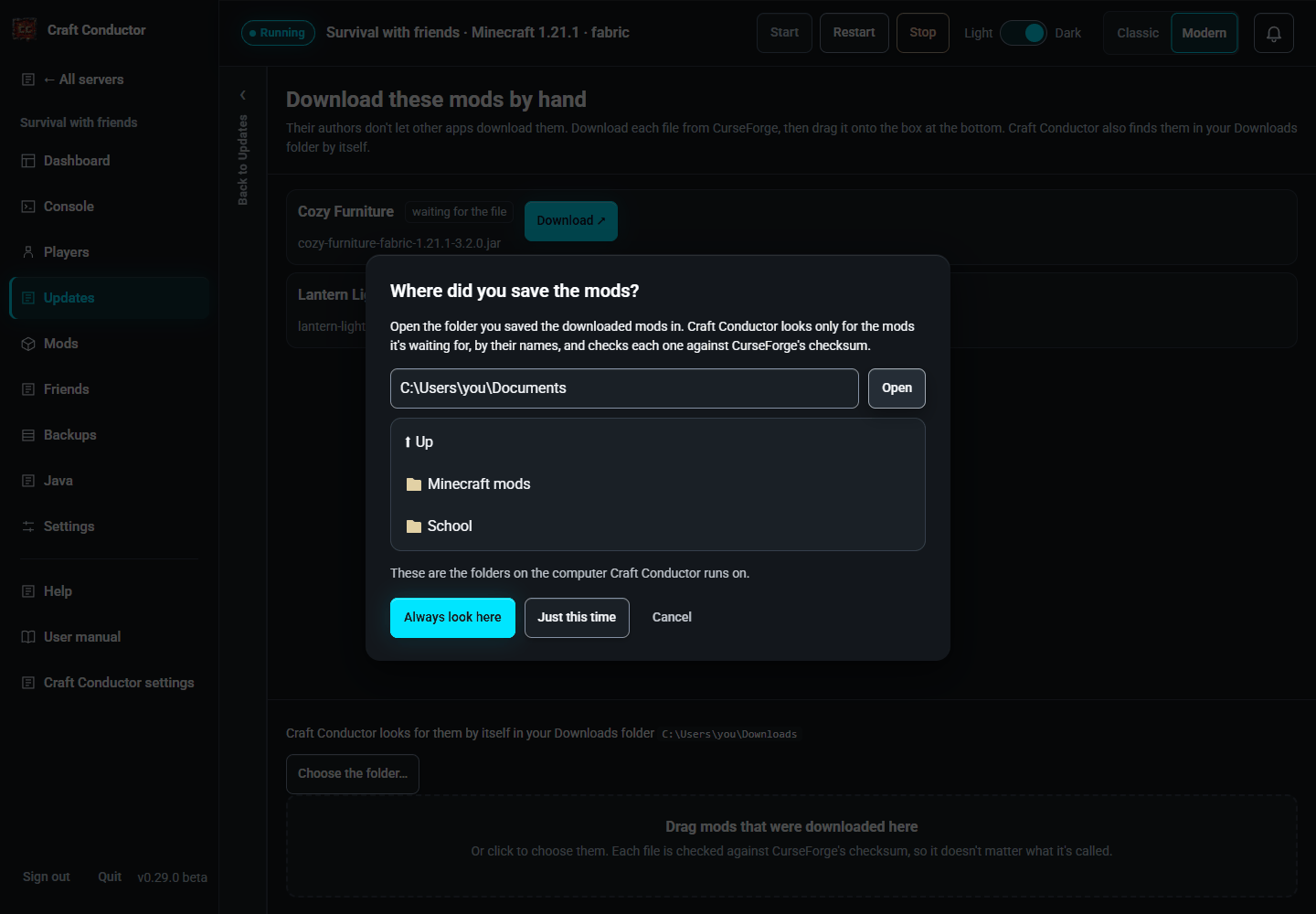
Saved somewhere else? After you press a Download from CurseForge ↗ link, if the file still isn't in Downloads, the section asks "Not found in your Downloads folder. Where did you save it?". Choose the folder… (also next to Load downloaded mods) opens a folder browser of the computer Craft Conductor runs on: open the folder (or type its full path and press Open), then press Always look here (Craft Conductor remembers it and looks there from now on, for every server) or Just this time (it looks there while this page stays open). Folders on the network (\\server\share, a network drive) aren't used. The section lists where it looks, with ✕ to stop looking in a folder; Craft Conductor settings → Folders lists them too. When Craft Conductor can't see a Downloads folder on its computer (it runs as a service under another account, or in Docker), the section asks where you saved them from the start. Only the owner can use this: the folders are the computer's own.
On another device (a phone, another computer), what you download is saved on that device, not on the computer Craft Conductor runs on, and the section says so: press Load downloaded mods or drag the files onto the section. Files downloaded on Craft Conductor's computer are still found by themselves.
For a server that's already made, when it needs one, a panel slides open on the right with each mod and a Download ↗ link to its file on CurseForge. Download the files there, then drag them onto Drag mods that were downloaded here at the bottom of the panel (or click it to choose them; several at once is fine). Craft Conductor checks each file against CurseForge's checksum, so it doesn't matter what the file is called, and puts it with the server's mods; a file that isn't one of the mods waiting is refused, with why. For the owner, the panel also finds them in the Downloads folder (and the folders it always looks in) while it's open, and has Choose the folder…, as on the setup page. While a new server is being created, setup waits for them ("Waiting for 2 mod(s) to be downloaded by hand", with Download them to open the panel again) and carries on by itself once they're all in; Stop setting up stops it instead. Later, when an update needs one, the Updates page's Manual downloads needed card opens the same panel (Download them by hand). Copying the files into the server's manual-downloads folder works too.
A spare PC, a home server or a Raspberry Pi 4/5 (64-bit) can run your servers without a screen. On New server, under Or on another computer (at the bottom of the page, at any step), choose Install on a Linux computer, type its address (e.g. 192.168.1.50) and a normal user name on it (not root), and press Connect with SSH. A terminal opens: type that computer's password when SSH asks (the first time, answer yes to trust it). Craft Conductor never sees the password. When it finishes, it shows that computer's control panel address and a one-time password; open it and choose your own password. See also the headless guide and Docker.
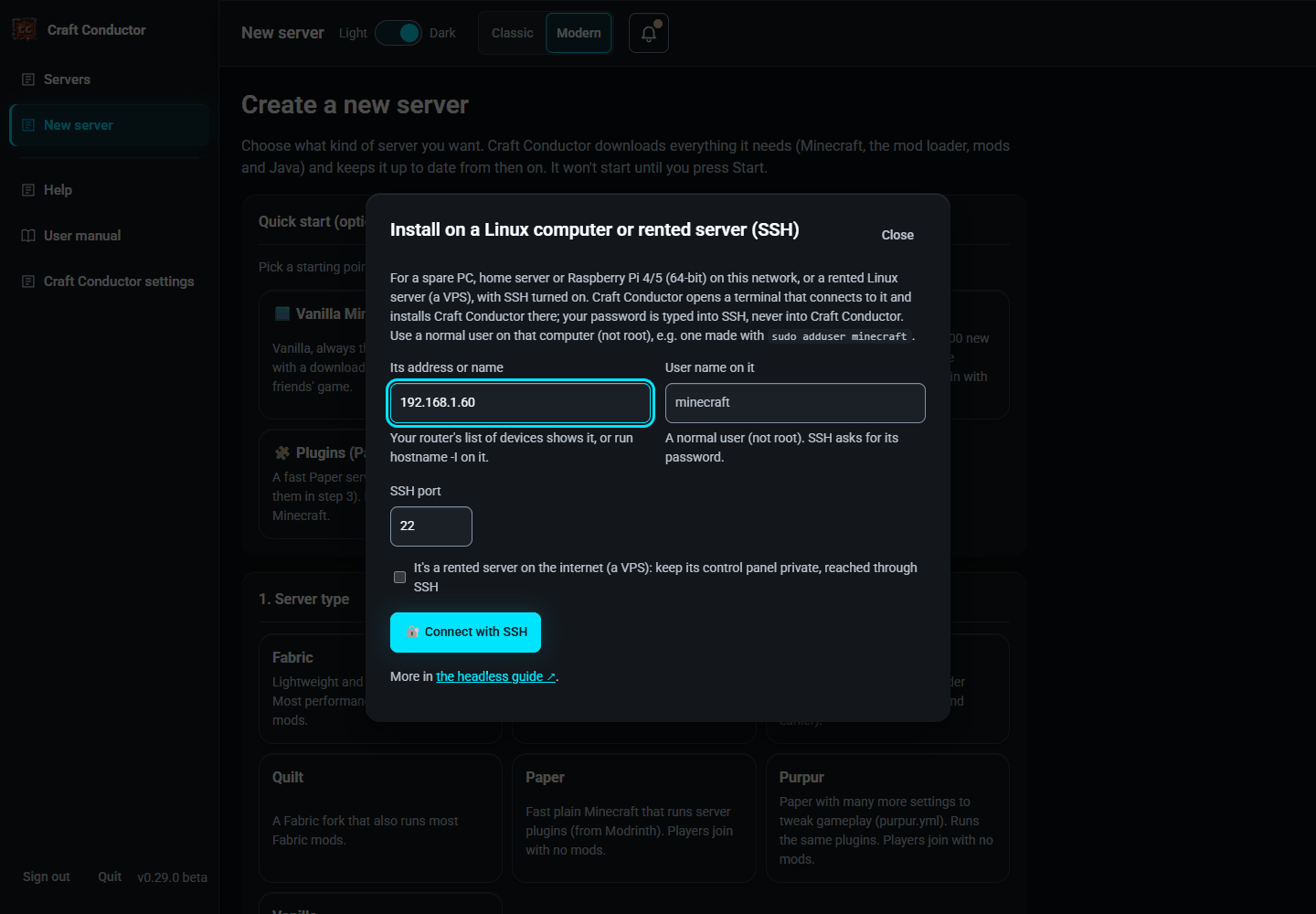
A rented server (a VPS) works the same way: type its internet address, and Craft Conductor ticks It's a rented server on the internet. Its control panel then stays private (on the server only) and you reach it through SSH: 🔐 Open an SSH tunnel (keep the window open), then Open its control panel (http://localhost:8775/). Open the Minecraft port in the server's firewall (the page shows the command). The rented servers guide covers what to rent, firewalls and keeping it safe.
← Getting started · Messages →
This page is the user manual that comes with Craft Conductor (Help → User manual in the app). It's made from manual.md: change it there, not here.