Repository navigation
Remote access and phones
By default only the server's own computer can open the control panel: it listens on 127.0.0.1 (this computer only), even on a computer without a screen, until you turn on access from other devices. Craft Conductor settings → Connections → Remote access & phones (also a button on the New server page) lets other devices in:
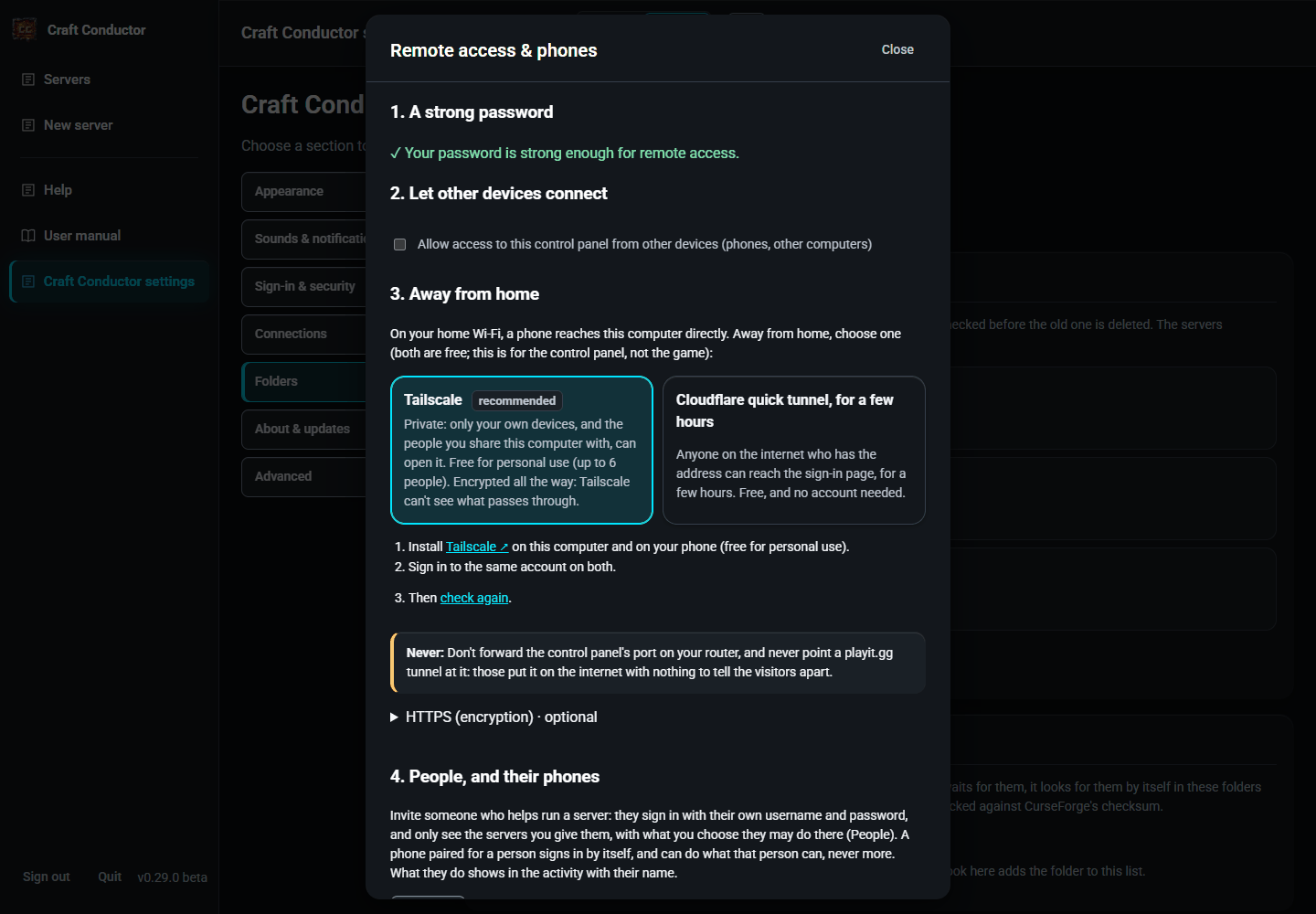

- It needs a strong password: 12+ characters with an uppercase letter, a lowercase letter and a special character. PINs don't work from other devices.
- During New server setup, turn on Allow access to this control panel from other devices and keep working. After the server is created successfully, Craft Conductor applies remote access and opens phone setup, followed by Continue to Friends if you chose a friends' download. Only the control-panel listener restarts: your work, sign-in and Minecraft servers stay open. Outside setup, use Apply remote access to apply a saved change. If it cannot apply, the previous connection is restored so you can retry.
- Pair a phone for one of the people you invited (see People and what they may do): pick the person, then scan the QR code with the phone's camera and open the link. The code works once, for five minutes; Cancel this code stops it sooner (so does turning off access from other devices, or removing every phone). The phone signs in by itself afterwards, with its own key. At the Tailscale, secure address, the phone then offers to install the app (see The phone app); at other addresses Craft Conductor opens in the phone's browser, and the dialog says so. No secure address yet? Set up the secure Tailscale address is right there.
-
Pair with a code: the code is also shown under the QR code (like
ABCD-EFGH-JKLM). On the phone's sign-in page, choose Pair with a code and type it. That's how an iPhone's Home Screen app is paired: it doesn't share Safari's sign-in. - A paired phone does exactly what its person may do, on their servers, never more. What it does shows in the activity with the person's and the phone's names. Phones paired before people could be invited (the old helper and viewer phones) no longer sign in: pair them again for a person.
- People, and their phones: People… opens the list of people you invited (see People and what they may do).
- Each paired phone is listed with its person and when it was last used, and can be signed out on its own; removing a person, or making them a new sign-in link, signs out their phones.
- Away from home: see Away from home below. For HTTPS on the home network too, give Craft Conductor a certificate (for example from
tailscale cert).
On your home Wi-Fi, a phone reaches this computer directly. Away from home, Remote access & phones → 3. Away from home offers two free ways to reach the control panel. They're for the control panel only: how friends join the game is on each server's Friends page (see Friends outside your home). Both need the strong password first.
-
Tailscale (recommended) keeps the control panel private: only your own devices, and the people you share this computer with, can open it. Tailscale is free for personal use (up to 6 people, any number of devices) and encrypts everything all the way, so Tailscale itself can't see what passes through. Install it on this computer and on your phone from tailscale.com/download, sign in to the same account on both, then press Use Tailscale. The control panel gets an address like
https://your-computer.your-tailnet.ts.net(the same one the phone app uses; see The phone app). Stop using Tailscale for this takes it away again.-
The people you invited need Tailscale too, with a free account of their own. Either share just this computer with them (Tailscale's admin console → Machines → this computer → Share…; they reach this computer and nothing else of yours), or invite them to your Tailscale network (admin console → Users → Invite users; they count toward the 6 people, and can reach your other devices too unless you limit it there). Either way they open the
https://….ts.netaddress, sign in with their own username and password, and can do only what you gave them (see People and what they may do). - Funnel (Tailscale putting that address on the internet, for anyone) is only offered when you switch that safety rule off (see Advanced, under Craft Conductor settings): Put it on the internet too (Funnel), and Back to only my devices.
-
The people you invited need Tailscale too, with a free account of their own. Either share just this computer with them (Tailscale's admin console → Machines → this computer → Share…; they reach this computer and nothing else of yours), or invite them to your Tailscale network (admin console → Users → Invite users; they count toward the 6 people, and can reach your other devices too unless you limit it there). Either way they open the
-
Cloudflare quick tunnel, for a few hours puts the control panel on the internet: anyone who has its address can reach the sign-in page. It's free and needs no account. Download cloudflared gets Cloudflare's program,
cloudflared, only when you press it: from Cloudflare's own GitHub page, checked against the checksum GitHub lists for it and the one in Cloudflare's release notes, and on Windows against Cloudflare's signature (Cloudflare, Inc.); a file that fails a check isn't kept. On a Mac, install it with Homebrew (brew install cloudflared) instead. Open to the internet for 4 hours checks it again and starts it as its own program, then shows the address (likehttps://some-random-words.trycloudflare.com) and until when it's open. It closes by itself after 4 hours, when you press Stop now, or when Craft Conductor closes. The downsides, said before it opens:- anyone on the internet who has the address can reach the sign-in page;
- Cloudflare, another company, sits in the middle and can see what passes through, your password too;
- the address is random and changes every time: fingerprint sign-in and the installed phone app made at one address don't work at the next;
- Cloudflare says quick tunnels are for testing, with no promise they stay up, under its terms of use.
- Never forward the control panel's port on your router, and never point a playit.gg tunnel at it: those put it on the internet with nothing to tell the visitors apart.
Whichever way, a request that comes through a tunnel never counts as "on this computer": no PIN sign-in, no password reset, and no Open folder or other action that only works at the computer. Each tunnel gets a way in of its own that only its program uses (Craft Conductor picks a free port for it on this computer only), and wrong passwords are counted for each visitor, from what that tunnel says about them, so one person can't lock everyone out (or you, at the computer). Through Funnel, each visitor is counted by their own internet address too.
Earlier versions pointed Tailscale at the control panel's usual port; the first start of this version moves it to Tailscale's own way in (the address stays the same).
Craft Conductor can live on your phone's home screen like an app, and send notifications even when it's closed: when a server crashes or won't start, a friend asks to join, an update is held back, the lag finder finds something, and everything else Craft Conductor would post to Discord. It's set up under Craft Conductor settings → Connections → Phone app:
-
A secure address. Phones only install web apps and deliver their notifications for a page with a real certificate. The easy way is Tailscale (free for personal use): install it on this computer and your phone, signed in to the same account, then press Check for Tailscale and Use Tailscale for the phone app. The control panel gets an address like
https://your-computer.your-tailnet.ts.netthat only your own devices can reach; it isn't on the internet. (The first time, Tailscale may ask you to switch HTTPS on for your account: follow the link, then press the button again.) It needs a strong password first, because the phone signs in as another device. Your own domain with a real certificate works too (add its name to[web] allowed_hosts). Cloudflare's quick tunnel (see Away from home) has a real certificate as well, but its address changes every time, so an app installed from it stops working. -
Put it on your phone. Pair the phone under Remote access & phones with the Tailscale, secure address (Tailscale on on the phone), or open the secure address on the phone and sign in. After scanning the pairing QR code:
- Android: the phone is paired, then Install the app puts Craft Conductor on the home screen (or, in Chrome's menu, ⋮ → Install app or Add to Home screen). If there's no such option, the QR code opened inside the camera app: open the page in Chrome first.
- iPhone or iPad: the page says Get the app first: press Share → Add to Home Screen, open Craft Conductor from the Home Screen, choose Pair with a code and type the code the page shows. iPhones only allow notifications for apps added this way, and the Home Screen app doesn't share Safari's sign-in, which is why it's paired there. (Just use it in Safari pairs Safari instead.)
- Turn on notifications here, in the app, under Craft Conductor settings → Connections → Phone app. Send a test checks it works. Each device with notifications on is listed; Remove stops them for that device, and Turn off does it on the device itself. Notifications this device gets also go in its bell (see Messages), for the person signed in there.
- Choose what you hear about. Under Notify this device about, tick what this device should get: a server crashed or wouldn't start, friends asking to join, updates, lag, backups, the playit.gg tunnel, this computer (disk space, CPU, memory), a server started (off at first) and everything else. Each device has its own choices, kept when notifications are turned off and on again.
The app follows the phone's light or dark setting (unless you pick Light or Dark with the theme slider), and the phone's status bar matches.
On the phone, the top of the page says where you are. Opened at a plain address (like http://192.168.1.50:8765, the home network address, or a pairing code made for it), Craft Conductor is a web page in the browser: phones won't install it as an app from there, and "Add to Home Screen" only makes a bookmark that opens a browser tab. The message says so, and links to the secure Tailscale address when there is one. At the secure address it offers Install the app (or says how: Share → Add to Home Screen on an iPhone), and once it's installed, Turn on notifications. Not now hides it for two weeks. A paired phone, which can't open Craft Conductor settings, turns its notifications on here. When pairing a phone, the Tailscale, secure address is picked first, and the dialog says when another address will only open in the browser.
Notifications go through your phone's own push service (Apple's, Google's, Mozilla's or Microsoft's), encrypted so that only your phone can read them. A paired phone can turn its own notifications on and off, even as a viewer. Someone you invited is only told about their own servers, never about Craft Conductor itself.
← Joining a friend's server · People and what they may do →
This page is the user manual that comes with Craft Conductor (Help → User manual in the app). It's made from manual.md: change it there, not here.