Repository navigation
Advanced Settings
Settings › Advanced holds two kinds of settings:
- Features that are off when Sonorium is installed and can be switched on, such as letting plugins install Python packages.
- Values that every theme's playback is built on: how long Intermittent tracks wait, how long fades last, how often an Ebb & Flow track changes direction, how announcements duck a channel. Think of them as the factory settings of the mixer. Each one applies to every theme and channel, unless a track or group sets its own.
Most people never change the values. They are there for when a whole collection of themes sounds too busy, too sparse or too abrupt, and changing every track would take too long.
At the bottom, the Network section holds the Stream URL (Docker).
Only an Admin sees Settings (see Roles).
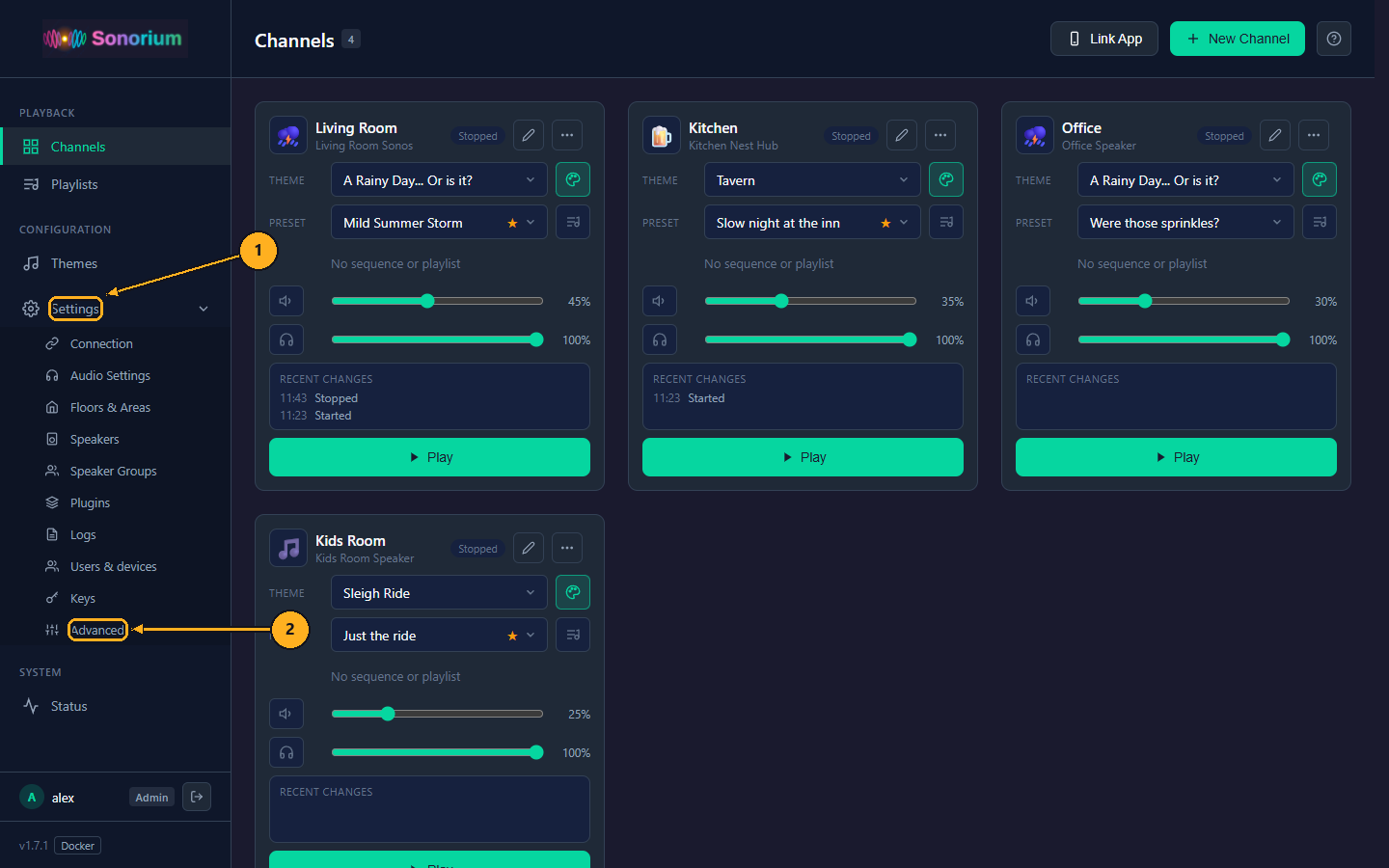
1: On the Channels page, click Settings in the menu on the left. The menu opens to show the settings pages.
2: Click Advanced.
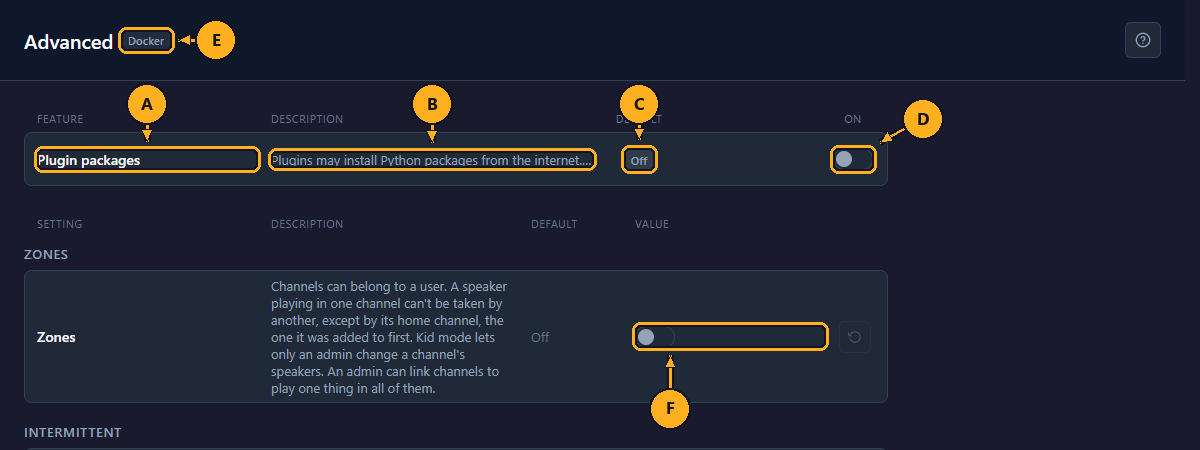
- A: Feature: each feature is explained in the table below.
- B: Description: hover over a shortened description to read all of it.
- C: Default: the setting Sonorium comes with (Off for every feature listed here).
- D: On: the change is saved at once and takes effect after a restart (Zones takes effect at once).
- E: Install badge: the install type: HA App or Docker. The features listed depend on it.
- F: Zones: a switch in the values part of the page, added by the Users plugin (below).
| Feature | What it does | Default | Listed on | Restart needed |
|---|---|---|---|---|
| Network speakers | Sonorium searches your network for Google Cast, Sonos, DLNA, AirPlay, LinkPlay and HEOS speakers, and you can add speakers by their address, outside Home Assistant. The Speakers page gains Rescan network, Add speaker and the Discovered and Manual filters. See Speakers. | Off | Home Assistant app (the Docker version always has it) | Yes |
| Plugin packages | Plugins may install the Python packages they list. Packages are downloaded from the internet (PyPI) and run with the same rights as Sonorium: allow it only for plugins you trust. While it is off, a plugin that needs packages doesn't load, and the log says which packages it asked for and Switch on Plugin packages in Settings › Advanced to let plugins install them. | Off | Every install | Yes |
| Zones | Channels can belong to a user, a speaker playing in one channel can't be taken by another (except by its home channel), Kid mode, and linked channels. See Zones. | Off | Every install while the Users plugin is on | No: it takes effect at once |
The Zones row has a back-to-default arrow like the values below; it switches Zones off.
1: On the Channels page, click Settings in the menu on the left.
2: Click Advanced.
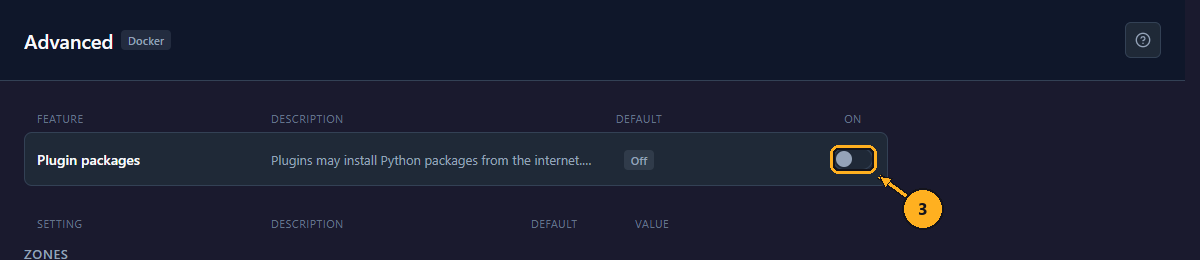
3: Click the feature's On switch.
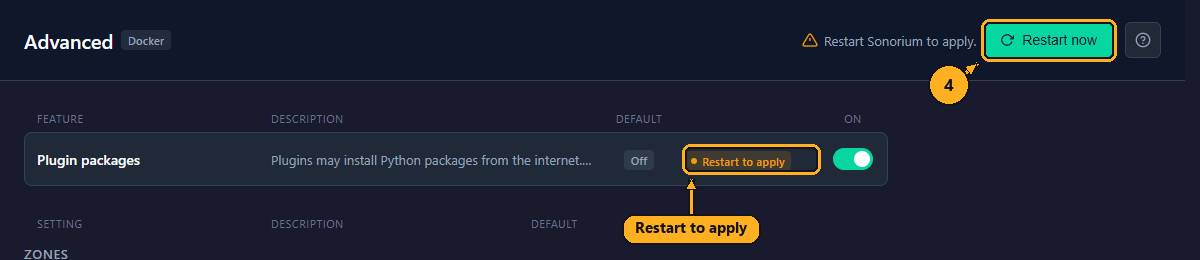
The row shows Restart to apply, and the top bar shows Restart Sonorium to apply. with a Restart now button.
4: Click Restart now.
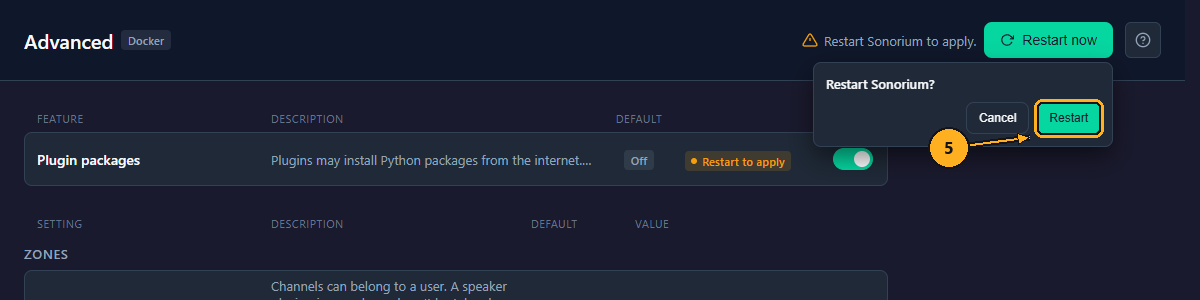
5: Click Restart to confirm, or Cancel to restart later.
The top bar shows Restarting…. Sonorium stops and starts again; playing channels stop and need Play again. The page reloads once Sonorium answers. The log records the change, for example Advanced settings changed: {'plugin_packages': True}.
Switching a feature back before restarting removes Restart to apply and the Restart now button: nothing needs a restart then. To switch a feature off later, do the same steps with the switch on.
The values are listed in sections: Intermittent, Background, Fades, Ebb & Flow, New themes and Announcements and sounds. Sections from built-in plugins (such as Zones) come first.
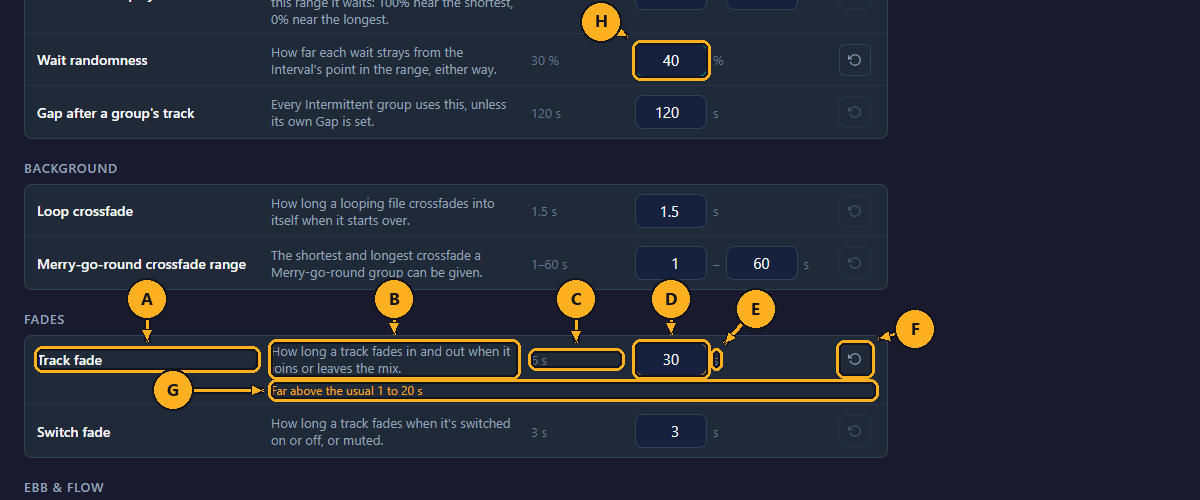
- A: Setting: each value is explained in the tables below.
- B: Description: a short summary; the tables below give the usual range and examples.
- C: Default: the value Sonorium comes with.
- D: Value: the value in use. Type a new number and press the Enter key or click elsewhere: it is saved at once, and playing channels follow it. A range has two boxes, shortest and longest.
- E: Unit: s (seconds), % or dB.
- F: Back to the default: can't be clicked while the value is the default.
- G: Amber line: the value is far outside the usual range, for example Far above the usual 1 to 20 s. It is allowed and saved, but it may not sound right. A few values add what may happen, such as a loop may click where it starts over.
- H: Green box: a value changed from the default.
What the boxes accept:
- A number of 0 or more. Decimals are fine (
0.5). - A % value up to 100.
- In a range, the shortest can't be above the longest.
- An empty box goes back to the default.
A box that breaks one of these rules is marked as an error and is not saved.
| Setting | Default | Usual range | What it changes |
|---|---|---|---|
| Wait between plays | 180–1800 s | 30–7200 s | The shortest and longest wait between plays of an Intermittent track. A track's Interval slider picks a point in this range: 100% waits close to the shortest, 0% close to the longest, 50% halfway. |
| Wait randomness | 30 % | 0–60 % | How far each wait strays from the Interval's point, either way. At 30%, a 10-minute wait can be anything from 7 to 13 minutes. |
| Gap after a group's track | 120 s | 10–1800 s | The quiet time after a track in an Intermittent group, for every group that doesn't set its own Gap. |
| Setting | Default | Usual range | What it changes |
|---|---|---|---|
| Loop crossfade | 1.5 s | 0.5–5 s | How long a looping file crossfades into itself when it starts over. Below 0.5 s a loop may click where it starts over. |
| Merry-go-round crossfade range | 1–60 s | 0.5–120 s | The shortest and longest crossfade a Merry-go-round group's Crossfade can be set to. |
| Setting | Default | Usual range | What it changes |
|---|---|---|---|
| Track fade | 6 s | 1–20 s | How long a track fades in and out when it joins or leaves the mix. |
| Switch fade | 3 s | 0.5–10 s | How long a track fades when it's switched on or off, or muted. |
| Setting | Default | Usual range | What it changes |
|---|---|---|---|
| Long pause chance | 12 % | 0–50 % | How often a pause lasts 2 to 4 times longer than usual, so the pauses don't sound regular. |
| Turn chance | 35 % | 5–80 % | How often a rise or fall changes direction partway. |
| Setting | Default | Usual range | What it changes |
|---|---|---|---|
| Short file threshold | 15 s | 3–60 s | Files shorter than this start as Intermittent in a new theme; longer files start as Background. A theme can set its own. |
An announcement, alert or sound effect plays over a channel like a voice over a shop's background music: the channel's mix gets quieter ("ducks"), the sound plays, and the mix comes back. A stopped channel is started for an announcement and stopped after it. See Announcements.
| Setting | Default | Usual range | What it changes |
|---|---|---|---|
| Longest sound | 60 s | 5–600 s | Announcements and sounds longer than this are cut. 0 is no limit. |
| Duck amount | 15 dB | 6–30 dB | How much quieter the channel gets while a sound plays over it, unless the sound sets its own. |
| Duck attack | 0.5 s | 0.1–3 s | How long the channel takes to get quieter. The sound starts once it has. |
| Duck release | 1.5 s | 0.2–5 s | How long the channel takes to come back after the sound. |
| Wait for speakers | 20 s | 5–60 s | For a stopped channel: the longest wait for its speakers to connect before the announcement plays. |
| Lead | 1 s | 0–5 s | Then this long before the announcement plays. |
| Tail | 1 s | 0–5 s | After it, this long before the speakers stop. |
Values are saved as you change them, and the mixer reads them as it goes. A playing channel follows a change at once where it can, otherwise from the next time the track plays, waits or loops. For example, a new Wait between plays applies from each Intermittent track's next wait. Short file threshold applies to themes made after the change.
The log records each change, for example Settings: playback values changed: {'track_fade': 30}.
Birds call too often in every forest theme. Instead of moving the Interval slider of every bird track, raise the longest Wait between plays from 1800 to 2700 seconds. Every Intermittent track now waits longer at the same slider position, in every theme. A track at 50% Interval used to wait about 16 minutes (halfway between 3 and 30); it now waits about 24 minutes (halfway between 3 and 45).
Announcements are hard to hear over the rain. Raise Duck amount from 15 to 22 dB, so the channel drops further under the voice. If the mix drops too suddenly, raise Duck attack from 0.5 to 1.5 seconds.
The stream URL is the address speakers are given to fetch a channel's sound from Sonorium, like the address on a parcel: a speaker that can't reach it stays silent while Sonorium thinks it plays. Each channel's stream is this address plus /stream/channel and the channel number, for example http://192.168.1.100:8008/stream/channel1. Port 8008 is the port Sonorium's web UI and streams use.
It is on Settings › Advanced, in the Network section at the bottom, in the Docker version. The Home Assistant app sets it on the app's Configuration tab instead (sonorium__stream_url, below).
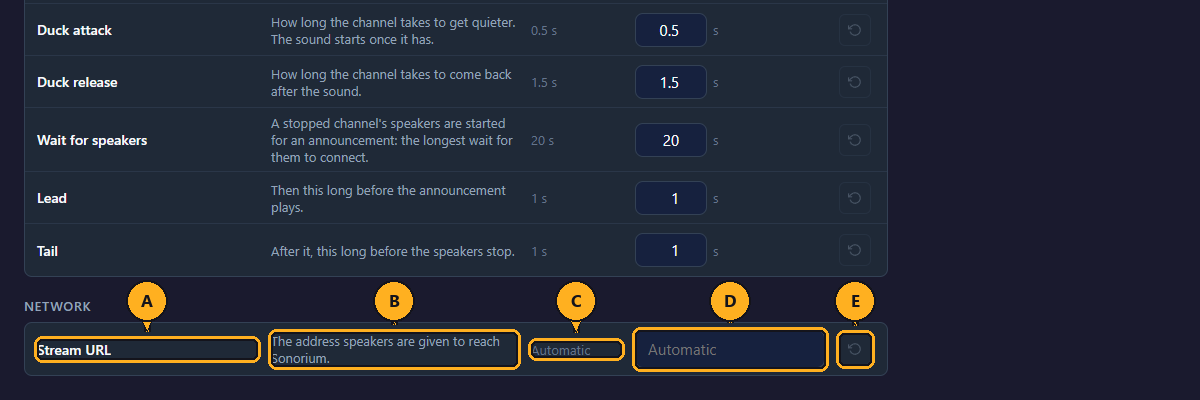
- A: Setting: Stream URL.
- B: Description: the address speakers are given to reach Sonorium.
- C: Default: Automatic.
- D: Value: empty (showing Automatic), or the address you typed.
- E: Back to the default: goes back to Automatic. It restarts Sonorium too, after you confirm.
-
Automatic: Sonorium works out its IP address on your network and uses
http://<that address>:8008. This works when the Docker container usesnetwork_mode: host. -
A typed address: use it when Automatic picks the wrong address: a container without host networking (Automatic would get the container's internal address), a host with several network cards, or a port other than 8008 published for the container. Type
http://, the address the speakers can reach, and the port, for examplehttp://192.168.1.100:8008. Use an IP address rather than a name: many speakers can't look up names such ashomeassistant.localorsonorium.local.
1: On the Channels page, click Settings in the menu on the left.
2: Click Advanced, and scroll to Network at the bottom.
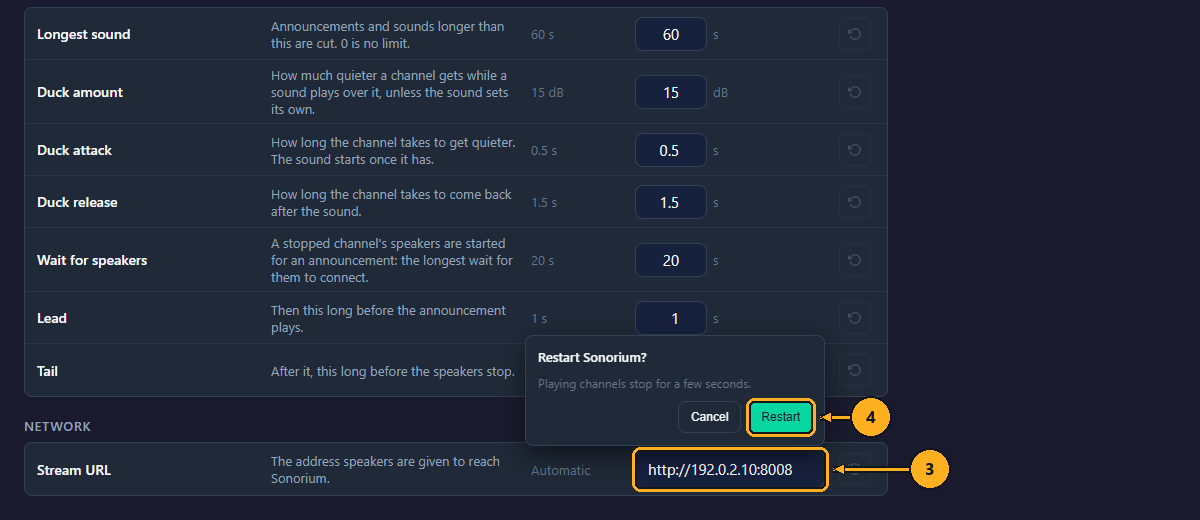
3: Click the Stream URL box, type the address, and press the Enter key. A question opens: Restart Sonorium? Playing channels stop for a few seconds.
4: Click Restart to confirm, or Cancel to keep the old address. Channels that were playing are stopped by the restart; press Play to start them again.
A message says Restarting Sonorium..., and the page reloads once Sonorium is back. Start the channels again with Play. An address that doesn't start with http:// or https:// marks the box as an error, with the message Must start with http:// or https://, and nothing is saved.
To check the result, play a channel and listen. A channel whose speakers never fetch the stream stops after about 90 seconds, with the log line no listener has pulled audio for 91s, stopping its session.
- In Home Assistant, open Settings › Add-ons › Sonorium, then the Configuration tab.
- Set
sonorium__stream_url. The default,auto, uses the address the Supervisor reports for your Home Assistant, with port 8008. An address withhomeassistant.localin it has that part replaced by the IP address. - Click Save, and restart the add-on (Info tab › Restart).
The Home Assistant app has no Network section on Settings › Advanced.
See Speaker troubleshooting when a speaker stays silent.