Repository navigation
Zones
Zones decide who may change which channel, and which channel a speaker plays for. Think of each channel as a room's radio: a room can belong to someone, a child's room can have house rules and quiet hours, each radio has the room it belongs in, and the house can put every radio on the same station for dinner.
Zones come from the Users plugin (see Sign-in and Users) and are off until an Admin turns them on. While they are off, every channel is open to everyone who may play channels, as described on Roles. Turning them off again keeps the owners, Kid mode settings and homes for the next time.
Zones have four parts:
- Channel owners: a channel can belong to one user.
- Kid mode and its hours: a channel's speakers are locked, and it plays only between set times.
- Speaker homes: a speaker plays for one channel at a time, and its home channel can take it back.
- Linked channels: an Admin links channels to play one theme or playlist in all of them.
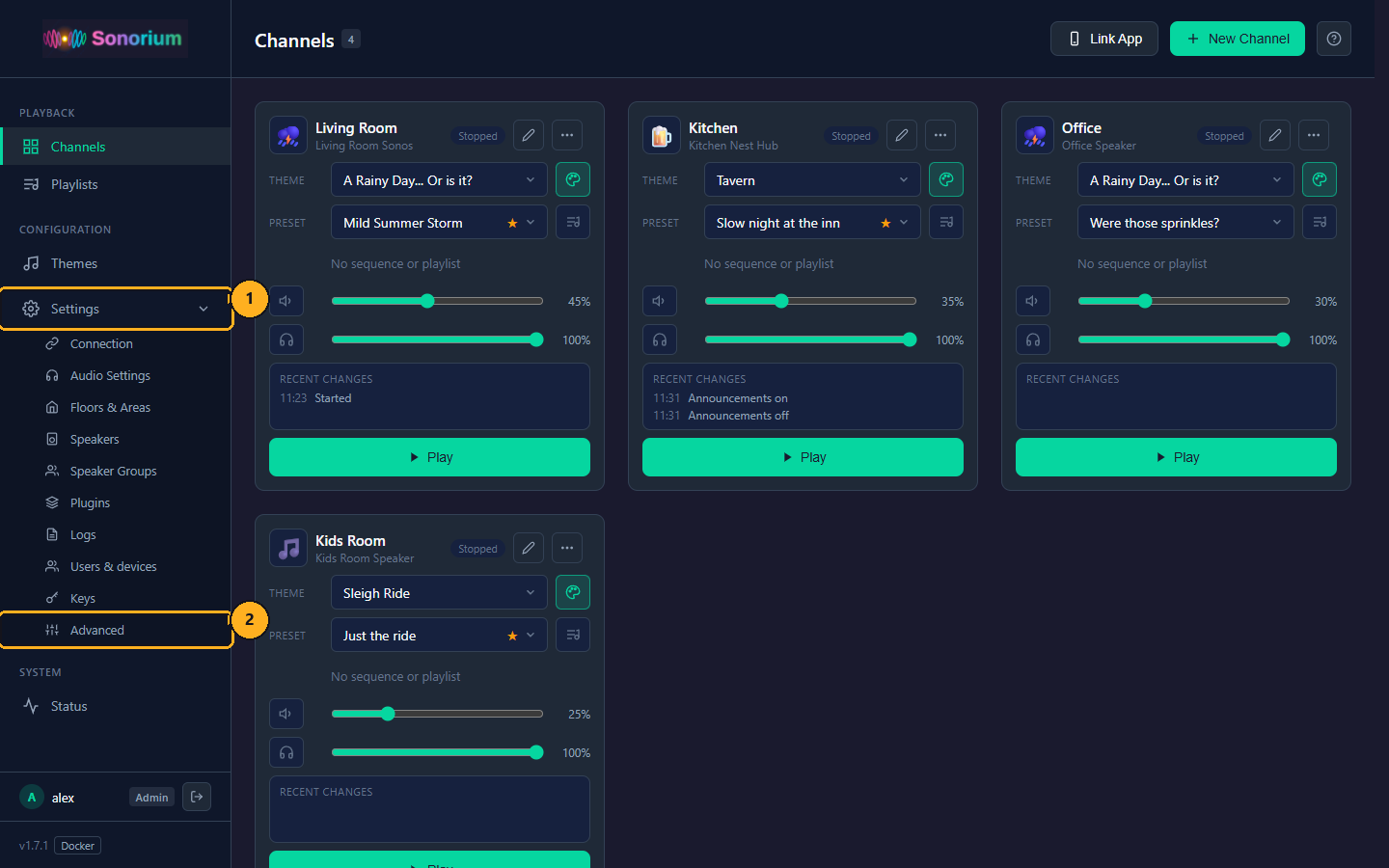
1: On the Channels page, click Settings in the menu on the left. The menu opens to show the settings pages.
2: Click Advanced.
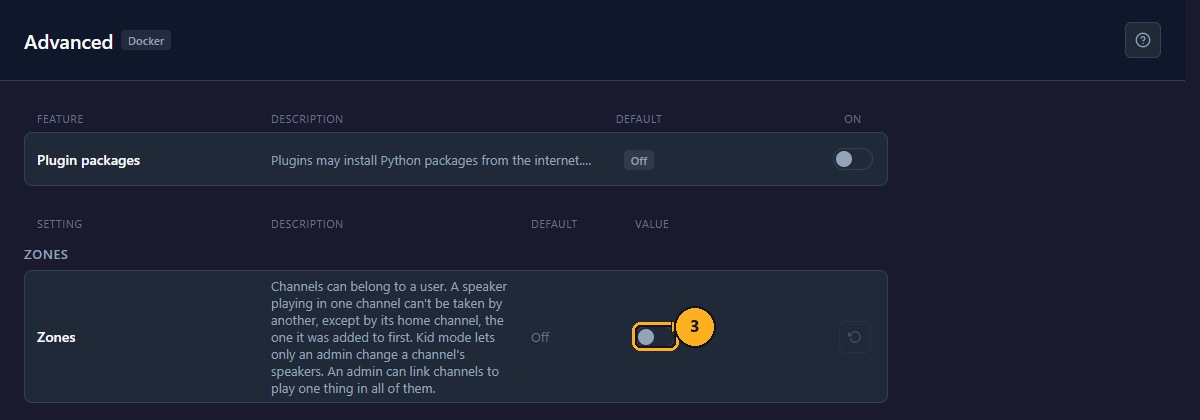
3: Click the Zones switch in the Zones section at the top of the values. Its default is Off.
Zones are on at once; there is nothing to save. The log records Zones are on. The reset button at the end of the row turns them off again. Only an Admin sees this row.
With Zones on, the channel editor gets an Owner field and a Kid mode switch, the Channels page gets a Link channels button (for Admins), and the user's ⋯ menu on Users & devices gets Can leave a link.
Admins are never held back by Zones. The same goes for everything that acts for the house rather than for one person:
- Home Assistant and MQTT (see MQTT Entities),
- plugins and Sonorium's timers,
- keys,
- a visitor while Require login is off and nobody is signed in.
Announcements are in this list too: an announcement plays on a channel that belongs to someone else and during Kid mode's quiet hours (outside its hours). A channel's Announcements switch is the way to keep them out (see Announcements).
A channel with an owner belongs to that user. Only the owner and the Admins can change it: play and stop it, change its theme, preset, volume and speakers, mute it, and delete it. Other users can still see it.
A channel without an owner (No one) is open: everyone who may play channels can change it. Channels that existed before Zones were turned on start without an owner.
A user who tries to change someone else's channel gets "Kids Room belongs to sam." and nothing changes. When a user is removed, their channels have no owner from then on.
This example gives the Kids Room channel to sam, locks its speakers, and lets it play from 07:00 to 19:30.
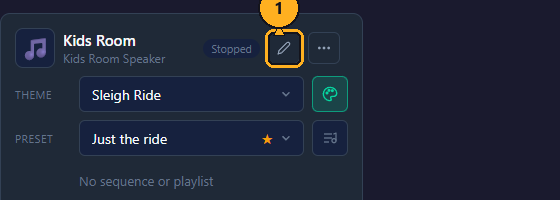
1: On the Channels page, click the pencil (Edit) on the channel's card. The Edit Channel window opens.
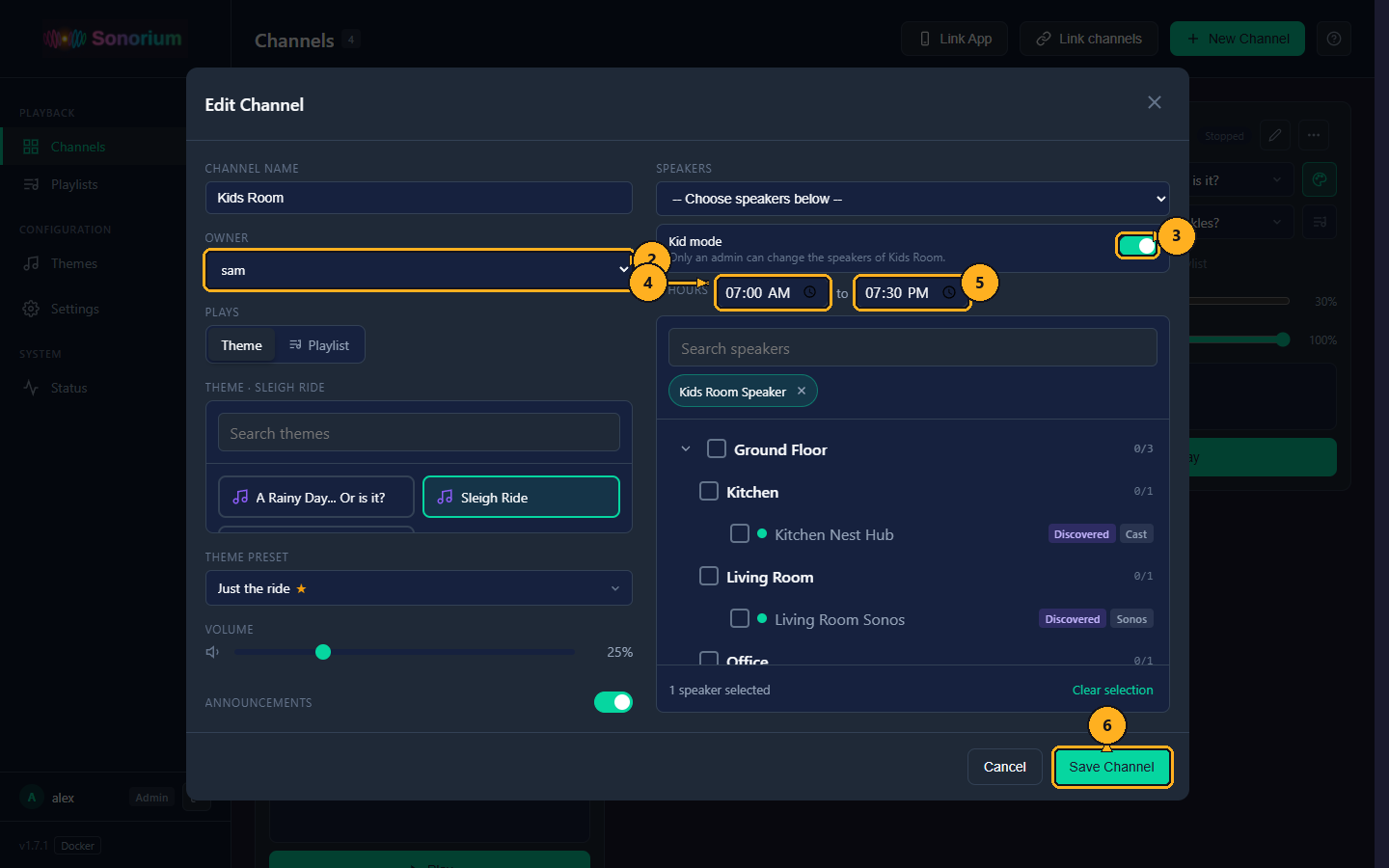
2: In Owner, pick the user. No one makes the channel open again.
3: Click the Kid mode switch to turn it on. The Hours fields appear below it.
4: In the first Hours field, type or pick the time the channel may start playing.
5: In the second field (after "to"), type or pick the time it must stop. A time earlier than the first runs over midnight (20:00 to 07:00 is a night).
6: Click Save Channel.
The Owner field and the Kid mode switch are an Admin's. A User sees the Owner field and the Kid mode settings but can't change them; on a channel without an owner or Kid mode, nothing extra shows. The card's line under the channel name adds "Kid mode" and the owner's name.
Kid mode locks the channel's speakers: only an Admin can change which speakers it plays on ("Only an admin can change the speakers of Kids Room."). The owner can still play and stop it, and change its theme, preset and volume.
Hours (optional, only with Kid mode on) are the times the channel may play. Leave both fields empty for no time limit. Outside the hours:
- the owner (and any other User) can't start the channel or change its theme, preset, volume or mute: Sonorium answers "Kids Room plays from 07:00 to 19:30.",
- stopping always works,
- an Admin can still play it, and announcements still play on it.
At the end of the hours, what a User started fades out over 30 seconds and stops. What an Admin (or Home Assistant, a timer, a key) started keeps playing. Sonorium checks the hours every 20 seconds, so the fade starts within 20 seconds of the end time. The log records Zones: Kids Room's hours ended, fading out what sam started.
Both times are needed: with only one field filled, no hours are saved and the channel has no time limit. The two times must differ ("Hours need a start and an end, like 07:00 and 20:00."). The hours use the time of the machine Sonorium runs on (in Docker, the TZ setting of the compose file).
A speaker can be in several channels, but it plays for one channel at a time. While a channel plays, it holds its speakers; another channel that has the same speaker plays on its other speakers.
- In use: in the channel editor, a speaker that another playing channel holds shows "In use by channel", and its box can't be checked. A User who tries anyway gets "Living Room Sonos is in use by Living Room."
- Home: a speaker's home is the channel it was added to first. The home can take the speaker back even while another channel plays it; that channel keeps playing on the rest of its speakers. In the editor of a channel that isn't the home, the speaker shows "Home: channel · channel can take it back".
- When the home channel is deleted, the next channel that has the speaker becomes its home.
- An Admin's channel takes any speaker it has when it starts, home or not.
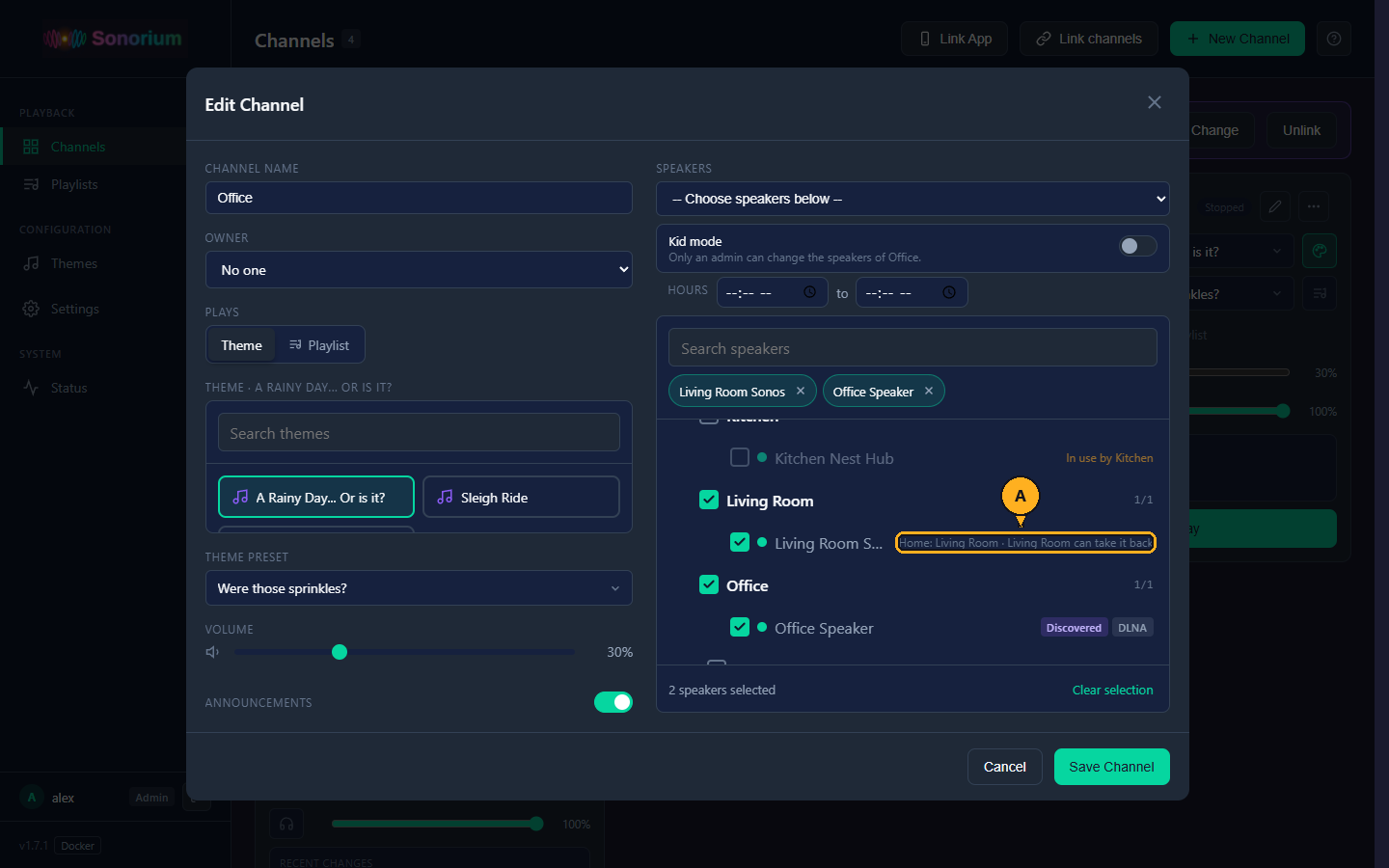
- A: in the Office channel's editor: Living Room Sonos is in Office too, but its home is Living Room, which can take it back.
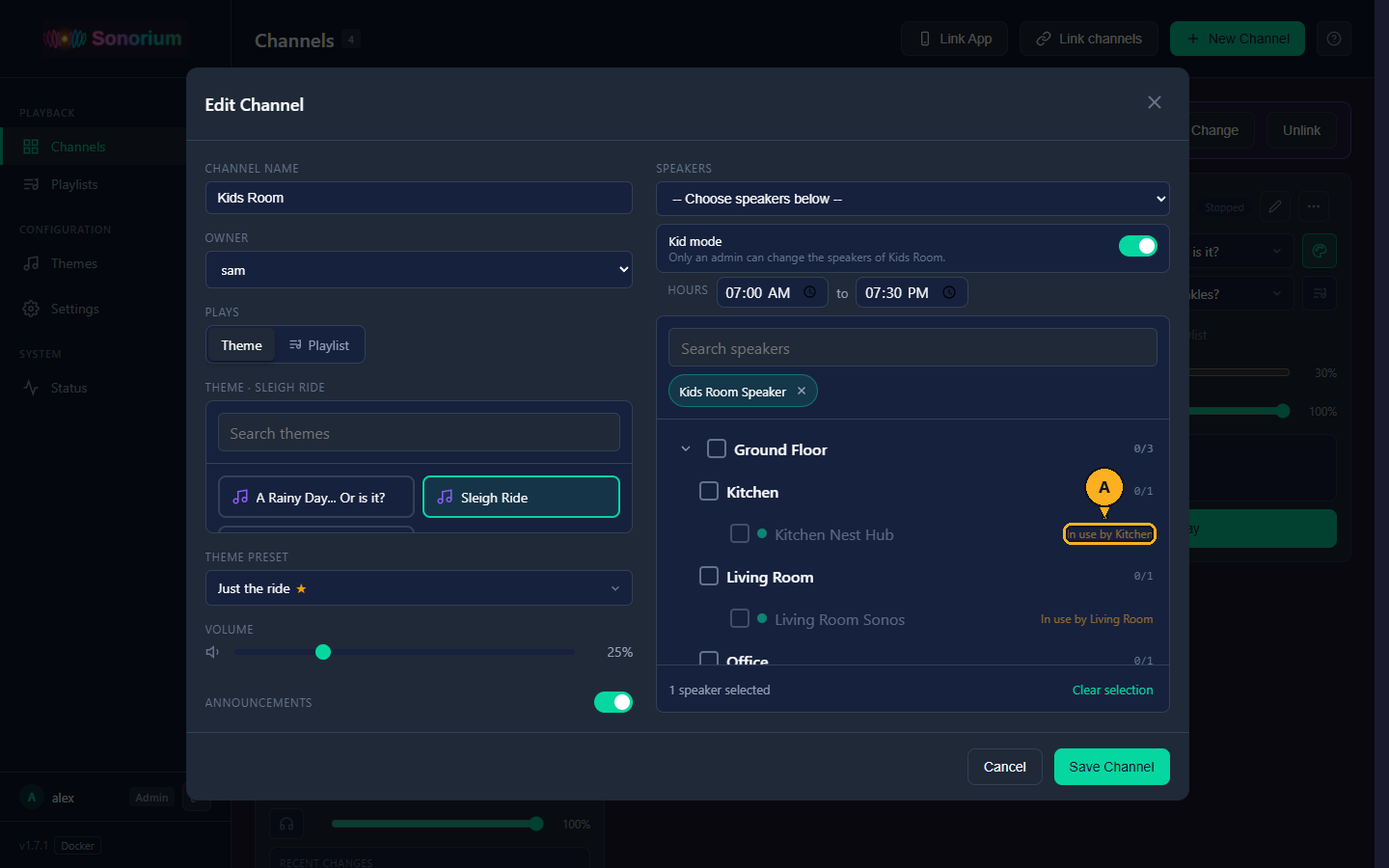
- A: in the Kids Room channel's editor: Kitchen Nest Hub plays for Kitchen right now, so Kids Room can't add it.
The web UI has no control to choose another home; an Admin can do it through the API (PUT /api/zones/homes/{speaker_id}, see API Reference).
An Admin can link two or more channels to play one theme and preset, or one playlist, in all of them: the house on one station for dinner. Each channel keeps its volume and speakers. A channel can be in one link at a time.
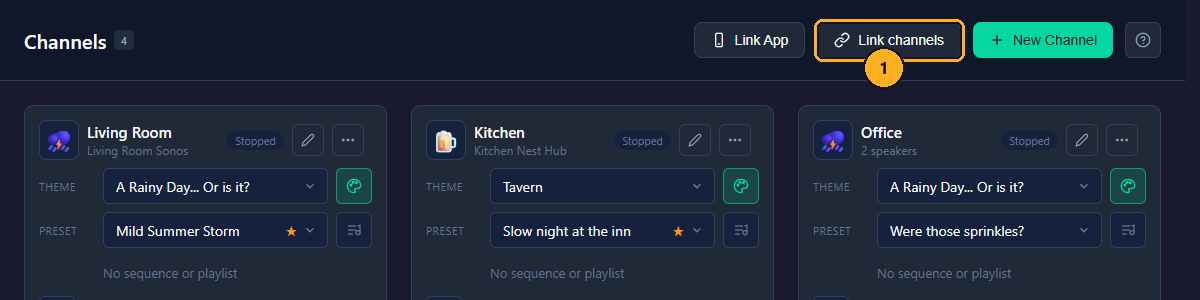
1: On the Channels page, click Link channels in the top right. The Link channels window opens. (Only Admins see the button, and only with Zones on.)
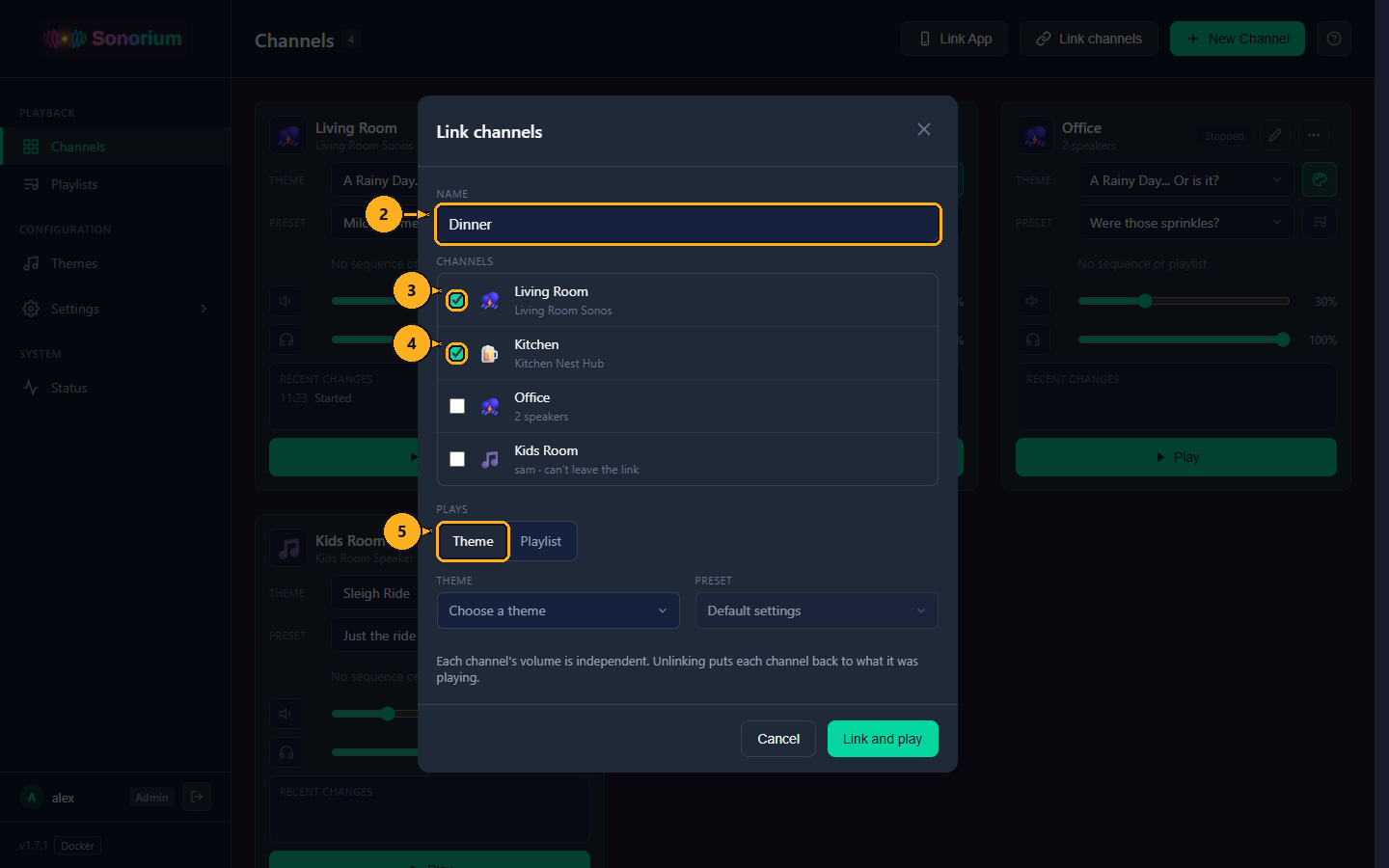
2: Type a name for the link, up to 40 characters, for example "Dinner".
3: Check the first channel.
4: Check the next channel, and any more. A channel already in another link can't be checked and shows "Linked · name". Under a channel with an owner, the list says whether that user can leave the link.
5: Under Plays, keep Theme (or click Playlist to play a playlist instead).
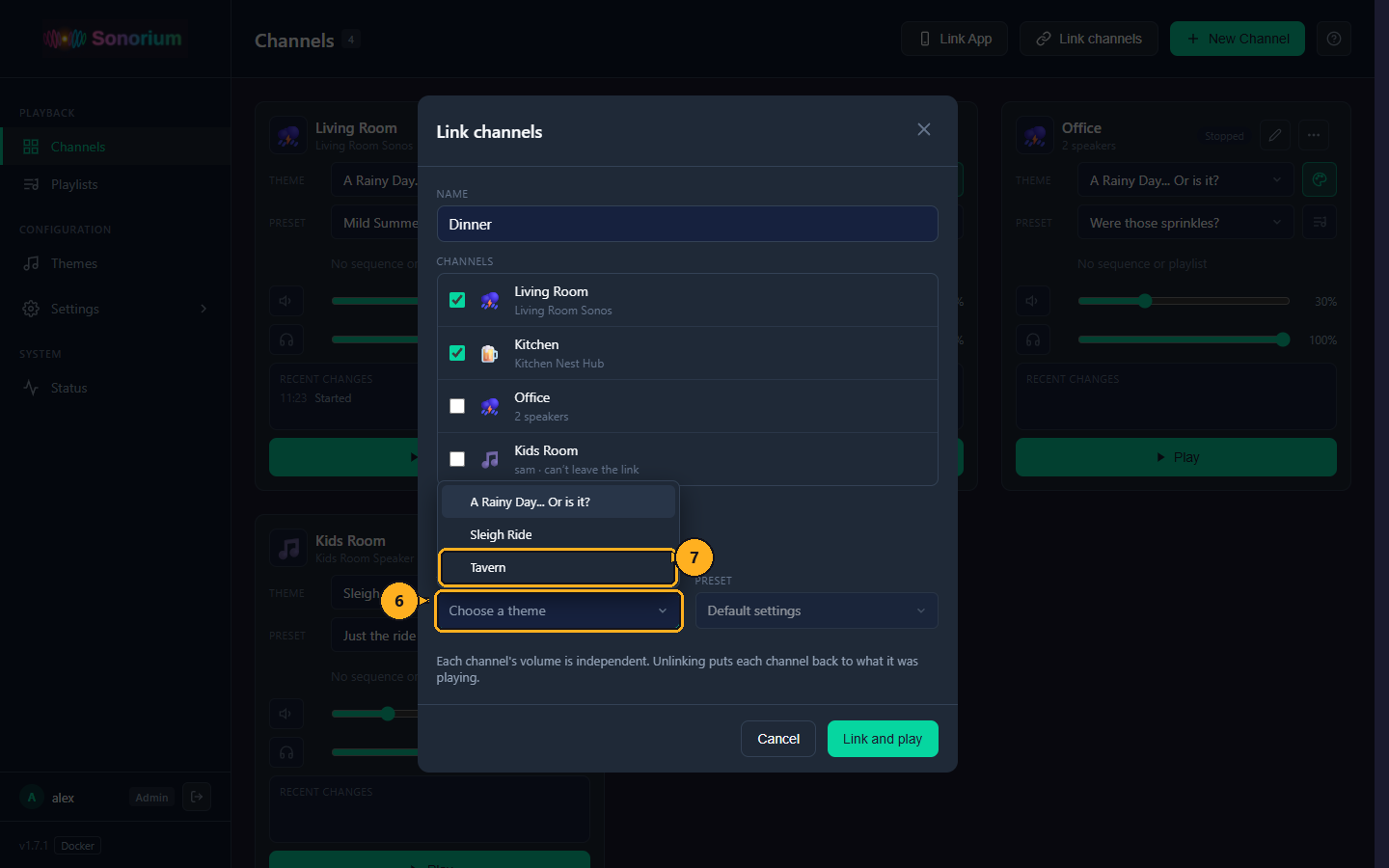
6: Click Theme's field. The list of themes opens.
7: Click the theme.
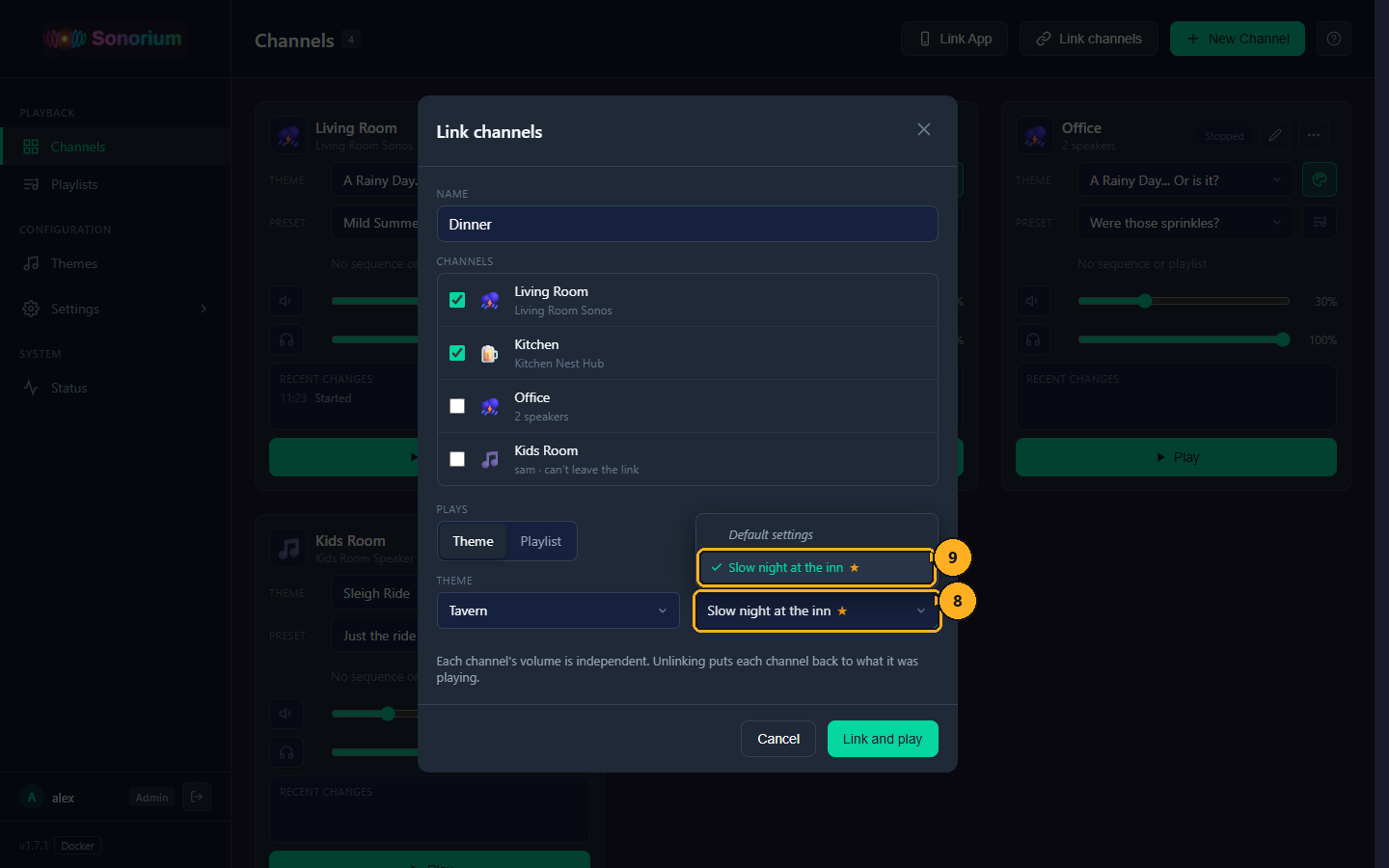
8: Click Preset's field. It starts at the theme's default preset (marked with a star). The list opens.
9: Click the preset, or Default settings.
With Playlist, a single Playlist field replaces Theme and Preset.
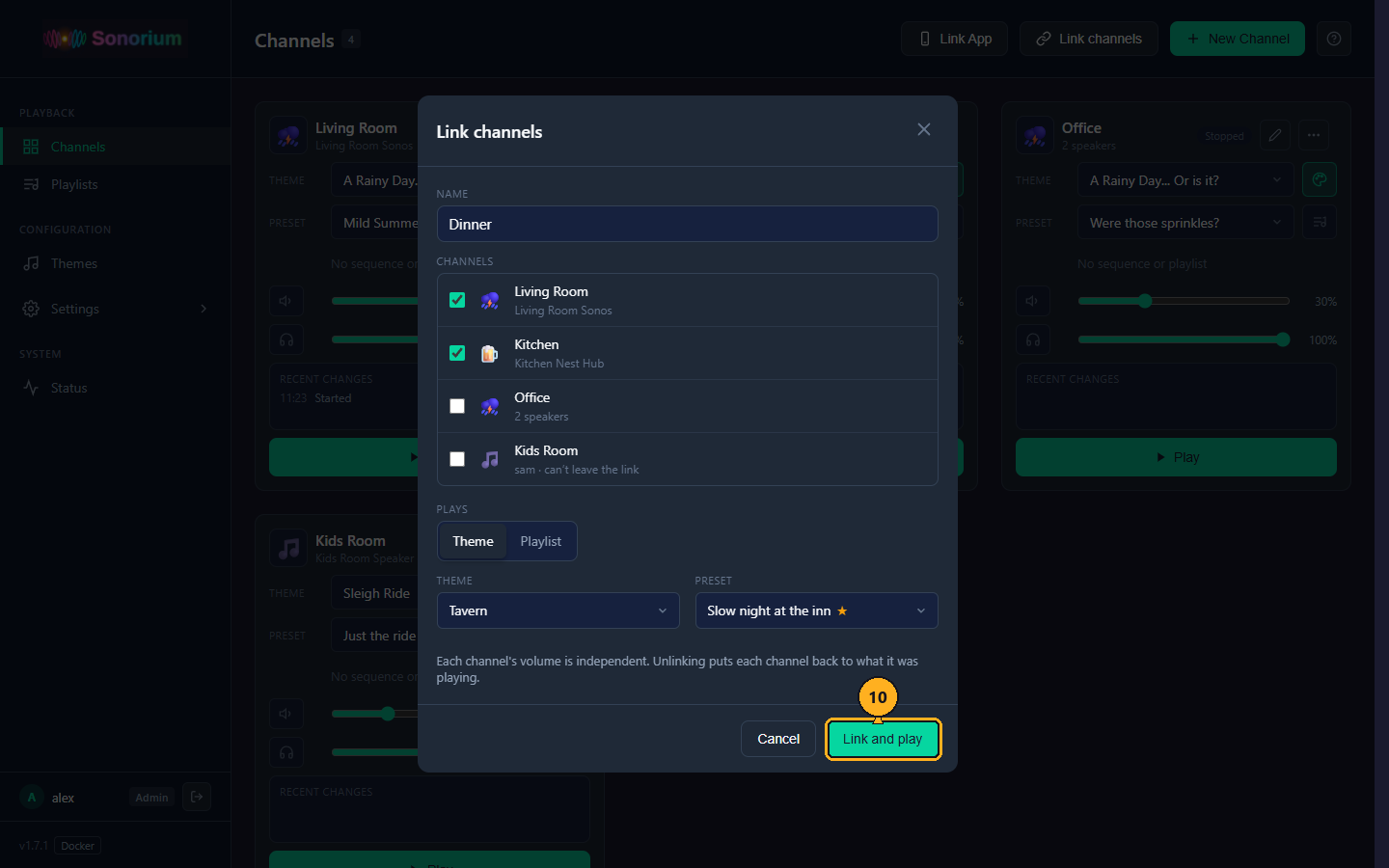
10: Click Link and play.
Every channel in the link switches to the theme and preset (or playlist) and starts playing, each at its volume. Sonorium remembers what each channel played before, and whether it was playing. If something is missing, the window says why and stays open: "Give the link a name.", "Choose at least two channels.", "Choose a theme or a playlist.".
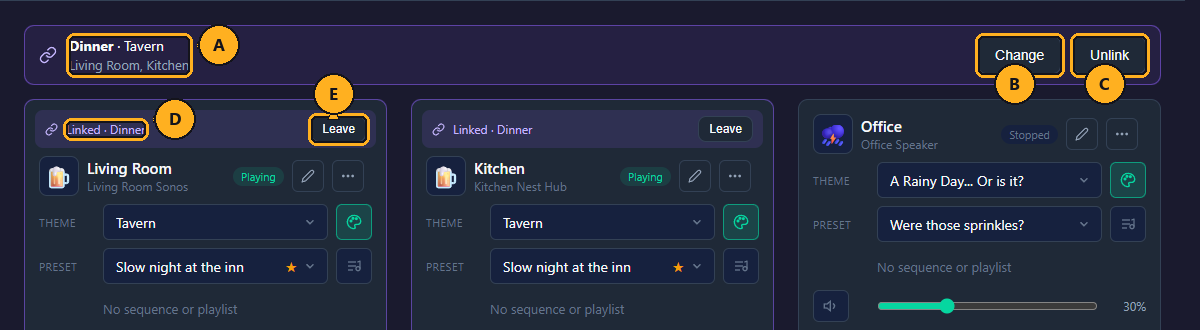
- A: the link's bar above the channel cards: its name and what it plays, and below that the channels in it (and which ones left).
- B: Change: opens the Link channels window with the link's settings, to change its name, channels or what it plays. Link and play saves; the channels play the new choice.
- C: Unlink: ends the link. Each channel goes back to what it played before, and a channel that was stopped before stops again.
- D: the channel's card shows "Linked · name".
- E: Leave: takes this channel out of the link (below).
While a channel is linked, a User can't change its theme or preset ("Kitchen is linked: Dinner."); its volume can still be changed. Change and Unlink are shown to Admins only.
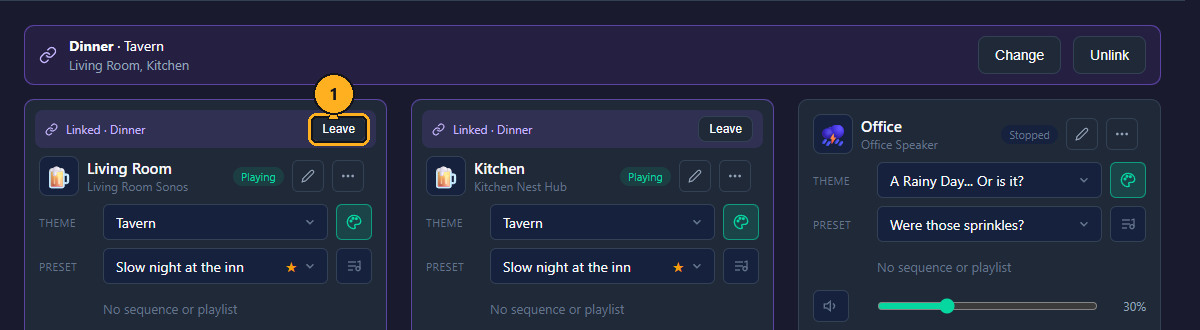
1: On the channel's card, click Leave.
The channel goes back to what it played before the link (and stops if it was stopped). The rest of the link plays on.
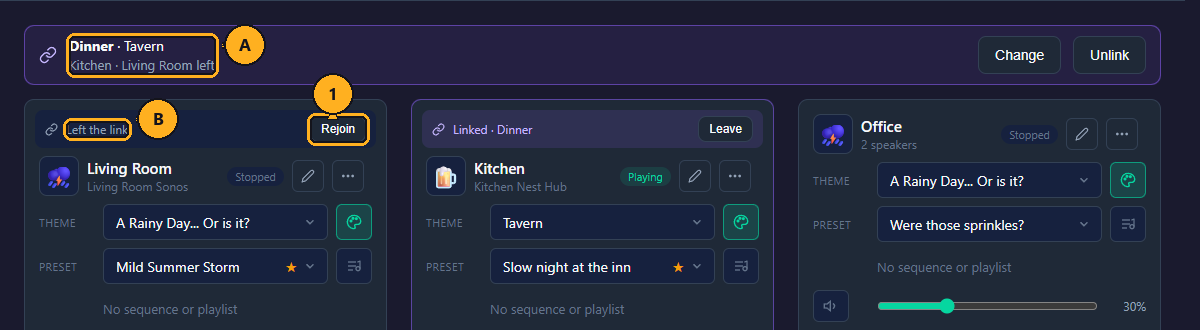
- A: the link's bar lists the channel as left ("Living Room left").
- B: the card shows "Left the link".
1: Click Rejoin to bring the channel back into the link. It plays what the link plays again.
An Admin may always take a channel out of a link and bring it back, for any channel. A User sees Leave and Rejoin only on a channel they own, and only when an Admin has turned on Can leave a link for them; otherwise Sonorium answers "Only an admin can take this channel out of the link."
How to let a user leave a link:
1: On the Channels page, click Settings in the menu on the left.
2: Click Users & devices (see How to open Users & devices).
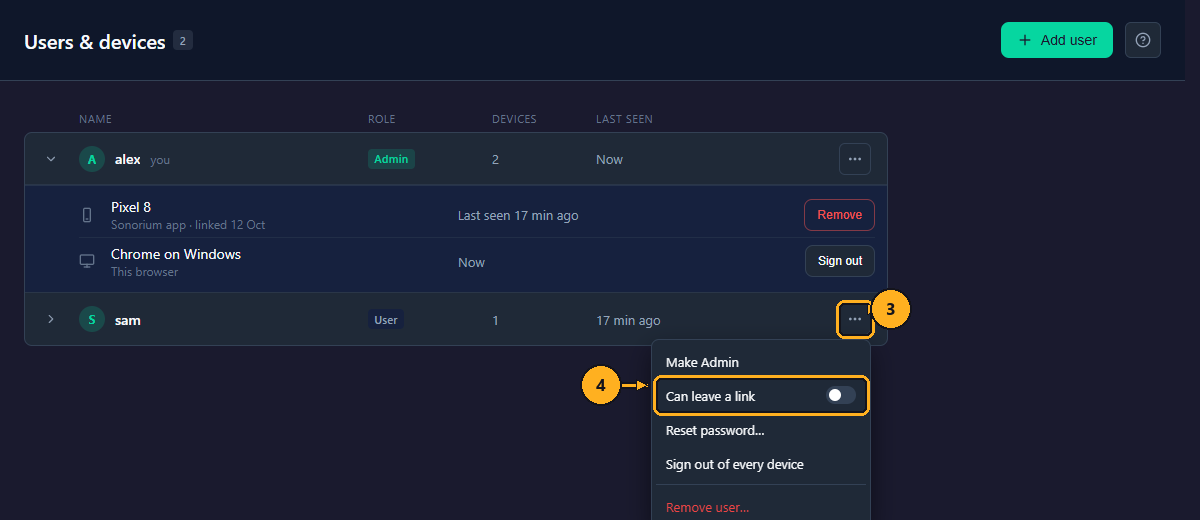
3: Click ⋯ on the user's row.
4: Click Can leave a link. Its switch turns on; click it again to turn it off.
Can leave a link shows only while Zones are on. It can't be changed (and is always on) for Admins.