Repository navigation
Channels
A channel is one stream of sound sent to a set of speakers. Think of it as a radio station you run yourself: you pick what it plays (a theme, or a playlist of themes) and which speakers tune in to it. Several channels can play at the same time, each with something different, for example rain in the office and a tavern in the kitchen.
Sonorium opens on the Channels page. Every how-to in this wiki starts there.
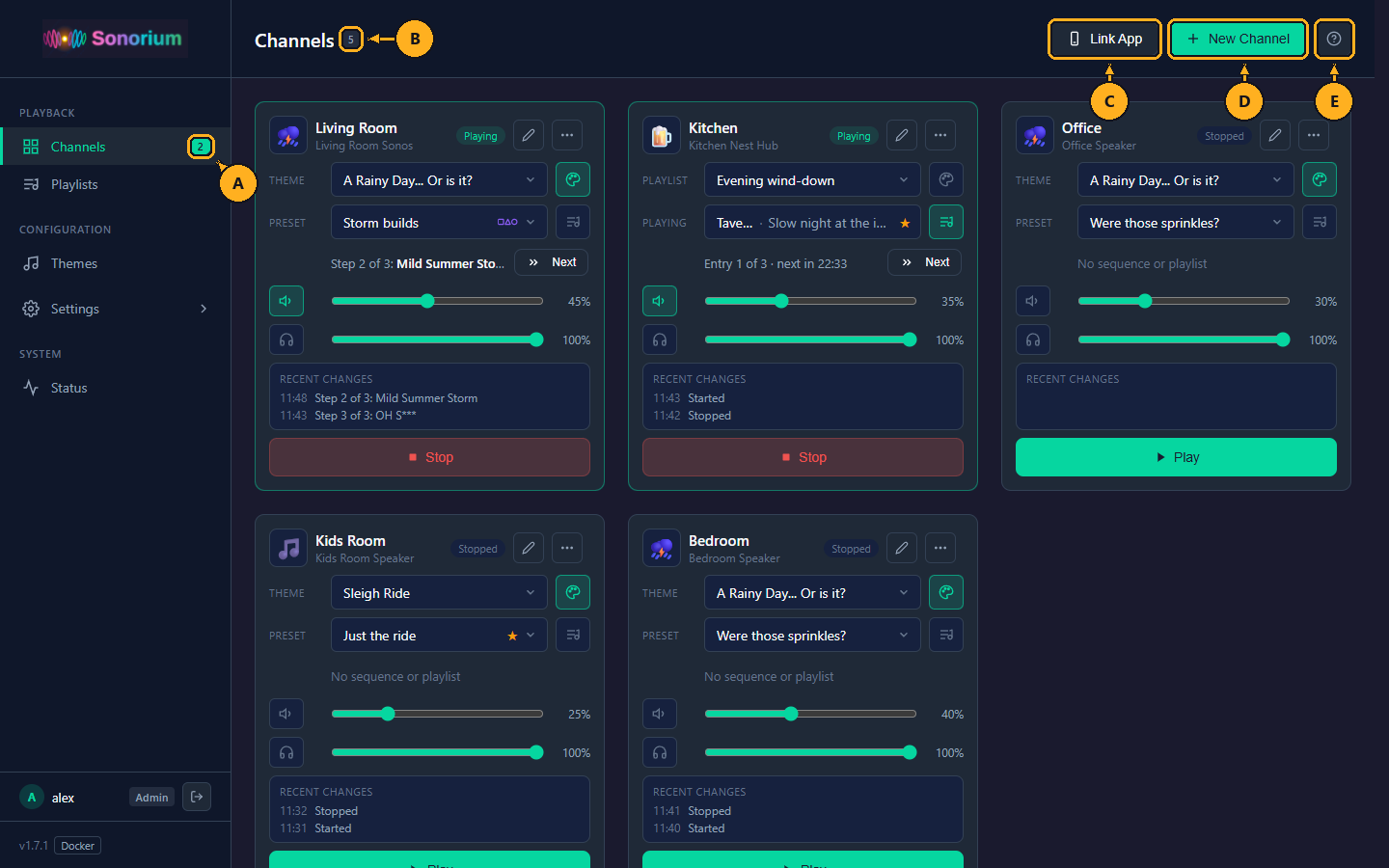
- A: Playing count: the number next to Channels in the menu on the left is how many channels are playing. It is hidden while none are.
- B: Channel count: how many channels exist.
- C: Link App: links a phone running the Sonorium app to your account with a QR code. See Link App.
- D: New Channel: makes a channel (see How to make a channel).
- E: ?: opens the help for this page. Press the Esc key to close it.
Each card on the page is one channel.
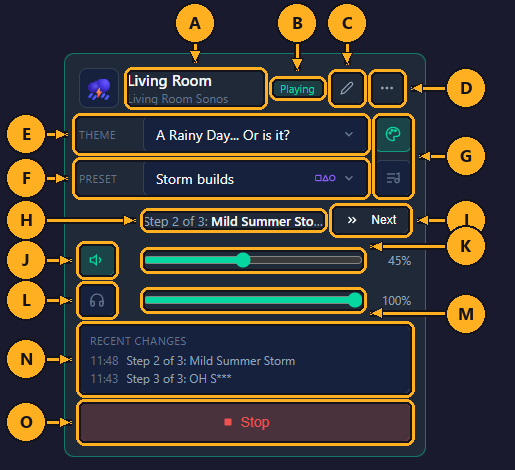
- A: Name and speakers: the channel's name, and under it the speakers it plays on.
- B: Status: Playing or Stopped.
- C: Edit: opens the Edit Channel window (see How to edit a channel).
- D: ⋯: more options. It holds Delete… (see How to delete a channel).
- E: Theme: the theme the channel plays. Picking another theme also picks that theme's default preset, if it has one.
- F: Preset: the preset of the theme. Default settings plays the theme without a preset. The theme's sequences are listed after its presets.
- G: Theme or playlist: the palette button plays a theme (the card shows Theme and Preset); the playlist button plays a playlist (the card shows Playlist and Playing). The lit button is the one in use.
- H: Now: the sequence step or playlist entry playing, and the time until the next one starts, counting down every second. Without a sequence or playlist it reads "No sequence or playlist".
- I: Next: skips to the next sequence step or playlist entry. It works while the channel plays or while a browser listens to it.
- J: Speaker button: mutes the speakers. It shows a crossed-out speaker while they are muted. The channel keeps playing and a browser listening keeps hearing it; speakers can take a few seconds to go quiet. Click it again to unmute.
- K: Volume: the volume of the channel's speakers, from 0% to 100%. Sonorium sends it to the speakers when you let go of the slider, and keeps it for the next time the channel plays.
- L: Headphones button: plays the channel in this browser (see Listen in your browser).
- M: Volume on this device: the browser's volume while it listens, from 0% to 100% (100% at first). It doesn't change the speakers.
- N: Recent changes: the channel's latest changes with their times: Started, Stopped, Speakers muted, Speakers unmuted, Announcements on or off, Theme, Preset, a sequence step ("Step 2 of 3: Mild Summer Storm") and a playlist entry ("Entry 1 of 3: Tavern"). A change from today shows its time, from yesterday "Yesterday" and the time, older ones the date. The last 20 changes are kept.
- O: Play / Stop: starts or stops the speakers.
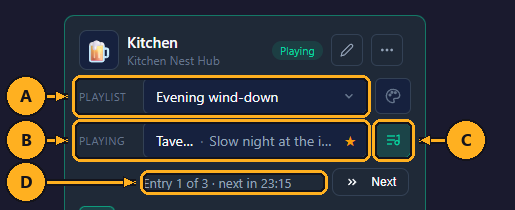
- A: Playlist: opens the list of playlists to pick another.
- B: Playing: the theme, and the preset or sequence, of the entry playing now. It can't be changed here; Next moves on.
- C: Playlist button: lit while the channel plays a playlist. Click the palette button next to it to go back to one theme: the playlist stops and the channel keeps the theme it is on.
- D: Now: the entry playing ("Entry 1 of 3") and the time until the next one.
Playlists are made on the Playlists page; see Sequences and Playlists.
When a phone casts a channel from the Sonorium app, the card also shows a strip above Theme with the device and the phone, and a Stop casting button.
With Zones in use, cards and the channel window also show the channel's zone; see that page.
Sonorium lists only speakers that are turned on. If the speaker you want isn't in the list, turn it on first: see Speakers. Offline speakers are left out of the list too.
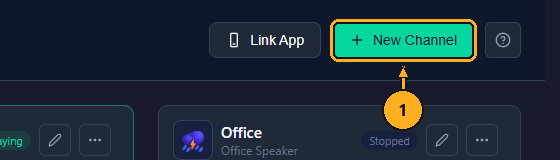
1: On the Channels page, click New Channel. The New Channel window opens.
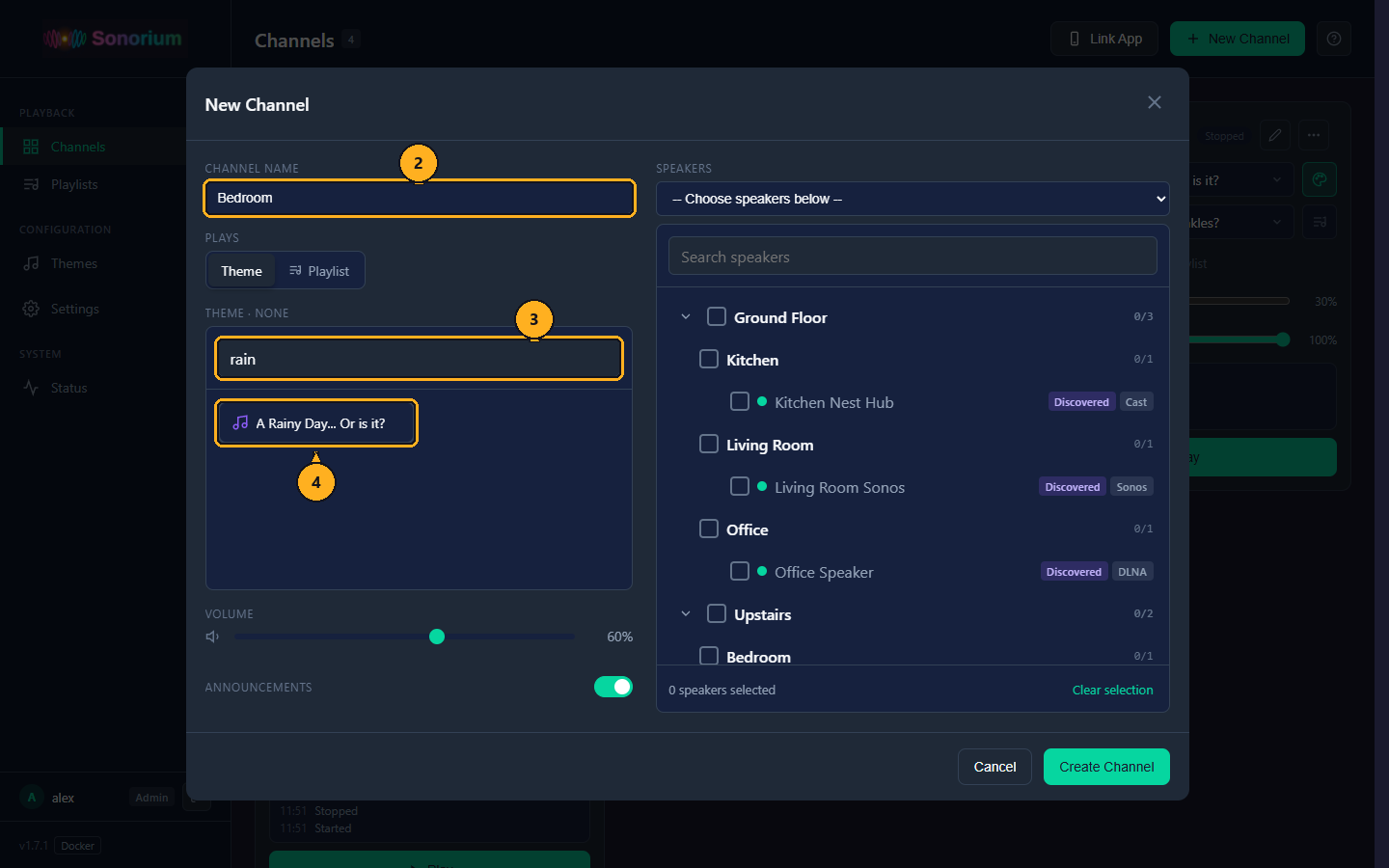
2: Click the Channel Name box and type a name, for example "Bedroom". If you leave it empty, Sonorium names the channel "Channel" and the lowest free number, for example "Channel 1".
Under Plays, Theme is already selected. To play a playlist instead, click Playlist and choose the playlist in the Playlist box that appears; the theme list and Theme Preset are then hidden, and you go on at step 7.
3: Click the Search themes box and type part of the theme's name, for example "rain". The list shows only the themes whose names contain it.
4: Click the theme, here A Rainy Day... Or is it?. Its name appears next to Theme, and the Theme Preset box appears under the list.
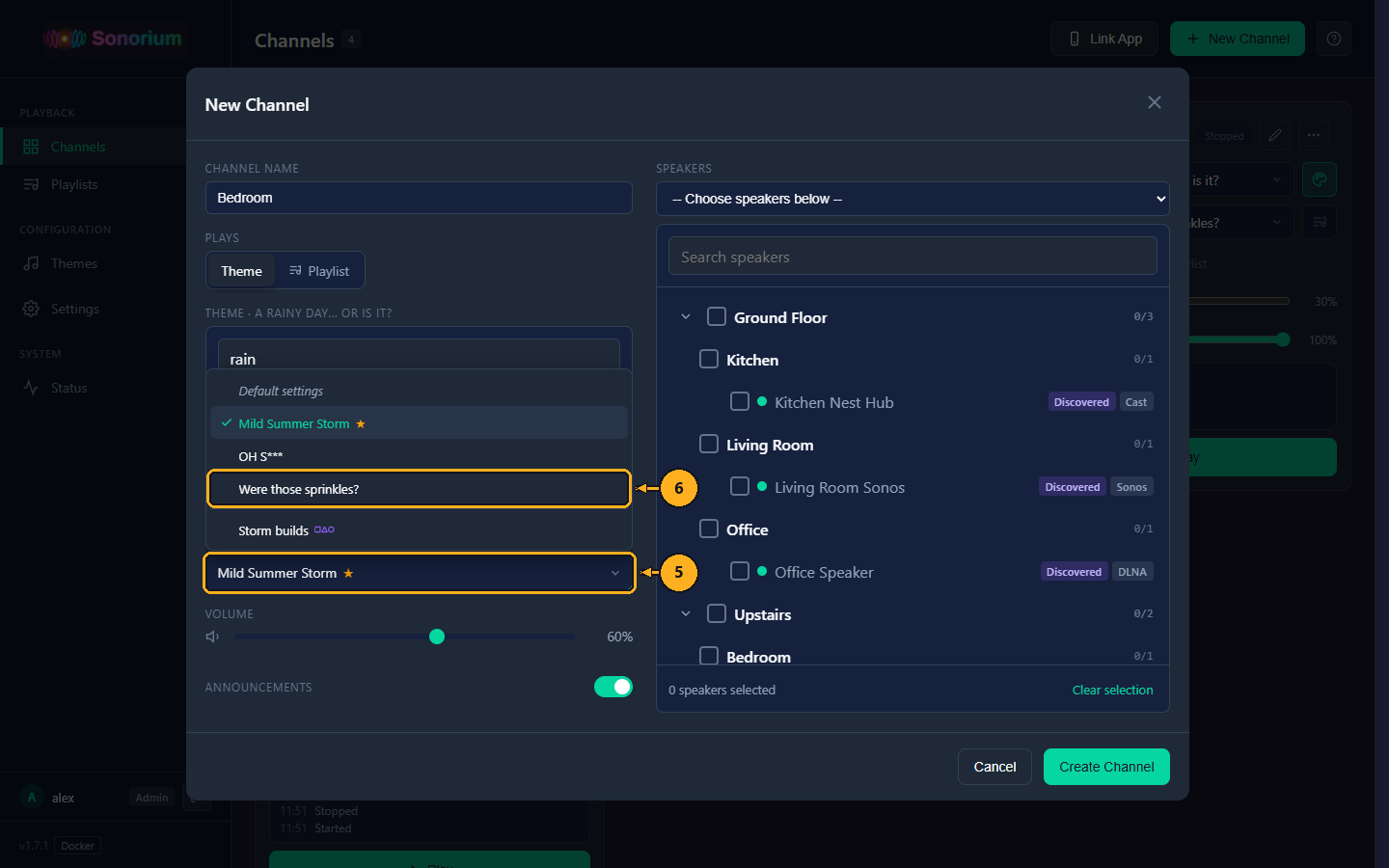
A preset is a saved mix of the theme's tracks, for example the same storm with the thunder turned off. When you pick a theme, Sonorium already chooses its default preset, the one marked with a ★.
5: Click the Theme Preset box. The list of the theme's choices opens:
- Default settings plays the theme as it was made in the Theme Editor, without a preset.
- The theme's presets follow. The ★ marks the default preset.
- After a line come the theme's sequences, marked with the sequence icon (a square, a triangle and a circle), such as Storm builds. A sequence plays several presets of the theme one after another. See Sequences and Playlists.
- A preset with the intrusion mark turns on intrusion tracks (see Presets).
6: Click the preset to play, here Were those sprinkles?. To keep the default preset, skip this step. A theme without presets shows No presets yet and plays its default settings.
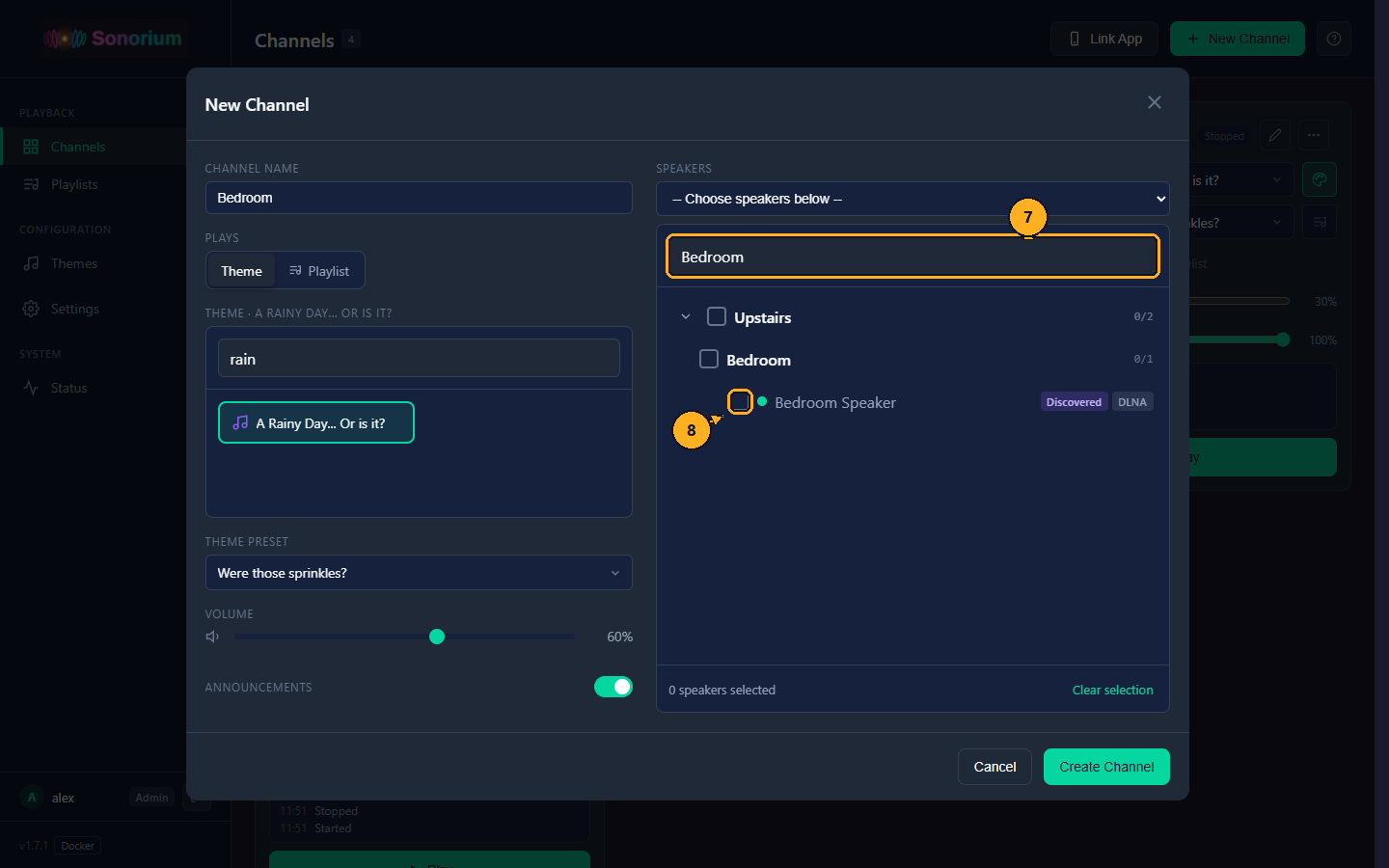
The speaker list is grouped by floor and area (Home Assistant's floors and areas, or the ones set up in Sonorium; see Speakers). Each speaker shows a dot when it is online, and badges for where it came from and how Sonorium talks to it.
7: Click the Search speakers box and type part of the speaker's name, for example "Bedroom". The list shows only matching speakers.
8: Tick the box next to the speaker, here Bedroom Speaker.
The speaker shows as a tag under the search box, and the bottom of the list reads "1 speaker selected". Other ways to choose speakers:
- A whole floor or area: tick the floor or area. Every speaker in it is selected, and a speaker added to that floor or area later is included. A floor or area with only some of its speakers selected shows a dash in its box; the numbers on the right ("1/2") count selected and total speakers.
- Several speakers: tick more boxes.
- A speaker group: the box above the list (-- Choose speakers below --) lists your speaker groups. Choosing one hides the list and plays on the group's speakers. It shows only when a speaker group exists; see Speakers.
- Remove a speaker: untick it, or click the × on its tag. Clear selection removes them all.
- The arrow left of a floor folds it up. This browser remembers which floors are folded.
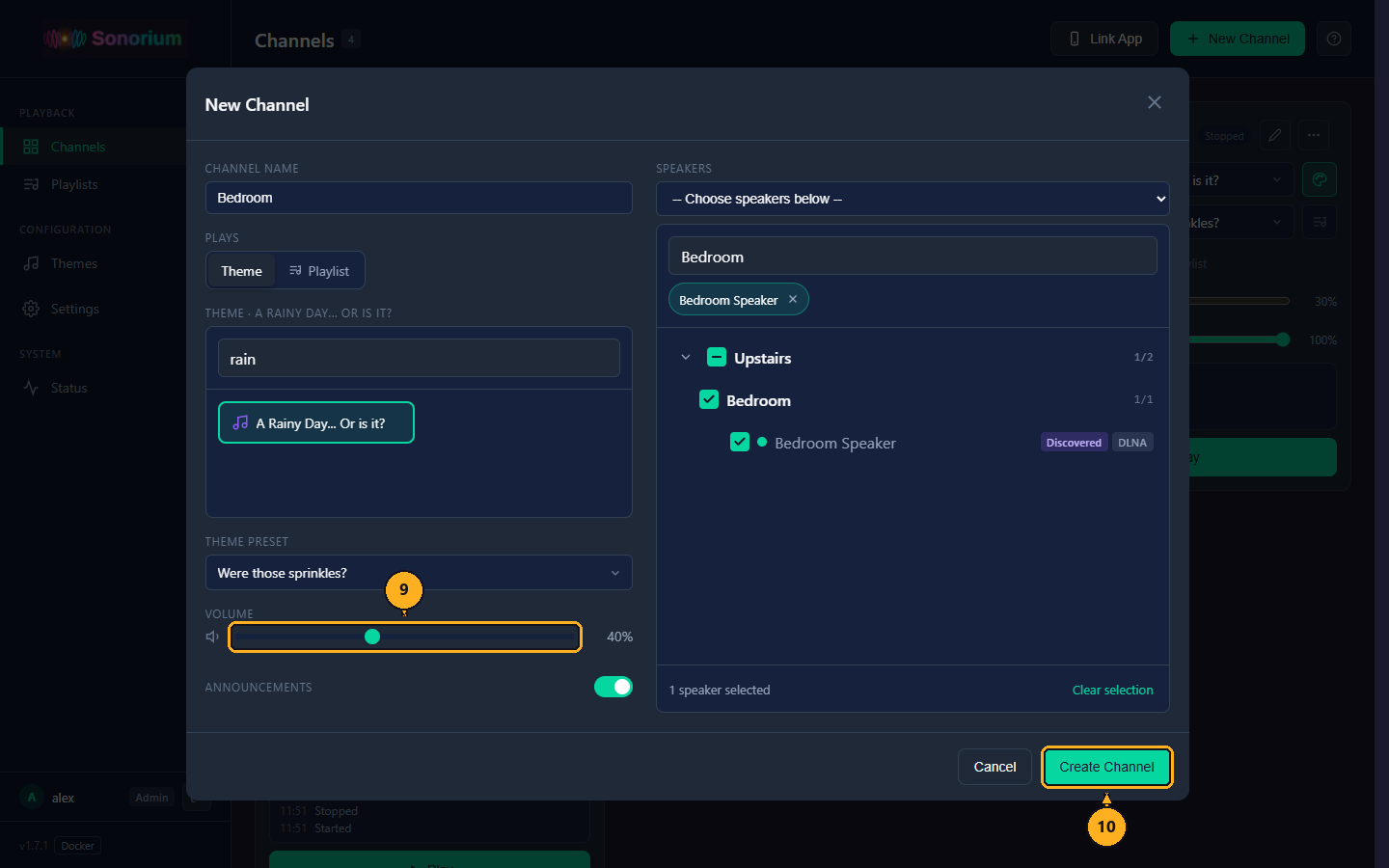
9: Drag the Volume slider to the volume the speakers should play at, here 40%. It starts at 60%. You can change it on the card later.
The Announcements switch is on for a new channel: announcements sent to this channel are heard on its speakers. Turn it off for a channel that should never be interrupted, for example a bedroom at night. See Announcements.
10: Click Create Channel. The window closes, a "Channel created" message appears, and the new channel is added to the page, stopped.
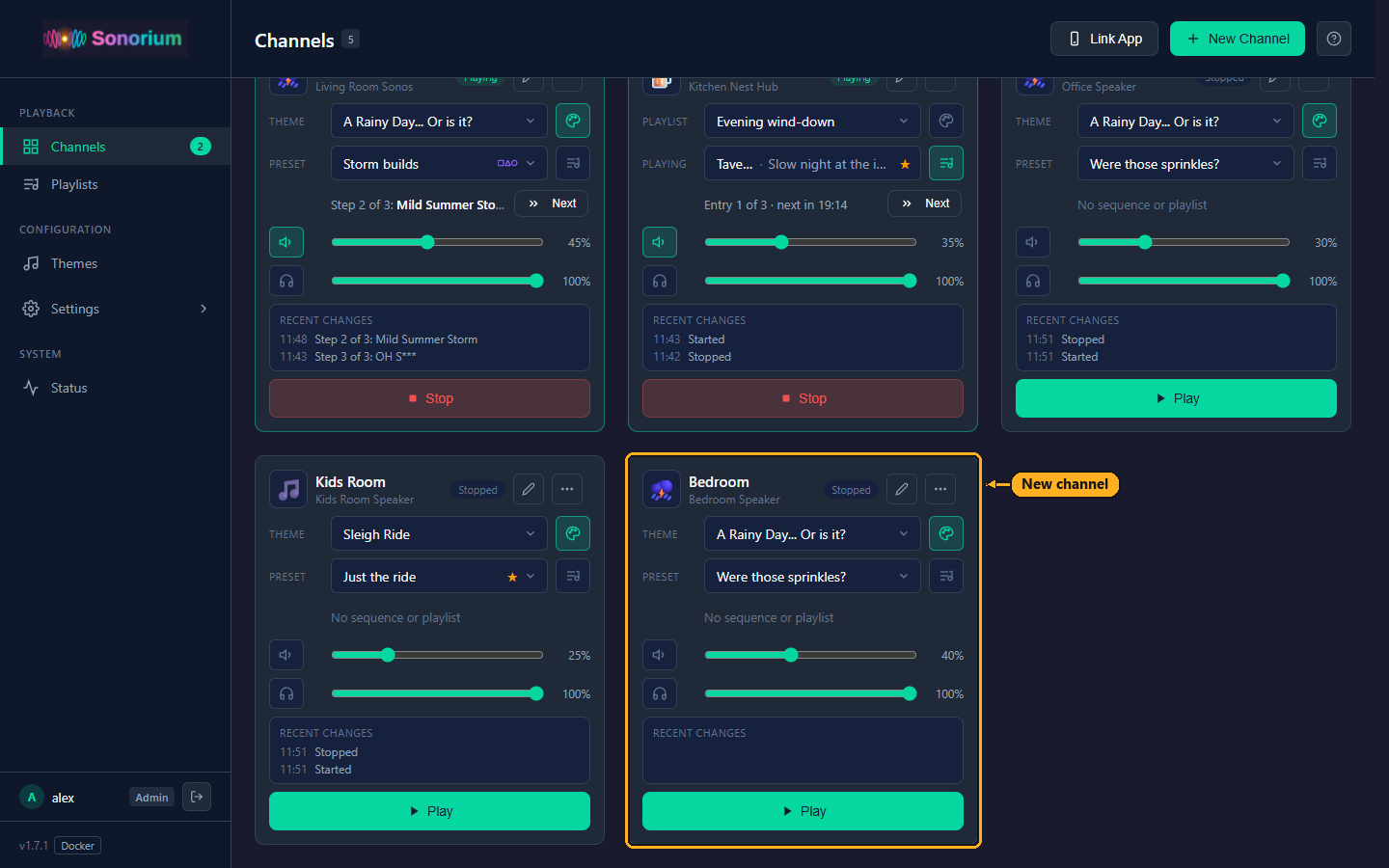
To start it, see How to play and stop a channel.
Cancel or the × closes the window without making the channel; so does a click outside the window.
Keyboard: in the Theme Preset box, press the Down arrow, Up arrow, Enter or Space key to open the list. In the list, the Up arrow and Down arrow keys move, Home and End jump to the first and last choice, Enter or Space picks the highlighted choice, and Esc or Tab closes the list. The speaker boxes tick and untick with the Space key; press Tab to move between them.
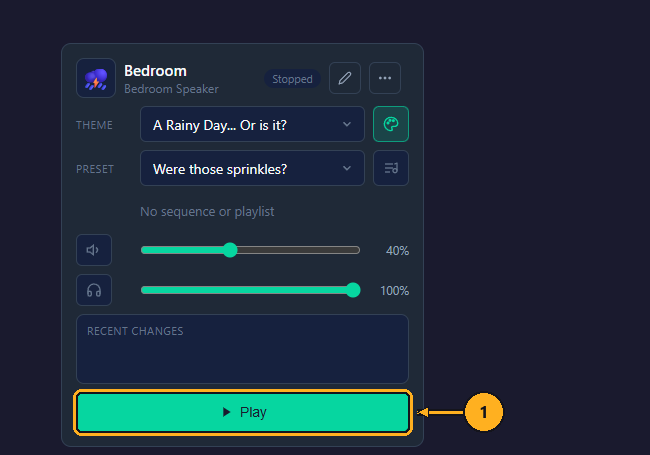
1: On the channel's card, click Play.
Sonorium sends the stream to the channel's speakers and sets them to the channel's volume. The sound fades in over the Crossfade time (3 seconds out of the box; see Audio Settings), and the speakers start a few seconds later, depending on how much they buffer. The status turns to Playing, the button to Stop, Started is added to Recent changes, and the playing count in the menu goes up by one. A sequence starts from its first step.
If the channel has no theme, Sonorium shows "No theme selected"; if none of its speakers can be found, "No speakers selected". Nothing plays in either case.
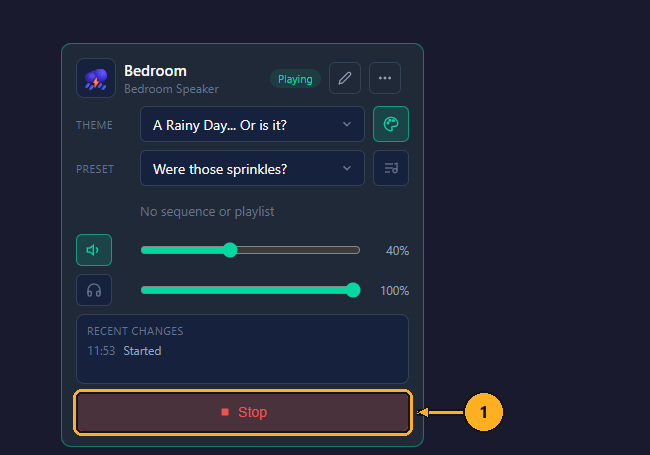
To stop the channel:
1: Click Stop.
The sound fades out over the Crossfade time, then the speakers stop. Stopped is added to Recent changes. A browser listening to the channel keeps playing; see Listen in your browser.
Channels are stopped after Sonorium restarts. The log (see Troubleshooting) shows how many of the channel's speakers started, for example 'Bedroom': 1/1 speakers started.
The fields on the card change the channel straight away, also while it plays. A playing channel crossfades from the old sound to the new one over the Crossfade time.
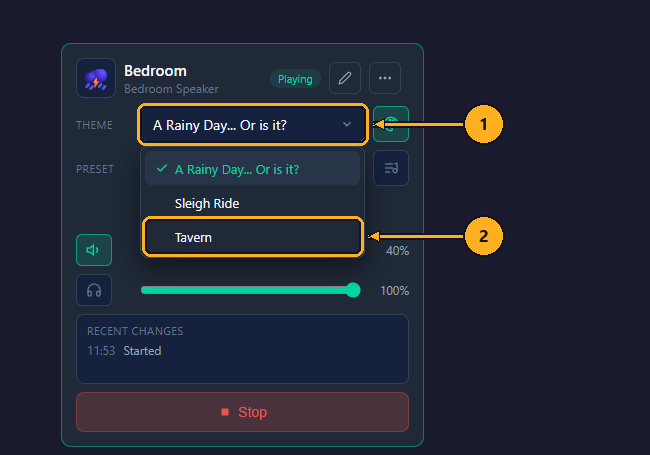
1: On the channel's card, click the Theme field. The list of themes opens.
2: Click the theme, here Tavern.
The message "Theme updated" appears. Preset changes to the new theme's default preset, or to Default settings when it has none.
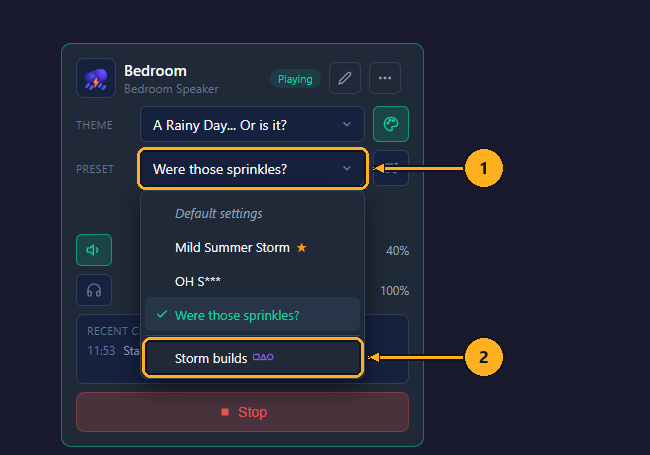
1: Click the Preset field. The list holds Default settings, the theme's presets (the ★ marks the default) and, after a line, its sequences.
2: Click the preset or sequence, here the sequence Storm builds.
The message reads "Preset applied", "Using default settings" or "Sequence started". A sequence shows its step in the Now line ("Step 1 of 3: Were those sprinkles? · next in 9:58"); picking a preset or Default settings stops it.
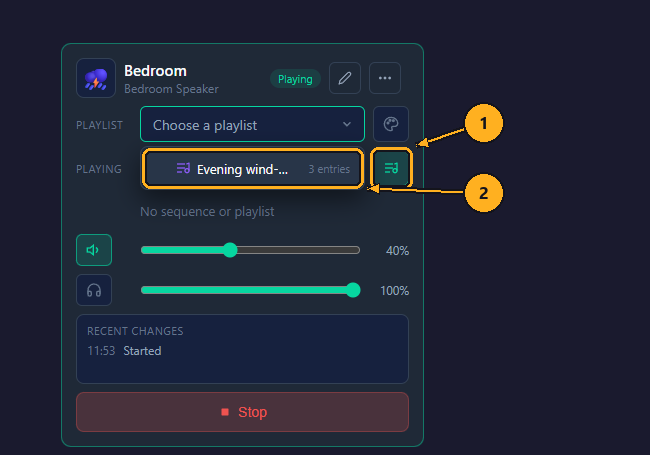
1: Click the playlist button right of the fields. The card switches to Playlist and Playing, and the list of playlists opens.
2: Click the playlist, here Evening wind-down.
The message "Playing "Evening wind-down"" appears, and the channel starts the playlist. To go back to one theme, click the palette button above the playlist button.
Keyboard: the Theme, Preset and Playlist fields work like the Theme Preset box in the New Channel window: press the Down arrow or Up arrow key to open the list, the arrow keys, Home and End to move, Enter or Space to pick, and Esc to close it without a change.
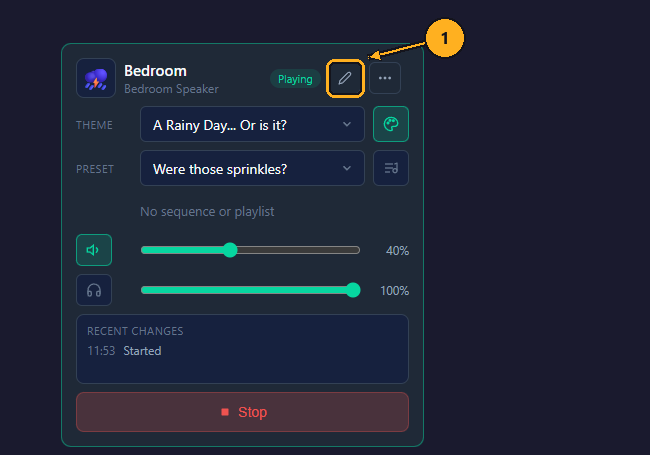
1: On the channel's card, click the pencil (Edit). The Edit Channel window opens with the channel's settings.
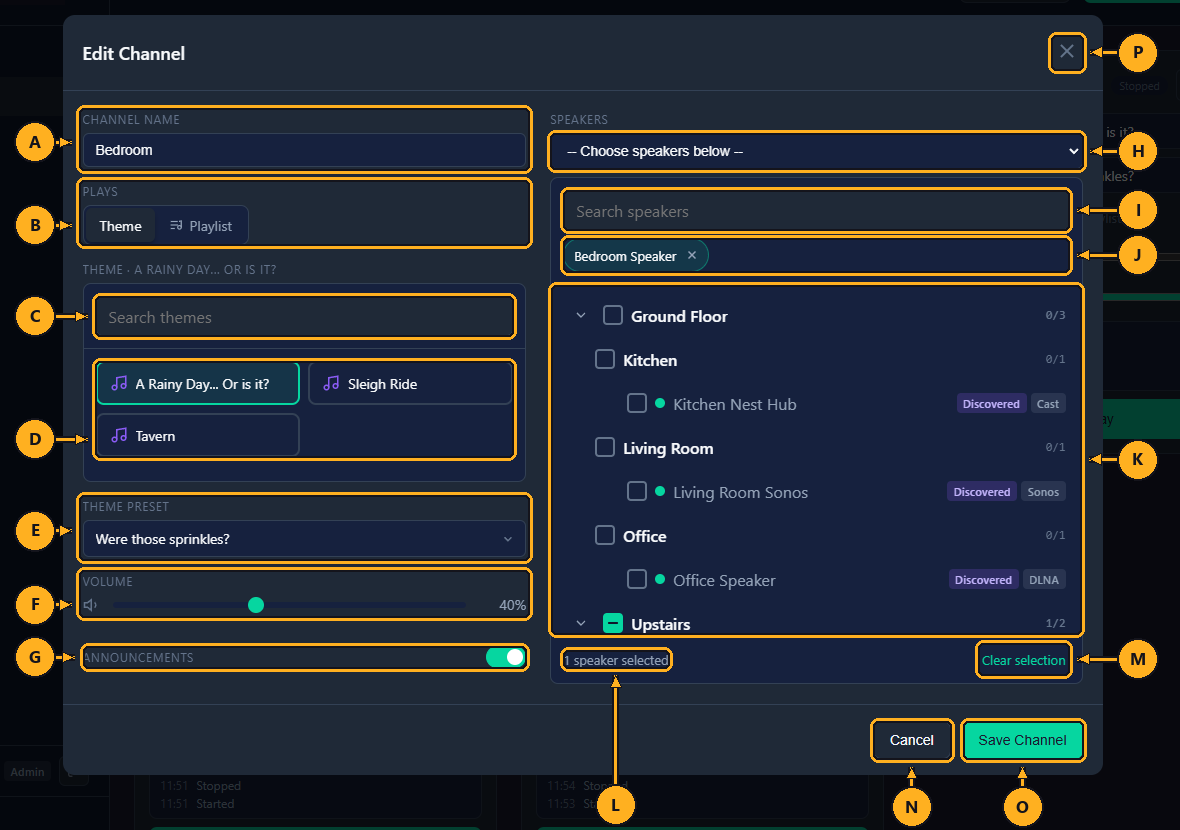
- A: Channel Name: the name shown on the card. Leaving it empty keeps the current name.
- B: Plays: Theme or Playlist. Switching a playlist channel to Theme stops the playlist when you save; the channel keeps playing.
- C: Search themes: narrows the theme list to names that contain what you type.
- D: Theme list: the theme in use is outlined. Clicking another theme picks its default preset.
- E: Theme Preset: Default settings, a preset or a sequence of the theme, as in How to make a channel. Saving without touching this field leaves a running sequence where it is.
- F: Volume: the speakers' volume, 0% to 100%.
- G: Announcements: on: announcements sent to this channel play on its speakers; off: they are skipped on this channel. See Announcements.
- H: Speaker group: plays on a saved speaker group instead of the speakers ticked below. Choose -- Choose speakers below -- to go back to the list. Shown when a speaker group exists.
- I: Search speakers: narrows the list to speaker names that contain what you type.
- J: Selected speakers: a tag per selected speaker. Its × removes it.
- K: Speaker list: floors, areas and speakers with their boxes, as in How to make a channel.
- L: Speaker count: how many speakers are selected.
- M: Clear selection: unticks every speaker.
- N: Cancel: closes the window without saving. The × (P) and a click outside the window do the same.
- O: Save Channel: saves the changes. The window closes and "Channel updated" appears. A playing channel changes without stopping: new speakers join, removed speakers stop.
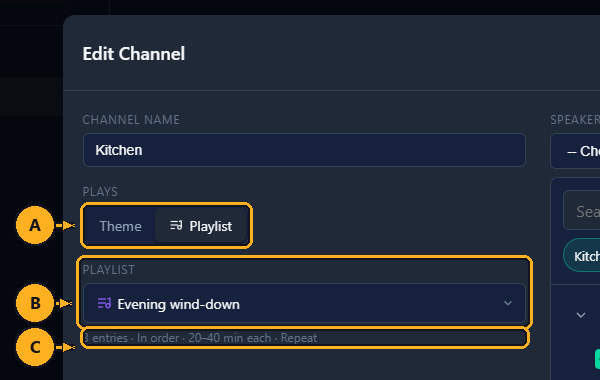
With Playlist selected (A), the theme list and Theme Preset make way for:
- B: Playlist: lists the playlists made on the Playlists page.
- C: Summary: the playlist's entries, order, play time per entry and Repeat, for example "3 entries · In order · 20–40 min each · Repeat".
Saving in Playlist mode without a playlist shows "Choose a playlist" and keeps the window open.
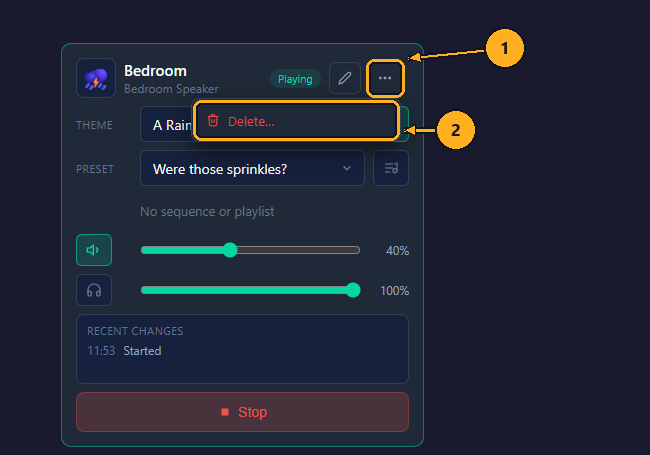
1: On the channel's card, click ⋯.
2: Click Delete….
The browser asks "Delete this channel?". Click OK to delete it, or Cancel to keep it. A playing channel goes silent. The card disappears and "Channel deleted" appears. Deleting can't be undone; the theme, its presets and the speakers are not affected.
Keyboard: with the menu open, press the Esc key to close it.
The headphones button plays the channel on the device you are using: the computer, tablet or phone the web page is open on. It works like plugging headphones into the channel: the speakers are not needed, and the browser hears the same mix they would.
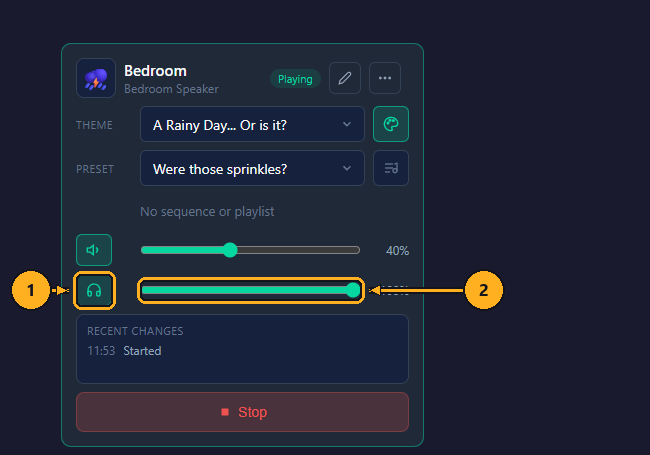
1: On the channel's card, click the headphones button. It lights up and the sound starts in the browser after a few seconds.
2: Drag the slider next to it to set the volume in this browser. It changes this device only; the speakers keep the volume above it. The browser remembers it for every channel.
What to expect:
- Speakers stopped: the browser plays the channel anyway. Sonorium runs the channel's mix for the browser alone, and the Status page in this browser lists the channel with "This browser".
- Speakers joining: while you listen, press Play: the speakers join the same stream without a break. You can listen first, adjust the theme and preset, then send it to the speakers.
- Stop stops the speakers only. The browser keeps playing until you click the headphones button again.
- Mute (the speaker button) silences the speakers only. The browser keeps playing.
- One channel at a time per browser: clicking the headphones on another channel moves the browser to that channel.
- Closing the page stops listening. Sonorium releases the channel's mix a little later when no browser and no speaker uses it.
If the browser can't play the stream (no sound device, or a browser without MP3 support), the button stays off.
Up to 20 channels can exist. How many of them play at the same time is set by the max channels setting: 6 out of the box, from 1 to 10. Each playing channel, and each channel a browser listens to, uses one of these. Each also uses some processor time, which matters on small computers such as a Raspberry Pi.
Keep the number of channels playing at once at or under this setting. A channel started when all of them are in use still reports Playing, but its speakers get the theme without its preset or sequence, and it doesn't show on the Status page.
Where to set it:
-
Home Assistant app: the
sonorium__max_channelsoption on the app's Configuration tab, then restart the app. See Getting Started with Home Assistant. -
Docker: the
SONORIUM__MAX_CHANNELSvariable in theenvironment:part of the compose file, thendocker compose up -d. See Getting Started with Docker.
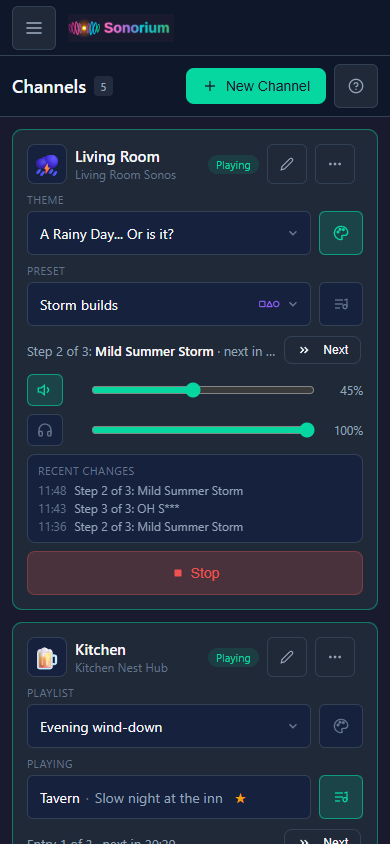
The menu opens with the button at the top left (three lines). Link App is not shown on a phone; open Sonorium on a computer to link one.