Repository navigation
Keys
A key lets a device, a program or a script use Sonorium without signing in: an ESP32 button, a Node-RED flow, a Home Assistant rest_command, a script run by a timer. An account opens every door its role allows; a key is a spare key cut for one job, like a garage key that opens the garage and nothing in the house. A key allows only the items checked on it, and can stop working on a date you choose.
Keys come from the Integration plugin, which is built into Sonorium and on by default (see Plugins). While it is switched off, Keys is not in the menu and keys are refused. Only an Admin sees Settings › Keys (see Roles).
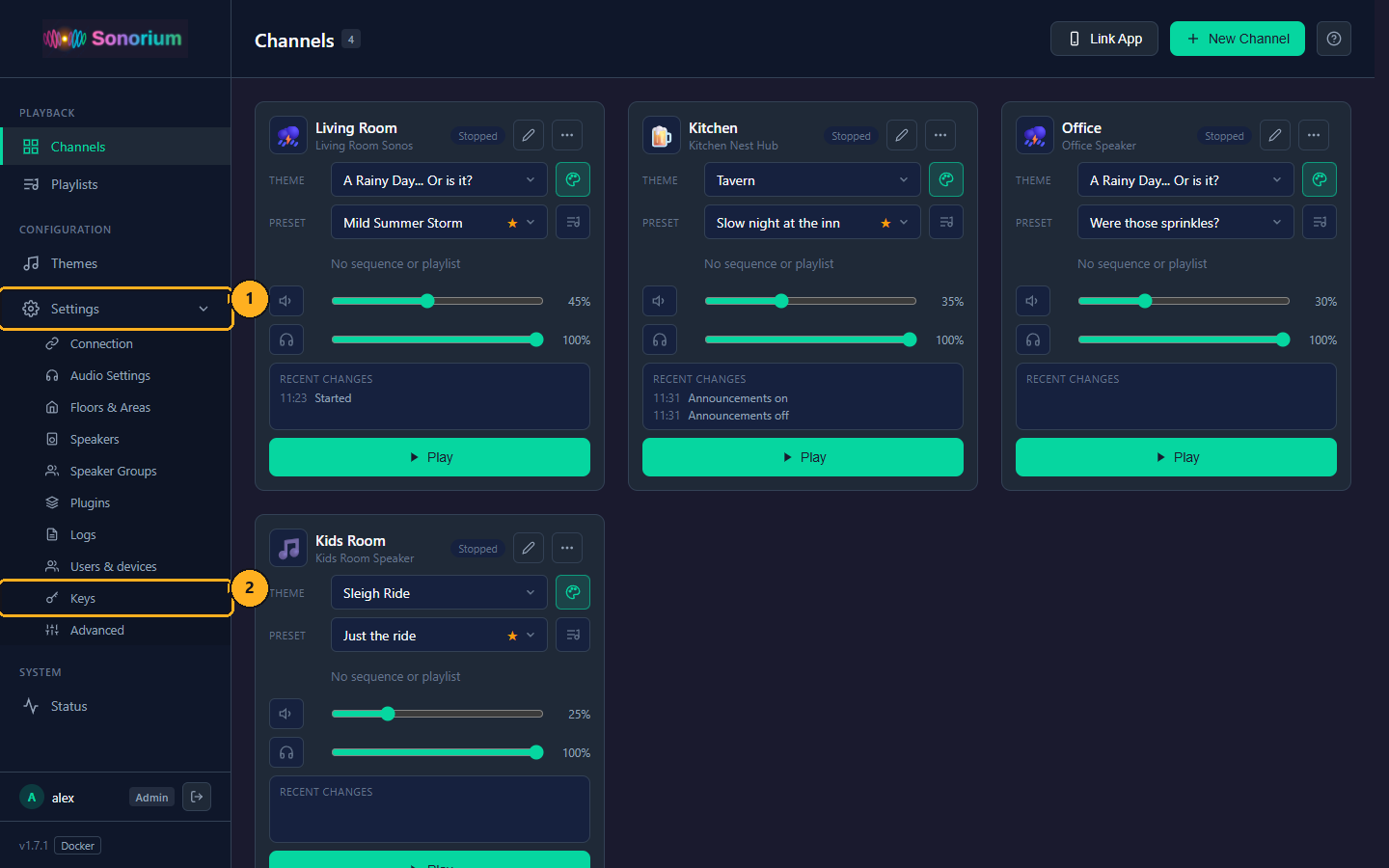
1: On the Channels page, click Settings in the menu on the left. The menu opens to show the settings pages.
2: Click Keys.
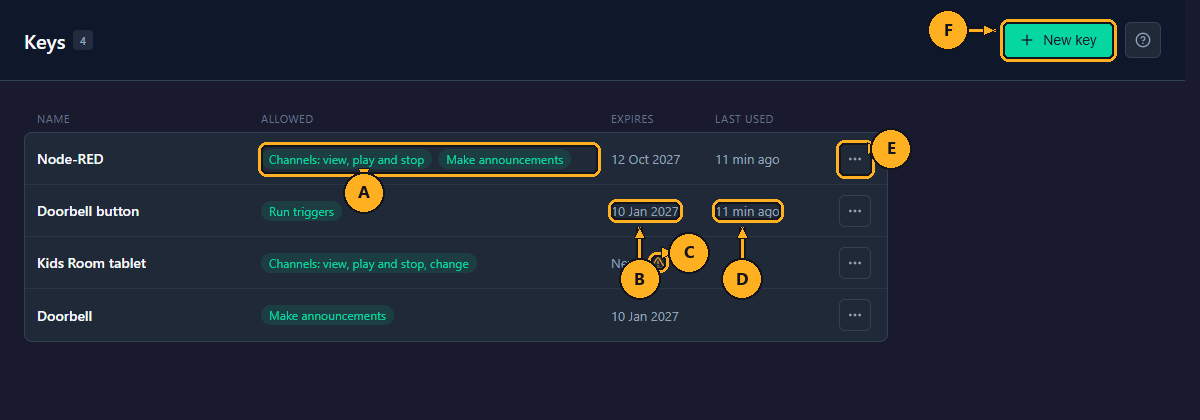
Each row is one key. The number next to the page title is how many keys there are.
- A: Allowed: what the key may do, one tag per area, for example Channels: view, play and stop, Make announcements.
- B: Expires: the day the key stops working.
- C: a warning sign next to Never marks a key that never expires.
- D: Last used: when the key was last sent to Sonorium: Now (the last two minutes), 5 min ago, Today 19:42, Yesterday, or a date. Empty when the key has not been used yet.
- E: ⋯: Edit… and Revoke… (see How to change a key and How to revoke a key).
- F: New key: opens the New key window (see How to make a key).
This example makes a key for a bedtime reminder that announces in the Kids Room, for example from a script on a timer (see Announcements).
1: On the Channels page, click Settings in the menu on the left.
2: Click Keys (see How to open Keys).
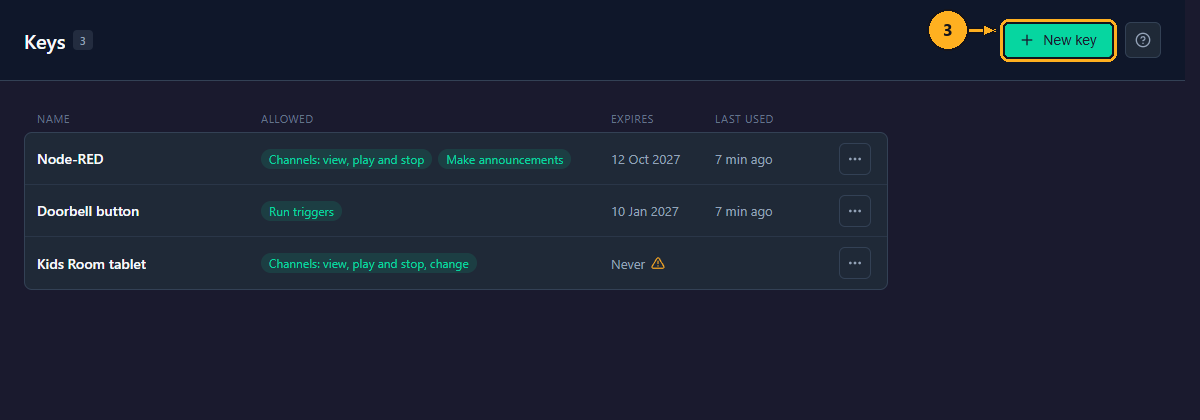
3: Click New key in the top right. The New key window opens.
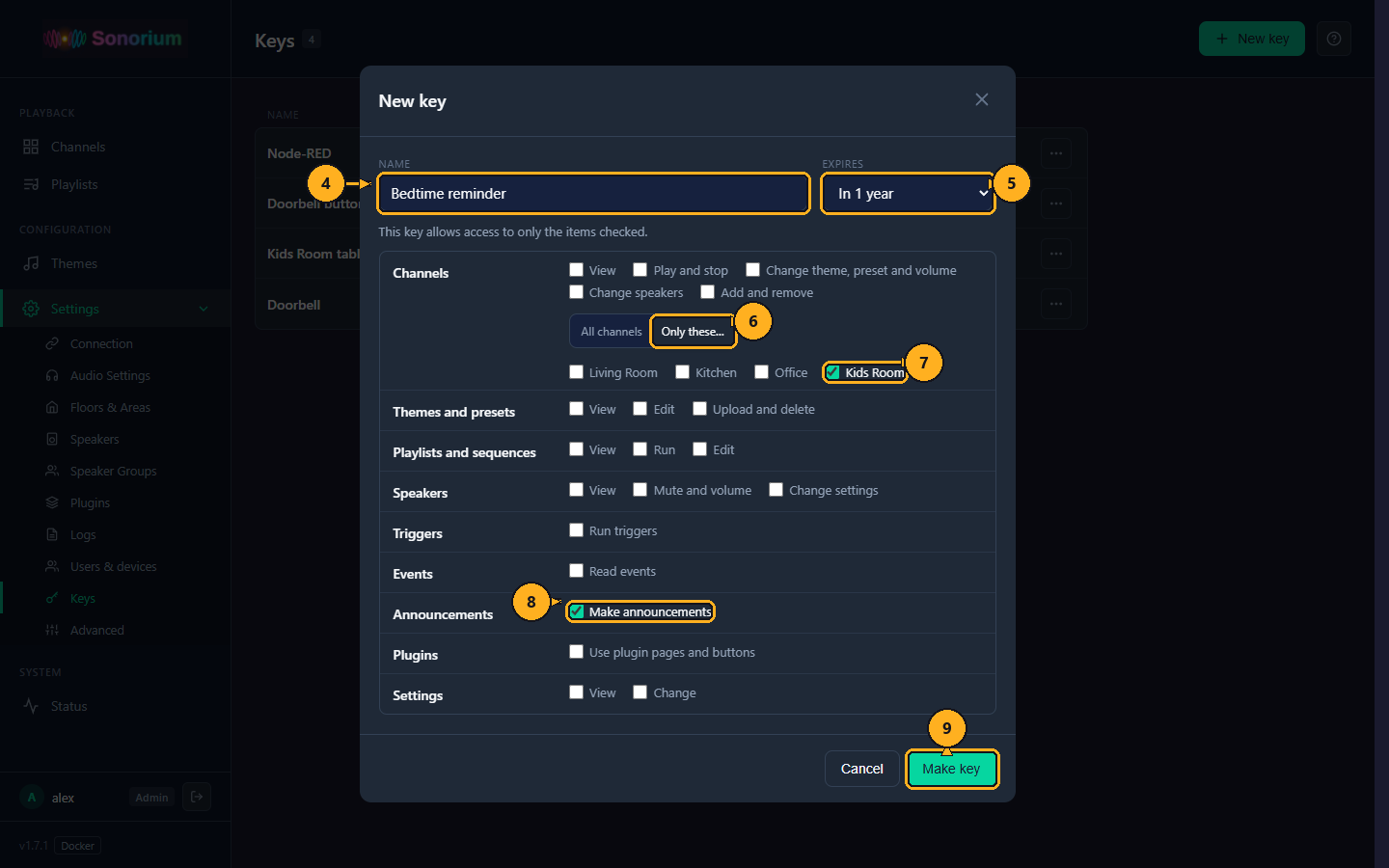
4: Type a name that says where the key is used, for example "Bedtime reminder".
5: Pick when the key stops working in Expires: In 7 days, In 30 days, In 90 days, In 1 year or Never. The example uses In 1 year.
6: Under Channels, click Only these…. A list of your channels opens below it.
7: Check Kids Room.
8: Under Announcements, check Make announcements.
9: Click Make key. The Key issued window opens (below).
To close the New key window without making a key, click Cancel, the × in its corner, or anywhere outside the window.
| Field | What it does | Default |
|---|---|---|
| Name | Shown in the Keys list and in the log. 1 to 60 characters; Sonorium refuses an empty name ("Give the key a name."). | Empty |
| Expires | When the key stops working: in 7, 30 or 90 days, in 1 year, or Never. Picking Never shows "This key never expires" and the warning sign. | In 90 days |
| The checked items | What the key may do (below). A key with nothing checked is refused everything. | Nothing checked |
| All channels, Only these… | All channels: the channel items work on every channel. Only these…: they work on the channels checked in the list below the buttons, and an announcement plays only on those channels. | All channels |
| Area | Item | What the key may do |
|---|---|---|
| Channels | View | See the channels, what they play and their state |
| Play and stop | Play and stop a channel, and stop every channel at once | |
| Change theme, preset and volume | Change what a channel plays and how loud, and its Announcements switch | |
| Change speakers | Change which speakers a channel plays on | |
| Add and remove | Make and delete channels | |
| Themes and presets | View | See themes, their tracks and presets |
| Edit | Change tracks, groups and presets | |
| Upload and delete | Make, upload, import and delete themes | |
| Playlists and sequences | View | See playlists and sequences |
| Run | Start, stop and skip a playlist or sequence on a channel | |
| Edit | Make, change and delete playlists and sequences | |
| Speakers | View | See speakers, speaker groups, floors and areas |
| Mute and volume | Mute a speaker and change its volume | |
| Change settings | Change speaker settings and speaker groups, add speakers by address, play the test sound | |
| Triggers | Run triggers | Call a plugin's webhook trigger |
| Events | Read events | Read Sonorium's event stream |
| Announcements | Make announcements | Send an announcement (see Announcements) |
| Plugins | Use plugin pages and buttons | Open plugin pages and run their buttons |
| Settings | View | See settings and the logs |
| Change | Change settings, for example on Audio Settings, Floors & Areas and Advanced |
A key never manages users, devices or keys, never installs, removes or sets up plugins, and never sees or changes Settings › Connection (the Home Assistant and MQTT logins). No item on the list allows these; they need an Admin who is signed in.
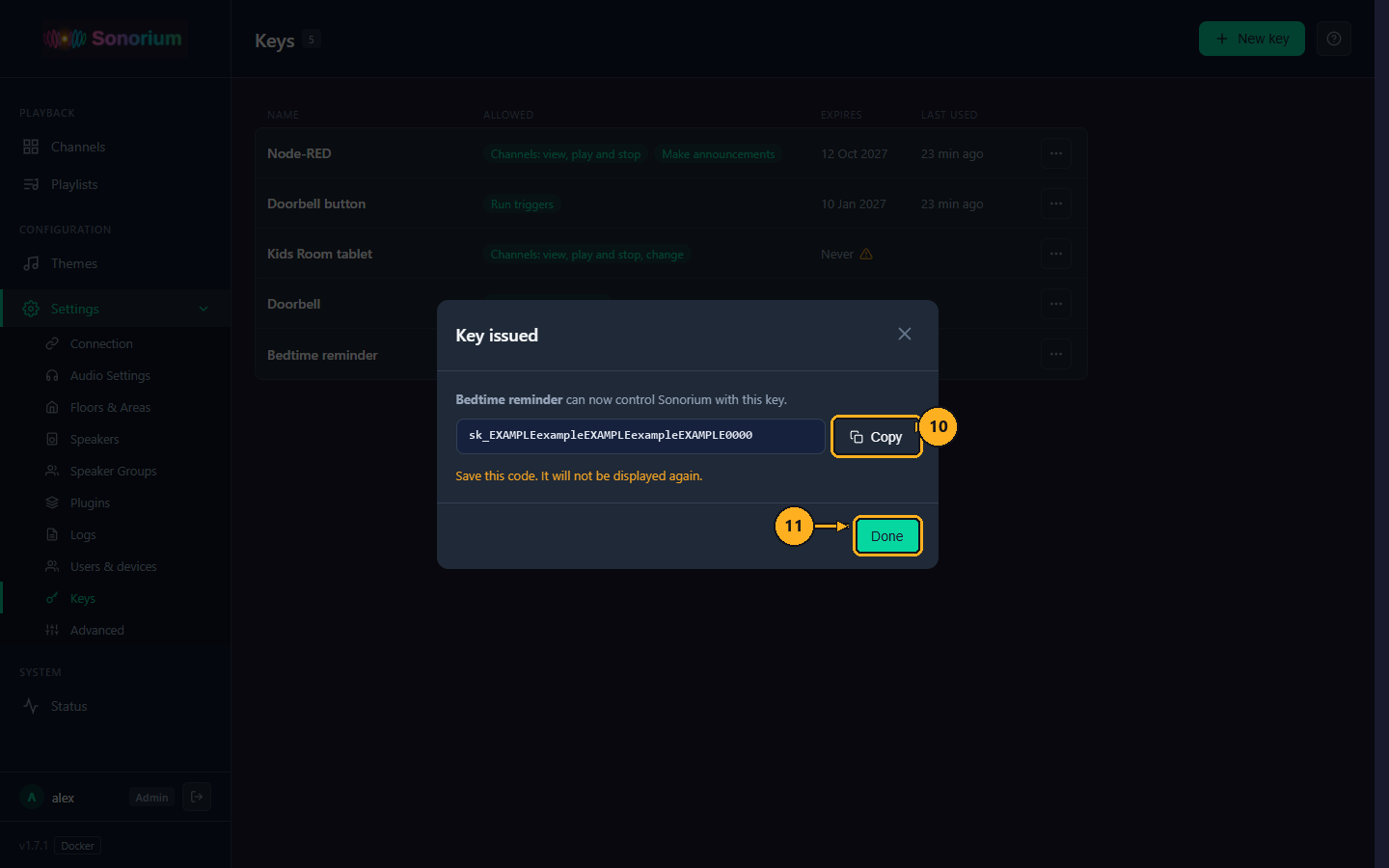
The window shows the new key, a code that starts with sk_.
10: Click Copy. The button reads Copied for a moment. Paste the key where the device or program needs it.
11: Click Done.
The key is shown in this window only. Sonorium keeps a fingerprint of the key (a hash), not the key, so it can't show it again. If the key is lost, revoke it and make a new one.
A change takes effect the next time the key is used. The key's code stays the same, so the device keeps it.
1: On the Channels page, click Settings in the menu on the left.
2: Click Keys.
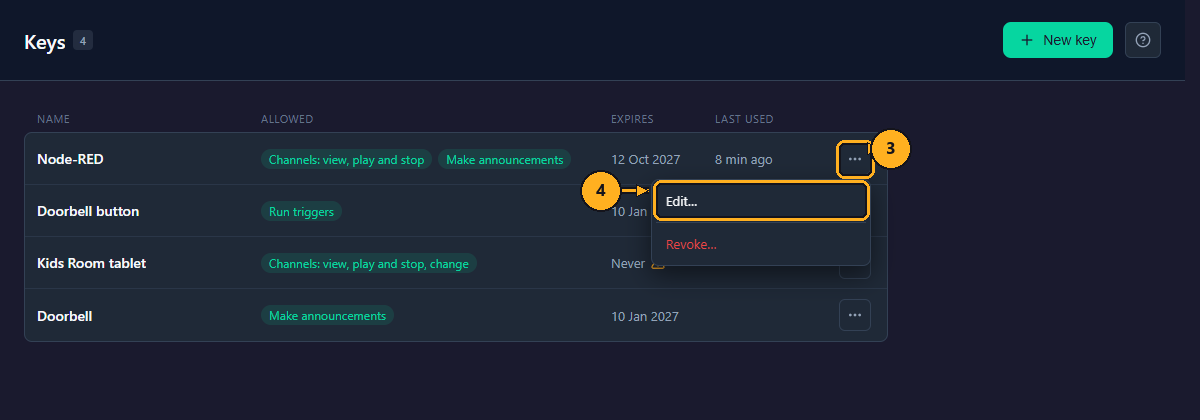
3: Click ⋯ on the key's row. A menu opens.
4: Click Edit…. A window titled with the key's name opens.
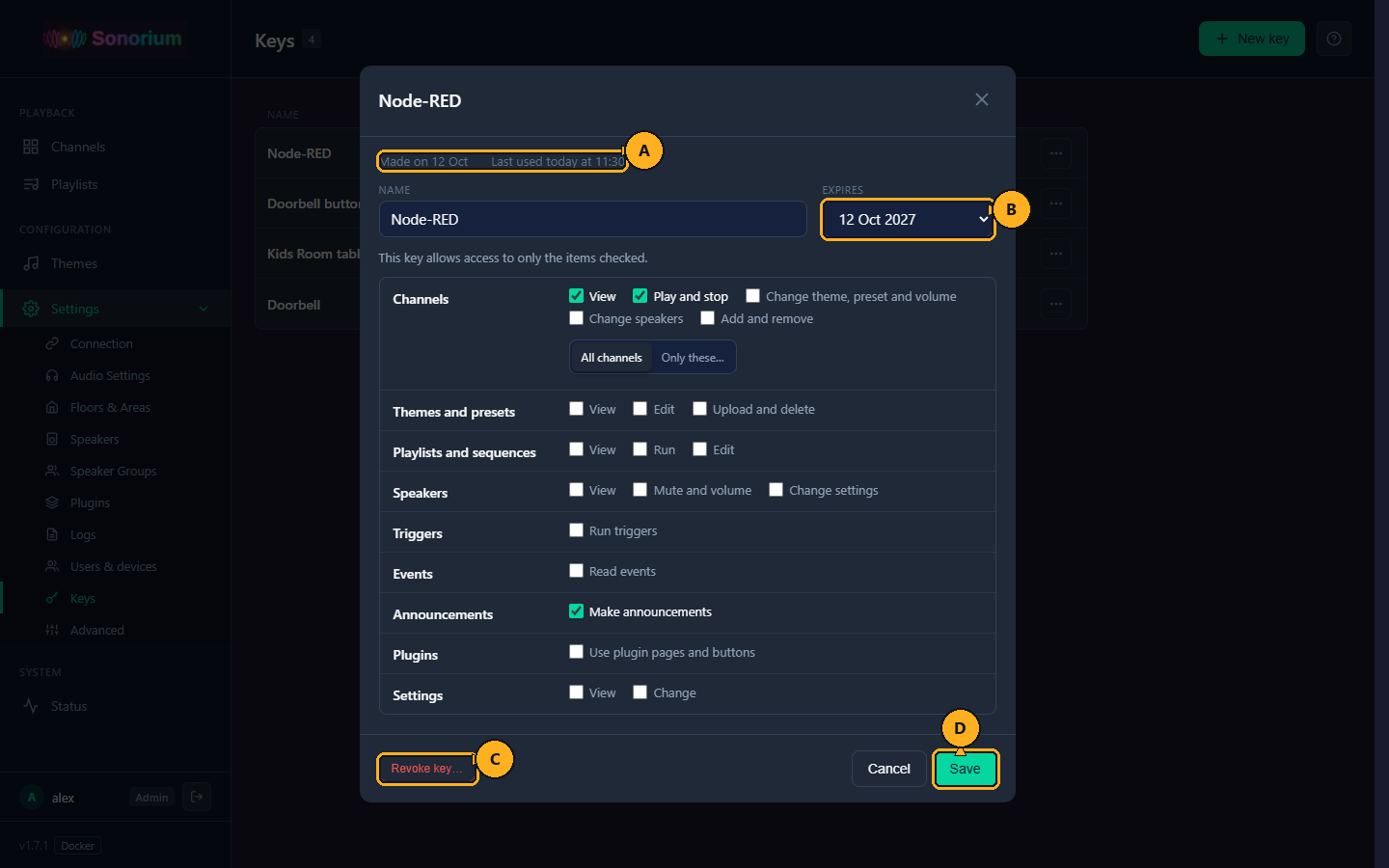
- A: the day the key was made, and when it was last used ("Last used today at 11:30"), or Not used yet.
- B: Expires: shows the key's current end date. Leave it to keep that date, or pick a new choice; the new time counts from today.
- C: Revoke key…: stops the key (see below).
- D: Save: saves the name, the expiry and the checked items.
5: Change the name, the expiry or the checked items, then click Save.
Revoking stops the key at once: Sonorium refuses its next request with "This key is not valid. It may have expired or been revoked." It can't be undone.
1: On the Channels page, click Settings in the menu on the left.
2: Click Keys.
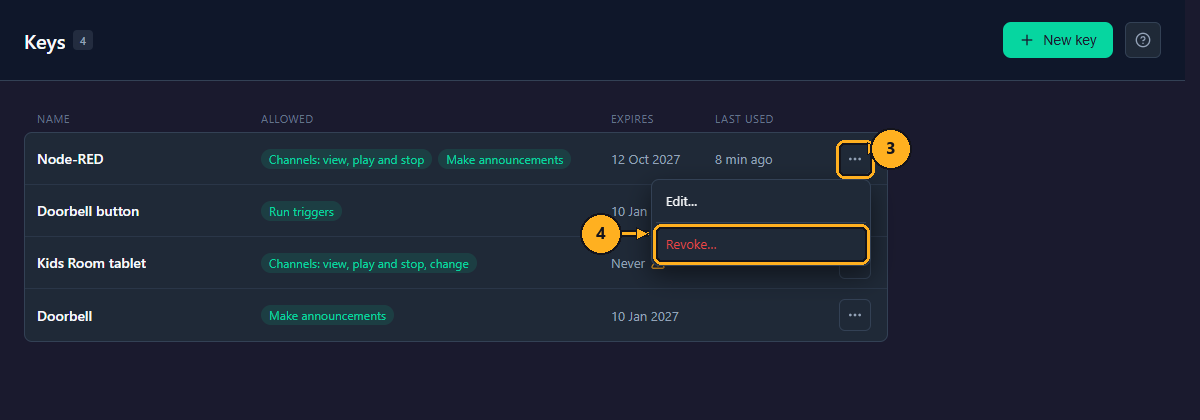
3: Click ⋯ on the key's row.
4: Click Revoke…. Sonorium asks "Revoke name?".
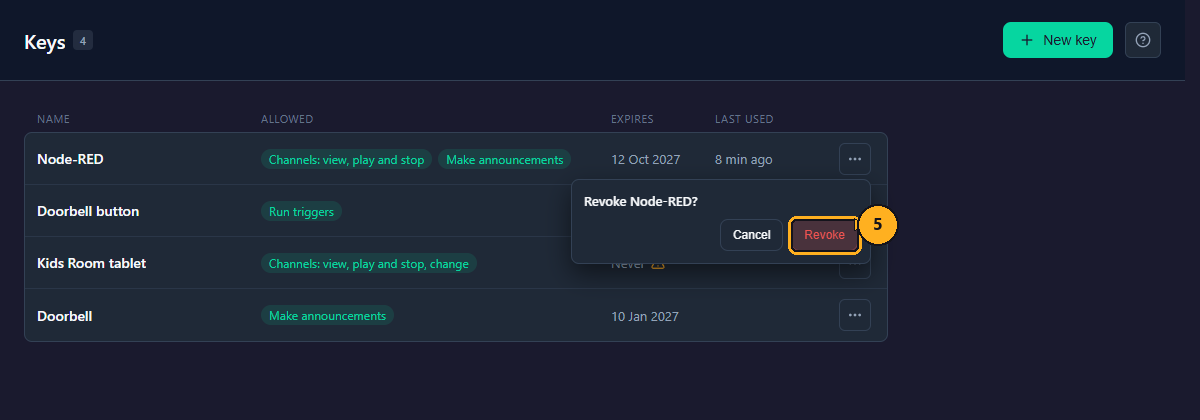
5: Click Revoke. The key leaves the list.
Revoke key… in the key's window (C above) does the same.
Send the key with each request to Sonorium's API, in one of these headers:
Authorization: Bearer sk_your_key
X-Sonorium-Token: sk_your_key
A device that can only call an address, with no way to add a header, can put the key at the end of it: ?token=sk_your_key. Anyone who sees that address (a log, a browser history) sees the key, so use a header when you can.
The API answers on port 8008 (HTTP) and 8808 (HTTPS); see Addresses and ports.
Example: stop every channel from a script, with a key that has Play and stop under Channels:
curl -X POST -H "Authorization: Bearer sk_your_key" http://sonorium.local:8008/api/sessions/stop-allSonorium answers with how many channels it stopped:
{"stopped": 2}Use Sonorium's address (for example 192.0.2.10) in place of sonorium.local when that name doesn't work on your network.
What the answers mean:
| Answer | Why |
|---|---|
401 "This key is not valid. It may have expired or been revoked." |
The key is wrong, expired or revoked |
401 "The user who made this key is switched off. Make a new key." |
Home Assistant app: the Home Assistant user who made the key was switched off or removed in Home Assistant |
403 "Not allowed" |
The item for this request isn't checked on the key |
403 "Not allowed for this channel" |
The key is limited to other channels (Only these…) |
Every request with a key updates Last used, also a refused one. Making, changing and revoking a key is written to the log (Settings › Logs), for example Keys: Bedtime reminder made.
The full list of API routes and the item each needs is on API Reference.