Repository navigation
Audio Settings
Settings › Audio Settings holds three sound settings that apply to all of Sonorium, not to one channel: how long fades take, the volume a channel starts with, and the level of everything Sonorium sends out. Only an Admin sees this page (see Sign-in and Users).
Changes are a draft until you click Save settings, like editing a document: you can move the sliders, look at the values, and either save them or put the saved ones back with Cancel.
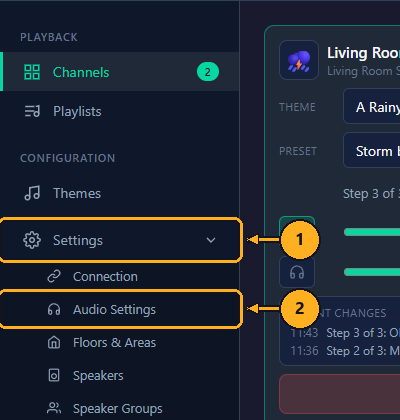
1: On the Channels page, click Settings in the menu on the left. The menu opens to show the settings pages.
2: Click Audio Settings.
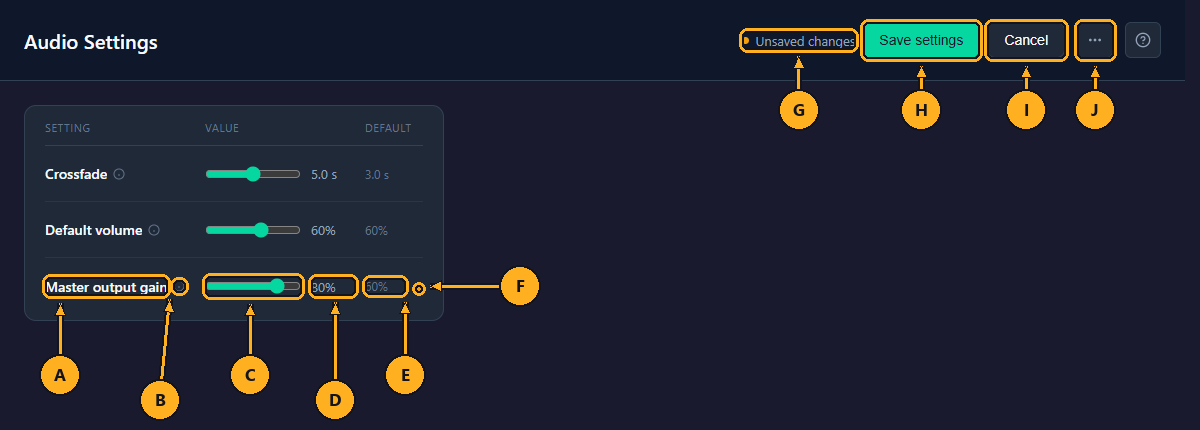
- A: Setting: each one is explained under The settings.
- B: ⓘ: point at it to see a short description.
- C: Slider: moves in the steps listed under The settings.
- D: Value: shown in seconds or %.
- E: Default: what Reset to defaults… puts back.
- F: Dot: marks a setting changed and not saved yet.
- G: Unsaved changes: shown while any setting is changed and not saved.
- H: Save settings: saves every change. It can be clicked only while there are changes.
- I: Cancel: puts every slider back to its saved value. It can be clicked only while there are changes.
- J: ⋯: holds Reset to defaults… (see How to reset to the defaults).
| Setting | Range | Steps | Default |
|---|---|---|---|
| Crossfade | 0 to 10 seconds | 0.5 s | 3.0 s |
| Default volume | 0% to 100% | 5% | 60% |
| Master output gain | 0% to 100% | 5% | 60% |
How long a fade takes, in seconds. Sonorium uses it when:
- a playing channel changes theme: the old theme fades out while the new one fades in, like a DJ blending two records;
- a channel starts: the sound fades in from silence after Play, and when a browser starts listening to a stopped channel;
- a channel stops: the sound fades out before the speakers stop;
- a playlist moves to its next entry: the next theme comes in over this time.
At 0 the changes cut straight over, and Stop stops at once. Example: at 5.0 s, clicking Stop fades the sound out over 5 seconds, then stops the speakers.
Picking another preset doesn't use this setting: the mix glides to the new preset over 3 seconds. Sequence steps use the sequence's Ramp (see Sequences and Playlists).
The volume a channel gets when it is made without one, for example through the API (see API Reference). The New Channel window has a Volume slider, which starts at 60% (see Channels).
A multiplier on the sound of every channel, applied before it leaves Sonorium: it reaches every speaker and every browser listening. Think of it as the master fader on a mixing desk, after each channel's volume. 60% is the normal level; lower it if every channel is too loud even at low speaker volumes, raise it if they are too quiet at full speaker volume. It takes effect on playing channels as soon as you save.
The channel's Volume slider sets the volume on the speakers, as their volume buttons would. The master output gain changes the stream itself, so it also changes what a browser hears.
Open the page as in Open Audio Settings (steps 1 and 2).
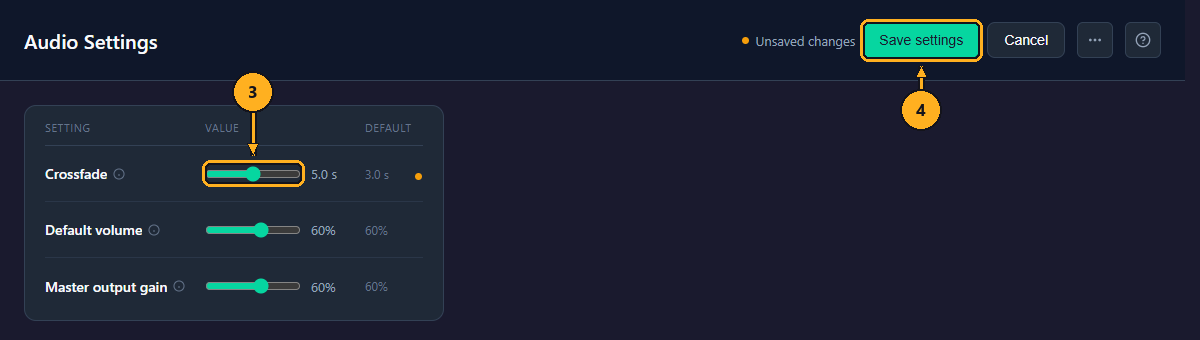
3: Drag the slider to the new value, here Crossfade to 5.0 s. A dot appears at the end of the row, and Unsaved changes appears at the top.
4: Click Save settings. The message "Audio settings saved" appears, the dot and Unsaved changes disappear, and the new value applies from now on.
To throw the change away instead, click Cancel: every slider goes back to its saved value.
Leaving the page without saving keeps the draft until you open Audio Settings again or reload the page; nothing changes in Sonorium until you save.
Open the page as in Open Audio Settings (steps 1 and 2).
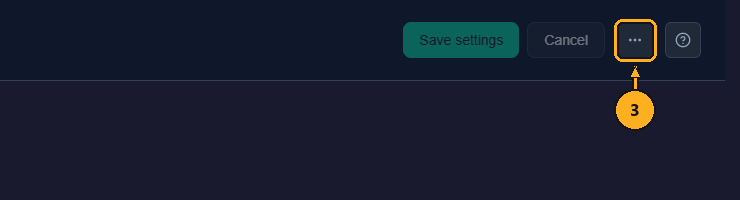
3: Click ⋯ at the top right.
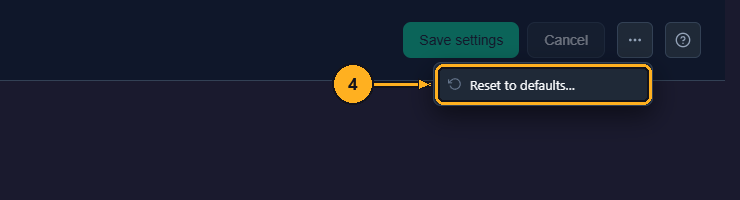
4: Click Reset to defaults…. It can't be clicked when every slider already shows its default.
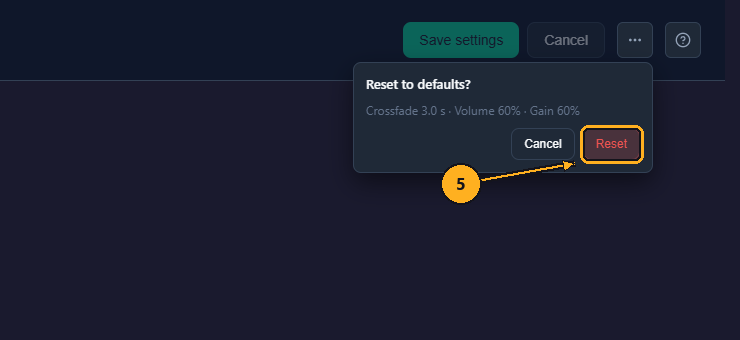
A box asks Reset to defaults? and lists the defaults: "Crossfade 3.0 s · Volume 60% · Gain 60%".
5: Click Reset. (Cancel closes the box and changes nothing.)
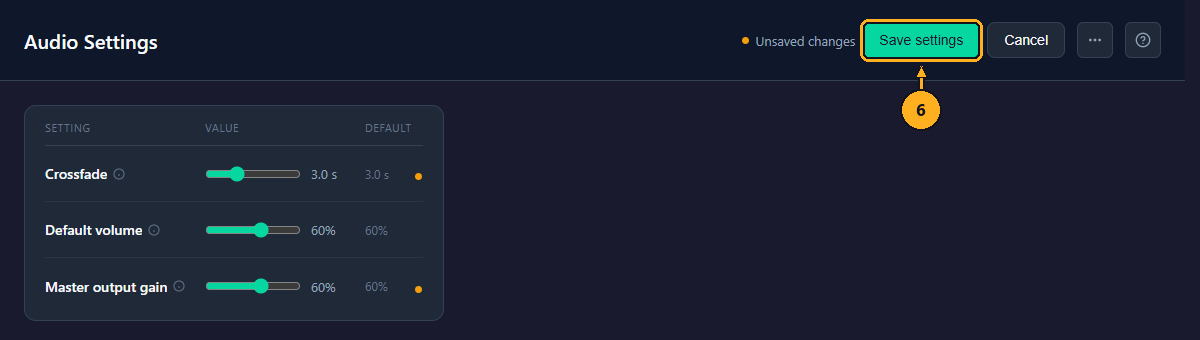
The sliders move to their defaults and the message "Defaults restored · not saved yet" appears. Settings that differ from their saved values show a dot.
6: Click Save settings to keep the defaults.
Keyboard: with the menu or the box open, press the Esc key to close it.