Repository navigation
Getting Started Docker
This page explains how to install Sonorium as a Docker container, from an empty folder to the Sonorium web UI open in your browser. When you're done, What's next links to Sonorium's documentation for turning on speakers and playing your first channel.
The Docker version runs on any machine that runs Docker, with or without Home Assistant. It finds the speakers on your network (Google Cast, Sonos, DLNA/UPnP, AirPlay, LinkPlay/Arylic and HEOS), and can also use Home Assistant's speakers and publish its controls to Home Assistant over MQTT if you link them.
Other ways to run Sonorium: Home Assistant app · Windows · Compare them
| A Docker host | A Linux machine with Docker and Docker Compose on an x86-64 (amd64) processor: a NAS (TrueNAS, Unraid, Synology with Container Manager), a mini PC or a server. The image is built for amd64 only, so ARM machines such as a Raspberry Pi can't run it. |
| The same network as your speakers | Sonorium finds speakers with network broadcasts (mDNS and SSDP), which only reach devices on the same network. Speakers then fetch the sound from Sonorium on port 8008. |
| Host networking | The container shares the host's network (network_mode: host). Without it the broadcasts never leave the container, and you have to add every speaker by its address. See Running without host networking. |
| Two free ports | 8008 and 8808 on the host (see Ports). |
| Disk space | Room for the image (downloaded on the first start) and your sound files. |
| Optional | Home Assistant (for its speakers, floors and areas, and text to speech for announcements) and an MQTT broker (for Sonorium's controls in Home Assistant). Both are linked from the web UI after the first start. |
If the Docker host is a virtual machine, its CPU type must pass the host's processor features through (in Proxmox: Hardware › Processors › Type: host). See Requirements.
Think of the container as a sealed appliance and the two folders as its memory card and its record collection: you can replace the appliance at any time, and everything you made stays in the folders.
On the Docker host, make a folder for Sonorium, for example in your home folder or on your NAS's apps pool, and two folders inside it:
mkdir -p sonorium/config sonorium/media
cd sonorium| Folder | Mounted at | What Sonorium keeps there |
|---|---|---|
./sonorium/config (here ./config) |
/config |
Settings, channels, playlists, accounts, keys, plugins, the HTTPS certificate. Sonorium writes into a sonorium folder inside it. |
./sonorium/media (here ./media) |
/media/sonorium |
Themes: one folder per theme, with its sound files and settings. The three bundled themes are copied here on the first start. |
In the sonorium folder, make a file called compose.yaml (or docker-compose.yml) with this content:
services:
  sonorium:
    image: ghcr.io/synssins/sonorium:latest
    container_name: sonorium
    network_mode: host
    environment:
      - PUID=1000
      - PGID=1000
      - TZ=Etc/UTC
      - BYPASS_LOGIN=false
      - SONORIUM_HTTPS_PORT=8808
    volumes:
      - ./config:/config
      - ./media:/media/sonorium
    restart: unless-stopped
What each line does:
| Line | Meaning |
|---|---|
image |
Where Docker downloads Sonorium from. latest is the newest release. A version number (for example ghcr.io/synssins/sonorium:1.7.1) stays on that version until you change it. |
container_name |
The name used in Docker commands below (docker logs sonorium). |
network_mode: host |
Shares the host's network so Sonorium can find speakers. Ports 8008 and 8808 open on the host directly; no ports: section is needed. |
restart: unless-stopped |
Starts Sonorium again after a reboot or a crash, unless you stopped it yourself. |
The environment variables:
| Variable | Default | What it does |
|---|---|---|
PUID, PGID
|
Not set (runs as root) | The user and group id that owns the files Sonorium writes. Set them to your user's ids (id -u and id -g on the host print them) so you can edit the theme folders without sudo. Sonorium takes ownership of the config folder and of the top media folder at start. |
TZ |
Etc/UTC |
Your time zone, for the times in the log and in Recent changes, for example Europe/Berlin or America/Chicago. |
BYPASS_LOGIN |
false |
Recovery only. true opens the web UI without a sign-in, to reset a forgotten password. See Forgotten password. |
SONORIUM_HTTPS_PORT |
8808 |
The HTTPS port. Change it only if 8808 is taken on the host. |
SONORIUM__MAX_CHANNELS |
6 |
How many channels can play (or be listened to in a browser) at the same time, from 1 to 10. Each playing channel uses some processor time. See Channels. |
SONORIUM_LOG_LEVEL |
info |
How much the log says: debug, info, warning or error. debug adds detail per theme and per speaker. |
docker compose up -dDocker downloads the image and starts the container. The download takes a few minutes the first time. Watch the log:
docker logs -f sonoriumA first start ends with lines like these (press Ctrl+C to stop watching; Sonorium keeps running):
Copied built-in plugin: users -> /config/sonorium/plugins/users
Users: new install, an admin account is made on the first visit
Sonorium 1.7.1 (Docker) ready: 3 themes, 4 speakers detected, 0 channels, MQTT not available
mDNS: Sonorium announced as sonorium.local (192.0.2.10), http://sonorium.local:8008 and https://sonorium.local:8808
- 3 themes are the bundled ones: Sleigh Ride, Tavern and A Rainy Day... Or is it?
- speakers detected counts the speakers found so far. The network scan keeps running in the background; more can show up in the next minute.
- MQTT not available is normal until you link MQTT.
-
sonorium.local is the name Sonorium announced on your network. If another device already uses it, Sonorium takes
sonorium-2.local(then-3, up to-9), and this line says which.
In a browser on any device on the same network, open one of:
-
http://sonorium.local:8008(use the name from the log line above) -
http://<the Docker host's address>:8008, for examplehttp://192.0.2.10:8008
The name sonorium.local works on most computers and phones. If it doesn't on yours (some Android versions and some routers don't pass these names along), use the address.
| Port | Serves |
|---|---|
| 8008 | The web UI, the API and the audio streams, over HTTP. Speakers fetch the sound here. |
| 8808 | The web UI and the API over HTTPS, for the Sonorium app for Android. The certificate is made by Sonorium, so a browser opening https://sonorium.local:8808 warns that the connection isn't private. The connection is still encrypted; the warning means no public authority vouched for the certificate. The app checks the certificate's fingerprint instead (see Link App). |
The first visit asks for an admin account. Until it exists, nothing else opens.
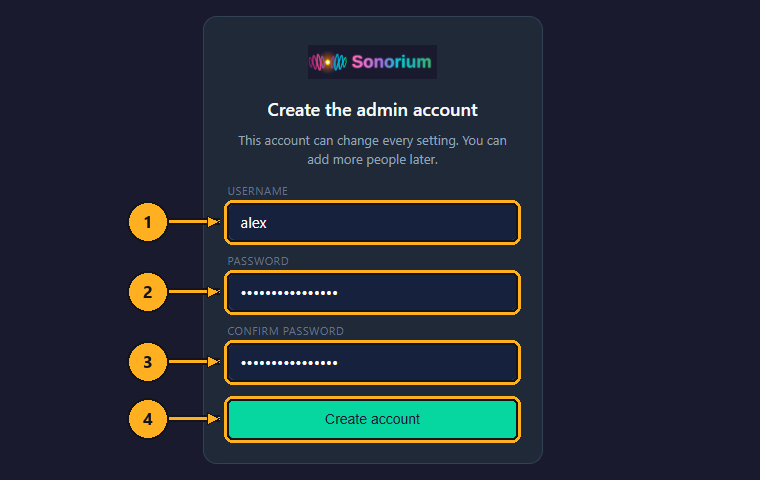
1: Type a username: 1 to 32 letters, numbers, dots, dashes or underscores.
2: Type a password of at least 8 characters.
3: Type the password again.
4: Click Create account.
Sonorium signs you in and opens the Channels page, which is empty: "No channels yet". This account is an Admin, so it can change every setting and add more people. From now on every browser asks for a sign-in; it stays signed in for 30 days, or until it hasn't been used for 14 days. Speakers, Home Assistant and MQTT don't need to sign in.
Everything about accounts, roles, adding people, keys for scripts and linking phones is on Sign-in and Users.
Updating from a version before 1.7.0? Your existing install stays open without a sign-in until you choose otherwise. A banner at the top offers to create the admin account and then turn on Require login. See Signing in for the first time.
Optional. Linked, Sonorium adds Home Assistant's speakers, floors and areas to its lists, and can speak announcements with Home Assistant's text to speech. Home Assistant only gets Sonorium's controls (the channel switches, selects and cards) through MQTT.
Sonorium needs two things from Home Assistant: its address, and a long-lived access token, a password made for programs.
Make the token in Home Assistant:
- In Home Assistant, click your user name at the bottom left of the sidebar to open your profile.
- Open the Security tab.
- Under Long-lived access tokens, click Create token.
- Name it "Sonorium" and click OK.
- Copy the token. Home Assistant shows it once.
Give it to Sonorium:
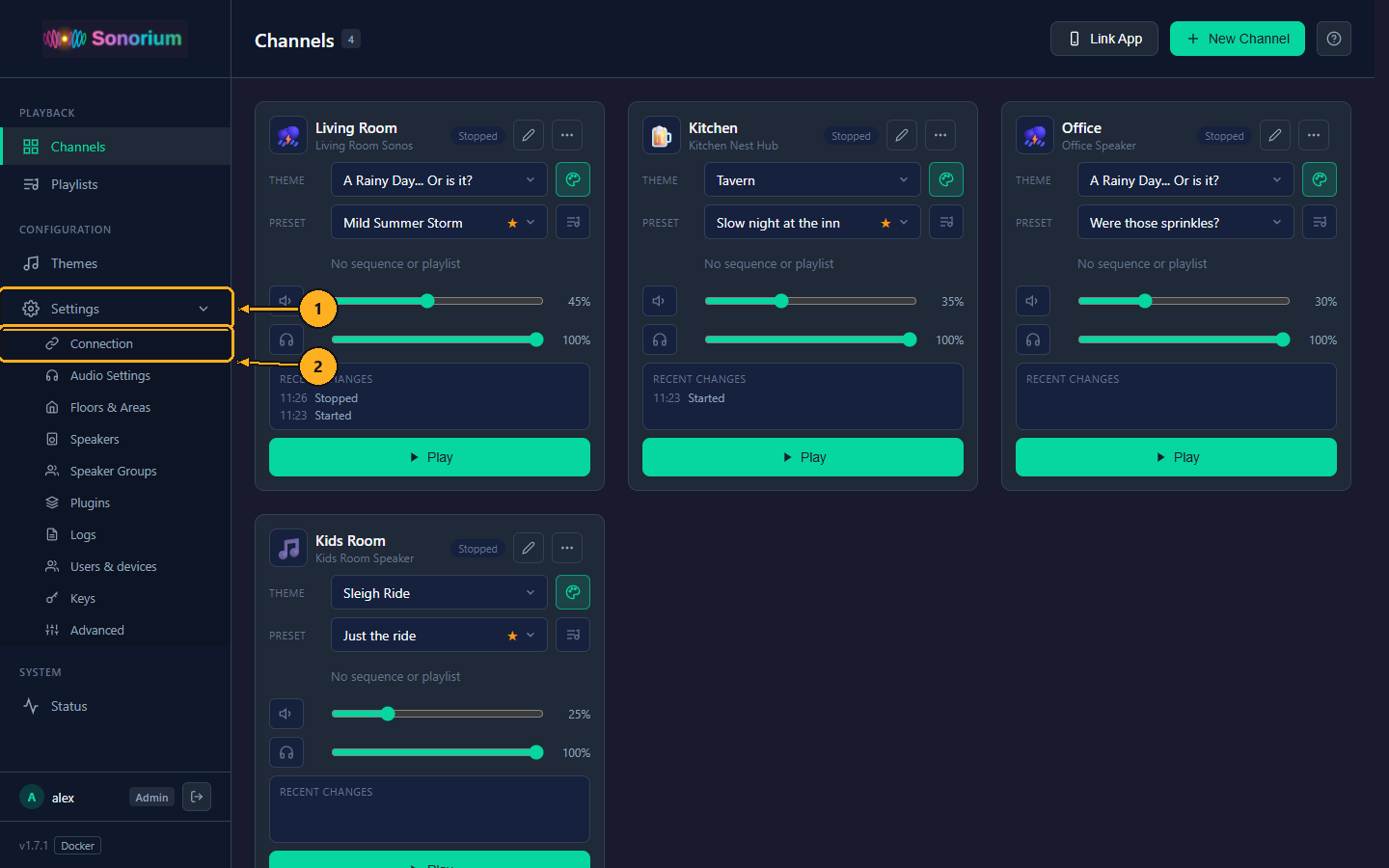
1: On the Channels page, click Settings in the menu on the left. The menu opens to show the settings pages.
2: Click Connection.
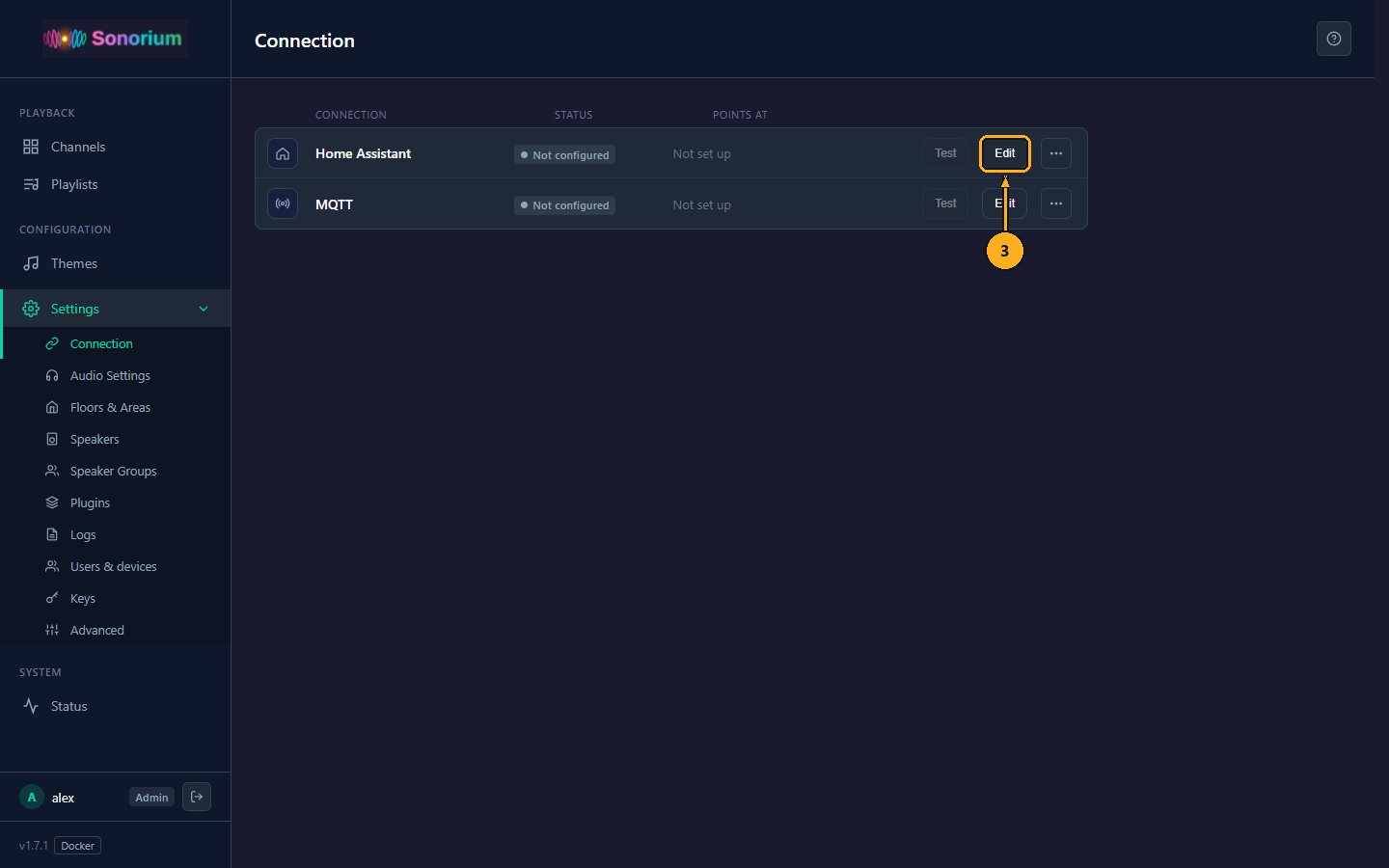
The Connection page lists Home Assistant and MQTT, each with its Status (Connected, Not connected, Not answering or Not configured) and the address it Points at.
3: Click Edit on the Home Assistant row. The Home Assistant window opens.
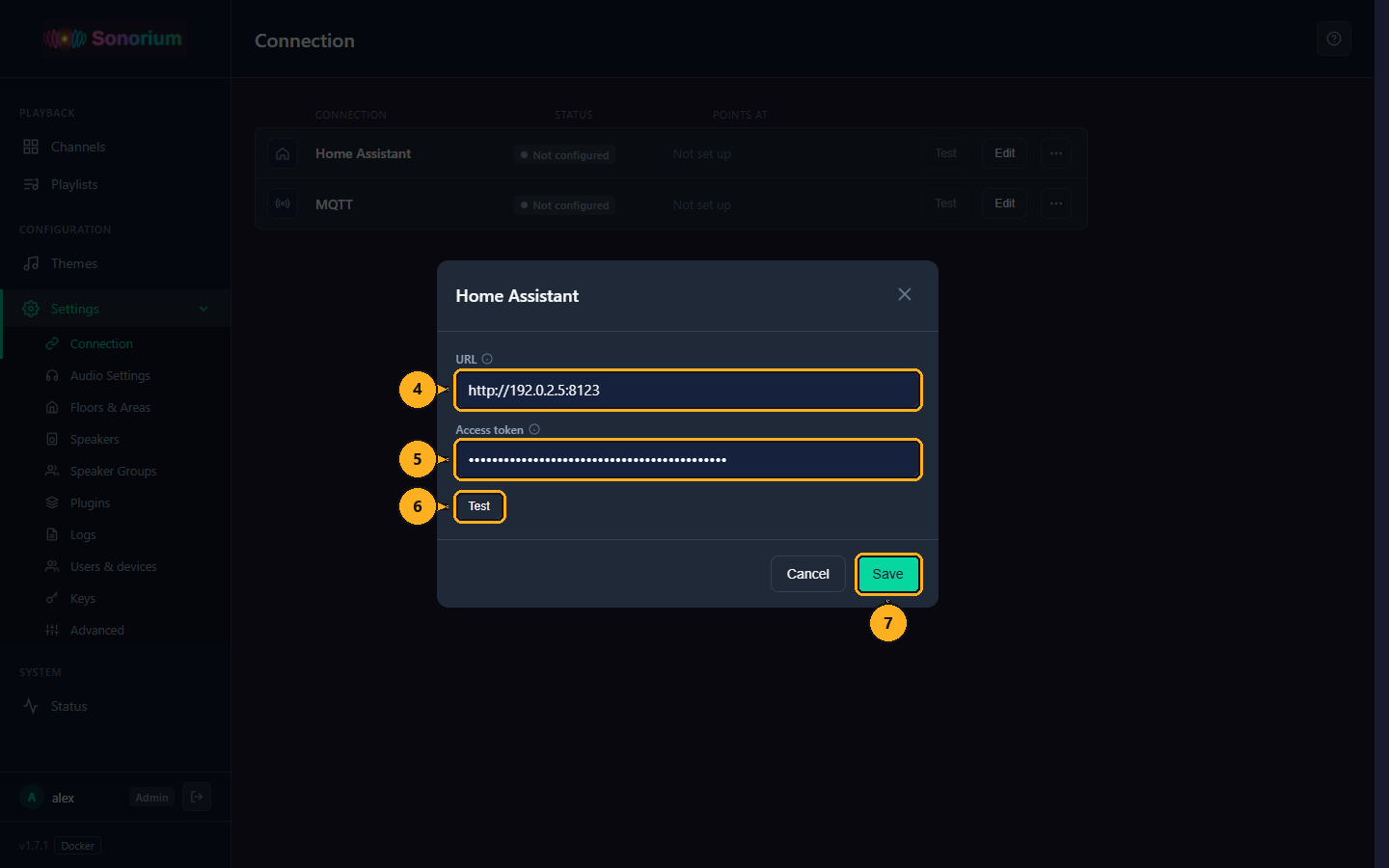
4: In URL, type Home Assistant's address with its port, starting with http:// or https://, for example http://192.0.2.5:8123 or http://homeassistant.local:8123.
5: Click Access token and paste the token.
6: Click Test. Sonorium tries the address and token you typed, before saving them. The answer shows next to the button: "Connected", or the reason it failed (wrong address, Home Assistant not answering, token refused).
7: Click Save. A box asks to restart Sonorium.
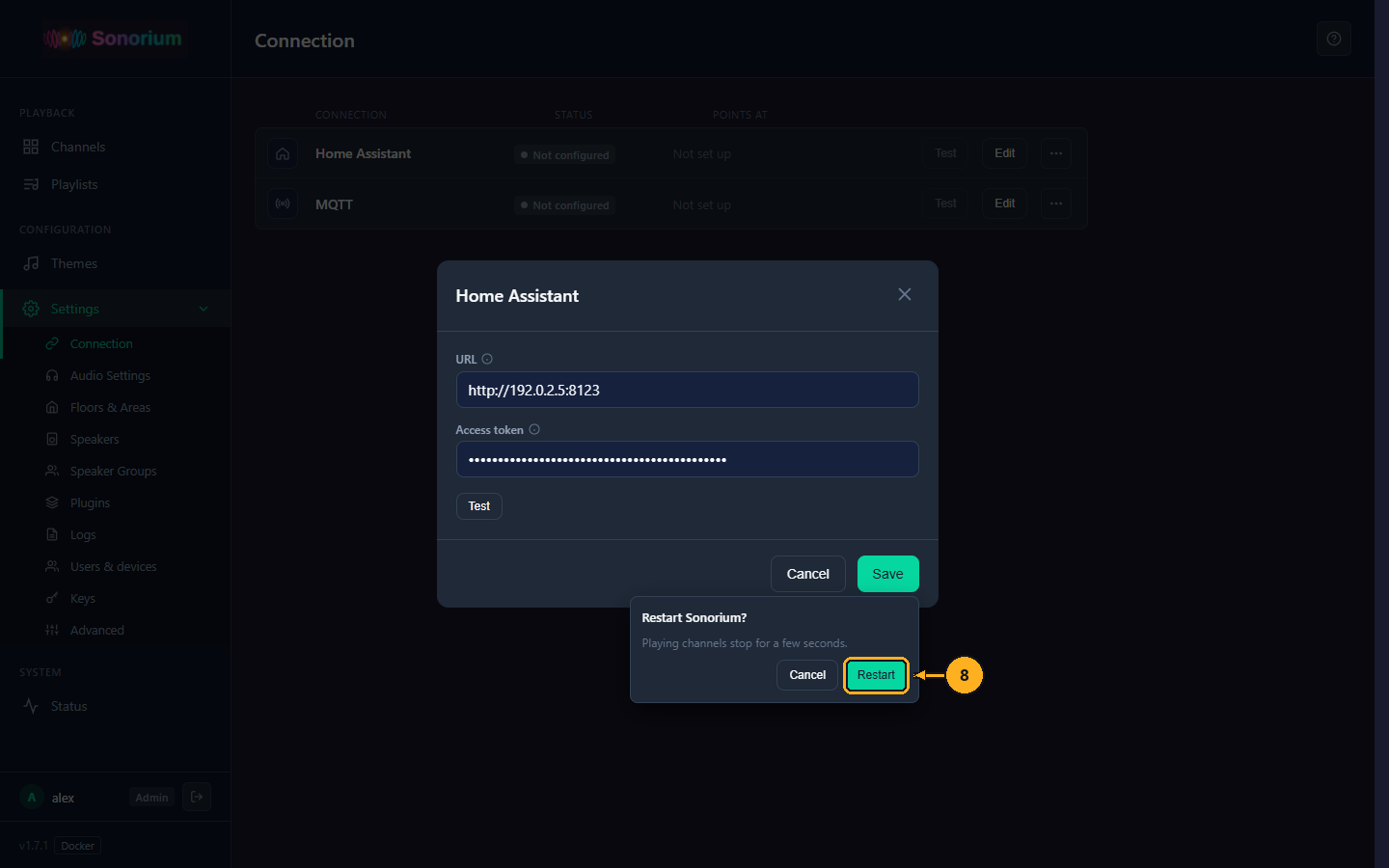
8: Click Restart. Sonorium restarts with the new connection, and the page reloads when it's back, after a few seconds. Channels that were playing are stopped by the restart; press Play to start them again.
The Home Assistant row now reads Connected. Home Assistant's speakers appear on Settings › Speakers marked HA, switched off until you turn them on. A speaker found both on the network and in Home Assistant is listed once; its ⋯ › Play via picks which way it plays. See Speakers.
To close the window without saving, click Cancel or the ×, or press the Esc key.
Change or remove it later: Edit opens the same window; a saved token is not shown, and leaving the field empty keeps it. ⋯ › Remove… deletes the address and token after you confirm; Home Assistant's floors, areas and speakers leave every list at once, without a restart.
Optional. MQTT is the messaging system Home Assistant uses to receive Sonorium's controls: a switch, theme and preset selects, a volume slider and more for every channel, plus Sonorium's dashboard cards. See Home Assistant Integration.
You need an MQTT broker that Home Assistant also uses, usually the Mosquitto broker add-on in Home Assistant, or Mosquitto in a container. Home Assistant's MQTT integration must point at the same broker.
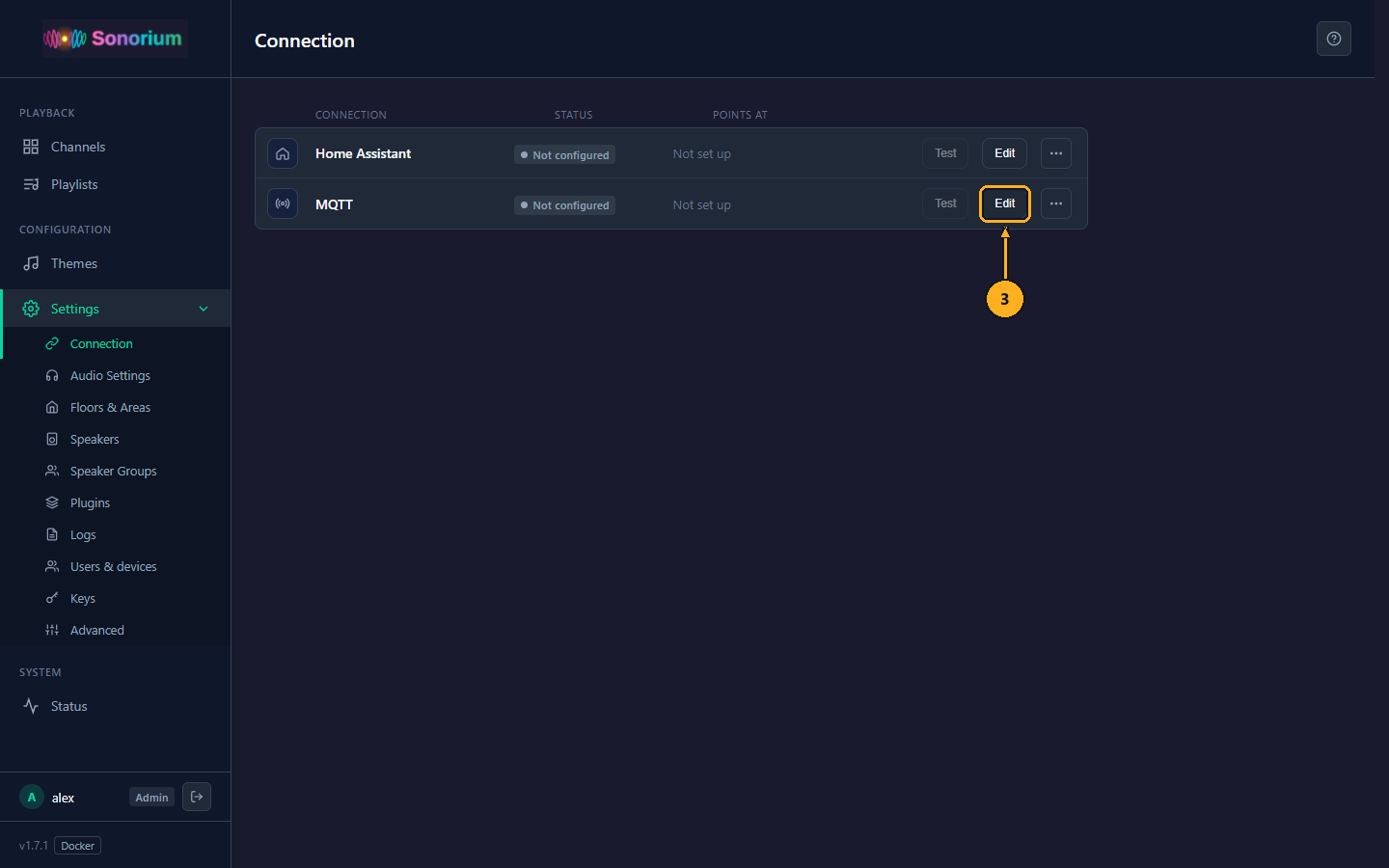
1: On the Channels page, click Settings in the menu on the left.
2: Click Connection (see the screenshots in Link Home Assistant).
3: Click Edit on the MQTT row. The MQTT window opens.
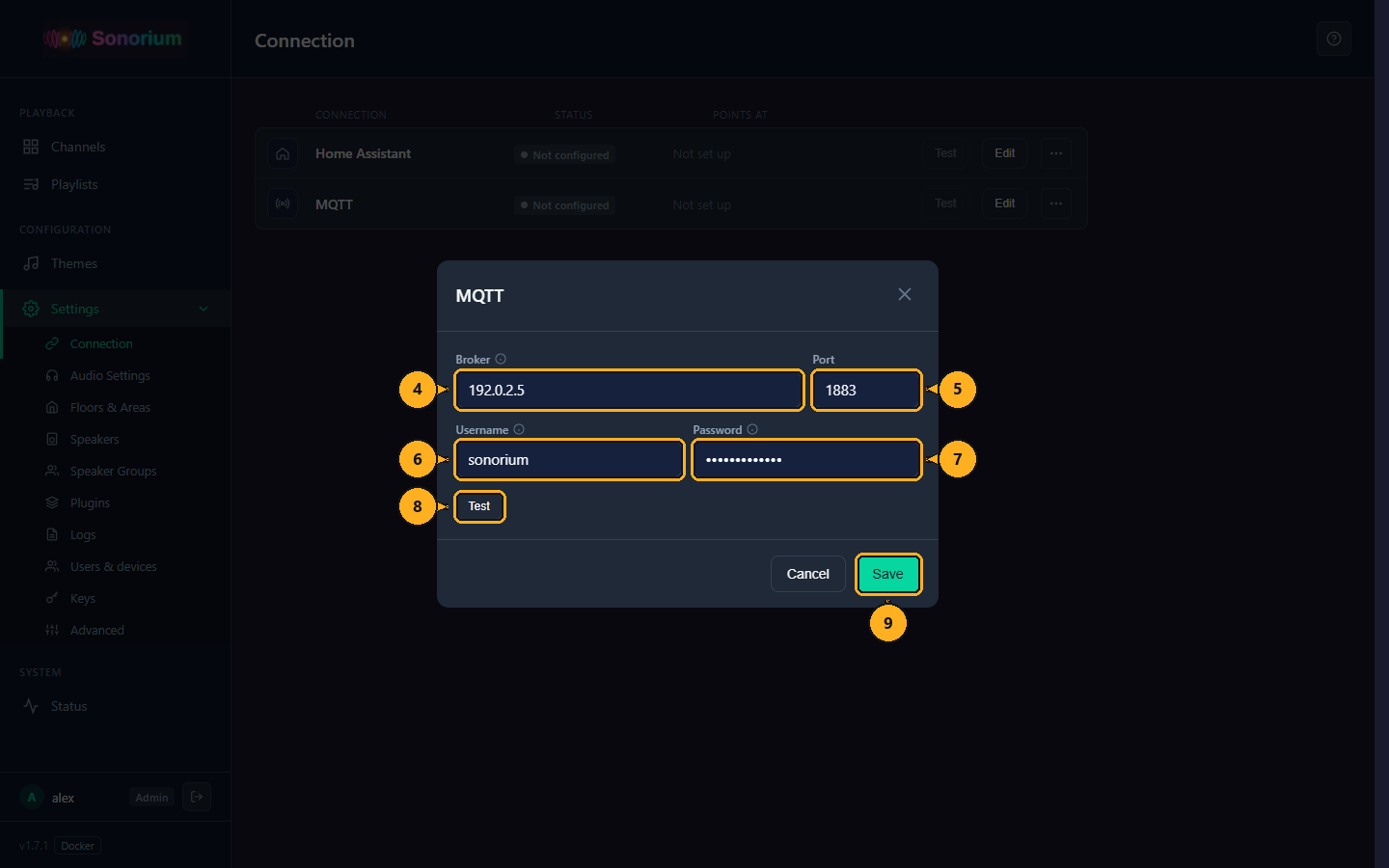
4: In Broker, type the broker's host name or IP address, for example 192.0.2.5. For the Mosquitto add-on, that is the Home Assistant machine's address.
5: In Port, type the broker's port: 1883 unless you changed it (1 to 65535). Left empty, Sonorium uses 1883.
6: In Username, type the MQTT user. Leave it empty for a broker that allows anonymous connections. For the Mosquitto add-on, use a Home Assistant user made for MQTT, or a login from the add-on's configuration.
7: In Password, type that user's password. When you edit a saved connection, leaving it empty keeps the saved password.
8: Click Test to try the values before saving.
9: Click Save, then Restart in the box that opens. As with Home Assistant, the restart stops playing channels.
After the restart the MQTT row reads Connected, the log says MQTT connected successfully, and the startup line ends with MQTT connected. In Home Assistant, a Sonorium device appears under Settings › Devices & services › MQTT, with entities for every channel.
Dashboard cards are added to Home Assistant automatically when both Home Assistant and MQTT are linked. When they can't be added, Settings › Connection says why and offers the card file to download. See Dashboard Cards.
Some hosts can't use network_mode: host (for example Docker Desktop on Windows or macOS). Sonorium then works with these limits:
- Publish both ports with a
ports:section instead ofnetwork_mode: host:ports: - "8008:8008" - "8808:8808"
- The network scan finds nothing. Add each speaker by its address with Add speaker on Settings › Speakers (see How to add a speaker by its address), or link Home Assistant and use its speakers.
- Speakers must be given the host's address, not the container's. Set it on Settings › Advanced › Stream URL, for example
http://192.0.2.10:8008. See Stream URL. -
sonorium.localisn't announced; use the host's address.
On Windows, the Windows version avoids these limits.
cd sonorium
docker compose pull
docker compose up -d
pull downloads the newest image for the tag in your compose file; up -d replaces the container. Your folders are untouched: settings, channels, themes and accounts carry over. Channels that were playing are stopped by the swap and need Play again.
The version you run is shown at the bottom left of Sonorium's menu, next to the install type (Docker). Release notes: What's new.
To stay on one version, use its number as the tag (ghcr.io/synssins/sonorium:1.7.1). To go back to an earlier version, change the tag and run the two commands again.
cd sonorium
docker compose down
This stops and removes the container. Your config and media folders stay; starting again with docker compose up -d brings everything back. To remove Sonorium completely, also delete the sonorium folder and the image:
docker image rm ghcr.io/synssins/sonorium:latestIf you linked MQTT, Sonorium's device stays in Home Assistant as unavailable; delete it under Settings › Devices & services › MQTT.
| Problem | What to check |
|---|---|
| The page doesn't open | The container is running (docker ps lists sonorium); you used port 8008 with http:// (not https); no firewall on the host blocks 8008. docker logs sonorium shows why a start failed. |
sonorium.local doesn't open |
Use the host's address instead. The log line starting with mDNS: gives the name Sonorium got and its address. |
| No speakers are found |
network_mode: host is in the compose file; the speakers are on the same network (not a guest or IoT network the host can't see). Click Rescan network on Settings › Speakers, or add the speaker by its address. |
| A speaker is listed but stays silent | The speaker can reach http://<host address>:8008. With several network cards on the host, set the address on Settings › Advanced › Stream URL. |
| Permission errors in the log |
PUID/PGID match the owner of the two folders, or the folders are writable by that user. |
Segmentation fault or Illegal instruction at start |
The host's CPU type in a virtual machine; see Requirements. |
| Forgotten password | Forgotten password. |
| Anything else |
Settings › Logs in the web UI, or docker logs sonorium. See Troubleshooting. |
Sonorium is running. The rest happens in the web UI and is the same on every install:
- Turn on your speakers: Sonorium lists every speaker it finds, but uses only the ones you turn on.
- Make your first channel and play it.
- Themes: the bundled themes, making your own and adding sound files.
- Presets, Sequences and Playlists: different versions of a theme, and channels that change over time.
- Sign-in and Users: add the people in your home.
All of Sonorium's documentation starts at Home.