Repository navigation
Status
The Status page shows what Sonorium is doing right now: every channel that is playing, and what each track of its theme is doing at this moment. It is the mixing desk seen from behind the glass: you can't change anything here, but you see which sounds are playing, which are waiting for their turn, and how loud each one is.
Use it to check that a theme plays the way you set it up in the Theme Editor, or to see why a sound you expect hasn't played yet.
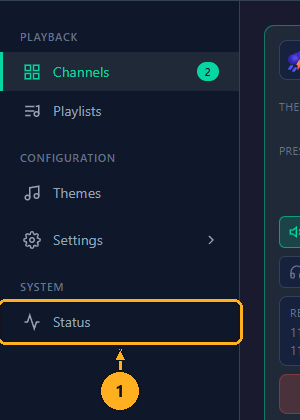
1: On the Channels page, click Status in the menu on the left (under System).
The page updates five times a second while it is open, and stops asking the server when you leave it or switch to another browser tab.
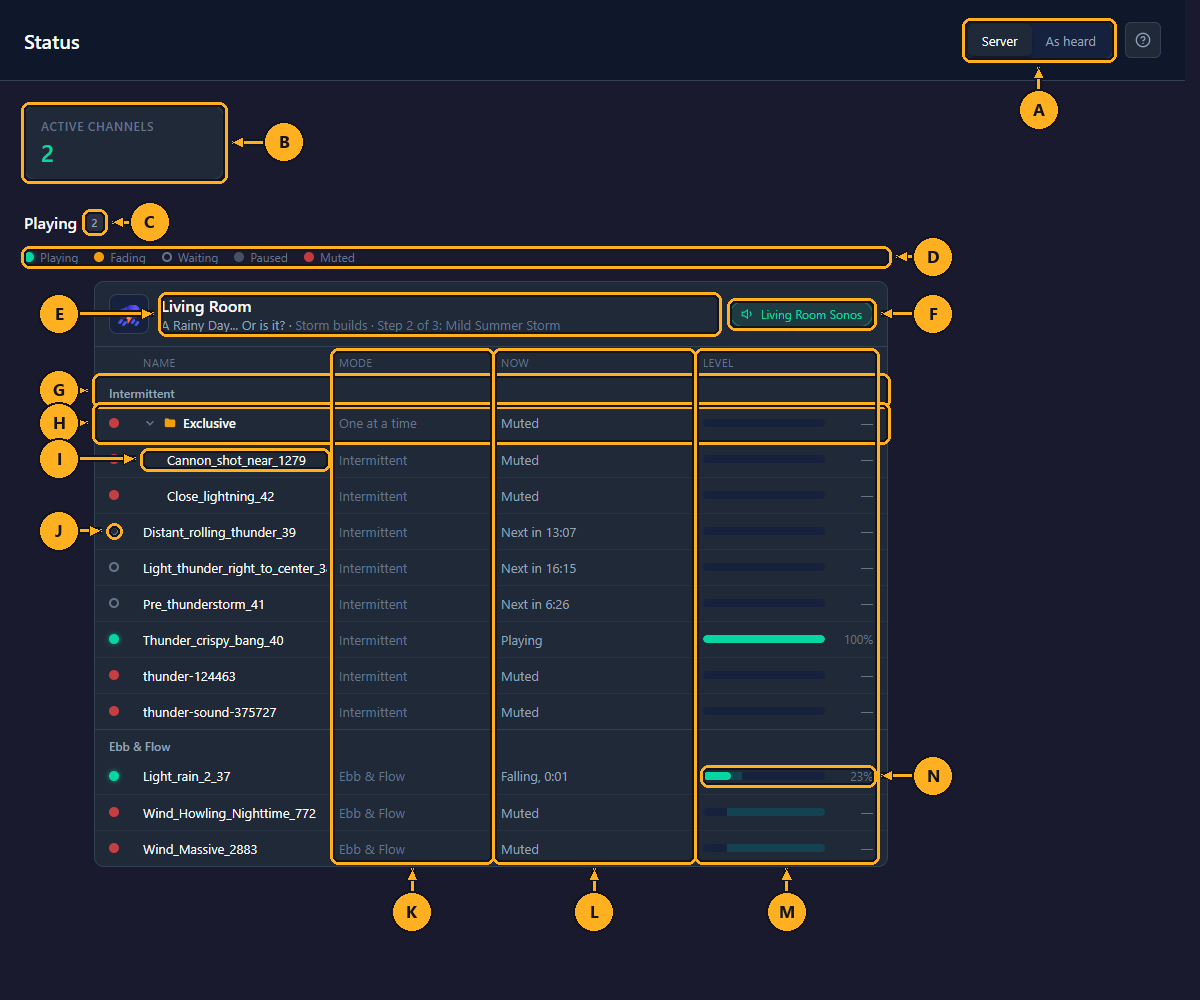
- A: Server / As heard: which moment the page shows (see Server and As heard). This browser remembers the choice.
- B: Active Channels: how many channels are playing.
- C: Playing: the same count, as the heading of the cards below.
- D: Legend: the lights used in the rows: Playing, Fading, Waiting, Paused, Muted.
- E: Channel: the channel's name, and under it what it plays: the theme and the preset ("A Rainy Day... Or is it? · Were those sprinkles?"), or the theme, the sequence and its step ("A Rainy Day... Or is it? · Storm builds · Step 2 of 3: Mild Summer Storm"). Default settings means no preset.
- F: Where it plays: the channel's speakers, and This browser when this browser listens to it (see Listen in your browser). The speakers are shown dimmed while muted.
- G: Section: the tracks are listed by how they play, in the Theme Editor's order: Background, Intermittent, Ebb & Flow. A section without tracks is left out, and so are Unassigned tracks, which don't play.
- H: Group: a group of tracks, with its files under it. Click the group's row to fold its files away or show them again.
- I: A file in a group: indented under its group.
- J: Light: the track's state now (below).
- K: Mode: how the track plays (below).
- L: Now: what the track is doing, with the time until its next change counting down (below).
- M: Level: how loud the track plays at this moment, as a bar and a percentage of full volume. A dash means silent.
- N: Ebb & Flow band: on an Ebb & Flow track, the shaded part of the bar is the range the track moves in, from its lowest to its highest volume. The filled part is where it is now.
One card is shown per playing channel. A channel counts as playing when its speakers play or when a browser listens to it. A stopped channel is hidden; with none playing, the page reads Nothing playing.
| Light | Meaning |
|---|---|
| Playing | The track is sounding. |
| Fading | The track is fading in or out: a preset or sequence step turning it on or off, a file of a Merry-go-round handing over to the next, or an Ebb & Flow track ending. |
| Waiting | An Intermittent track between plays, or a file waiting for its group's turn. |
| Paused | An Ebb & Flow track in one of its pauses, or an Ebb & Flow group with no file sounding. |
| Muted | The track is turned off in the preset playing. |
A track's Mode is its playback mode in the theme: Background, Intermittent or Ebb & Flow (see Track Settings).
A group's row shows how its files play together:
| Section | Group mode | What it does | Its Now |
|---|---|---|---|
| Background | Merry-go-round | One file plays, then crossfades into the next. | "Rain_heavy playing", or "Rain_heavy, crossfading to Rain_light" |
| Intermittent | One at a time | The files take turns: after a gap, one of them plays. | "Thunder_close playing", "Next in 0:40" (the gap left), or "Picking next" |
| Ebb & Flow | Every file at once | Every file plays, each rising and falling between its minimum and maximum volume. | "2 playing" (how many are sounding) |
The countdown on a One at a time group runs to the group's next turn. Which file plays is picked when the gap ends, so the row can't show it in advance. A group whose files are all muted reads Muted.
The Level of a Merry-go-round group is its loudest file; of a One at a time group, the file playing.
What a track's Now column can read, and what it means:
| Now | Meaning |
|---|---|
| Playing | Sounding (Background and Intermittent tracks). |
| Next in 4:12 | An Intermittent track waiting; it plays again in 4 minutes 12 seconds. The wait is picked at random within the track's settings. |
| Waiting | Waiting with no time set yet, or a file waiting for its group's turn. |
| Fading in / Fading out | Fading, as in the light above. |
| Rising, 0:09 / Falling, 0:06 / Holding, 0:04 | An Ebb & Flow track moving up, moving down or staying at a level; the time is how long until it changes again. |
| Paused, back in 1:30 | An Ebb & Flow track in a pause; it comes back in 1 minute 30 seconds. |
| Muted | Turned off in the preset playing. |
Times under an hour show as minutes and seconds (4:12); longer ones as hours, minutes and seconds (1:04:12).
Speakers don't play the stream the instant Sonorium mixes it: each keeps a few seconds of sound in a buffer first, like a delay on a live broadcast. So what the page shows and what you hear can be a few seconds apart.
- Server: the mix on the server at this second. A track shown as starting may not reach the speakers for a few seconds yet.
- As heard: an estimate of what you are hearing now: the page shows the mix as it was a few seconds ago. The delay is estimated per kind of speaker: Google Cast 5 seconds, DLNA, HEOS and Denon / Marantz 4 seconds, Sonos and LinkPlay 3 seconds, AirPlay 2 seconds, ESPHome 1.5 seconds, any other 3 seconds. A channel on several speakers uses the longest. While this browser listens to the channel, the browser's buffer is used when it is longer; while the speakers are muted, only the browser counts.
Example: a Cast speaker plays a thunder clap. With Server, the thunder's row turns to Playing about 5 seconds before you hear it. With As heard, it turns when the clap reaches you.
Every signed-in user can open the Status page. A key limited to some channels sees only those channels (see Keys).
Keyboard: press Tab to reach a group's row, then the Enter or Space key to fold or unfold it. The ? button at the top right opens the page's help; press the Esc key to close it.