Repository navigation
Dashboard Cards
Sonorium comes with cards for Home Assistant dashboards. A card shows a channel the way Sonorium does (theme, preset or sequence step, volume, Play or Stop) without building it from separate entities. A click on a channel's name opens the channel as it looks in Sonorium, over the dashboard.
The cards work through the entities Sonorium publishes over MQTT (see MQTT Entities), so they need both Home Assistant and MQTT linked to Sonorium. For dashboards built from Home Assistant's standard cards instead, see Dashboard Examples.
A dashboard card is a small program (a JavaScript file) that Home Assistant loads into the browser, registered under Settings › Dashboards › Resources. Sonorium adds it there about 10 seconds after it starts, when Home Assistant and MQTT are both linked:
| Install | Where the file is | Resource address |
|---|---|---|
| Home Assistant app | Copied into Home Assistant's www/sonorium folder |
/local/sonorium/sonorium-cards.js?v=1.7.1 |
| Docker | Served by Sonorium | http://<Sonorium's address>:8008/static/ha/sonorium-cards.js?v=1.7.1 |
Sonorium's address for Docker is the one speakers use (see Stream URL).
After it is added, reload the dashboard in your browser (press the F5 key, or pull down on the Home Assistant app on a phone). Sonorium's log says Dashboard cards installed in Home Assistant.
If Home Assistant doesn't answer at that moment, Sonorium tries twice more, a minute apart.
After an update of Sonorium, the resource is changed to the new version (?v= and the version number). A card that a browser still has from the old version shows Sonorium updated, refresh this page at the top; click it to reload.
In the Docker version, Settings › Connection shows the cards' status under the connections, while Home Assistant is linked.
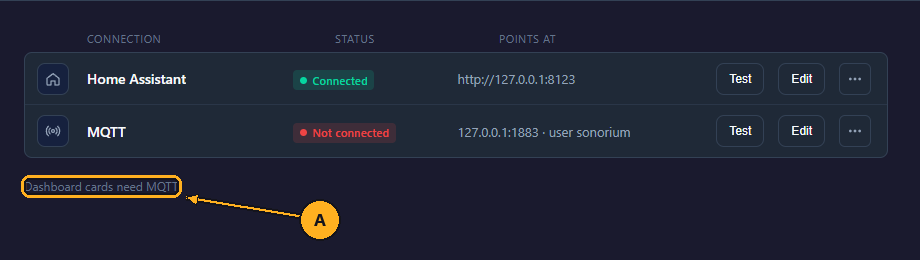
- A: the status line.
| Status line | Meaning |
|---|---|
| Dashboard cards: installed | The cards are in Home Assistant. |
| Dashboard cards: installing… | Sonorium is adding them now. |
| Dashboard cards need MQTT | Link MQTT first. |
| Dashboard cards: add by hand | Home Assistant didn't take them. A Download button appears next to the line. |
Point at Dashboard cards: add by hand with the mouse to see why:
| Reason | What to do |
|---|---|
| Home Assistant's dashboard resources are set in YAML | Add the resource to your YAML (below). |
| The access token isn't an administrator's | Make a token while signed in to Home Assistant as an administrator, and enter it on Settings › Connection; or add the resource by hand. |
| Home Assistant uses https and Sonorium http | A browser won't load a file from an http address into an https page. Put the file in Home Assistant's www folder (below). |
| Sonorium's address isn't known | Set the Stream URL, or add the resource by hand. |
| Couldn't write to Home Assistant's www folder | (Home Assistant app) Add the resource by hand. |
| Home Assistant didn't answer | Check that Home Assistant is running, then restart Sonorium. |
| Home Assistant refused the resource | Add the resource by hand. |
In the Home Assistant app, the same reason is in Sonorium's log: Dashboard cards: add by hand (…).
- On Settings › Connection in Sonorium, click Download. The browser saves
sonorium-cards.js. - Copy the file into the
wwwfolder of Home Assistant's configuration folder (the folder that holdsconfiguration.yaml; createwwwif it isn't there). For example with the File editor or Samba share add-on. A file atwww/sonorium-cards.jsis served by Home Assistant at/local/sonorium-cards.js. Home Assistant needs a restart to serve awwwfolder it didn't have before. - In Home Assistant, open your user profile (your name at the bottom of the sidebar) and switch on Advanced mode. The Resources menu needs it.
- Open Settings › Dashboards, click ⋮ in the top right, then Resources.
- Click Add resource.
- Type
/local/sonorium-cards.jsas the URL, pick JavaScript module, and click Create. - Reload the dashboard in your browser.
With Home Assistant on http, step 1 and 2 can be skipped: use Sonorium's address in step 6, for example http://192.168.1.20:8008/static/ha/sonorium-cards.js.
With dashboards set up in YAML, add the resource to configuration.yaml instead of steps 3 to 6, and restart Home Assistant:
lovelace:
  resources:
    - url: /local/sonorium-cards.js
      type: module
A file added by hand isn't updated with Sonorium: after an update, download it again and replace it.
- Open a dashboard in Home Assistant and click the pencil in the top right to edit it.
- Click Add card (in a section, the +).
- Type Sonorium in the search box.
- Click one of the four Sonorium cards: Sonorium Tile, Sonorium Channel, Sonorium Player or Sonorium All channels. The card editor opens with the first channel picked.
- Pick the channel and the parts to show (see The card editor), then click Save.
All four are the same card with a different layout, so the layout can be changed later in the editor.
The pictures show the cards with Home Assistant's default dark theme. The cards follow the dashboard's theme.
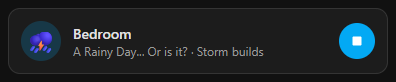
One channel in one line: the theme's icon, the channel's name, its theme and preset, and a Play or Stop button. A channel without a theme reads No theme; a channel without a preset reads Default settings.
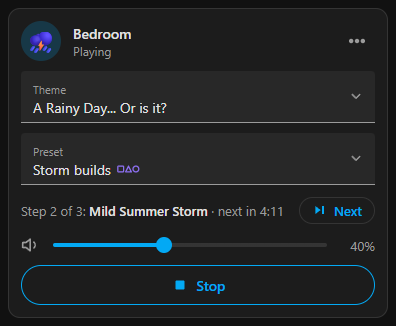
Every control for one channel:
- The channel's name, Playing or Stopped, and ⋯, which opens the channel popup.
- Theme: a list of every theme. With no theme it reads Choose a theme.
- Preset: the theme's presets and sequences. Default settings is the theme without a preset. A sequence has the sequence mark (a square, a triangle and a circle) next to its name.
- The step line: Step 2 of 3: Mild Summer Storm · next in 4:11 for a sequence, or Entry 1 of 3 · next in 22:05 for a playlist, counting down each second. Next moves on to the next step or entry; it can't be clicked while the channel is stopped (pointing at it says Play the channel first). The line isn't there when no sequence or playlist runs.
- The volume slider, 0 to 100 %, in steps of 5. The volume changes when you let go of the slider.
- Play or Stop.
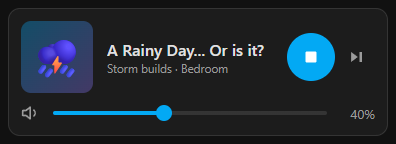
The channel as a media player: the theme's icon large, the theme's name, the preset and the channel's name, a round Play or Stop button, a Next button while a sequence or playlist runs, and the volume slider.
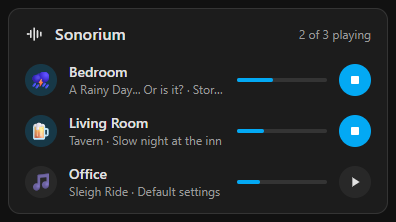
Every channel in one list, with 2 of 3 playing at the top. Each row has the channel's name, theme and preset, a bar showing its volume, and Play or Stop. Click a channel's name to change anything else in the channel popup.
The editor opens when a card is added, or with Edit on the card.
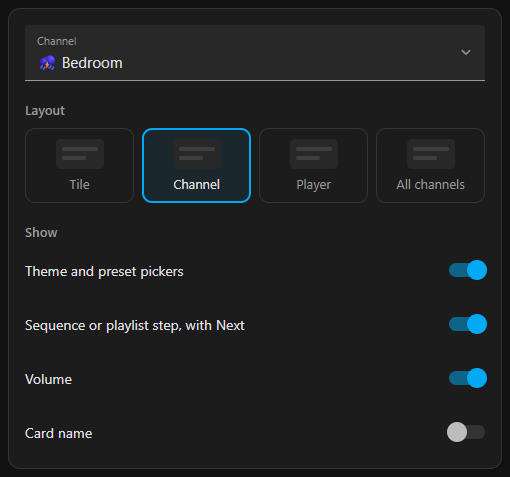
| Option | What it does | Default |
|---|---|---|
| Channel | The channel the card shows, or All channels. With All channels and the Tile, Channel or Player layout, the card holds one card per channel, one under the other. | The first channel |
| Layout | Tile, Channel, Player or All channels. Picking All channels sets Channel to All channels; picking a single channel while the layout is All channels changes the layout to Channel. | The card picked |
| Theme and preset pickers | (Channel) Shows Theme and Preset. | On |
| Sequence or playlist step, with Next | (Channel, Player) Shows the step line and Next. | On |
| Volume | (Channel, Player, All channels) Shows the volume slider, or the volume bars. | On |
| Card name | (all layouts) Shows a title above the card. | Off |
| Name | Appears when Card name is on: the title. Left empty, the card uses the channel's name, or Sonorium for All channels. A card with Channel set to All channels uses each channel's name. | Empty |
Without channels, the editor says No Sonorium channels found. Sonorium needs Home Assistant and MQTT linked.
Click Show code editor in the card editor to see the card as YAML:
type: custom:sonorium-card
layout: channel        # tile, channel, player or all
channel: c43c0033      # a channel's id, or all
show_pickers: true
show_step: true
show_volume: true
show_name: false
name: Living room sounds # used when show_name is true| Key | Values | Default |
|---|---|---|
type |
custom:sonorium-card |
|
layout |
tile, channel, player, all
|
channel |
channel |
A channel's id, or all
|
The first channel |
show_pickers |
true, false
|
true |
show_step |
true, false
|
true |
show_volume |
true, false
|
true |
show_name |
true, false
|
false |
name |
Any text | The channel's name |
A channel's id is easiest to get by picking the channel in the editor and looking at the code. It is also in the channels attribute of sensor.sonorium_global_active_sessions (Developer tools › States).
A tile for every channel:
type: custom:sonorium-card
layout: tile
channel: all
A player for one channel, without the step line:
type: custom:sonorium-card
layout: player
channel: b55dfc3f
show_step: false
Every channel in a list, titled:
type: custom:sonorium-card
layout: all
channel: all
show_name: true
name: Sounds around the house| Message | Meaning |
|---|---|
| No Sonorium channels found | Home Assistant has no Sonorium entities: MQTT isn't linked, or Sonorium isn't running. |
| Channel not found | The channel picked was deleted. Pick another one in the editor. |
Clicking a channel's name on a Tile, Channel or All channels card, or ⋯ on a Channel card, opens the channel popup: the channel's card as it looks on Sonorium's Channels page.
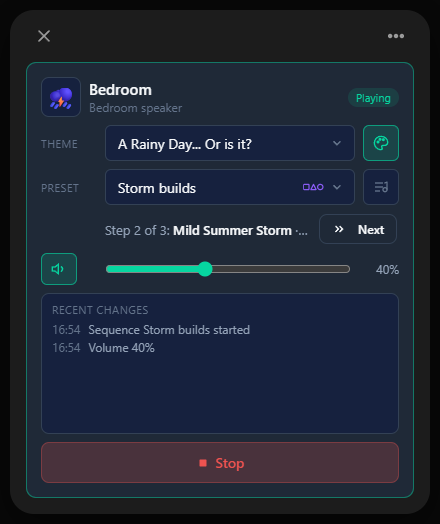
- × (top left): closes the popup. A click outside it, or the Esc key, closes it too.
- ⋯ (top right): opens Home Assistant's details window for the channel's Status sensor (its history and attributes).
- The theme's icon, the channel's name, its speakers, and Playing or Stopped.
- Theme and Preset: as on the Channel card.
- The two buttons to the right of them choose what the channel plays:
- Play a theme (the palette): Theme and Preset, as above. Clicking it while a playlist plays takes the playlist off the channel; the channel keeps playing its theme.
- Play a playlist (the list with a note): opens the list of playlists. While a playlist plays, the popup shows Playlist (the playlist, with the list to pick another) and Playing (the theme and preset of the entry). Without playlists it reads No playlists yet.
- The step line with Next, or No sequence or playlist.
- The speaker button (left of the slider): Mute the speakers or Unmute the speakers. Muted speakers go silent; browsers listening to the channel still hear it.
- The volume slider, 0 to 100 %.
- Recent changes: what changed on the channel, newest first, with the time (today's as hours and minutes, yesterday's as Yesterday and the time, older ones as a date).
- Play or Stop.
In any list, the current choice has a check mark. Press the Esc key to close a list without choosing.