Repository navigation
Announcements
Home Assistant, Node-RED, a script or a doorbell can send Sonorium an announcement: a chime, words to speak, or both. Sonorium plays it on the channels named. A playing channel gets quieter while the announcement plays and comes back after it, the way a radio presenter talks over the music. A stopped channel has its speakers started for the announcement and stopped again after it.
The other system decides when to announce and what to say; Sonorium plays it. There is nothing to schedule in Sonorium.
There are four ways to send one:
- From Home Assistant: a notify entity per channel.
- With a key: an HTTP request from a script, curl or another program.
-
From MQTT: a message on
sonorium/announce/set. - From Node-RED: with a key, or over MQTT.
-
The chime (
url), if one is sent: a sound file from anhttp://orhttps://address, such as MP3, WAV or OGG. -
The text (
text), if sent, spoken by text to speech.
Both play one after the other over the channel's mix:
- The mix gets quieter (it "ducks") by Duck amount (15 dB by default) over Duck attack (0.5 seconds); the announcement starts once it has.
- After the announcement, the mix comes back over Duck release (1.5 seconds).
- Two announcements on the same channel don't talk over each other: the second waits for the first.
- A sound longer than Longest sound (60 seconds by default) is cut at that length.
- A stopped channel: its speakers are started for the announcement. Sonorium waits up to Wait for speakers (20 seconds) for them to connect, then Lead (1 second) before the announcement, and Tail (1 second) after it before the speakers stop again. A stopped channel with no speakers, or with its speakers muted, is skipped.
These values are on Settings › Advanced, in the Announcements and sounds section, and each can be changed (see Advanced Settings). The duck field of an announcement overrides Duck amount for that announcement.
Who may announce: an announcement acts with an Admin's rights. It plays on a channel that belongs to someone else and outside Kid mode's hours (see Zones). The channel's Announcements switch is what keeps announcements out.
Each channel has an Announcements switch, on by default. Off, nothing announces on that channel, whichever way the announcement is sent; the answer lists the channel under skipped.
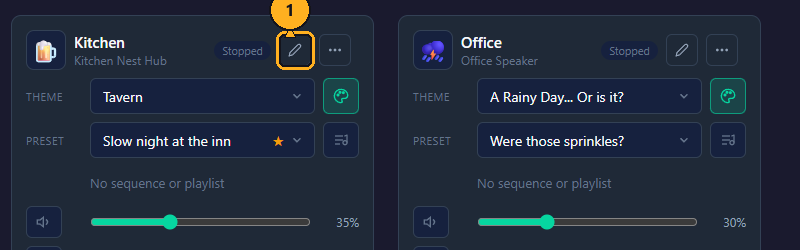
1: On the Channels page, click the pencil (Edit) on the channel's card. The Edit Channel window opens.
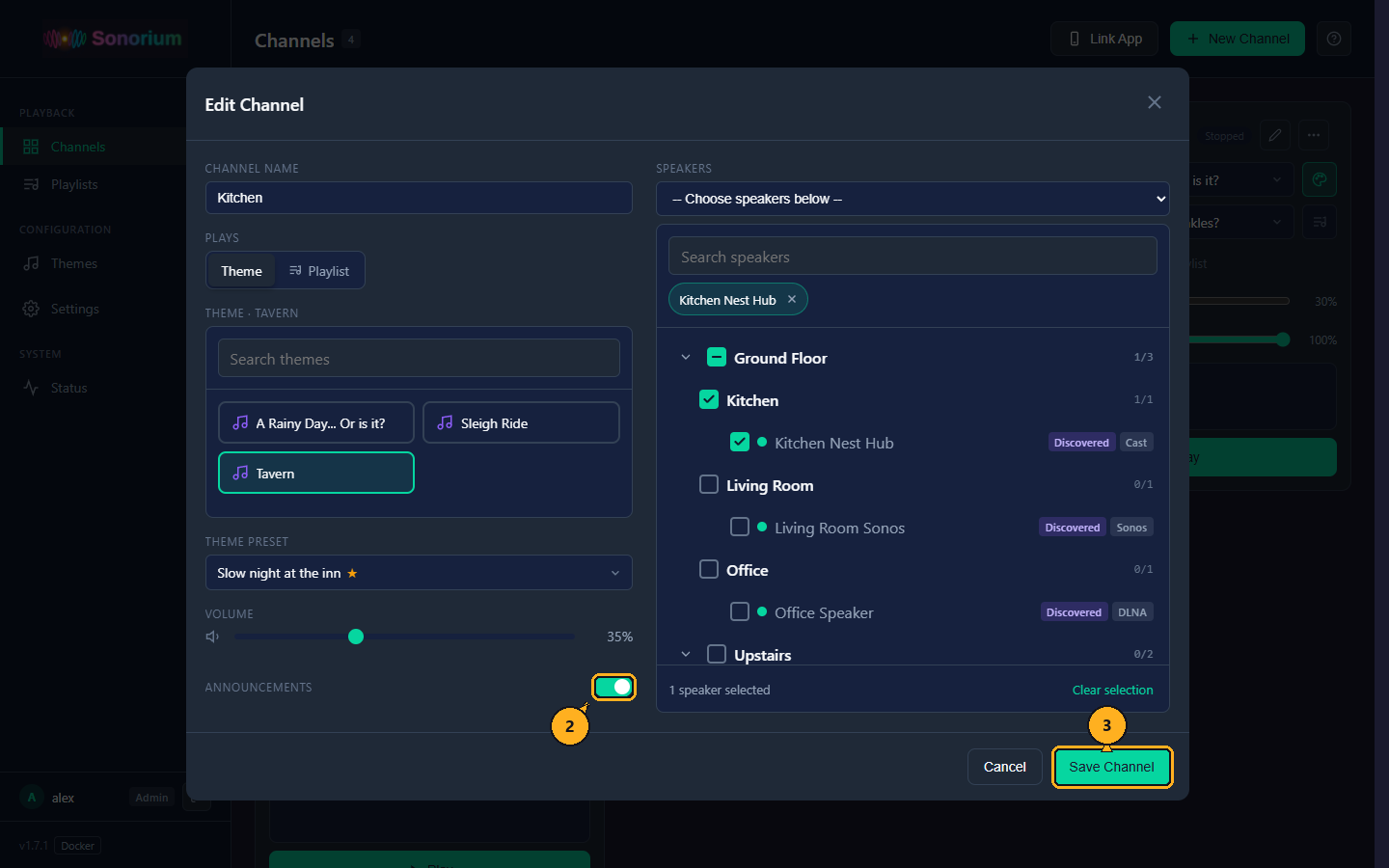
2: Click the Announcements switch, under Volume, to turn it off.
3: Click Save Channel.
The channel card's Recent changes shows "Announcements off". Turn the switch on again the same way.
In Home Assistant the same switch is the entity switch.sonorium_<channel>_announcements (named "Channel Announcements"), for example switch.sonorium_kids_room_announcements. An automation can turn it off for a nap and on again after:
alias: Nap time
triggers:
  - trigger: time
    at: "13:00:00"
actions:
  - action: switch.turn_off
    target:
entity_id: switch.sonorium_kids_room_announcementsOnly channels and text (or url) are needed.
| Field | What it is | Range and default | Example |
|---|---|---|---|
channels |
The channels to play on: a channel's name or id, a list of them, or "all". Names are not case-sensitive, and Home Assistant's form of the name works too (kids_room). Up to 50 channels |
Needed for the API and sonorium/announce/set
|
"Kitchen", ["Kitchen", "Office"], "all"
|
text |
Words to speak, with text to speech | Up to 1000 characters | "Dinner is ready" |
url |
A sound to play first: an http:// or https:// link to a sound file |
"http://192.0.2.10/ding.mp3" |
|
volume |
How loud the announcement plays: 100 is the sound's level as recorded, 200 twice as loud | 0 to 200. Default 100 (from Home Assistant and MQTT: the plugin's Volume) | 80 |
duck |
How much quieter the channel gets, in dB; false to not duck; left out: Duck amount on Settings › Advanced
|
Default: Duck amount (15 dB) | 18 |
Text is spoken by Home Assistant's text to speech, through the Announcements plugin: Home Assistant's first tts.* engine, or the one set in the plugin's Text to speech engine (see The Announcements plugin). Home Assistant has to be linked in Settings › Connection.
Without Home Assistant (Docker without Home Assistant), send a url: the chime plays and the answer's notice says the text wasn't spoken. Text with no url is refused (503).
Home Assistant gets a notify entity for each channel, notify.sonorium_<channel>_announce (named "Channel Announce"), for example notify.sonorium_kitchen_announce. It needs Home Assistant and MQTT linked (see Home Assistant Integration). The message is spoken on that channel:
alias: Doorbell
triggers:
  - trigger: state
    entity_id: binary_sensor.doorbell
    to: "on"
actions:
  - action: notify.send_message
    target:
      entity_id: notify.sonorium_kitchen_announce
    data:
      message: Someone is at the door
A chime first: send the message as JSON, with the fields of What to send except channels:
    data:
      message: '{"text": "Someone is at the door", "url": "http://192.0.2.10/ding.mp3", "volume": 80}'
Several channels at once: publish to MQTT from Home Assistant:
action: mqtt.publish
data:
  topic: sonorium/announce/set
payload: '{"channels": ["Kitchen", "Office"], "text": "Dinner is ready"}'A script, curl or another program announces through Sonorium's API with a key that has Make announcements checked. A key limited to some channels (Only these…) announces only on those; with "channels": "all" it plays on the channels it is allowed.
How to make the key:
1: On the Channels page, click Settings in the menu on the left.
2: Click Keys.
3: Click New key.
4: Type a name, pick an expiry, and check Make announcements under Announcements (and, to limit it, Only these… under Channels with the channels checked).
5: Click Make key, then Copy in the Key issued window. The key is shown once.
The screenshots of each step are on How to make a key, which makes exactly this kind of key.
Example:
curl -X POST http://sonorium.local:8008/api/announce \
  -H "Authorization: Bearer sk_your_key" \
  -H "Content-Type: application/json" \
  -d '{"channels": "Kitchen", "text": "Dinner is ready"}'
Use Sonorium's address (for example 192.0.2.10) in place of sonorium.local when that name doesn't work on your network. An Admin signed in to the web UI may also use this API; a User may not.
Through the API, three more fields work: language (for text to speech, for example "en"), provider (which text to speech to use; Home Assistant's is "homeassistant"), and start_stopped (false skips stopped channels; default true).
{"played": ["b55dfc3f", "430452e7"], "skipped": [],
 "channels": {"b55dfc3f": {"state": "starting", "message": ""}, "430452e7": {"state": "playing", "message": ""}},
"chime": {...}, "speech": {...}, "notice": null}| Field | What it says |
|---|---|
played |
The ids of the channels the announcement plays (or waits) on |
skipped |
The channels with Announcements off |
channels |
Each channel's state: playing (now), queued (after another announcement), starting (a stopped channel's speakers are starting), or skipped, with the reason in message ("Announcements are off", "The channel is stopped", "Speakers muted", "The channel has no speakers") |
chime, speech
|
The chime and the spoken text, or null
|
notice |
Set when only the chime played: why the text wasn't spoken, for example "Only the chime played: no text to speech is available. It comes from Home Assistant: link it in Settings › Connection" |
Refusals:
| Answer | Why |
|---|---|
400 |
A field is wrong, for example "'url' must be an http(s) URL", "Send 'text' to speak, a chime 'url', or both", "'channels' is needed: a channel name or id, a list, or "all"", or volume outside 0 to 200 |
401 |
The key is wrong, expired or revoked |
403 |
The key lacks Make announcements, or a channel is outside its Only these… list ("Not allowed for this channel") |
404 |
A channel name that doesn't exist, for example "No channel 'Garage'" |
503 |
Text with no url, and no text to speech available |
The log records each announcement, for example Announcement (api): 'Dinner is ready' on 1 channel(s).
On the broker Sonorium uses (Settings › Connection), publish a JSON message to sonorium/announce/set, with the fields of What to send:
mosquitto_pub -h 192.0.2.5 -u mqtt_user -P mqtt_password -t sonorium/announce/set \
  -m '{"channels": "all", "url": "http://192.0.2.10/ding.mp3", "text": "The washer is done"}'
A message without channels is ignored, so a mistake doesn't wake the whole house; the log warns "Announcements: sonorium/announce/set needs 'channels' (a name or id, a list, or "all")". A message that isn't JSON is ignored with a warning too.
For one channel, sonorium/announce/<channel id>/set takes the text alone (Dinner is ready), or the same JSON without channels. This is the topic each channel's notify entity uses.
MQTT messages need no key: whoever can publish to your broker can announce. They use the plugin's Volume and Announce on stopped channels settings.
With a key: a function node, then an http request node.
msg.headers = {
    "Authorization": "Bearer sk_your_key",
    "Content-Type": "application/json"
};
msg.payload = { channels: "Kitchen", text: "Dinner is ready" };
return msg;
In the http request node: Method POST, URL http://sonorium.local:8008/api/announce, Return a parsed JSON object. The node's output is the answer.
Over MQTT: with Node-RED connected to the same broker, an mqtt out node with Topic sonorium/announce/set and a JSON payload such as {"channels": "Kitchen", "text": "Dinner is ready"} works without a key.
The Announcements plugin is built into Sonorium and on by default. It gives the Home Assistant notify entities, the MQTT topics, and Home Assistant's text to speech for every announcement. Switched off, the notify entities are removed from Home Assistant, the MQTT topics are no longer answered, and text can't be spoken (send a url). Announcements through the API with a url keep working.
How to open its settings:
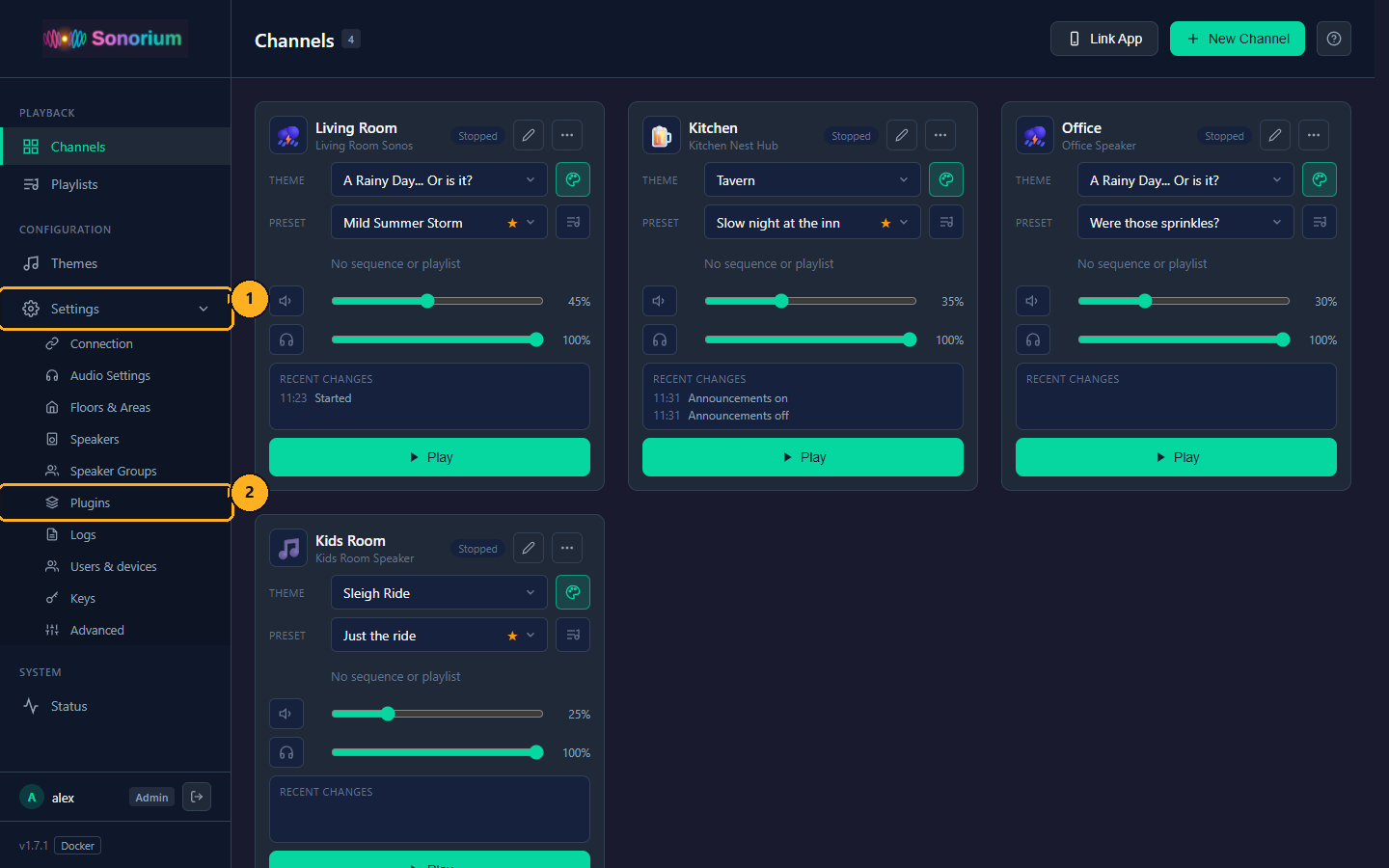
1: On the Channels page, click Settings in the menu on the left. The menu opens to show the settings pages.
2: Click Plugins.
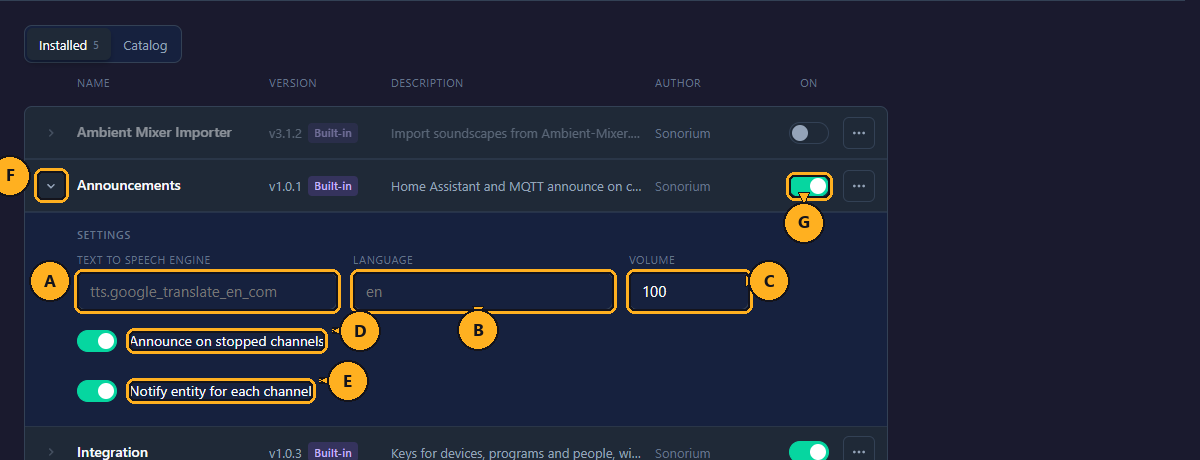
The settings show under the plugin's row while it is on. Each one is saved as soon as it is changed (a text field when you leave it).
-
A: Text to speech engine: the
tts.*entity of Home Assistant that speaks the text, for exampletts.google_translate_en_com. Empty (the default): Home Assistant's first one. Used for every announcement's text, also through the API. -
B: Language: the language code passed to the engine, for example
enorde. Empty (the default): the engine's default language. -
C: Volume: 0 to 200, default 100. The volume of announcements from Home Assistant and MQTT that don't send a
volume. Sonorium refuses a value outside the range ("Volume must be 0 to 200"). - D: Announce on stopped channels: on by default. On: an announcement from Home Assistant or MQTT starts a stopped channel's speakers for it. Off: stopped channels are skipped, and only playing channels announce.
-
E: Notify entity for each channel: on by default. On: each channel has its
notify.sonorium_<channel>_announceentity in Home Assistant. Off: the entities are removed from Home Assistant. - F: Arrow: shows or hides the settings.
- G: On: off removes the notify entities and MQTT topics, as described above (see Plugins).
The rest of the Plugins page is described on Plugins.